Can The Xbox One Connect To Wi Fi For Seamless Gaming
Yes, the Xbox One can absolutely connect to Wi-Fi, letting you enjoy online multiplayer and downloads without any wires. This guide will show you exactly how to set up your Xbox One Wi-Fi connection for the best performance. We will cover everything from basic setup to fixing common connection issues.
Have you ever wondered if your Xbox One can connect to Wi-Fi? The answer is a big, resounding yes. You can easily hook your console up to a wireless network and start playing right away. This means you can enjoy online multiplayer games, download huge game updates, and stream your favorite shows without any messy cables. In this guide, we will walk you through the whole process step by step. We will also share tips to make your internet connection fast and reliable every single time.
Setting up wireless fidelity on your Xbox is a very simple process. But there are a few things you should know first to get the best results. Your console has a built-in Wi-Fi adapter that does all the hard work for you. This little piece of hardware talks to your router. It sends and receives data so you can game online without any hassle. Whether you are in a small apartment or a big house, getting connected is easy. You just need to know the right steps and a few basic tips to avoid common problems.
Many gamers ask if their console supports the latest wireless standards. The good news is that the Xbox One works with modern networks. It can handle fast speeds and stable connections. You do not need any extra equipment to get started. Just your console, your router, and your network password. Let us dive into the details and get your Xbox online.
Key Takeaways
- Easy Setup: Connecting your console to a wireless network is a quick and simple process.
- Stable Gaming: Proper router setup reduces gaming latency and keeps your connection stable.
- Fixes Included: We provide simple steps to resolve common network troubleshooting issues.
- Speed Matters: Checking your internet speed test ensures you have enough bandwidth for online gaming.
- Wired vs. Wireless: Understand the pros and cons of both connection types for the best experience.
📑 Table of Contents
Understanding Your Xbox One Wi-Fi Capabilities
Before you start plugging things in, it helps to know what your console can actually do. The Xbox One is designed to work with most home networks. It uses the same technology as your phone or laptop. Understanding these basics will help you troubleshoot later. Let us look at how the wireless connection works under the hood.
How Wireless Fidelity Works On Your Console
Wireless fidelity, commonly known as Wi-Fi, uses radio waves to send data. Your router sends these waves through the air in your home. Your Xbox One picks them up using its internal Wi-Fi adapter. Think of it like a radio catching a station. The stronger the signal, the better the sound. For your console, a strong signal means no lag. It means smooth gameplay and fast downloads. You can check your signal strength in the Xbox settings menu. If the bars are low, you might experience some issues. A weak signal can cause gaming latency. This means your actions on the controller might not match what happens on screen right away. Keeping your console close to the router helps a lot. You will notice a big difference in how smoothly your games run when the signal is strong.
The Built-In Wi-Fi Adapter
Every Xbox One comes with a Wi-Fi adapter built right into the console. You do not need to buy any extra parts or dongles. This adapter supports Wi-Fi 5, also known as 802.11ac. It is very fast and reliable for most homes. However, some older models might only support Wi-Fi 4, or 802.11n. Either way, it handles everyday gaming very well. If you have a very slow internet plan, the adapter will not make it faster. But it will make the most of whatever speed you have. It ensures your internet connection is as strong as it can be. The adapter also supports dual-band connections. This means it can use both 2.4GHz and 5GHz frequencies. The 2.4GHz band is great for range. It can travel through walls and reach far corners of your home. But it is often crowded because many devices use it. Your microwave, Bluetooth speakers, and neighbors routers all use this band. This can cause interference. The 5GHz band is much cleaner. It is faster and has less interference. But it does not travel as far. For the best online gaming experience, the 5GHz band is usually the winner. We will talk more about this later in the optimization section.
Understanding NAT Types
When you connect to the internet, your router assigns you a NAT type. This stands for Network Address Translation. It controls how your console talks to other consoles online. There are three types: Open, Moderate, and Strict. An Open NAT is the best for online multiplayer. It lets you connect to anyone easily. A Strict NAT can cause problems. You might not be able to hear other players in voice chat. To check your NAT type, go to your Xbox network settings. If you have a Strict NAT, you might need to adjust your router settings. This is part of good network troubleshooting and can often be fixed by enabling UPnP on your router.
Step-by-Step Guide To Connect Your Xbox One
Now that you know the basics, let us get your console online. The process is very straightforward and should only take a few minutes. Follow these steps carefully to avoid any confusion.
Preparing Your Wireless Network
First, make sure your router is working properly. Check if your other devices, like phones or laptops, can connect. You will need your network password ready. This is the password you use to log into your wireless network. Write it down if you forgot it. Also, make sure your router is close to your TV or entertainment center. The closer the router is to the console, the better the signal strength. Try to avoid thick walls between the router and the Xbox. Walls can block the radio waves and weaken your internet connection. If your router is in another room, you might have a harder time connecting. You should also make sure your router is not too old. An outdated router might not support the speeds needed for modern online gaming. A quick router setup check can save you a lot of headaches later.
Connecting Through The Xbox Settings
Once your network is ready, turn on your Xbox One. Follow these simple steps to connect:
- Press the Xbox button on your controller to open the guide.
- Go to the Home screen at the top left.
- Select the System tab, which looks like a gear.
- Choose Settings from the menu that appears.
- Click on General to open the main options.
- Select Network Settings to find your connection options.
- Choose Set up wireless network to start the scan.
Your Xbox will now scan for available networks. It will show a list of all the wireless networks in your home. Pick your network name from the list. Type in your network password carefully. Make sure you do not have caps lock on by accident. Wait a few seconds while the console connects. Your internet connection should now be active. You will see a confirmation on the screen. You can now go online and start playing! If it fails, double-check your password. Sometimes a simple typo causes the whole setup to fail.
Running A Speed Test
After you connect, it is a great idea to run a speed test. Go back to Network Settings and select Test Network Speed and Statistics. This will show you your download and upload speeds. If the speeds are very low, you might need to move your router. A good speed for online gaming is usually around 10 Mbps or higher. This ensures smooth gameplay and fast loading times. You can also use this test to see if your network stability is strong enough for competitive matches. If the test shows high ping, you might need to adjust your Xbox settings or move the console closer to the router.
Optimizing Your Network For Seamless Gaming
Just connecting to the internet is not enough if you want the best experience. You want a smooth online gaming session with no interruptions. No one likes lag or connection drops in the middle of a big match. Here is how to make your setup perfect for seamless gaming.
Router Placement And Signal Strength
Where you put your router matters a lot for your network stability. Walls and floors block Wi-Fi signals. Try to place your router in a central spot in your home. Keep it away from thick walls and metal objects. Do not hide it behind a TV stand or inside a closet. The best spot is a high shelf in the middle of your home. This helps the signal strength reach your Xbox easily from all directions. If you live in a big house, the signal might get weak at the far ends. In that case, you might need a Wi-Fi extender. These little devices boost the signal and send it further. They are very cheap and can solve a lot of gaming latency issues.
Dual-Band Routers And Bandwidth
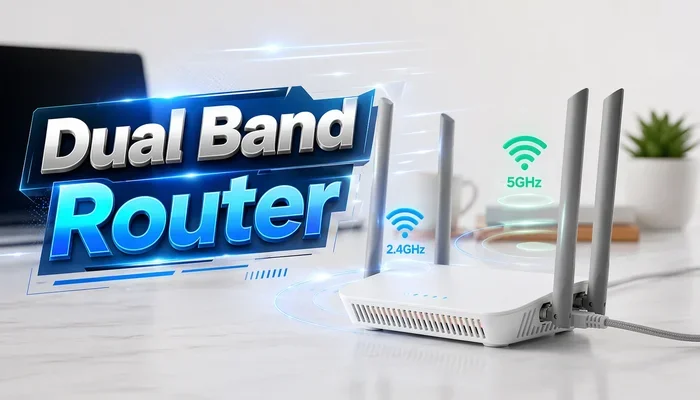
Many modern routers are dual-band. They use two different frequencies to send data. The first is 2.4GHz. This band goes further but is slower. It is good for basic browsing. The second is 5GHz. This band is much faster but has a shorter range. For online multiplayer games, the 5GHz band is usually best. It offers more bandwidth. This means faster downloads and less lag during matches. Check your router settings to see which band your Xbox is using. You want to make sure it is on the 5GHz network if possible. This will give you the best gaming latency and overall performance. Also, make sure no one else in the house is hogging the bandwidth by streaming 4K videos while you play.
Quality of Service Settings
Many routers have a feature called Quality of Service, or QoS. This feature lets you prioritize certain devices. You can tell your router to give your Xbox the most bandwidth. This is a great trick for seamless gaming. When QoS is turned on, your router makes sure your console gets the data it needs first. It stops other devices from slowing you down. Check your router manual to see how to set this up. It is a small change that makes a big difference to your internet connection.
Wired Vs Wireless: Which Is Better?
Some gamers wonder if they should use a cable instead of Wi-Fi. Both ways have their pros and cons. Let us compare them so you can decide what is best for your setup.
| Feature | Wireless (Wi-Fi) | Wired (Ethernet) |
|---|---|---|
| Ease of Setup | Very easy, no cables needed | Requires running a cable across the room |
| Speed | Good, but can vary with interference | Very stable and consistently fast |
| Latency | Slightly higher, can cause small delays | Lowest possible, best for competitive play |
| Mobility | High, you can move the console anywhere | Low, you are stuck near the router |
| Network Stability | Good, but can drop if signal is weak | Excellent, no wireless interference |
For most casual gamers, wireless fidelity is just fine. It is convenient and works great for everyday play. But if you are a competitive gamer who needs every millisecond, a wired internet connection is better. It removes any chance of wireless interference. It gives you the most stable network stability possible. You can buy a simple Ethernet cable and plug it straight from the router to the back of your Xbox One. This is the best way to eliminate gaming latency completely. A wired console networking setup is always the gold standard for serious players.
Common Connection Problems And Network Troubleshooting
Even with a great setup, problems can happen from time to time. Do not worry; most issues are easy to fix. Here are the most common problems and how to solve them.
Why Does My Xbox Keep Losing Connection?
Connection drops are very annoying. They often happen because of a weak signal. Move your router closer to the console if you can. Also, check if other devices are using a lot of bandwidth. Streaming 4K video or downloading big files on another device can slow down your online gaming. Try pausing those downloads. Restarting your router can also help clear up temporary issues. Just unplug it for 30 seconds and plug it back in. This refreshes the internet connection and often fixes random drops. If the problem continues, check for interference. Microwaves and baby monitors can disrupt your wireless network. Sometimes the problem is with your Internet Service Provider. They might be doing maintenance in your area. You can call them to check. Also, make sure your router firmware is up to date. Old firmware can cause network stability issues that look like connection drops.
Fixing Slow Internet Speeds
Slow speeds ruin the fun of gaming. First, run an internet speed test directly on your Xbox. You can find this test in the Network Settings menu. If the speed is lower than your plan offers, restart your router. Unplug it for 30 seconds and plug it back in. This often fixes slow speeds right away. You should also check your Xbox network settings. Make sure the correct DNS is set. Sometimes changing the DNS to a public one like Google DNS makes a big difference. It can speed up your network troubleshooting and overall connection. You can also try changing the DNS on your router itself for even better results. This small tweak can significantly boost your Wi-Fi password protected network’s performance.
Dealing With IP Conflicts
Sometimes two devices on the same network get the same IP address. This is called an IP conflict. It can cause your Xbox to lose its internet connection randomly. To fix this, restart your router and your Xbox. This will force them to ask for new IP addresses. You can also set your Xbox to use a static IP. This makes sure your console always has a unique address. It is a great way to improve network stability and avoid future problems. A static IP means your Xbox always uses the same address on your home network. This makes it easier for your router to find it and keep the connection strong. It is a pro tip for anyone serious about their online multiplayer experience.
Expert Tips For A Rock Solid Internet Connection
Want to take your setup to the next level? Here are some expert insights to help you get the most out of your console networking. These simple tips can make a huge difference.
Quick Tips For Better Performance
- Update your router firmware: Always keep your router software up to date. This fixes bugs and improves network stability significantly.
- Change the Wi-Fi channel: If your neighbors have similar routers, they might interfere. Changing the channel reduces gaming latency and keeps your internet connection strong.
- Use a Wi-Fi extender: If your Xbox is far from the router, a repeater boosts the signal strength. This is great for large homes.
- Restart your console weekly: This clears the cache and keeps the Xbox network running smoothly.
- Limit background downloads: Make sure no other devices are hogging the bandwidth while you play.
- Keep your console cool: Overheating can slow down your online gaming performance. Make sure the vents are not blocked.
Common Mistakes To Avoid
Avoid these simple mistakes that many people make. Do not put your router on the floor. Signals spread better upward. Do not hide it behind a closet door. The wireless network needs a clear path. Do not connect too many devices at once. Each device uses part of your bandwidth. Too many devices mean a slower internet connection for your Xbox. Keep your router in an open space for the best results. Also, never ignore updates. Both your router and your Xbox need the latest software to work properly together. A little maintenance goes a long way for your seamless gaming setup.
Conclusion
So, can the Xbox One connect to Wi-Fi? Absolutely, and it is very easy to do. You can enjoy a fantastic online gaming experience with just a few clicks on your controller. By following the steps above, you set up a strong internet connection that can handle any game. You also learned how to fix common problems and boost your speed. Remember, good network troubleshooting keeps things smooth when issues pop up. Take your time with the setup. Make sure your router is in the right spot. Choose the right frequency band for the best performance. Enjoy your seamless gaming and have fun out there! Now get back to playing your favorite titles.
Frequently Asked Questions
Can I connect my Xbox One to a mobile hotspot?
Yes, you can connect your Xbox One to a mobile hotspot. The process is the same as connecting to a regular Wi-Fi network. Just make sure your phone has a strong data signal and enough bandwidth for gaming.
Why is my Xbox One Wi-Fi so slow?
Slow Wi-Fi is often caused by distance from the router or interference from other devices. Try moving your console closer to the router. You can also run an internet speed test to see if the problem is with your internet connection or the console itself.
Do I need a special router for Xbox One Wi-Fi?
You do not need a special router. Any modern router that supports Wi-Fi 5 or 4 will work fine. Just make sure your router is not too old, as older models might struggle with the bandwidth needed for smooth online gaming.
How can I improve my Xbox One wireless network signal?
The best way to improve your signal is to move your router closer to the Xbox. You can also use a Wi-Fi extender to boost the signal strength. Keeping your console’s wireless network settings updated also helps maintain a strong internet connection.
Is it better to use Wi-Fi or Ethernet for Xbox One?
Ethernet is always better for competitive gaming because it offers lower latency and more stable network stability. However, Wi-Fi is perfectly fine for casual gamers who want the convenience of a wireless internet connection without running cables across the room.
What should I do if my Xbox One keeps disconnecting from Wi-Fi?
If your Xbox keeps disconnecting, restart both your router and the console. Check for connection drops caused by interference from other electronics. You should also update your router firmware to ensure the best gaming latency and overall network stability.