Can I Use My Iphone Just On Wi Fi Without A Carrier
Yes, you can use your iPhone just on Wi-Fi without a carrier. An iPhone without a SIM card or active plan can still make calls, send messages, browse the web, and use apps — all through a Wi-Fi connection. This guide covers exactly what you can do, how to set it up, and the limitations you should know about.
Can I use my iPhone just on Wi-Fi without a carrier? The short answer is yes. You absolutely can. An iPhone is not just a phone. It is a powerful mini-computer that works great with just a Wi-Fi connection. You do not need a SIM card or a cellular plan to enjoy most of what the iPhone offers.
Many people use their iPhones this way every day. Some use them as iPod touches. Others give older iPhones to kids or elderly family members. Some people travel abroad and skip expensive roaming plans. Whatever your reason, using an iPhone on Wi-Fi only is totally doable.
In this article, we will walk through everything you need to know. We will cover what works, what does not work, how to set it up, and expert tips to get the most out of a Wi-Fi only setup. Let us dive right in.
Key Takeaways
- Wi-Fi Only iPhone: You can fully operate an iPhone without a cellular plan using just Wi-Fi.
- Core Features Still Work: iMessage, FaceTime, email, browsing, and most apps function normally on Wi-Fi alone.
- Setup Is Simple: You can activate and configure an iPhone without inserting a SIM card or choosing a carrier.
- Limitations Exist: Emergency calls, GPS navigation, and cellular-dependent apps won’t work without a carrier connection.
- Wi-Fi Calling Helps: You can make phone-like calls over Wi-Fi using apps like FaceTime Audio or third-party VoIP services.
- Offline Features Are Limited: Some features like AirDrop and iCloud sync rely on Wi-Fi and won’t work fully offline.
📑 Table of Contents
- What It Means to Use an iPhone on Wi-Fi Only
- What You Can Do on an iPhone Without a Carrier
- What You Cannot Do Without a Carrier
- How to Set Up Your iPhone for Wi-Fi Only Use
- Best Apps and Features for Wi-Fi Only iPhones
- Common Mistakes to Avoid with a Wi-Fi Only iPhone
- Expert Tips for Getting the Most Out of a Wi-Fi Only iPhone
- Is a Wi-Fi Only iPhone Right for You?
What It Means to Use an iPhone on Wi-Fi Only
When we say Wi-Fi only, we mean the iPhone has no active cellular connection. There is no SIM card inserted, or the SIM is removed entirely. The device connects to the internet only through wireless networks. This is sometimes called a carrier-free iPhone or a Wi-Fi only device.
You might wonder if an iPhone even works this way. After all, iPhones are known as phones. But here is the truth. iPhones are really just pocket computers with great screens, cameras, and apps. The phone part is just one feature among many. Without a carrier, you lose the cellular voice and text features. But you keep everything else that connects through the internet.
How a Wi-Fi Only iPhone Connects to the World
Without a carrier, your iPhone relies entirely on Wi-Fi networks for internet access. Here is what happens behind the scenes:
- Wi-Fi connects to the internet: Your iPhone uses the Wi-Fi network to reach online services just like a computer or tablet would.
- Apps use internet data: Social media, streaming, email, and games all need the internet. Wi-Fi provides that.
- Apple services still work: iCloud, App Store, Apple Music, and iMessage all function over Wi-Fi.
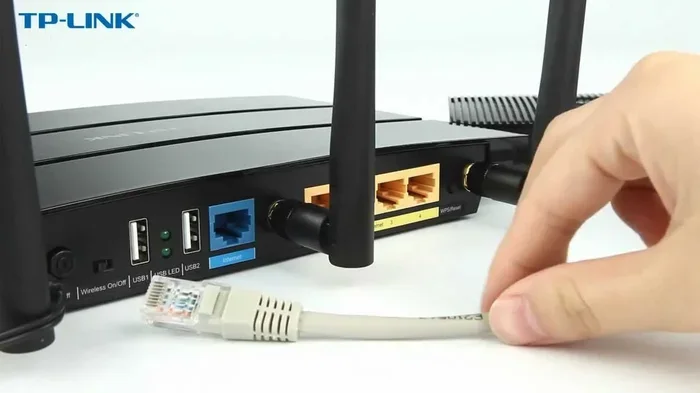
- No cellular radio needed: The phone does not need to talk to cell towers. It only needs a wireless router nearby.
This setup is very similar to using an iPad Wi-Fi model or an iPod Touch. The experience is nearly identical. You just cannot make traditional phone calls or send regular SMS text messages.
What You Can Do on an iPhone Without a Carrier
Using an iPhone on Wi-Fi only opens up a lot of possibilities. Most people are surprised by how much they can still do. Let us break down the features and activities that work great without a carrier.
Messaging and Video Calls
You can still send and receive messages using iMessage and FaceTime. These are Apple’s built-in messaging and video calling tools. They work entirely over Wi-Fi or any internet connection. You can text friends, family, and anyone else who has an Apple device. Video calls work just as well.
Other messaging apps also work great on Wi-Fi:
- WhatsApp — for text, voice, and video calls
- Telegram — fast messaging with great features
- Signal — private and secure messaging
- Facebook Messenger — social messaging
- Discord — community and group chats
All of these apps use internet data. As long as you have Wi-Fi, you can message and call anyone in the world for free.
Browsing the Web and Email
Safari and other web browsers work perfectly on Wi-Fi. You can visit any website, read articles, shop online, and watch videos. Email apps like Apple Mail, Gmail, and Outlook also work without any issues. You can send and receive emails just fine.
Apps, Games, and Entertainment
The App Store is fully accessible on Wi-Fi. You can download new apps, update existing ones, and browse for games. Streaming services like Netflix, YouTube, Spotify, and Apple TV+ all work over Wi-Fi. Gaming is great too. You can play multiplayer games, download new games, and use cloud gaming services.
Camera, Photos, and Social Media
The camera works without a carrier. You can take photos and videos, edit them, and share them on social media over Wi-Fi. iCloud Photos syncs your images across devices when connected to Wi-Fi. You can post to Instagram, Facebook, Twitter, and TikTok without any cellular connection.
Productivity and Learning
Need to work or study? You can use Pages, Numbers, Keynote, and Google Docs over Wi-Fi. Take notes, create documents, and collaborate with others. Reading apps, language learning apps, and online courses all work great without a carrier.
What You Cannot Do Without a Carrier
It is important to know the limitations. Not everything works without a cellular connection. Here is what you will miss out on.
Traditional Phone Calls and SMS
You cannot make regular phone calls to mobile or landline numbers. You also cannot send standard SMS text messages through your carrier. These features require a cellular network. If someone calls your iPhone number, it will not ring because there is no active SIM or carrier plan.
Emergency Services
In most regions, you cannot call emergency numbers like 911 or 112 without a cellular connection. Wi-Fi calling to emergency services is available in some areas, but it depends on your location and carrier support. This is a serious limitation to keep in mind.
GPS and Maps Without Wi-Fi
Online GPS navigation needs an internet connection. Without Wi-Fi or cellular data, maps will not load. However, you can download offline maps ahead of time using Google Maps or Apple Maps. This is a great workaround if you need directions on the go.
Certain Carrier-Dependent Apps
Some apps require a cellular connection. Banking apps, ride-sharing services, and some location-based apps may not work properly without cellular service. Always check if an app needs a SIM card or mobile data before you rely on it.
How to Set Up Your iPhone for Wi-Fi Only Use
Setting up an iPhone without a carrier is actually very simple. You do not need a SIM card to activate a new iPhone anymore. Apple now supports activation over Wi-Fi. Here is how to do it step by step.
Setting Up a New iPhone Without a SIM Card
- Turn on your new iPhone.
- Select your language and region.
- Connect to a Wi-Fi network when prompted.
- Choose “Set Up as New iPhone” or restore from a backup.
- Sign in with your Apple ID.
- Skip the carrier setup when asked.
- Complete the setup and start using your iPhone.
That is it. Your iPhone is ready to use with just Wi-Fi. You can download apps, sync your data, and start enjoying your device right away.
Removing the SIM Card from an Existing iPhone
If you already have an iPhone with a SIM card, you can remove it and still use the device on Wi-Fi. Here is what to do:
- Insert a SIM ejector tool into the SIM tray.
- Remove the SIM card carefully.
- Go to Settings and turn off any carrier-related features.
- Connect to Wi-Fi and continue using your iPhone as normal.
Your iPhone will still work perfectly for Wi-Fi calling, messaging, browsing, and all internet-based activities.
Troubleshooting Common Wi-Fi Only Issues
Sometimes things do not go smoothly. Here are a few common issues and quick fixes:
- iPhone asks for a SIM card: Go to Settings, tap Cellular, and turn off Cellular Data. The warning should stop.
- No Wi-Fi connection: Restart your router and iPhone. Make sure you are within range of the network.
- App Store won’t load: Check your Wi-Fi connection and sign in to your Apple ID.
- iCloud sync is slow: Make sure you are on a strong Wi-Fi network and that iCloud is turned on in Settings.
Best Apps and Features for Wi-Fi Only iPhones
A Wi-Fi only iPhone can be just as powerful as a cellular one. The key is knowing which apps and features to lean into. Here are some of the best options.
Essential Wi-Fi Apps
- WhatsApp: Free messaging and calling over Wi-Fi.
- Zoom: Video calls for work and school.
- Google Maps: Navigation with downloaded offline maps.
- Spotify: Music streaming over Wi-Fi.
- Kindle: Read books downloaded over Wi-Fi.
- Duolingo: Learn new languages without any cellular need.
Apple Features That Shine on Wi-Fi
Apple built some great features that work beautifully without a carrier. AirDrop lets you share files instantly with nearby Apple devices over Wi-Fi and Bluetooth. Handoff lets you start a task on one Apple device and finish it on another. Continuity works across your devices when they are all on the same Wi-Fi network.
Family Sharing is another great feature. You can share apps, music, and subscriptions with family members all through your Wi-Fi connection and Apple ID.
Common Mistakes to Avoid with a Wi-Fi Only iPhone
There are a few pitfalls people fall into when using an iPhone without a carrier. Avoid these mistakes to have a smooth experience.
Forgetting to Download Offline Content
Without Wi-Fi, your iPhone is mostly useless. Make sure you download maps, music, podcasts, and videos before you leave your home network. This is especially important when traveling.
Not Setting Up Wi-Fi Calling Properly
Some people think Wi-Fi calling requires a carrier plan. It does not always. Apps like FaceTime Audio and WhatsApp let you make calls over Wi-Fi without any carrier involvement. Set these up before you need them.
Ignoring Storage Management
Without a carrier, you rely heavily on cloud storage and app downloads. Keep an eye on your storage space. Use iCloud or Google Drive to store photos and files. Delete apps you no longer use to free up room.
Assuming All Apps Will Work
Some apps genuinely need a cellular connection. Ride-sharing apps, certain banking apps, and emergency alert systems may not function properly on Wi-Fi only. Always check before you depend on an app.
Expert Tips for Getting the Most Out of a Wi-Fi Only iPhone
Want to make your Wi-Fi only iPhone work even better? Here are some expert tips from people who use this setup every day.
Use a Wi-Fi Extender at Home
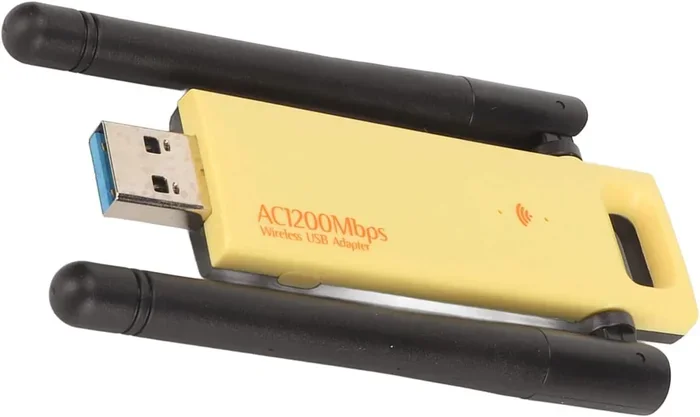
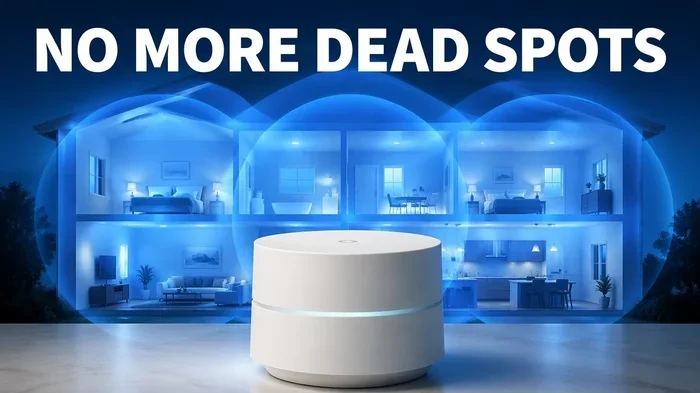
If your Wi-Fi signal is weak in certain rooms, a Wi-Fi extender can help. This ensures your iPhone stays connected everywhere in your home. Strong signal means faster downloads, smoother streaming, and better app performance.
Set Up a Personal Hotspot for Guests
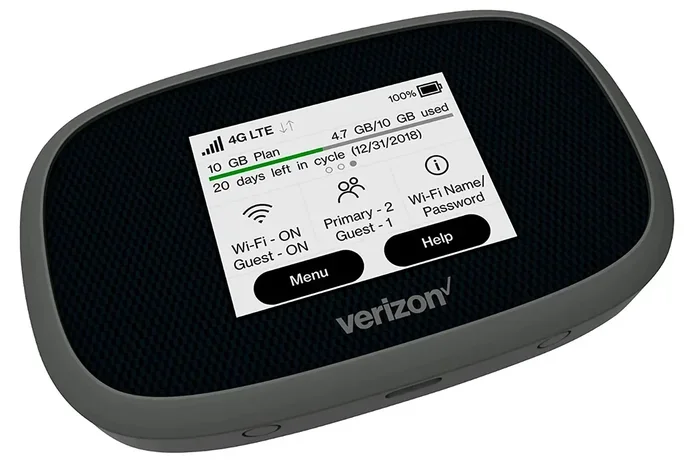
Even without a carrier plan, your iPhone can share its Wi-Fi connection with other devices. Go to Settings, tap Personal Hotspot, and turn it on. Other devices can connect through your iPhone’s Wi-Fi connection.
Keep Your iPhone Updated
Apple releases updates regularly. These updates fix bugs and improve performance. Make sure your iPhone is connected to Wi-Fi before downloading updates. Go to Settings, tap General, and select Software Update.
Consider an MVNO for Occasional Use
If you need cellular service sometimes, consider a low-cost MVNO (Mobile Virtual Network Operator). These plans are cheap and let you add a SIM card when you need it. You can remove it when you do not need it. This gives you the best of both worlds.
Is a Wi-Fi Only iPhone Right for You?
A Wi-Fi only iPhone works great for many people. It is ideal for kids, elderly users, travelers, and anyone who spends most of their time at home or in places with Wi-Fi. If you mostly text through iMessage or WhatsApp, stream content, browse the web, and use social media, you will be just fine.
However, if you need to make calls on the go, use GPS navigation daily, or rely on cellular-dependent apps, a Wi-Fi only setup may not be the best fit. Consider your lifestyle and usage patterns before committing to this approach.
The bottom line is clear. You can absolutely use your iPhone just on Wi-Fi without a carrier. The experience is smooth, affordable, and covers most daily needs. Just be aware of the limitations and plan accordingly.
Whether you are repurposing an old iPhone, saving money on a plan, or simply prefer a simpler setup, a Wi-Fi only iPhone is a smart choice. Set it up, connect to your network, and enjoy everything your device has to offer.
Frequently Asked Questions
Can I make phone calls on an iPhone without a carrier?
You cannot make traditional cellular phone calls without a carrier. However, you can use Wi-Fi-based calling apps like FaceTime, WhatsApp, Skype, and Zoom to make voice and video calls over Wi-Fi. These work just like a regular phone call but use the internet instead.
Will my iPhone work if I remove the SIM card?
Yes, your iPhone will still work after removing the SIM card. You can use Wi-Fi to browse the web, use apps, send iMessages, and make FaceTime calls. Some features like cellular data and SMS will not work, but most daily activities will continue normally.
Can I use iMessage without a cellular plan?
Absolutely. iMessage works entirely over Wi-Fi or any internet connection. You do not need a cellular plan to send or receive iMessages. As long as you have Wi-Fi, iMessage will work just like it does with a carrier plan.
Can I download apps on an iPhone without a SIM card?
Yes, you can download apps from the App Store without a SIM card. You just need a Wi-Fi connection and an Apple ID. The App Store works the same way whether or not you have a SIM card inserted.
Is it legal to use an iPhone without a carrier?
Yes, it is completely legal. You are not required to have a cellular plan to own or use an iPhone. Many people use their iPhones as Wi-Fi only devices. There are no laws against using an iPhone without a SIM card or carrier plan.
What happens if I need to call emergency services?
Without a carrier, calling emergency services like 911 may not work. Some Wi-Fi calling services and apps can help, but they are not a replacement for a proper cellular connection. If safety is a concern, consider keeping a basic prepaid SIM card available for emergencies.
=== CONCLUSION ===
Using your iPhone just on Wi-Fi without a carrier is not only possible, it is practical. You can browse the web, message friends, stream videos, take photos, and use thousands of apps — all without ever inserting a SIM card or paying for a cellular plan. The key is understanding what works and what does not, and setting up your device the right way.
Can I use my iPhone just on Wi-Fi without a carrier? Yes, and now you know exactly how. Whether you are giving an old iPhone to a family member, traveling on a budget, or simply prefer a simpler setup, a Wi-Fi only iPhone delivers a great experience. Follow the tips in this guide, avoid common mistakes, and you will be enjoying your iPhone to the fullest — no carrier needed.