Can I Connect My Tv To My Receiver Using Hdmi And Component
Yes, you can connect your TV to your receiver using both HDMI and component cables simultaneously, but the results depend on your devices and settings. This guide explains how dual connections work, when to use each cable type, and what to watch out for. You will learn practical setup steps, common mistakes, and expert tips to get the best picture and sound from your home theater.
Have you ever looked at the back of your AV receiver and wondered if you could use more than one cable type at a time? Maybe you have a shiny new HDMI cable but also an old set of component video cables sitting in a drawer. The idea of using both at the same time sounds convenient, right? Well, the answer is not a simple yes or no. It depends on your specific devices, the signals you want to send, and how your setup is configured.
In this article, we will walk through everything you need to know about connecting your TV to your receiver with both HDMI and component cables. We will cover how each connection works, when it makes sense to use both, and what pitfalls to avoid. By the end, you will have a clear picture of what your setup can do and how to get the best results.
Let us start with the basics so you understand what each cable type brings to the table.
Key Takeaways
- Dual connections are possible: Most modern receivers and TVs support both HDMI and component inputs at the same time.
- HDMI carries better quality: HDMI delivers uncompressed video and audio in one cable, making it the preferred choice for most setups.
- Component cables still matter: Component video can be useful for older devices that lack HDMI ports.
- Audio routing differs: HDMI handles audio automatically, while component cables need separate audio connections.
- Settings matter: Your TV and receiver must be configured correctly to avoid signal conflicts or display issues.
- Check your devices: Not all receivers support simultaneous HDMI and component input processing.
📑 Table of Contents
- Understanding HDMI and Component Connections
- Can You Connect Both HDMI and Component at the Same Time?
- Setting Up Dual Connections: Step by Step
- Pros and Cons of Using Both Connection Types
- Common Mistakes to Avoid
- Expert Insights for Optimal Performance
- How Your Receiver Handles Multiple Inputs
- Resolution and Quality Considerations
- Conclusion
Understanding HDMI and Component Connections
Before we dive into dual connections, it helps to understand what each cable does on its own. Both HDMI and component cables carry video signals, but they go about it in very different ways.
What Is HDMI?
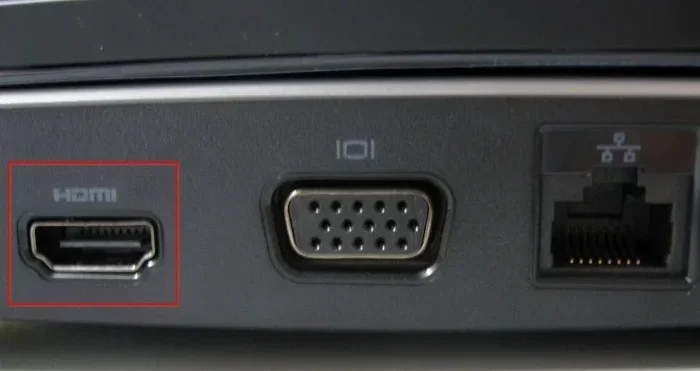
HDMI stands for High-Definition Multimedia Interface. It is a digital connection that carries both video and audio through a single cable. This makes it incredibly convenient. You plug one cable in, and you get high-quality picture and sound without any extra work.
HDMI supports modern formats like 4K resolution, HDR, and surround sound formats such as Dolby Atmos. Most devices made in the last decade include at least one HDMI port. The HDMI connection has become the standard for home theater setups because of its simplicity and quality.
One thing to keep in mind is that HDMI handles everything digitally. This means the signal stays clean from start to finish, as long as you use a good cable. There is no conversion needed, which reduces the chance of signal loss.
What Are Component Cables?
Component video cables are an analog connection type. They split the video signal into three separate cables, usually color-coded red, green, and blue. This split allows for good quality video, but it is older technology compared to HDMI.
Component cables do not carry audio. You need separate cables for sound, typically red and white RCA cables. This means more cables running from your receiver to your TV, which can get messy.
Component video was once the best way to get high-definition content before HDMI became widespread. You will still find component ports on many older TVs and some older receivers. The component connection remains useful for legacy devices like older gaming consoles or DVD players.
How Do These Cables Compare?
Here is a quick look at the main differences between the two cable types:
- HDMI: Digital signal, carries video and audio, supports up to 4K and beyond, single cable solution.
- Component: Analog signal, carries video only, maxes out at 1080p typically, requires separate audio cables.
The signal transmission quality is generally better with HDMI because it is digital. Component cables are more prone to interference and signal degradation over longer runs. However, a short component cable run can still look quite good.
Can You Connect Both HDMI and Component at the Same Time?
Now for the big question. The short answer is yes, in most cases you can connect both HDMI and component cables from your receiver to your TV at the same time. But the details matter a lot.
How Dual Connections Work
When you use both cables simultaneously, your TV and receiver need to know which input to use for each source. Think of it like having two doors into a room. You can walk through either door, but you can only use one at a time for a given task.
For example, you might connect your cable box via HDMI for the best picture quality. Then you connect an older retro gaming console through the component inputs. Your TV can switch between these sources independently. The AV receiver sends the correct signal down the right cable based on what you are watching.
The internal components of your receiver handle this switching. Modern receivers have dedicated processing chips for each input type. They can manage multiple inputs without interfering with each other. If you are curious about how these internal parts work together, you can read more about the key components found on a motherboard to understand the hardware side better.
When Does It Make Sense?
Using both cables at once makes sense in a few real-world situations:
- You have older devices: A vintage DVD player or retro console that only has component outputs.
- You want the best quality for new devices: Your streaming box or game console uses HDMI for superior resolution.
- Your receiver has limited HDMI ports: You need to free up an HDMI input by using component for a secondary device.
- You are mixing old and new gear: Your setup includes both modern and legacy equipment.
In these scenarios, dual connections let you get the most out of every device without buying adapters or new equipment.
When Does It Not Work?
There are situations where using both cables causes problems. Some older receivers cannot process HDMI and component inputs simultaneously. The internal circuitry may conflict, causing no signal or flickering. Always check your receiver manual before setting up dual connections.
Another issue arises when both cables carry the same source. If you plug the same device into both HDMI and component, the TV might display a double image or confusion about which signal to show. Keep each cable connected to a different source device.
Setting Up Dual Connections: Step by Step
If you have decided to use both HDMI and component cables, here is how to set it up properly. Follow these steps to avoid common headaches.
Step 1: Check Your Ports
Look at the back of both your TV and receiver. Count the available HDMI and component ports. Make sure you have at least one free HDMI port and one free component input on each device. Write down which ports you plan to use.
Step 2: Connect the HDMI Cable First
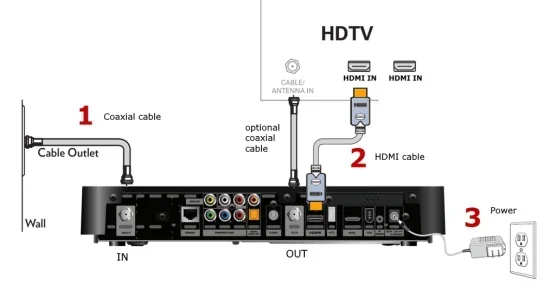
Plug the HDMI cable from your receiver to your TV. Use a high-speed HDMI cable that supports the resolution you want. If your setup includes 4K content, make sure the cable is rated for it. Connect the other end to an available HDMI input on your TV and note the input number.
Step 3: Connect the Component Cables
Plug the red, green, and blue component cables from your receiver to your TV. Match the colors carefully. Red goes to red, green to green, and blue to blue. Then connect the red and white RCA audio cables from the receiver to the TV for sound.
Step 4: Configure Your Devices
Turn on your TV and receiver. Use your TV remote to switch to the HDMI input first. Then switch to the component input. Check that both sources display correctly. Go into your receiver settings and make sure each input is set to the correct type. Some receivers have an auto-detect feature that simplifies this step.
Step 5: Test Everything
Play content from each source. Watch for any issues like no sound, no picture, or poor image quality. Adjust the settings on your TV and receiver until everything looks and sounds great.
Pros and Cons of Using Both Connection Types
Every setup has trade-offs. Here is a balanced look at what using both HDMI and component cables means for your home theater.
The Advantages
- Flexibility: You can connect a wider range of devices, old and new.
- Better quality for modern gear: HDMI gives you the best resolution and audio format support.
- No need for adapters: You avoid the quality loss that sometimes comes with HDMI-to-component converters.
- More input options: You free up HDMI ports for devices that really need them.
The Disadvantages
- More cables: Your setup gets messier with extra wires running everywhere.
- Potential for signal conflicts: Some receivers struggle to manage both input types at once.
- Component quality is lower: You will not get the same resolution or features as HDMI.
- Extra audio cables needed: Component does not carry sound, so you need separate RCA or optical connections.
Quick Tips for a Clean Setup
- Use cable ties or a cable management box to keep things tidy.
- Label each cable at both ends so you know which goes where.
- Keep component cables short to reduce signal degradation.
- Use gold-plated connectors for better conductivity and durability.
Common Mistakes to Avoid
Even with the best intentions, people make mistakes when setting up dual connections. Here are the ones to watch out for.
Using the Wrong Cable Version
Not all HDMI cables are the same. Using an older HDMI 1.3 cable with a 4K TV will limit your resolution. Make sure your HDMI cable supports the bandwidth you need. Look for cables labeled High Speed or Premium High Speed.
Ignoring Audio Settings
When using component cables, the audio does not travel through the video cable. Many people forget to set up the separate audio connection. This results in a picture with no sound. Always connect and test your audio cables separately.
Mixing Up the Component Colors
It sounds simple, but plugging the component cables into the wrong color-coded ports is a common mistake. The green cable carries the brightness signal, while red and blue carry the color differences. Get the order right or your image will look wrong.
Assuming All Receivers Support Dual Mode
Not every receiver can handle both HDMI and component inputs at the same time. Some models require you to choose one input type or the other. Check your receiver specifications before assuming dual mode works.
Expert Insights for Optimal Performance
We asked a few home theater enthusiasts and technicians for their best advice on dual cable setups. Here is what they had to say.
Start with HDMI for your primary devices. If you have a streaming box, Blu-ray player, or modern game console, always use HDMI. The digital signal gives you the best video quality and the easiest setup. Reserve component for devices that simply do not have HDMI outputs.
Update your firmware. Both your TV and receiver may have firmware updates that improve compatibility with different input types. Check the manufacturer website regularly for updates.
Use an audio extractor if needed. If your source device only has HDMI but you want to use component for video, an audio extractor can split the HDMI signal into video and audio. This lets you send video through a component cable and audio through separate cables. However, this adds complexity and potential quality loss.
Consider the resolution carefully. Component cables typically max out at 1080p. If you want 4K content, you must use HDMI. Trying to push 4K through component will not work and may cause errors.
How Your Receiver Handles Multiple Inputs
The audio video receiver is the brain of your home theater setup. It takes signals from multiple sources and routes them to the right output. Understanding how it manages different input types helps you troubleshoot issues.
Inside your receiver, a small processor chip handles input switching. This chip reads the signal type and decodes it accordingly. When you use both HDMI and component, the receiver must process two different signal formats at once. Modern receivers handle this with ease, but older models may struggle.
The internal circuit board of your receiver plays a big role in how well it manages multiple inputs. Each input has its own dedicated processing path. These paths do not usually interfere with each other, but cheap or older receivers may have limitations.
If you experience issues with dual inputs, try resetting your receiver to factory settings. This clears any configuration conflicts that might be causing problems. Also, make sure your receiver’s software is up to date.
Resolution and Quality Considerations
Your display settings play a big role in how your dual connection setup performs. Here is what to keep in mind.
When watching content through HDMI, your TV and receiver can negotiate the best resolution automatically. This is called EDID (Extended Display Identification Data). It tells the source device what resolutions the display supports.
Component cables do not support this handshake process. You may need to manually set the output resolution on your source device to match what your TV and component cables can handle. Stick to 1080i or 480p for the best results over component.
The video quality difference between HDMI and component is noticeable on larger screens. On a 50-inch or larger TV, HDMI delivers a sharper, more colorful image. Component can look good on smaller screens or at shorter cable lengths, but it will not match HDMI’s clarity.
Conclusion
So, can you connect your TV to your receiver using both HDMI and component cables at the same time? Yes, you can, and it is a smart move if your setup includes both modern and older devices. The key is understanding how each connection works, setting things up correctly, and avoiding the common mistakes we covered.
Use HDMI as your go-to connection for the best picture and sound quality. Keep component cables for legacy devices that need them. Configure your TV and receiver settings carefully, and always test both connections before settling in for movie night.
With the right setup, you can enjoy the best of both worlds. Your modern devices get the quality they deserve, and your older gear still finds a place in your entertainment center. Take your time, follow the steps in this guide, and you will have a setup that works beautifully.
Frequently Asked Questions
Can I use HDMI and component cables from the same device?
It is not recommended to connect the same device to both HDMI and component at the same time. This can confuse your TV and receiver, causing display issues or no signal. Use each cable type for a different source device instead.
Do I need special cables for dual connections?
No special cables are required. Use a standard High Speed HDMI cable for the HDMI connection and standard component video cables with RCA audio for the component connection. Make sure the HDMI cable supports your desired resolution.
Will using component cables lower my overall picture quality?
Using component cables for a secondary device will not lower the quality of your HDMI connection. Each input operates independently. However, content viewed through component will not look as sharp as content viewed through HDMI.
Can I get audio through component cables?
No, component cables carry video only. You must connect separate audio cables, such as red and white RCA cables or an optical cable, to get sound when using component video.
What if my receiver only has one HDMI input?
If your receiver has only one HDMI input, you can still use component for another device. This lets you connect more sources than you would with HDMI alone. Consider a receiver with more HDMI inputs if you plan to add more devices later.
Is it better to use an HDMI switcher or component cables?
For most modern setups, HDMI is the better choice because it carries both video and audio in one cable. Use component cables only for older devices that lack HDMI. An HDMI switcher can help if you run out of HDMI ports on your receiver.