Can I Connect Type C To USB And What You Need To Know
Can I Connect Type C To USB? Yes, you can, but you need the right cable or adapter. This guide explains everything about connecting USB-C devices to USB-A ports, including data transfer speeds, charging, and the best adapters to use. You’ll learn how to avoid common mistakes and get the most from your gear.
You just bought a shiny new phone, tablet, or laptop with a USB-C port, and you’re staring at a pile of older USB-A cables and devices. The question is simple: Can I Connect Type C To USB? The short answer is yes, but the full story is a little more nuanced. Whether you want to transfer photos from a camera, charge a laptop with an old brick, or hook up a flash drive, the right adapter or cable makes all the difference. In this guide, I’ll walk you through every scenario, explain the tech in plain English, and share tips so you never get stuck with a dead port again.
USB-C has taken over the gadget world, but USB-A is still everywhere—on desktop PCs, car chargers, printers, and legacy hard drives. Understanding how these two shapes talk to each other is a basic tech skill that saves time, money, and frustration. Let’s break it down step by step.
Key Takeaways
- Direct connection works when both ports are USB-C or you use a USB-C to USB-C cable.
- A USB-C to USB-A adapter is the simplest way to plug a modern device into an older USB-A port.
- Data transfer speeds vary by USB standard—USB 3.2 Gen 2 can hit 10 Gbps, while USB 2.0 maxes out at 480 Mbps.
- Power Delivery (PD) matters for fast charging; a 60W or 100W USB-C PD charger can power laptops.
- Not all cables are equal—check for Thunderbolt 3/4, USB 3.2, or basic charging-only cables to avoid bottlenecks.
- Multiport hubs solve port shortages and let you connect USB-A devices, HDMI, SD cards, and more through a single USB-C port.
📑 Table of Contents
What Is USB-C and Why Does It Matter?
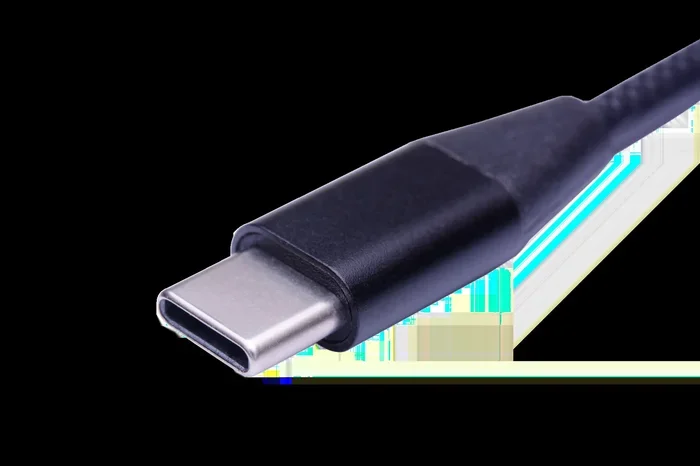
USB-C is a small, reversible connector that can carry data, video, and power through a single cable. Unlike the older rectangular USB-A plug, USB-C flips no matter which way you insert it. This tiny shape has become the standard for smartphones, tablets, ultrabooks, and even gaming consoles.
The Reversible Connector
Think of USB-C like a USB plug that has no top or bottom. You never have to flip it twice to find the right orientation. This design isn’t just convenient—it also means the connector is more durable because the forces are spread evenly when you plug it in.
USB-C vs USB-A: The Big Difference
USB-A is the classic flat, trapezoidal port you’ve seen on computers for decades. It’s still the most common port on desktops, hubs, and chargers. USB-C is oval-shaped, smaller, and supports much higher data rates and power levels. When you ask Can I Connect Type C To USB, you’re usually asking how to bridge these two different shapes.
Can You Connect Type C to USB Directly?
The answer depends on what you mean by “USB.” If you have a USB-C device and a USB-C port, a simple USB-C to USB-C cable works instantly. But if your device has a USB-C plug and the host has a USB-A socket, you need an adapter or a hybrid cable.
Understanding USB-A to USB-C Cables
A USB-A to USB-C cable has a standard USB-A plug on one end and a USB-C plug on the other. This is the most common way to connect a modern phone or laptop to an older computer or charger. Many devices come with one in the box, but not all. Always check what your device includes before buying.
When Direct Connection Works
Direct connection works when both ends of the cable match the ports. Examples include:
- Plugging a USB-C flash drive into a laptop with a USB-C port.
- Charging a phone with a USB-C wall brick that has a USB-C cable.
- Connecting a USB-C external SSD to a desktop with a USB-C port on the motherboard.
In these cases, no adapter is needed. Just plug it in and go.
Adapters and Hubs: The Bridge Between Ports
When your USB-C device meets a USB-A port, an adapter is the hero. Adapters are small, cheap, and come in many shapes. They let you keep using your older cables and devices without buying new ones.
USB-C to USB-A Adapters
A USB-C to USB-A adapter is a tiny dongle that plugs into your USB-C port and presents a USB-A socket. You can then insert any standard USB-A cable or device. These adapters are perfect for connecting a wired mouse, keyboard, or older printer to a modern laptop.
Multiport Hubs
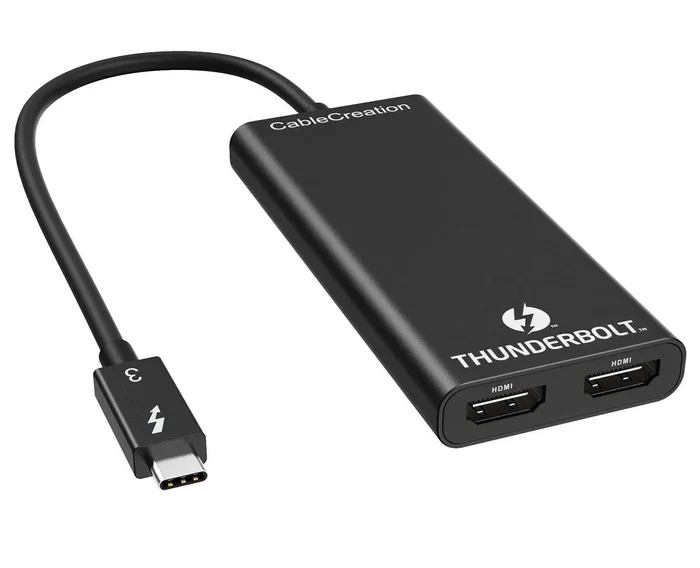
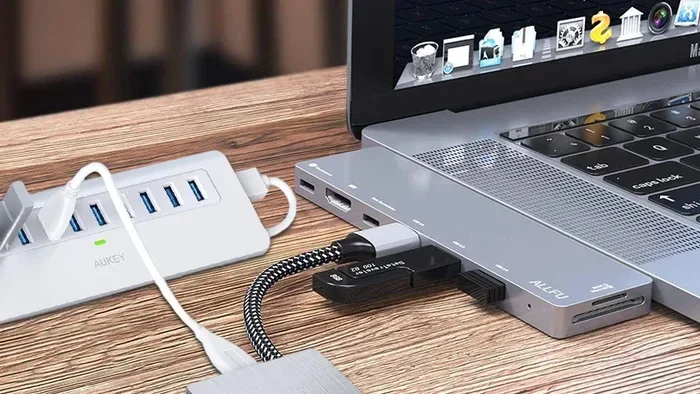
If you need more than one port, a USB-C multiport hub is the way to go. A good hub adds several USB-A ports, an HDMI output, an SD card reader, and sometimes even an Ethernet jack—all from a single USB-C connection. Look for hubs that support USB 3.2 or Thunderbolt 3 for the best speeds.
Quick Tip: Always check the hub’s power delivery rating if you plan to charge your laptop through it. A hub that only passes 5W will not charge a MacBook Pro or a Windows laptop that needs 60W or more.
Dongles vs. Hubs
A dongle is a single-function adapter, like a USB-C to USB-A stick you leave plugged into your laptop. A hub is a small station with multiple ports. For most people, a multiport hub is more practical because it reduces cable clutter and lets you connect several USB-A devices at once.
Data Transfer Speeds and Charging Capabilities
Not all USB-C connections are created equal. The speed and power depend on the cable, the port’s standard, and the device’s controller. When you ask Can I Connect Type C To USB, you also need to know what performance you’ll get.
USB Standards Explained
The USB standard printed on a cable or port tells you its maximum speed. Here’s a quick comparison:
| Standard | Max Data Speed | Common Use |
|---|---|---|
| USB 2.0 | 480 Mbps | Basic charging, keyboards, mice |
| USB 3.2 Gen 1 | 5 Gbps | External drives, flash drives |
| USB 3.2 Gen 2 | 10 Gbps | Fast SSDs, video capture |
| Thunderbolt 3/4 | 40 Gbps | Professional storage, eGPUs, docking |
A USB 2.0 connection will feel painfully slow when copying large video files. If you need speed, make sure your cable and port support USB 3.2 or better.
Power Delivery and Fast Charging
USB Power Delivery (USB PD) is a protocol that lets USB-C ports supply up to 100W of power. This means you can charge a laptop, tablet, or even a gaming console through a single USB-C cable. Older USB-A ports typically deliver only 5W to 15W, which is fine for phones but too weak for most laptops.
When you connect a USB-C device to a USB-A port with an adapter, the power is limited to what the USB-A port can provide. This is why your phone might charge slowly when plugged into an old computer’s USB-A port. For fast charging, always use a USB-C wall charger that supports USB PD.
Expert Insight: The cable itself can be a bottleneck. A cheap USB-C cable might only support 5Gbps data and 60W power, even if your port supports 10Gbps and 100W. Look for cables that are certified by the USB Implementers Forum (USB-IF) for guaranteed performance.
Common Devices and Use Cases
Now that you know the basics, let’s look at real-world situations. These examples show how Can I Connect Type C To USB plays out in everyday life.
Connecting Smartphones
Most modern Android phones and some accessories use USB-C. If you want to transfer photos to an older computer with USB-A ports, plug your phone into a USB-C to USB-A adapter and then connect a USB-A cable to the computer. You’ll get file access and charging, though the transfer speed depends on the phone’s USB implementation.
Laptops and Docking Stations
Many ultrabooks have only USB-C ports. A USB-C docking station turns one port into a workstation with USB-A ports, HDMI, and power delivery. You can connect your old keyboard, mouse, and external hard drive without buying new peripherals.
External Hard Drives and Flash Drives
If you have a USB-C external SSD, you can plug it directly into a USB-C laptop. To connect it to a desktop with USB-A ports, use a USB-A to USB-C cable or an adapter. For the best speeds, make sure the cable supports USB 3.2 or higher.
Printers and Scanners
Many printers still use USB-B (the square-ish port) or USB-A. You can connect them to a USB-C laptop using a USB-C to USB-A cable. The printer will work normally, but keep in mind that USB 2.0 speeds may slow down large print jobs if the printer supports USB 3.0.
Common Mistakes and How to Avoid Them
Even with the right gear, people make mistakes that lead to slow transfers, no charging, or damaged ports. Here’s what to watch out for.
Using the Wrong Cable
A USB-C cable is not always a fast cable. Some USB-C cables are designed only for charging and support only USB 2.0 speeds. If you’re trying to back up a 100GB video folder and it takes hours, the cable might be the culprit. Check the cable’s specs for data speed ratings.
Ignoring Power Delivery Limits
Plugging a USB-C laptop into a low-power USB-A port will charge it slowly or not at all if the laptop is under heavy load. Always use a USB-C charger with sufficient wattage for laptops. If you must use an adapter, make sure the adapter supports USB PD pass-through.
Forcing the Connector
USB-C is reversible, but forcing a USB-A plug into a USB-C port (or vice versa) can damage the pins. The connector should slide in smoothly with no pressure. If it doesn’t fit, check the orientation or try a different adapter.
Final Thoughts and Expert Tips
Can I Connect Type C To USB? Absolutely. With the right USB-C to USB-A cable, a simple adapter, or a multiport hub, you can connect virtually any modern device to older USB-A equipment. The key is matching the right cable or adapter to your needs—whether that’s fast data transfer, quick charging, or just getting a wired mouse to work.
Here are a few final tips to keep in mind:
- Buy certified cables. Look for the USB-IF logo to ensure the cable meets its advertised speed and power specs.
- Keep a spare adapter in your bag. A tiny USB-C to USB-A dongle weighs nothing and saves you in emergencies.
- Upgrade when possible. If you have multiple devices, consider a Thunderbolt 4 hub for the fastest speeds and the most versatility.
- Check your device’s manual. Some USB-C ports only support specific protocols, like DisplayPort or Power Delivery, and might not work with every USB-A accessory.
The world of connectors can feel confusing, but it doesn’t have to be. Once you understand the difference between USB-C and USB-A, and how adapters bridge the gap, you’ll never have to worry about compatibility again. Plug in with confidence and enjoy the seamless connection between your devices.
Frequently Asked Questions
Do I need a special cable to connect USB-C to USB-A?
Yes, you need a USB-A to USB-C cable or a USB-C to USB-A adapter plus a regular USB-A cable. A direct USB-C to USB-C cable will not fit into a USB-A port.
Will connecting a USB-C device to a USB-A port slow down data transfer?
It can. The speed is limited by the older standard of the USB-A port and the cable. If the USB-A port is USB 2.0, your transfer speed will cap at 480 Mbps regardless of how fast your USB-C device is.
Can I charge my laptop through a USB-C to USB-A adapter?
You can, but only at the power level the USB-A port provides. Most USB-A ports deliver 5W to 15W, which is too slow for most laptops. For full-speed charging, use a USB-C power adapter and cable that support USB Power Delivery.
Are all USB-C cables the same?
No. USB-C cables vary in data speed, power rating, and supported protocols. Some only handle charging, while others support 10 Gbps data or Thunderbolt 3/4. Always check the cable’s specifications before buying.
What is the difference between a USB-C adapter and a USB-C hub?
An adapter adds one or two ports, like a single USB-A socket. A hub is a small station with multiple ports, including USB-A, HDMI, and SD card slots, and often includes its own power input for charging your device while in use.
Can I use a USB-C to USB-A cable with a USB 3.0 port for fast transfers?
Yes, as long as the cable itself supports USB 3.2 or higher and the USB-A port on the computer is also USB 3.0 or better. Both ends must be capable of the speed you want to achieve.