Can I Connect Both VGA and HDMI to My Computer Setup
Yes, you can connect both VGA and HDMI to your computer at the same time. Most modern graphics cards and motherboards support multiple video outputs, so you can run a VGA monitor and an HDMI display together. This guide walks you through everything you need to know about setting up a dual output configuration, choosing the right adapter or converter, and getting the best picture quality on both screens.
Key Takeaways
- Dual output is possible: Most computers support both VGA and HDMI connections simultaneously.
- You may need an adapter: If your graphics card lacks a VGA port, a simple converter solves the problem.
- HDMI delivers better quality: HDMI carries digital signals, while VGA is analog, so HDMI generally gives sharper images.
- Check your graphics card: Not all cards have both ports, so verify your hardware first.
- Display settings matter: You can extend or mirror your screen depending on your needs.
- Older devices still work: VGA monitors are not obsolete and can still serve a purpose in a modern setup.
📑 Table of Contents
- Can I Connect Both VGA and HDMI to My Computer?
- Understanding VGA and HDMI: What Is the Difference?
- How to Connect Both VGA and HDMI to Your Computer
- Can You Run Both VGA and HDMI at the Same Time? Common Issues and Fixes
- Quick Tips for a Smooth Dual Monitor Setup
- Common Mistakes to Avoid When Connecting VGA and HDMI
- Expert Insights: Getting the Most Out of Your Dual Setup
- Key Takeaways
- Conclusion
Can I Connect Both VGA and HDMI to My Computer?
The short answer is yes. You can absolutely connect both a VGA and an HDMI display to your computer at the same time. Whether you are using a desktop PC or a laptop, most systems support multiple video outputs. This means you can plug in a VGA monitor and an HDMI monitor and use them both together.
People do this for many reasons. Maybe you have an old VGA monitor lying around and just bought a new HDMI display. Or perhaps you need one screen for work and another for reference material. Whatever the reason, setting up a dual output configuration is easier than you might think.
But there are a few things you need to know before you start. Not every computer has both ports. And even if it does, the graphics card or motherboard must support multiple displays. Let us walk through everything step by step so you can get both screens working without any headaches.
The good news is that connecting both VGA and HDMI is a common setup in offices, homes, and even gaming rigs. With the right adapter or converter, you can bridge the gap between old and new technology seamlessly.
Why Would You Want Both Connections?
There are several reasons someone would want to use both VGA and HDMI at the same time. Let us look at the most common ones.
- You have an old monitor: Many people still have a VGA monitor from years ago. It works fine, and throwing it away does not make sense.
- You need a second screen: A second display boosts productivity. You can have documents open on one screen and your browser on the other.
- You are using legacy devices: Some older computers and projectors only have VGA ports. If you need to connect them, VGA is your only option.
- You want the best of both worlds: HDMI gives you digital quality, while VGA handles the analog side. Using both lets you take advantage of each.
Understanding VGA and HDMI: What Is the Difference?
Before you connect both cables, it helps to understand what each one does. VGA and HDMI are very different technologies, even though they both carry video signals.
What Is VGA?
VGA stands for Video Graphics Array. It has been around since the 1980s. It uses an analog signal to transmit video from your computer to your monitor. The connector is the familiar blue, 15-pin port you have probably seen on older computers and projectors.
Because VGA is analog, the signal can degrade over distance or through cheap cables. The resolution is also limited compared to modern standards. VGA typically maxes out at around 2048 x 1536, but the real-world quality often falls short of that.
Despite its age, VGA is still widely used. Many office projectors, older monitors, and industrial equipment rely on VGA connections. It is not going away anytime soon.
What Is HDMI?
HDMI stands for High-Definition Multimedia Interface. It is a digital signal standard that has become the norm for modern displays. HDMI cables carry both video and audio through a single cable, which is a huge advantage.
HDMI supports much higher resolutions than VGA. HDMI 2.0 can handle 4K at 60Hz, and HDMI 2.1 can go even further. The picture is sharper, colors are more accurate, and the signal does not degrade the way analog signals do.
Most new monitors, TVs, and projectors come with HDMI ports. If you are buying a display today, HDMI is almost certainly the standard you will use.
VGA vs HDMI: A Quick Comparison
- Signal type: VGA is analog. HDMI is digital.
- Audio support: VGA does not carry audio. HDMI does.
- Max resolution: VGA tops out around 2048 x 1536. HDMI can go up to 8K with the latest versions.
- Cable quality: HDMI cables are less prone to interference and signal loss.
- Compatibility: VGA works with older devices. HDMI works with most modern devices.
How to Connect Both VGA and HDMI to Your Computer
Now that you understand the basics, let us get into the actual setup process. Connecting both VGA and HDMI is straightforward, but the steps depend on your computer’s hardware.
Step 1: Check Your Graphics Card or Motherboard
First, you need to check what video outputs your computer has. Look at the back of your desktop tower or the sides of your laptop. You are looking for a VGA port and an HDMI port.
On desktop PCs, the ports are usually on the graphics card, not the motherboard. If you have a dedicated graphics card, the ports will be on that card. If you are using integrated graphics, the ports will be on the motherboard.
Not all graphics cards have both ports. Some have two or three HDMI ports but no VGA. Others might have VGA and DVI but no HDMI. This is where an adapter or converter comes in handy.
Step 2: Get the Right Adapter if Needed
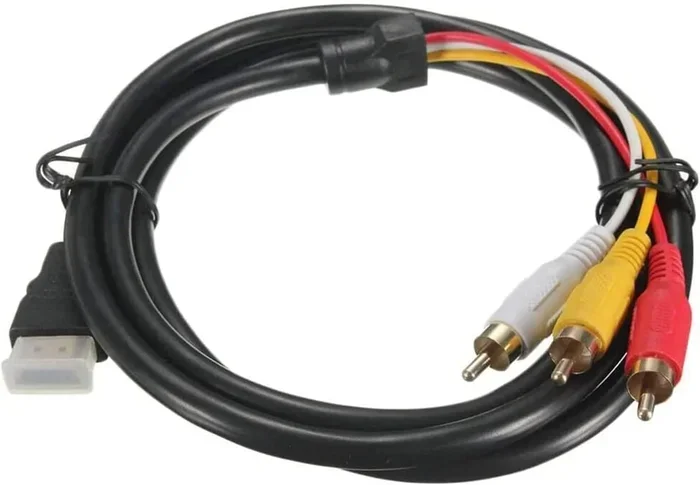
If your computer has only HDMI but you want to connect a VGA monitor, you need an HDMI to VGA adapter. These are cheap and widely available online. A simple HDMI to VGA converter will let you plug in your old monitor without any fuss.
On the other hand, if your computer has a VGA port but your monitor only has HDMI, you can use a VGA to HDMI adapter. Just keep in mind that the quality will depend on the converter’s build quality.
Some adapters are passive, meaning they just change the connector type. Others are active and include a chip to convert the signal from digital to analog or vice versa. Make sure you buy the right one for your setup.
Step 3: Plug in Both Cables
Once you have the right ports or adapters, it is time to connect everything. Plug the VGA cable into your monitor and the other end into your computer. Then plug the HDMI cable into your second monitor and the other end into your computer.
Make sure both connections are snug. A loose cable can cause flickering or no signal at all. If you are using an adapter, plug it in firmly and make sure it clicks into place.
Step 4: Configure Your Display Settings
After both monitors are connected, you need to configure your display settings. On Windows, right-click the desktop and select Display Settings. On macOS, go to System Settings and click Displays.
You will see options for how your screens work together. You can choose to extend your desktop across both monitors or mirror the same image on both screens.
Extending your display is great for multitasking. You can have your main workspace on one screen and reference material on the other. Mirroring is useful when you want to present the same content to an audience, such as when using a projector alongside your main monitor.
Step 5: Adjust Resolution and Orientation
Once your displays are set up, you may need to tweak the resolution and orientation of each screen. Go to the display settings and select each monitor individually.
For the HDMI monitor, set the resolution to its native value for the sharpest image. For the VGA monitor, you can set it to a standard resolution like 1080p or 1440 x 900, depending on the screen size.
You can also arrange the monitors in the settings to match their physical placement on your desk. This makes moving your mouse between screens feel natural and intuitive.
Can You Run Both VGA and HDMI at the Same Time? Common Issues and Fixes
Running both VGA and HDMI simultaneously works for most people, but sometimes you run into problems. Here are the most common issues and how to fix them.
No Signal on One Monitor
If one monitor shows no signal, the first thing to check is the cable connection. Make sure both ends are plugged in securely. If you are using an adapter, try unplugging it and plugging it back in.
Sometimes the issue is with the graphics driver. Update your graphics card driver through the manufacturer’s website or your device manager. An outdated driver can cause display detection problems.
If you are using a VGA to HDMI adapter, the converter itself might be faulty. Try a different adapter or test the monitor with a different connection to rule out a bad cable.
Poor Image Quality on the VGA Monitor
VGA is an analog connection, so some quality loss is normal. If the image looks blurry or fuzzy, try adjusting the refresh rate in your display settings. Lowering the refresh rate can sometimes improve the clarity on VGA monitors.
Also, check your VGA cable. A damaged or low-quality cable can cause signal interference. Replace it with a shorter, shielded cable for better results.
You can also adjust the monitor’s own settings, like sharpness and contrast, to improve the picture. Some VGA monitors have built-in controls that let you fine-tune the image.
Audio Issues with HDMI
HDMI carries both video and audio, but sometimes the sound does not come through. This usually happens when the default audio output is set to something other than HDMI.
To fix this, right-click the speaker icon in your taskbar and select Sound Settings. Make sure your HDMI monitor is set as the default playback device. On macOS, you can find this in the Sound preferences panel.
Display Settings Not Detecting the Second Monitor
If your computer does not detect the second monitor, try clicking the Detect button in your display settings. Sometimes Windows or macOS needs a nudge to recognize a new display.
Also, make sure your graphics card supports multiple outputs. Some older or budget cards only support a single display. In that case, you would need a USB display adapter to add a second output.
Quick Tips for a Smooth Dual Monitor Setup
Setting up both VGA and HDMI monitors does not have to be complicated. Follow these quick tips to make the process smooth and hassle-free.
- Use high-quality cables: Cheap cables cause signal issues. Invest in well-shielded VGA and HDMI cables for the best results.
- Update your drivers: Always make sure your graphics card driver is up to date before setting up a dual display.
- Match the refresh rates: Try to set both monitors to their native refresh rates for a consistent viewing experience.
- Use an active adapter: For VGA to HDMI or HDMI to VGA conversions, an active adapter with a built-in chip works better than a passive one.
- Keep cables short: Longer cables can degrade the signal, especially with VGA. Keep your runs under 6 feet when possible.
- Test each monitor individually: Before connecting both, test each monitor on its own to make sure it works properly.
Common Mistakes to Avoid When Connecting VGA and HDMI
Even with a straightforward setup, people make mistakes that cause frustration. Here are the most common ones to watch out for.
- Using a passive adapter for digital-to-analog conversion: Passive adapters only change the connector shape. They do not convert the signal. You need an active adapter for HDMI to VGA.
- Ignoring audio settings: If you want sound through your HDMI monitor, make sure it is set as the default audio device. VGA will never carry audio.
- Forcing the wrong resolution: Setting a monitor to a resolution it does not support can cause a blank screen or poor image quality.
- Not checking the graphics card capabilities: Some budget cards only support one display output. Check your card’s specs before buying adapters.
- Using a damaged cable: A frayed or bent VGA pin can cause color distortion or no signal at all. Inspect your cables before use.
Expert Insights: Getting the Most Out of Your Dual Setup
Setting up both VGA and HDMI on one computer is a great way to get the most out of your hardware, especially if you have older equipment still in good shape. Here are some expert tips to elevate your setup.
Use the HDMI monitor for your primary display. Since HDMI delivers digital signals, it will always look sharper than VGA. Put your main workspace on the HDMI screen and use the VGA monitor for secondary tasks like reference documents or a music player.
Consider a docking station. If you use a laptop, a USB-C or Thunderbolt docking station can add both VGA and HDMI outputs through a single connection. This keeps your setup clean and reduces cable clutter.
Upgrade when possible. While VGA still works, it is an older technology. If you have the budget, replacing a VGA monitor with an HDMI one gives you better image quality, audio support, and a cleaner connection.
Keep your graphics drivers current. Manufacturers release driver updates that improve multi-display support and fix bugs. A quick check every few weeks can save you from unexpected display issues.
Use display management software. Tools like DisplayFusion or UltraMon give you more control over how your monitors work together. You can set different wallpapers, taskbars, and window rules for each screen.
Key Takeaways
- Connecting both VGA and HDMI is possible: Most computers support multiple video outputs, so you can use both connections at the same time.
- You may need an adapter: If your computer does not have both ports, a simple converter bridges the gap between VGA and HDMI.
- HDMI delivers better quality: Digital signals from HDMI provide sharper images than the analog VGA connection.
- Check your graphics hardware first: Make sure your graphics card or motherboard supports dual displays before buying extra gear.
- Display settings are key: Configure extend or mirror mode in your operating system to get the most out of both screens.
- Avoid common mistakes: Use active adapters for signal conversion, update your drivers, and inspect your cables regularly.
Conclusion
So, can you connect both VGA and HDMI to your computer? Absolutely. Whether you are working with an older VGA monitor and a shiny new HDMI display, or you simply need a second screen for productivity, a dual output setup is within your reach. The process is straightforward, the equipment is affordable, and the results are well worth the effort.
Start by checking your computer’s video outputs. Grab the right adapter if needed. Plug in both cables, configure your display settings, and you are good to go. With a little patience and the right tips, you can have a smooth and functional dual monitor setup that gets your work done faster.
Do not let an old VGA monitor collect dust in a closet. Put it to good use alongside your HDMI display and enjoy the best of both worlds. A dual monitor setup with VGA and HDMI is a smart, practical solution that saves money and boosts productivity.
Frequently Asked Questions
Can I connect both VGA and HDMI at the same time?
Yes, you can connect both VGA and HDMI to your computer simultaneously. Most modern graphics cards and motherboards support multiple video outputs. You just need to make sure your hardware has the available ports or use an adapter if needed.
Do I need a special adapter to connect VGA and HDMI?
It depends on your computer’s ports. If your computer has both VGA and HDMI, you do not need an adapter. If it only has HDMI but you want to connect a VGA monitor, you need an HDMI to VGA active adapter. If it only has VGA but you want to connect an HDMI monitor, you need a VGA to HDMI active converter.
Will connecting both VGA and HDMI affect performance?
No, connecting both VGA and HDMI does not significantly affect performance. Modern graphics cards are designed to handle multiple displays. The only difference is that VGA may deliver a slightly lower image quality than HDMI because it uses an analog signal.
Can I extend my desktop across both VGA and HDMI monitors?
Yes, you can extend your desktop across both monitors. On Windows, go to Display Settings and select Extend. On macOS, go to System Settings and arrange the displays. This lets you use both screens as one large workspace.
Why is my VGA monitor blurry compared to my HDMI monitor?
VGA uses an analog signal, which can cause slight quality loss compared to HDMI’s digital signal. To reduce blurriness, use a short, high-quality VGA cable, adjust the monitor’s sharpness settings, and make sure you are running at the monitor’s native resolution.
Can I use both VGA and HDMI with a laptop?
Yes, many laptops support both VGA and HDMI output. Some laptops have both ports built in. Others may need a USB adapter to add a second output. Check your laptop’s specifications to confirm what video outputs are available.