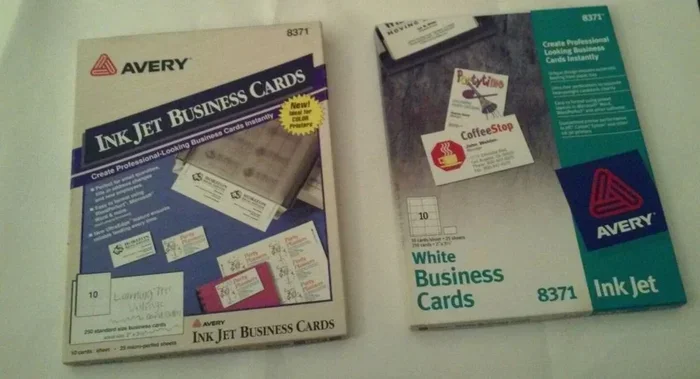
Can An Inkjet Printer Print Business Cards At Home
Can an inkjet printer print business cards at home? Yes, and this guide shows you how. You’ll learn to pick the right paper, design your layout, and print sharp, professional cards using your existing printer.
You’ve got a great business idea, a laptop full of designs, and an inkjet printer sitting on your desk. But can an inkjet printer print business cards that actually look professional? The short answer is a resounding yes. With the right paper, settings, and a little patience, you can create stunning business cards without leaving your house.
Many people assume they need a fancy laser printer or a trip to the local print shop to get quality cards. That’s simply not true anymore. Modern inkjet printers handle cardstock beautifully, and the cost per card is a fraction of what you’d pay for professional printing. Whether you’re a freelancer, a small business owner, or someone who needs a few extra cards for a networking event, home printing makes perfect sense.
In this article, I’ll walk you through everything you need to know. From picking the perfect paper stock to tweaking your printer settings, you’ll have all the tools to produce cards that rival anything from a high-end print shop. Let’s dive in and explore how to make your own inkjet business cards like a pro.
Key Takeaways
- Yes, it’s possible: An inkjet printer can produce high-quality business cards at home with the right paper and settings.
- Choose the right cardstock: Use inkjet-compatible paper in 80-110 lb weight for a professional finish.
- Design matters: Use templates and set your DPI to 300 or higher for crisp text and images.
- Check your printer’s capabilities: Ensure your model supports borderless printing and has sufficient resolution.
- Cut with precision: Use a paper trimmer or sharp craft knife for clean edges.
- Save money: Home printing is far cheaper than ordering from a print shop, especially for small batches.
📑 Table of Contents
- Can an Inkjet Printer Print Business Cards? Here’s What You Need to Know
- Why Print Business Cards at Home with an Inkjet Printer?
- Understanding Inkjet Printers and Card Stock
- Step-by-Step Guide to Printing Business Cards at Home
- Tips for a Professional Finish
- Common Mistakes to Avoid
- Is Home Printing Worth It? Final Verdict
Can an Inkjet Printer Print Business Cards? Here’s What You Need to Know
The short answer is yes, but the details matter. Not all inkjet printers are created equal, and not all paper works the same way. To get a professional finish, you need to understand three things: your printer’s capabilities, the right card stock, and your design setup. Once you nail those, you’ll be printing cards that look sharp and feel premium. This guide breaks down each step so you can avoid common pitfalls and achieve results you’ll be proud to hand out.
Why Print Business Cards at Home with an Inkjet Printer?
Printing your own home business cards offers several advantages. It’s not just about saving money, though that’s a big part of it. You gain control over every aspect of the process, from the paper texture to the exact shade of blue in your logo. Let’s look at the main reasons people choose to print at home.
The Cost Advantage
When you order from a print shop, you pay for setup fees, labor, and markup. A small batch of 100 cards can easily cost $20 to $50. With an inkjet printer and a pack of card stock, your cost per card drops to just a few cents. You can print 50 cards for under $5. For entrepreneurs testing a new brand or freelancers who need a few extra cards, that’s a huge win.
Full Creative Control
Print shops often have limited templates and strict deadlines. When you print at home, you can change your design in minutes. Want to add a QR code to the back? Go ahead. Need to update your phone number after a job change? Just edit the file and reprint. This level of customization is unbeatable, especially for DIY business cards that reflect your unique personality.
Convenience and Speed
Need 20 cards by tomorrow for a last-minute meeting? No problem. Your inkjet printer can turn out a full sheet in under ten minutes. You don’t have to wait for shipping or drive across town. This convenience is perfect for quick turnarounds and small, urgent orders. It also means you can keep a fresh stack of cards on hand without placing a bulk order.
Understanding Inkjet Printers and Card Stock
Not all printers and papers are the same. To get a great result, you need to match your printer type with the right material. Let’s break down the key differences and what to look for.
Inkjet vs. Laser Printers for Business Cards
Inkjet printers spray tiny droplets of liquid ink onto paper. They excel at producing vibrant colors and smooth gradients. Laser printers use heat to fuse toner powder onto the page. Both can print business cards, but they behave very differently on cardstock.
Inkjet printers generally produce richer, more saturated colors, which is why many designers prefer them for colorful business cards. Laser printers are faster and don’t smudge if you touch the page right away, but they can struggle with very thick or glossy card stock. For most home users, an inkjet printer is the better choice for print business cards at home.
| Feature | Inkjet Printer | Laser Printer |
|---|---|---|
| Color Vibrancy | Excellent, smooth gradients | Good, but can look flat |
| Card Stock Compatibility | Works well with 80-110 lb stock | Best with 80 lb or lighter |
| Smudge Resistance | Needs time to dry; use coated paper | Instant; toner fuses with heat |
| Cost per Card | Very low with home paper | Higher if using thick stock |
| Best For | Creative, colorful designs | High-volume, text-heavy cards |
Choosing the Right Card Stock Weight
Card stock weight is measured in pounds (lb) or grams per square meter (gsm). For business cards, you want a weight that feels substantial without being too thick to fit in a wallet. The sweet spot is usually between 80 lb and 110 lb, or roughly 215 to 295 gsm. Lighter paper feels flimsy, while heavier stock may not feed through some printers smoothly.
Look for inkjet compatible paper on the package. This paper has a special coating that absorbs ink without bleeding or smearing. Regular copy paper will warp and blur, so never use it for your cards. If you’re unsure, test a single sheet first to see how your printer handles it.
Glossy, Matte, and Linen Finishes
The finish of your paper dramatically changes the look and feel of your home business cards. Glossy paper gives a shiny, vibrant finish that makes colors pop. It’s great for photography or bold graphics. Matte paper has a soft, non-reflective surface that feels elegant and is easy to write on. Linen paper has a subtle textured weave that adds a tactile, premium touch.
For a professional finish, matte and linen are often the safest choices. Glossy cards can reflect light and make text harder to read in bright conditions. Choose the finish that matches your brand personality. If you’re a photographer, glossy might work. If you’re a consultant, matte or linen often looks more refined.
Step-by-Step Guide to Printing Business Cards at Home
Now that you have the right paper and printer, let’s walk through the actual printing process. Follow these steps to avoid frustration and get great results every time.
Designing Your Layout with Templates
Start with a template. Don’t build your design from a blank canvas unless you’re experienced with design software. Free templates are available from Avery, Canva, and many printer manufacturers. These templates already include the correct dimensions (3.5 by 2 inches) and bleed area for trimming.
When designing, keep your text large and legible. A font size of 10 to 12 points works well for body text. Your logo should be at least 1 inch wide. Use high-resolution images (300 DPI or higher) to avoid pixelation. Borderless printing is a great feature to enable if your printer supports it, as it allows your design to extend right to the edge of the card.
Setting Up Your Printer for Best Results
Before you print a single card, adjust your printer settings. Go to your print dialog and select “High Quality” or “Best” mode. This increases the DPI (dots per inch), which makes your text and images sharper. For the best print quality, set the DPI to 300 or higher.
Choose the correct paper type in your printer driver. If your paper is glossy, select “Glossy Photo Paper” or “Heavy Glossy.” For matte stock, pick “Matte” or “Plain” with the highest quality setting. Always load your card stock with the printable side facing the correct direction. Check your printer manual if you’re unsure—feeding the paper backward is a common mistake that leads to wasted sheets.
Printing a Test Sheet and Adjusting
Never print your final design right away. Print a test sheet on regular paper first to check alignment and colors. Then, if everything looks good, print on your actual card stock. This saves money and prevents heartbreak.
If colors look off, check your color calibration. Most operating systems have built-in color management tools. You can also run a nozzle check to make sure your ink cartridges are firing correctly. Clogged nozzles cause streaks and missing colors, which ruins a batch of cards. Run the printer’s cleaning utility if you notice any issues before printing your final batch.
Tips for a Professional Finish
A few extra steps can take your DIY business cards from looking homemade to looking store-bought. These tips are simple but make a big difference.
Color Accuracy and Calibration
Inkjet printers can shift colors slightly from what you see on screen. To minimize this, use the same brand of ink your printer recommends and keep your ink levels balanced. If you’re printing a large batch, monitor the first few cards closely. Colors can change as the printer warms up. For critical color matching, consider buying a color calibration tool, though for most home users, the built-in settings are sufficient.
Bleed, Margins, and Safe Zones
A bleed area is the part of your design that extends beyond the final cut line. It ensures that when you trim the cards, there are no white edges. Set your bleed to at least 0.125 inches on all sides. Keep important text and logos at least 0.25 inches inside the trim line to avoid them being cut off. This safe zone is a standard practice in professional printing and works just as well at home.
Cutting and Trimming Like a Pro
Once your sheet is printed, you need to cut it into individual cards. A paper trimmer with a grid line is the easiest tool to use. It gives you perfectly straight cuts every time. If you don’t have a trimmer, use a metal ruler and a sharp craft knife. Cut on a cutting mat to protect your table.
Go slow and make multiple light passes rather than trying to cut through the entire stack in one go. Straight edges make your cards look polished and professional. If you’re printing a full sheet of ten cards, take your time with the cutting step—it’s the final touch that makes all the difference.
Common Mistakes to Avoid
Even with the best printer, small errors can ruin your business cards. Here are the most common mistakes and how to avoid them.
Using Regular Copy Paper
This is the number one mistake. Copy paper is too thin and absorbent. Inkjet ink will bleed and feather, leaving you with blurry text and soggy cards. Always use inkjet compatible card stock. The coating on this paper keeps the ink on the surface, producing crisp, sharp lines. It’s worth the small extra cost for a dramatically better result.
Ignoring DPI and Resolution Settings
Printing at the default “Draft” or “Normal” quality often looks fine on screen but reveals flaws on paper. Low DPI settings cause jagged edges and muddy colors. Always select the highest quality setting your printer offers. If your design includes fine lines or small text, a low DPI will make them illegible. Taking the extra minute to change this setting saves you from reprinting entire sheets.
Skipping the Test Print
It’s tempting to feed your expensive card stock right into the printer, but skipping a test print is a gamble. A quick test on regular paper confirms your layout, margins, and colors before you waste a sheet of specialty paper. Make it a habit: test first, then print for real. This simple step prevents most alignment and color issues.
Is Home Printing Worth It? Final Verdict
For most people, the answer is a clear yes. Printing your own business cards at home saves money, gives you instant results, and offers complete creative freedom. You can print as many or as few as you need, which is perfect for testing new designs or updating contact information on the fly.
That said, home printing isn’t for everyone. If you need thousands of cards with exact Pantone color matching, a professional print shop is still the way to go. But for everyday business needs—networking events, client meetings, and small giveaways—your inkjet printer is more than capable.
Pros and Cons of DIY Business Cards
Here’s a quick look at the trade-offs:
- Pros: Low cost per card, instant turnaround, full design control, no minimum order quantities, easy to update.
- Cons: Requires upfront investment in card stock, color matching can be tricky, cutting takes time, and you’re limited by your printer’s maximum paper thickness.
When to Stick with a Print Shop
If you’re launching a major brand campaign and need 500 or more cards with perfect color consistency, a print shop is better. They have commercial presses and professional color calibration equipment that home printers can’t match. Also, if you need special finishes like embossing, foil stamping, or raised ink, a professional service is the only option. For everything else, your inkjet printer will serve you well.
The bottom line is that can an inkjet printer print business cards is no longer a question of capability—it’s a question of knowing the right process. With the tips in this guide, you have everything you need to produce cards you’ll be proud to hand out. Start with a small batch, experiment with different papers and settings, and enjoy the satisfaction of creating something professional with your own hands.
Frequently Asked Questions
Is it cheaper to print business cards at home?
Yes, printing at home is significantly cheaper for small to medium batches. A pack of inkjet card stock costs around $10 to $15 and can yield 50 to 100 cards, making the cost per card just a few cents. Print shops often charge $20 or more for a small run, so home printing saves you money and gives you more control over your budget.
What paper is best for inkjet business cards?
Look for inkjet-compatible card stock in the 80 to 110 lb weight range. Matte and linen finishes are popular for a professional look, while glossy paper makes colors pop. The key is to choose paper specifically coated for inkjet printers, as it prevents bleeding and delivers sharp, vibrant results.
Can I use any inkjet printer for business cards?
Most modern inkjet printers can handle business cards, but check your printer’s specifications first. Ensure it supports borderless printing and can handle paper weights of at least 80 lb. Higher-end models with individual ink tanks tend to produce the best color accuracy and print quality for card stock.
How do I set up bleed for business cards?
Set your design software’s bleed to 0.125 inches on all sides. This extra margin ensures that when you trim the cards, there are no white edges along the borders. Keep all important text and logos at least 0.25 inches inside the final trim line to stay within the safe zone.
Do I need special ink for business cards?
You don’t need special ink, but using the manufacturer-recommended ink cartridges ensures the best results. Third-party inks can sometimes cause smudging or color shifts. For the most professional finish, stick with OEM inks and always let your printed cards dry fully before handling or stacking them.
What DPI should I use for business cards?
Always print at 300 DPI or higher for business cards. This resolution ensures that text is crisp and images are sharp, even on glossy or textured paper. Lower DPI settings can make fine lines blurry and colors muddy, which ruins the professional look of your home business cards.