Can I Convert A Vga Cable To Hdmi With These Simple Steps
Yes, you can convert a VGA cable to HDMI using a VGA to HDMI adapter or converter box. This simple process lets you connect older devices with VGA ports to modern HDMI displays like TVs and monitors. We will walk you through every step, explain the differences between active and passive adapters, and share tips to get the best picture quality.
Have you ever looked at your old computer or projector and wondered if you could hook it up to a modern TV or monitor? The answer is yes. You can convert a VGA cable to HDMI and enjoy a much better picture on your newer display. This guide will show you exactly how to do it in a few simple steps.
Many people still have devices with VGA ports lying around. Old desktop computers, laptops, and projectors often use this blue-colored analog connection. Meanwhile, most modern TVs, monitors, and projectors now use HDMI. So what do you do when you want to connect the two? That is where a VGA to HDMI adapter comes in handy.
In this article, we will cover everything you need to know about the conversion process. You will learn about the different types of adapters, how to set them up, and what to watch out for. We will also answer common questions so you feel confident making the switch.
Key Takeaways
- VGA to HDMI conversion is possible: You need the right adapter or converter to bridge analog and digital signals.
- Active adapters are usually required: Passive adapters alone cannot convert analog VGA signals to digital HDMI signals.
- Audio may need a separate connection: VGA does not carry audio, so you may need an additional cable for sound.
- Resolution quality depends on your adapter: A good converter can support up to 1080p or higher output.
- Check your device compatibility first: Not all VGA ports support signal conversion, so verify your hardware before buying.
- Setup is simple and fast: Most conversions take just a few minutes with no technical expertise needed.
📑 Table of Contents
- What Is VGA and Why Do People Still Use It?
- Can I Convert A Vga Cable To Hdmi Without an Adapter?
- Types of VGA to HDMI Adapters and Converters
- How to Convert VGA to HDMI in Simple Steps
- Common Problems and How to Fix Them
- Quick Tips for the Best Results
- When Should You Replace VGA with HDMI Instead of Converting?
- Frequently Asked Questions
- Conclusion
What Is VGA and Why Do People Still Use It?
VGA stands for Video Graphics Array. It is an older standard for displaying video on a screen. The VGA connection has been around since the late 1980s. It uses an analog signal to send video data from your device to your display.
You can easily recognize a VGA cable by its blue rectangular plug. It has 15 pins arranged in three rows. Many desktop computers, projectors, and older laptops still include a VGA port. Even though HDMI has mostly replaced it, VGA is still widely used in offices, schools, and conference rooms.
The main limitation of VGA is that it only carries video signals. It does not transmit audio. Also, the analog nature of the signal can lead to quality loss over longer cable runs. Still, many people prefer VGA because their older devices work perfectly well with it.
Understanding Analog vs Digital Signals
VGA uses an analog signal. This means the video data is sent as continuous electrical waves. HDMI, on the other hand, uses a digital signal. Digital signals send data in discrete packets, which results in a cleaner and sharper picture.
When you convert from VGA to HDMI, you are essentially converting an analog signal to a digital one. This requires a converter chip inside the adapter. A simple cable with different plugs on each end will not work. You need an active conversion device to make this happen.
Can I Convert A Vga Cable To Hdmi Without an Adapter?
The short answer is no. You cannot directly plug a VGA cable into an HDMI port and expect it to work. The two connectors have different shapes, different pin configurations, and different signal types. A VGA plug simply will not fit into an HDMI port.
Some people try to use passive adapters or cable combinations, but these rarely work for VGA to HDMI conversion. The signal conversion requires active electronics to translate the analog signal into a digital format. Without those electronics, you will get no picture at all.
So if someone tells you that a simple cable will do the job, be cautious. You really do need a proper VGA to HDMI adapter or converter box. These devices contain the necessary circuitry to handle the signal conversion.
Types of VGA to HDMI Adapters and Converters
Not all adapters are the same. There are a few different options available, and choosing the right one depends on your needs. Let us look at the main types you will come across when shopping.
VGA to HDMI Adapter Converters
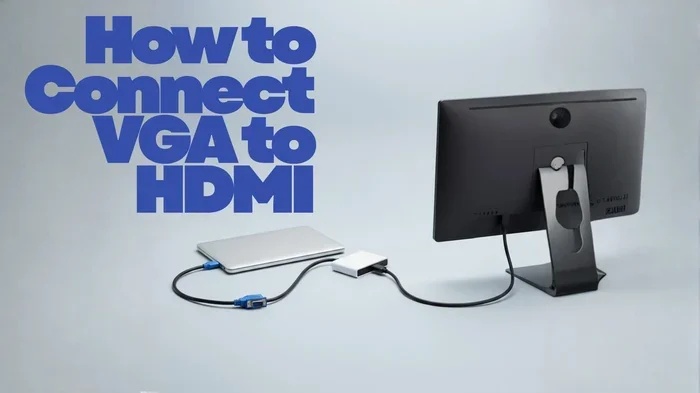
These are the most common type of converter. They have a VGA input on one side and an HDMI output on the other. You plug your VGA cable into the adapter, and then connect an HDMI cable from the adapter to your TV or monitor.
Most adapter converters are active devices. This means they have built-in electronics to handle the analog-to-digital conversion. Many of them also include a 3.5mm audio jack so you can connect a separate audio cable for sound. These adapters are affordable and easy to use.
VGA to HDMI Converter Boxes
Converter boxes are larger than simple adapters. They sit on your desk and have VGA and HDMI ports on the back. You connect your VGA cable to the box and an HDMI cable from the box to your display.
Converter boxes often provide better signal processing than small adapters. They tend to offer higher resolution support and more stable performance. If you need a reliable setup for presentations or gaming, a converter box is a great choice.
USB-Powered VGA to HDMI Converters
Some converters draw power from a USB port. These are convenient because you do not need a separate power cable. You simply plug the converter into your device’s USB port and you are good to go.
USB-powered options work well for basic tasks like presentations or watching videos. However, they may not support the highest resolutions. If you need 1080p or 4K output, check the specifications before buying.
How to Convert VGA to HDMI in Simple Steps
Now that you understand the basics, let us walk through the actual conversion process. The steps are straightforward and anyone can follow them.
Step 1: Gather Your Equipment
Before you start, make sure you have everything you need. Here is a quick checklist:
- A VGA cable from your source device
- A VGA to HDMI adapter or converter box
- An HDMI cable
- An HDMI-compatible display (TV, monitor, or projector)
- A 3.5mm audio cable (if your adapter has an audio output)
Take a moment to check that your VGA cable and HDMI cable are in good condition. Damaged cables can cause poor picture quality or no signal at all.
Step 2: Connect the VGA Cable
Plug one end of your VGA cable into the VGA port on your source device. This could be a desktop computer, laptop, or older projector. Push the connector in firmly until it clicks into place. The blue color of the VGA port makes it easy to identify.
Step 3: Connect the Adapter or Converter
Now plug the other end of the VGA cable into the VGA input on your adapter or converter box. Make sure the connection is secure. If you are using a converter box, place it somewhere stable near your display.
Step 4: Connect the HDMI Cable
Take your HDMI cable and plug one end into the HDMI output on the adapter or converter. Plug the other end into an available HDMI port on your TV or monitor. HDMI ports are thin and flat, so you will know when the connection is solid.
Step 5: Add Audio if Needed
Remember that VGA does not carry audio. If you want sound to come through your HDMI display, you need a separate audio connection. Many VGA to HDMI adapters have a 3.5mm audio output jack. Connect a standard aux cable from that jack to the audio input on your TV or use the TV’s built-in speakers.
Step 6: Power On and Configure Display Settings
Turn on your source device and your HDMI display. Use your TV remote or monitor controls to select the correct HDMI input channel. On your computer, you may need to adjust the display settings to detect the new HDMI connection.
On Windows, go to Settings > Display and click Detect or Extend. On a Mac, go to System Preferences > Displays. You can choose to mirror your screen or extend it across multiple displays.
Common Problems and How to Fix Them
Even with the right equipment, you might run into some issues during the conversion process. Here are the most common problems and their solutions.
No Picture on the HDMI Display
If you see no image at all, first check all your cable connections. Make sure the VGA cable is firmly seated in both the source device and the adapter. Do the same for the HDMI cable. Also, verify that you have selected the correct HDMI input on your TV or monitor.
Another common cause is that the adapter is not receiving enough power. Some converters need to be plugged into a USB power source. Try connecting the USB cable that came with your adapter and plug it into a wall charger or powered USB hub.
Poor Picture Quality or Flickering
If the picture looks blurry, distorted, or flickers, the VGA cable might be too long. VGA signals degrade over distance. Try using a shorter VGA cable or moving your source device closer to the adapter.
You can also try lowering the output resolution on your source device. Setting your computer to 1080p or lower can sometimes improve stability. Check your adapter specifications to see what maximum resolution it supports.
No Audio from HDMI Display
Since VGA does not carry audio, this is expected unless you set up a separate audio connection. Make sure your 3.5mm audio cable is properly connected. On your TV or monitor, check the audio settings and make sure the correct input source is selected.
On Windows, right-click the speaker icon in your taskbar and select Open Sound Settings. Make sure your HDMI display is set as the audio output device.
Quick Tips for the Best Results
Here are some practical tips to help you get the most out of your VGA to HDMI conversion setup:
- Use high-quality cables: Cheap cables can introduce signal interference and reduce picture quality. Invest in well-shielded VGA and HDMI cables for the best results.
- Keep cable runs short: Try to keep your VGA cable under 15 feet for optimal signal strength. Longer runs increase the chance of signal loss.
- Update your graphics drivers: Before connecting your new HDMI display, update your computer’s graphics card drivers. This ensures the best compatibility and performance.
- Test your audio setup separately: If you are having trouble with sound, test the audio cable independently to rule out connection issues.
- Match your resolution settings: Set your computer’s display resolution to match your HDMI display’s native resolution for the sharpest picture.
When Should You Replace VGA with HDMI Instead of Converting?
While converting VGA to HDMI works well, there are times when it makes more sense to replace your old equipment entirely. If you find yourself converting signals frequently, it might be worth investing in devices with native HDMI ports.
Newer devices with HDMI offer several advantages. They support higher resolutions, carry both video and audio in a single cable, and provide a more reliable connection. If you are buying a new computer, monitor, or projector, look for HDMI as your primary display output.
That said, converting VGA to HDMI is a smart and cost-effective solution when you have perfectly good older devices. There is no need to replace everything just because the port type is different. A simple adapter gives your old equipment new life.
Frequently Asked Questions
Do I need a powered VGA to HDMI converter?
Most VGA to HDMI adapters are active devices that require power. They typically draw power through a USB connection. If your adapter has a USB power port, plug it into your computer or a wall charger for the best results. Without power, the analog-to-digital conversion will not work properly.
Can I get audio through a VGA to HDMI adapter?
VGA does not carry audio signals, so you cannot get sound through the VGA connection itself. However, many VGA to HDMI adapters include a 3.5mm audio output jack. You can connect a separate audio cable from the adapter to your HDMI display to get sound. Always check the adapter specifications before purchasing.
What resolution can I expect from a VGA to HDMI conversion?
The resolution you get depends on your specific adapter and source device. Most VGA to HDMI converters support up to 1080p at 60Hz. Some higher-end models can support even higher resolutions. Check the product specifications to confirm the maximum resolution before you buy.
Will a passive VGA to HDMI cable work?
No, a passive cable will not work for VGA to HDMI conversion. The signal types are fundamentally different. VGA carries an analog signal while HDMI carries a digital signal. You need an active converter with built-in electronics to translate between the two formats. Any product claiming to be a simple passive cable is misleading.
Can I use a VGA to HDMI adapter with a gaming console?
Most modern gaming consoles do not have VGA outputs, so this is not a common use case. However, if you have an older console or device with VGA output, the adapter should work for basic gaming. Keep in mind that VGA was not designed for fast-paced gaming, so you may experience some input lag compared to a native HDMI connection.
How do I know which HDMI input to select on my TV?
Each HDMI port on your TV is assigned a number or label. Use your TV remote to press the Input or Source button. You will see a list of available HDMI ports. Select the one where you plugged in your HDMI cable from the adapter. If you are unsure, unplug the HDMI cable and plug it back in — the TV will usually display the name of the active input.
Conclusion
Converting a VGA cable to HDMI is easier than most people think. With the right VGA to HDMI adapter or converter box, you can connect your older devices to modern displays in just a few minutes. The process is straightforward, affordable, and does not require any technical expertise.
Remember to choose an active converter rather than a passive cable, and always check that your adapter supports your desired resolution. Set up your audio connection separately since VGA does not carry sound. And if you run into any issues, the troubleshooting tips in this guide should help you resolve them quickly.
Whether you are setting up a home office, giving a presentation, or connecting an old projector to a new TV, knowing can I convert a VGA cable to HDMI gives you the confidence to get it done right. Follow the simple steps outlined here and enjoy a clear, sharp picture on your HDMI display today.