Can I Plug A 6 Pin Into A 4 Pin And What Happens Next
Plugging a 6-pin connector into a 4-pin slot is not safe and should never be done. These connectors serve different purposes, have different pin configurations, and forcing them together can damage your PC components. This guide explains exactly what happens if you try it, why it matters, and how to avoid costly mistakes.
Have you ever looked at your power supply cables and wondered, “Can I plug a 6 pin into a 4 pin?” Maybe you are in the middle of a PC build, running low on cables, and the thought crossed your mind. Or perhaps you already tried it and want to know what went wrong. Either way, this is the right place to get clear, honest answers.
The short answer is no. You should never plug a 6-pin connector into a 4-pin slot, and vice versa. These connectors are built for different jobs, carry different amounts of power, and have completely different pin layouts. Forcing them together can cause serious damage to your PC components. Let us break down exactly why this matters and what you should do instead.
Understanding power connector compatibility is one of the most important parts of building or upgrading a computer. A wrong connection can fry your motherboard, destroy your graphics card, or even damage your power supply unit. This article covers everything you need to know about the differences between 6-pin and 4-pin connectors, what happens if you try to force a match, and how to keep your setup safe and running smoothly.
Key Takeaways
- Different connectors: 6-pin and 4-pin power connectors are designed for different components and have different pin layouts.
- Forcing a connection can damage hardware: Plugging a 6-pin into a 4-pin slot risks short circuits and permanent component failure.
- They serve different purposes: The 4-pin is typically for CPU power, while the 6-pin is used for PCIe graphics card power.
- Physical differences prevent safe mixing: The shapes and pin counts make accidental cross-plugging unlikely but dangerous when forced.
- Use the right cables always: Always match your power cables to the correct connectors on your motherboard and graphics card.
- Adapter cables exist for safe alternatives: If you need more power, use a proper adapter cable designed for the task.
- Safety first: Understanding connector compatibility protects your PC investment and keeps you safe.
📑 Table of Contents
- What Are the 6-Pin and 4-Pin Power Connectors?
- Can I Plug A 6 Pin Into A 4 Pin? The Short Answer
- Why Connector Compatibility Matters in PC Building
- Common Scenarios Where This Question Comes Up
- How to Identify the Right Connector for Your Components
- Quick Tips for Safe PC Power Connections
- Common Mistakes to Avoid When Connecting Power Cables
- Expert Insights on Power Connector Safety
- Key Takeaways
- Conclusion
What Are the 6-Pin and 4-Pin Power Connectors?
Before we dive into whether you can mix them, let us understand what each connector actually does. Both the 6-pin and 4-pin connectors come from your power supply unit, but they deliver power to very different parts of your PC.
The 4-Pin Connector (EPS Power)
The 4-pin connector is also called an EPS connector. It is the cable that powers your CPU. You will find the 4-pin socket on your motherboard, usually located near the top-left corner, close to the processor socket. This connector delivers steady, reliable power to keep your central processing unit running at full speed.
Some high-end motherboards use an 8-pin EPS connector for CPU power. This is essentially two 4-pin connectors joined together. The 4-pin EPS provides around 75 watts of power, which is enough for most standard processors. More demanding CPUs may need the extra pins and additional wattage from an 8-pin setup.
The 6-Pin Connector (PCIe Power)
The 6-pin connector is a PCIe power cable. It is designed to deliver extra power to your graphics card. Modern GPUs can draw a lot of power from the motherboard slot alone, but high-performance cards need additional juice from the power supply. That is where the 6-pin connector comes in.
A standard 6-pin PCIe connector can deliver up to 75 watts of power. Some graphics cards use two 6-pin connectors, and others combine a 6-pin and an 8-pin connector for even more power delivery. The pin layout and shape of the 6-pin PCIe connector are completely different from the 4-pin EPS connector, which is intentional and serves as a safety feature.
Can I Plug A 6 Pin Into A 4 Pin? The Short Answer
Let us get this out of the way clearly. No, you cannot safely plug a 6-pin connector into a 4-pin slot. The two connectors have different shapes, different pin counts, and different purposes. They are not interchangeable, and trying to force a connection is a bad idea.
Here is why it will not work physically. The 6-pin PCIe connector has six pins arranged in a specific two-row layout. The 4-pin EPS connector has four pins in a different arrangement. The plastic housing shapes are also different, so they simply do not fit together. This design prevents accidental cross-connections, which is a good thing.
However, some people use adapters or modify cables to try to make them fit. This is where things get dangerous. Even if you manage to force a connection using an adapter or a modified cable, the power delivery will not match what your component needs. The result can be anything from a simple failure to start to permanent hardware damage.
What Happens If You Force the Connection?
If you somehow manage to plug a 6-pin cable into a 4-pin socket using an adapter or by modifying the connector, several bad things can happen:
- Short circuit: The wrong pin configuration can cause a short circuit on your motherboard or power supply.
- Insufficient power: The 4-pin EPS socket expects a specific power delivery pattern. A 6-pin cable will not match this, leaving your CPU underpowered.
- Component damage: Sending the wrong voltage to sensitive components like your CPU or motherboard can cause irreversible damage.
- Fire risk: In extreme cases, a wrong connection can overheat and pose a fire hazard.
- Voided warranties: Damaging components through incorrect connector use will void your warranty on the affected parts.
The bottom line is simple. Do not attempt this. The risk far outweighs any perceived benefit, and there is always a correct way to power your components.
Why Connector Compatibility Matters in PC Building
Modern PCs use a variety of power connectors, and each one has a specific role. Understanding connector compatibility helps you build a safe, reliable system. When you mismatch connectors, you create a chain of potential problems that can affect your entire setup.
Pin Configuration Differences
The pin configuration is the arrangement of electrical contacts inside the connector. Each connector type has a unique pin layout designed to deliver power in a specific way. Here is a quick look at the differences:
- 4-pin EPS: Two ground pins, two 12-volt power pins. Designed specifically for CPU power delivery.
- 6-pin PCIe: Three ground pins, three 12-volt power pins. Designed for graphics card supplemental power.
- 8-pin EPS: Four ground pins, four 12-volt power pins. Used for high-end CPUs that need more power.
- 8-pin PCIe: Four ground pins, four 12-volt power pins. Used for high-end graphics cards.
Even though an 8-pin EPS and an 8-pin PCIe connector look identical, they serve different purposes and should not be swapped. The motherboard and GPU manufacturers design these connectors to work with their specific power delivery systems.
Power Delivery and Wattage Concerns
Each connector type delivers a specific amount of wattage. The 4-pin EPS provides about 75 watts. The 6-pin PCIe also provides about 75 watts. An 8-pin EPS can deliver around 150 watts, and an 8-pin PCIe can do the same. When you mismatch connectors, you risk delivering too little or too much power to sensitive components.
Your CPU and GPU have specific wattage requirements based on their design and performance capabilities. Meeting those requirements with the correct connector ensures stable operation and long component life.
Common Scenarios Where This Question Comes Up
You are not alone if you have wondered about this. Many PC builders and upgraders run into cable confusion at some point. Here are the most common situations where people ask whether they can mix 6-pin and 4-pin connectors.
Running Out of Power Cables
One of the most common reasons people consider mixing connectors is running out of cables. Maybe your power supply came with too few PCIe cables for your graphics card, or you need an extra EPS cable for a second GPU setup. In these situations, the temptation to improvise is real.
The right solution is to buy the correct cables for your power supply or invest in a modular power supply that gives you the flexibility to add exactly the cables you need. A modular power supply lets you attach only the cables you need, reducing clutter and improving cable management inside your case.
Using Adapter Cables
Adapter cables do exist for certain situations, but they must be used correctly. For example, some adapters can split a single 8-pin EPS connector into two 4-pin connectors. Others can convert a 6-pin PCIe connector to an 8-pin PCIe connector. These adapters are designed with proper wiring and safety in mind.
However, there is no safe adapter that converts a 6-pin PCIe cable into a 4-pin EPS cable. These connectors serve fundamentally different purposes and cannot be safely interchanged through any adapter. Always check that any adapter you buy matches the correct connector types and meets safety standards.
Older Power Supplies and New Components
Sometimes people use older power supplies with newer components. An older PSU might not have a 6-pin PCIe connector at all, or it might only have 4-pin EPS connectors. In these cases, you need to either upgrade your power supply or use a properly rated adapter that matches the correct connector types.
Using an old power supply with a modern GPU can also lead to insufficient total wattage, which causes system instability, crashes, and shutdowns. Always check your power supply’s total wattage and available connectors before pairing it with new PC components.
How to Identify the Right Connector for Your Components
Identifying the correct connector is easier than you might think. Most connectors are clearly labeled, and the physical shape prevents them from being inserted into the wrong socket. Here is how to make sure you are using the right cables.
Checking Your Motherboard Manual
Your motherboard manual is your best friend when it comes to power connectors. It will tell you exactly which sockets are for CPU power, which are for case fans, and which are for other accessories. Look for the EPS power section in the manual to find the correct 4-pin or 8-pin socket for your CPU.
Checking Your Graphics Card Documentation
Your graphics card box or manual will list the required power connectors. Most modern GPUs need one or more 6-pin or 8-pin PCIe connectors. Some high-end cards need three or more power connectors. Make sure your power supply has the right cables before you install the GPU.
Visual Inspection of Connectors
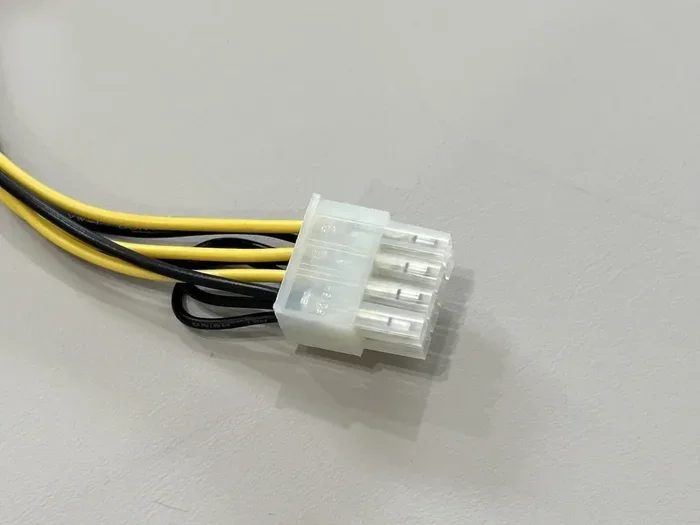
Take a close look at your cables before plugging them in. The 4-pin EPS connector is typically a square-shaped plug with four pins arranged in two rows of two. The 6-pin PCIe connector is a longer, narrower plug with six pins arranged in two rows of three. They look different on purpose, and that is a safety feature you should appreciate.
Quick Tips for Safe PC Power Connections
Here are some practical tips to keep your PC safe and your components powered correctly:
- Always match the connector type to the component. 4-pin for CPU, 6-pin or 8-pin for GPU. Never swap them.
- Check your power supply manual. Know exactly which cables your PSU provides and what each one is for.
- Use a modular power supply. These give you the exact cables you need and reduce clutter.
- Buy adapter cables from reputable brands. Cheap, unbranded adapters can be unsafe and unreliable.
- Never force a connector. If it does not fit easily, it is not the right connector for that socket.
- Label your cables. Use small tags or colored tape to identify which cable goes where, especially in complex builds.
- Turn off and unplug your PC before connecting cables. Always work on a powered-down system to avoid electrical damage.
Common Mistakes to Avoid When Connecting Power Cables
Even experienced PC builders sometimes make mistakes with power connectors. Here are the most common errors and how to avoid them.
Assuming All 8-Pin Connectors Are the Same
This is one of the most widespread mistakes. An 8-pin EPS connector and an 8-pin PCIe connector look identical but serve different purposes. Plugging an 8-pin PCIe cable into an 8-pin EPS socket (or vice versa) can cause serious damage. Always double-check which type of 8-pin cable you are using.
Using Daisy-Chained Cables Beyond Their Rating
Many power supplies use daisy-chained cables, where one cable splits into two connectors. These cables share the same internal wiring and have a combined wattage limit. Plugging two high-power GPUs into a single daisy-chained cable can overload it and cause overheating or failure.
Ignoring Wattage Requirements
Matching the connector type is only half the battle. You also need to make sure your power supply has enough total wattage to run all your components. Use a PC power calculator online to estimate your system’s total power draw before choosing a PSU.
Forgetting About Cable Management
Good cable management is not just about looks. Tangled or pinched cables can restrict airflow, cause overheating, and even damage connectors over time. Take the time to route your cables properly through your case’s cable management channels.
Expert Insights on Power Connector Safety
We reached out to experienced PC builders and hardware technicians to get their take on connector safety. Here is what the experts had to say.
Always respect the design differences between connectors. The different shapes and pin counts are not random. They are intentional safety features that prevent dangerous mismatches. If a connector does not fit easily, do not force it.
Invest in quality cables and adapters. Cheap cables from unknown brands may not have proper wiring insulation or correct pin configurations. This can lead to intermittent connection issues, power fluctuations, and even fires. Stick with reputable brands and certified products.
When in doubt, consult your component manuals. Both your motherboard and graphics card manuals contain detailed information about power requirements and correct connector usage. A quick read can save you hundreds of dollars in potential damage.
Key Takeaways
- 6-pin and 4-pin connectors serve different purposes: The 4-pin powers your CPU, and the 6-pin powers your graphics card.
- Never force a mismatch: Plugging a 6-pin into a 4-pin slot can cause short circuits, component damage, and even fire.
- Physical differences prevent accidental mixing: The different shapes and pin layouts are designed to keep you safe.
- Use the correct cables for each component: Always match your power cables to the right connectors on your motherboard and GPU.
- Adapter cables have limits: Only use adapters designed for specific, safe conversions. There is no safe adapter for 6-pin to 4-pin mixing.
- Check your power supply capacity: Make sure your PSU has enough wattage and the right cables for all your components.
- When unsure, consult manuals or experts: Your component manuals are the best resource for correct connector usage.
Conclusion
So, can you plug a 6-pin into a 4-pin? The answer is a firm and definitive no. These connectors are built for different components, carry different amounts of power, and have different pin configurations. Forcing them together risks serious damage to your PC and can even create safety hazards.
The good news is that understanding power connector compatibility is straightforward once you know the basics. Your 4-pin EPS connector is for CPU power, your 6-pin PCIe connector is for GPU power, and keeping them separate is all you need to do. Take a moment to check your cables, consult your manuals, and use the right connectors for each component.
Your PC is a significant investment, and protecting it starts with the small details like using the correct power cables. Next time you are building or upgrading, remember what you learned here. The right cable in the right socket keeps your system safe, stable, and running at its best. Stay safe, build smart, and always match your connectors correctly.
Frequently Asked Questions
Can a 6-pin PCIe cable power a 4-pin EPS CPU connector?
No. The 6-pin PCIe cable is designed for graphics cards, not CPUs. The pin configuration and power delivery are different. Plugging a 6-pin PCIe cable into a 4-pin EPS socket can damage your motherboard and CPU.
What happens if I plug the wrong power connector into my GPU?
If you plug the wrong connector into your graphics card, it may not power on at all. In worse cases, the incorrect power delivery can damage the GPU or cause a short circuit. Always use the connector type specified by your GPU manufacturer.
Are 6-pin and 8-pin PCIe connectors interchangeable?
No, they are not interchangeable. An 8-pin PCIe connector has more pins and delivers more power than a 6-pin PCIe connector. Using the wrong one can result in insufficient power to your graphics card or potential damage if forced.
Can I use an adapter to convert a 6-pin to a 4-pin connector?
There is no safe adapter for converting a 6-pin PCIe cable to a 4-pin EPS connector. These connectors serve entirely different purposes and have different electrical specifications. Using an incorrect adapter can cause serious hardware damage.
How do I know which power connector my CPU needs?
Check your motherboard manual. It will specify whether your CPU needs a 4-pin EPS connector, an 8-pin EPS connector, or both. High-performance CPUs often require an 8-pin connection for stable power delivery.
What should I do if my power supply does not have enough cables?
If your power supply lacks the right cables, purchase the correct replacement cables for your specific PSU model. Many modern power supplies are modular, allowing you to buy individual cables. Never use adapters to force incompatible connector types.