Can I Plug A USB 3 Into A USB C Port Without Issues
Yes, you can plug a USB 3 device into a USB C port in most cases. The USB Type-C connector is designed to support multiple USB standards, including USB 3.0, USB 3.1, and USB 3.2. However, the actual experience depends on your cable, your device, and the port on the other side. This guide walks you through everything you need to know about USB 3 and USB C compatibility, speeds, and potential issues.
Have you ever held a USB 3 flash drive or external hard drive in one hand and a USB C port on your laptop in the other? Did you pause and wonder if they would even work together? You are not alone. This question comes up all the time, and for good reason. The world of USB connectors and standards can feel confusing. There are so many versions, so many shapes, and so many cables to choose from.
The good news is that plugging a USB 3 device into a USB C port usually works just fine. But there are some things you should know before you do it. Not all USB C ports are the same. Not all cables deliver the same speeds. And sometimes a simple connection can turn into a headache if you do not know what to look for. This article breaks it all down in plain language. You will learn how these two technologies work together, what speeds to expect, and how to avoid common pitfalls.
Key Takeaways
- USB 3 devices work with USB C ports: The USB Type-C connector is built to handle USB 3 standards and older ones too.
- Cable quality matters a lot: A cheap or damaged cable can slow down your data transfer speeds or prevent charging.
- Backward compatibility is real: USB C supports USB 2.0, USB 3.0, USB 3.1, and USB 3.2 devices with the right cable.
- Thunderbolt adds extra power: Thunderbolt 3 and 4 use the USB C connector but offer much faster speeds than standard USB 3.
- Common issues are usually fixable: Most problems come from cables, drivers, or port settings, not from incompatibility.
- Always check your device specs: Knowing what your port and cable support helps you avoid frustration.
- Adapters can bridge the gap: If your USB 3 device has a USB A plug, a simple adapter solves the problem.
📑 Table of Contents
Understanding USB 3 and USB C
Before we dive into whether these two work together, let us clear up some basics. Many people mix up USB standards and USB connector types. They are not the same thing, even though we use them together every day.
What Is USB 3?
USB 3 refers to a data transfer standard. It is a set of rules that defines how fast data can move between devices. USB 3.0 was introduced back in 2008. It brought a big speed boost compared to USB 2.0. With USB 3.0, you could transfer data at up to 5 gigabits per second. That is ten times faster than USB 2.0.
Later versions came along. USB 3.1 arrived in 2013 and pushed speeds to 10 gigabits per second. Then USB 3.2 showed up in 2017 with even faster options. Each new version improved on the last one. But here is the key point: USB 3 is the standard, not the shape of the plug.
What Is USB C?
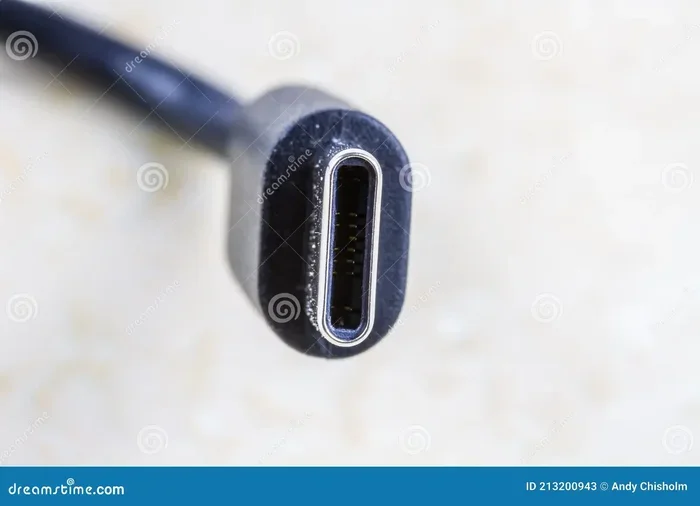
USB C, also called USB Type-C, is a connector shape. It is the small, oval-shaped port you see on modern laptops, phones, and tablets. Unlike the old USB A plug, USB C is reversible. You can flip it either way and it will plug in. No more flipping it three times before it fits.
USB C is just a shape. It does not tell you the speed. A USB C port can support USB 2.0, USB 3.0, USB 3.1, USB 3.2, or even Thunderbolt. The shape does not guarantee the performance. This is where people get confused. They see a USB C port and assume it means fast speeds. Sometimes it does. Sometimes it does not.
Can You Plug USB 3 Into a USB C Port?
The short answer is yes. In most cases, you can plug a USB 3 device into a USB C port without any problems. But the full answer is a little more nuanced. Let us look at what actually happens when you make that connection.
The Short Answer
If your USB 3 device has a USB C plug on the end, you can just plug it right in. It will work. The device and the port will negotiate the best speed they both support. If your USB 3 device has a USB A plug, you will need a USB A to USB C cable or an adapter. But that is easy to find and affordable.
Here is what you need to remember: USB C is the connector, USB 3 is the standard. They are two different things that work together. Think of it like this. USB C is the shape of the door. USB 3 is how fast you can walk through it.
What Happens When You Connect Them?
When you plug a USB 3 device into a USB C port, the devices talk to each other. They exchange information about what they can do. This process is called negotiation. The port and the device agree on the fastest speed they both support.
If both sides support USB 3, you get USB 3 speeds. If the port only supports USB 2.0, you get USB 2.0 speeds. The connection still works. It just runs slower. This is what we mean by backward compatibility. Newer ports work with older devices. Older devices work with newer ports. Everyone wins.
Compatibility and Backward Compatibility
One of the best things about the USB ecosystem is backward compatibility. This means newer ports can work with older devices. And older ports can sometimes work with newer devices, though at reduced speeds.
How Backward Compatibility Works
USB was designed so that older devices can plug into newer ports. When you plug a USB 3 flash drive into a USB C port that supports USB 3.2, everything works great. The flash drive runs at USB 3 speeds. No special setup is needed.
But what if the USB C port only supports USB 2.0? Then your USB 3 device will still work. It just will not run at USB 3 speeds. It will run at USB 2.0 speeds, which maxes out at 480 megabits per second. That is much slower than the 5 gigabits per second that USB 3 offers. For big file transfers, this difference really matters.
USB C Ports Are Not All Created Equal
This is a crucial point. Not every USB C port is the same. Some support USB 3.2 Gen 2, which gives you 10 gigabits per second. Others support USB 3.2 Gen 1, which gives you 5 gigabits per second. Some only support USB 2.0, which gives you 480 megabits per second. And some support Thunderbolt 3 or Thunderbolt 4, which can go up to 40 gigabits per second.
So when you ask, “Can I plug a USB 3 into a USB C port?” the real question underneath is, “What does my specific USB C port support?” The answer determines your experience.
Devices That Use USB C With USB 3
Lots of modern devices use USB C ports with USB 3 support. Here are some common examples:
- Laptops: Most modern laptops from Dell, HP, Lenovo, and Apple use USB C ports that support USB 3 or better.
- Smartphones: Many Android phones use USB C and support USB 3.1 or USB 3.2 for fast file transfers.
- Tablets: iPads with USB C and many Android tablets support USB 3 speeds.
- External hard drives: Portable SSDs and hard drives often use USB C and take advantage of USB 3 speeds.
- Docking stations: USB C docks frequently support USB 3 for connecting multiple peripherals.
Data Transfer Speeds and Performance
Now let us talk about speed. This is what most people really want to know. When you plug a USB 3 device into a USB C port, how fast will it be?
USB 3 Speed Tiers
Here is a quick breakdown of the different USB 3 speed tiers:
- USB 3.0 (USB 3.2 Gen 1): Up to 5 gigabits per second. This is the most common USB 3 speed.
- USB 3.1 (USB 3.2 Gen 2): Up to 10 gigabits per second. Twice as fast as USB 3.0.
- USB 3.2 Gen 2×2: Up to 20 gigabits per second. Found on newer devices with USB C ports.
Real World Speeds
In real life, you will not hit the maximum speeds listed above. Overhead from the file system, the device itself, and other factors reduce actual speeds. But here is what you can generally expect:
- A USB 3 external SSD might transfer files at 400 to 500 megabytes per second.
- A USB 3 flash drive might manage 100 to 150 megabytes per second.
- A USB 2.0 device plugged into the same port might only reach 25 to 30 megabytes per second.
The difference between USB 3 and USB 2 is huge. If you are transferring a 10 gigabyte video file, USB 3 takes about 20 seconds. USB 2 could take over four minutes. That is why knowing your port speed matters.
Does the Cable Affect Speed?
Yes, absolutely. The cable you use can limit your speed. A USB 3 cable that supports 5 gigabits per second will not magically give you 10 gigabits per second if the port and device only support 5. But a cheap or damaged cable can drag your speeds down to USB 2 levels.
Always use the cable that came with your device. If you need a replacement, look for cables that are clearly labeled with their speed rating. A good USB C cable with USB 3 support will have the SuperSpeed logo on it. That little SS symbol means it supports USB 3 data transfer.
Common Issues and How to Fix Them
Most people plug a USB 3 device into a USB C port and it just works. But sometimes things go wrong. Here are the most common issues and how to solve them.
Device Not Recognized
If your computer does not recognize the USB 3 device at all, do not panic. Try these steps first:
- Unplug the device and plug it back in.
- Try a different USB C port on your computer.
- Try a different cable.
- Check if the device works on another computer.
Often, the problem is a loose connection or a faulty cable. A simple swap fixes the issue more often than you would think.
Slow Transfer Speeds
If your transfer speeds are way slower than expected, here are the usual culprits:
- Wrong cable: A USB 2.0 cable in a USB C port will limit you to USB 2 speeds.
- Wrong port: Some USB C ports on laptops only support USB 2. Check your laptop manual.
- Driver issues: Outdated USB drivers on Windows can cause slow speeds. Update them through Device Manager.
- File size: Transferring many small files is always slower than transferring one large file.
Device Gets Hot
USB 3 devices use more power than USB 2 devices. It is normal for them to feel warm during heavy data transfers. But if the device is too hot to touch, something is wrong. Try a different port or a shorter cable. Longer cables can cause power loss and heat buildup.
Tips for Getting the Best Results
Getting the most out of your USB 3 and USB C setup is easy if you follow a few simple tips.
Buy Good Cables
Not all cables are created equal. A $2 no-name cable from an unknown brand might not support USB 3 speeds at all. Look for cables from reputable brands. Check for the SuperSpeed USB logo. A well-made USB C to USB C cable or USB A to USB C cable makes a huge difference.
Check Your Device Manuals
It sounds boring, but checking your device manual can save you a lot of frustration. Look up what USB standards your port supports. If your laptop has a USB C port that only supports USB 2.0, plugging in a USB 3 external drive will not make it faster. You will need a Thunderbolt or USB 3 capable port instead.
Use Quality Adapters When Needed
If your USB 3 device has a USB A plug, you need an adapter or a USB A to USB C cable. A good adapter costs around $5 to $15 and works reliably. Avoid the cheapest adapters you can find. They sometimes have loose connections or poor wiring that can damage your devices.
Keep Your Drivers Updated
On Windows, USB drivers get updated through Windows Update. On macOS, updates come with system updates. Keeping your operating system up to date ensures your USB ports work at their best. Outdated drivers are a surprisingly common cause of USB problems.
Use Short Cables for Best Performance
USB signals lose strength over longer cables. For best results, use cables that are 3 feet or shorter. If you need a longer cable, look for one that is specifically designed for high-speed data transfer. These cables have better shielding and stronger signal integrity.
Power Delivery Matters Too
USB C is not just about data. It also delivers power through USB Power Delivery, or USB PD. A USB C port can charge your laptop, phone, or tablet while you transfer data. But not all USB C ports support USB PD. Make sure your port supports power delivery if you plan to charge and transfer at the same time.
Expert Insights
Industry experts agree that the USB C and USB 3 combination is one of the most versatile setups available today. The USB Implementers Forum, the group that manages USB standards, designed USB C specifically to be future-proof. It supports current standards and ones we have not even seen yet.
One thing experts stress is that cable quality is the number one factor in real-world performance. Even if your port and device both support USB 3.2 Gen 2 at 10 gigabits per second, a bad cable can cut that in half or worse. Investing in a few high-quality USB C cables pays off quickly.
Another expert tip is to pay attention to your port’s alternate modes. USB C supports DisplayPort and HDMI alternate modes. This means a single USB C port can carry video, data, and power all at the same time. It is one of the reasons USB C has become so popular in modern devices.
Key Takeaways
- USB 3 and USB C work together: They are different things (standard vs. connector) that pair up perfectly in most cases.
- Backward compatibility is built in: USB 3 devices work with older USB C ports, just at slower speeds if the port only supports USB 2.0.
- Cable quality makes or breaks your experience: A good USB C cable with SuperSpeed support is essential for USB 3 performance.
- Not all USB C ports are equal: Check what your specific port supports before expecting USB 3 speeds.
- Common issues are easy to fix: Most problems come from cables, drivers, or port settings, not from incompatibility between USB 3 and USB C.
- Thunderbolt adds even more capability: Thunderbolt 3 and 4 use the USB C connector and offer speeds far beyond standard USB 3.
Conclusion
So, can you plug a USB 3 into a USB C port? The answer is a clear yes. The USB ecosystem was built with compatibility in mind. Whether you are connecting a flash drive, an external hard drive, or a docking station, the USB C port and USB 3 standard work hand in hand.
The key is understanding what your specific devices and ports support. Check the specs. Use a good cable. And do not assume that just because a port is USB C, it automatically supports the fastest speeds. A little knowledge goes a long way in avoiding frustration and getting the best performance from your devices.
Next time you pick up a USB 3 device and see a USB C port, you can plug it in with confidence. You now know exactly what to expect and how to get the most out of the connection. Happy plugging.
Frequently Asked Questions
Do I need a special cable to plug USB 3 into a USB C port?
Not necessarily. If your USB 3 device already has a USB C plug, any USB C cable will work. If your device has a USB A plug, you need a USB A to USB C cable. Make sure the cable supports USB 3 speeds by looking for the SuperSpeed logo on it.
Will plugging a USB 3 device into a USB 2.0 USB C port damage anything?
No, it will not cause any damage. The device will simply work at USB 2.0 speeds, which are much slower. USB is designed to be backward compatible, so older standards work safely with newer ports and vice versa.
Can I use a USB 3 USB C hub with my laptop?
Yes, most USB 3 USB C hubs work great with laptops that have USB C ports. Just make sure your laptop’s port supports USB 3 or better for full speed. USB 2.0 only ports will limit the hub’s performance.
How do I know if my USB C port supports USB 3?
Check your device manual or the manufacturer’s website. You can also look at the port itself. USB 3 ports often have a blue insert inside the connector or an SS (SuperSpeed) logo next to the port. If you are not sure, check the specs online.
Can I plug a USB 3 device into a USB C port on my phone?
Yes, many modern Android phones with USB C support USB 3.0 or USB 3.1. iPhones with USB C (like the iPhone 15 and 16 models) also support USB 3 speeds. However, older phones with USB C may only support USB 2.0 speeds.
What is the difference between USB 3 and Thunderbolt over USB C?
USB 3 is a data standard that maxes out at 20 gigabits per second (USB 3.2 Gen 2×2). Thunderbolt 3 and 4 use the same USB C connector but can reach speeds of 40 gigabits per second. Thunderbolt also supports connecting displays and daisy-chaining devices, which standard USB 3 does not.
=== CONCLUSION ===
Can I Plug A USB 3 Into A USB C Port? Yes, you can, and it usually works without any hassle. The key is using the right cable, checking your port specs, and understanding that USB C is just the shape while USB 3 is the speed standard. With the right setup, you get fast data transfers, easy connectivity, and a seamless experience across all your devices.