Can I Put Photo Paper In HP Printer Without Ruining It
Yes, you can put photo paper in an HP printer safely as long as you choose the right paper type, adjust your printer settings, and load the paper correctly. Using glossy or matte photo paper in a compatible HP printer delivers vibrant, high-quality prints. Always match your paper weight and size to your printer’s specifications to avoid jams and damage.
Have you ever held a beautiful photo print and wondered, “Can I put photo paper in HP printer without causing damage?” The short answer is yes. But the full answer involves a few smart steps that protect your printer and your prints. Whether you are printing family memories, professional portfolios, or creative projects, using the right paper in your HP printer makes a huge difference. This guide walks you through everything you need to know about using photo paper in HP printer setups safely and effectively.
Many people assume that any paper can go into any printer. That is not true. Photo paper is thicker, coated, and designed specifically for inkjet printing. Putting it in the wrong printer or using the wrong settings can lead to poor print quality, paper jams, or even long-term damage. But do not worry. With the right approach, your HP printer and your photo paper will work together beautifully. Let us dive in.
Key Takeaways
- HP printers support photo paper: Most HP inkjet printers handle glossy, matte, and lustre photo papers without any issues.
- Correct settings matter: Always select the right paper type in your printer driver to get the best print quality.
- Avoid laser printers for photo paper: Photo paper is designed for inkjet printing, not laser printing, which can ruin the paper and damage your printer.
- Load paper correctly: Place photo paper face-down or face-up depending on your HP model to prevent jams.
- Check paper weight and size: Matching these to your printer’s supported range prevents misfeeds and print defects.
- Let prints dry fully: Photo ink needs time to dry, especially on glossy surfaces, to avoid smudging.
- Medical offices use similar setups: Many healthcare environments rely on HP printers for both documents and photo-quality outputs, as explored in 10 Ways Computers Are Used In Medicine.
📑 Table of Contents
- Understanding Photo Paper and HP Printers
- Can You Put Photo Paper in Any HP Printer?
- Step-by-Step: How to Load Photo Paper in HP Printer
- Best HP Printer Settings for Photo Paper
- Common Mistakes When Using Photo Paper in HP Printers
- Tips for Stunning Photo Prints from Your HP Printer
- How Photo Printing Connects to Broader Technology Use
- Frequently Asked Questions About Photo Paper in HP Printers
- Final Thoughts on Using Photo Paper in HP Printers
Understanding Photo Paper and HP Printers
Before you load photo paper into your HP printer, it helps to understand what makes photo paper different from regular paper. Regular printer paper is thin and absorbent. Photo paper has a special coating that holds ink on the surface. This coating creates sharper images, richer colors, and a professional finish. But this same coating means you need to treat photo paper differently.
Types of Photo Paper
Not all photo paper is the same. Here are the most common types you will encounter:
- Glossy photo paper: This has a shiny, reflective surface. It makes colors pop and gives photos a vibrant look. Great for portfolios and presentations.
- Matte photo paper: This has a smooth, non-reflective finish. It reduces glare and feels soft to the touch. Ideal for framed photos and professional displays.
- Lustre photo paper: This sits between glossy and matte. It has a subtle sheen without the shine. Many photographers prefer this for wedding and event prints.
- Semi-gloss photo paper: A slight shine that balances vibrancy with reduced glare. Good for everyday photo printing.
Each type works well with HP printers, but you need to set your printer correctly for each one. The HP printer settings let you choose the exact paper type you are using. This ensures the printer applies the right amount of ink and dries it properly.
How HP Printers Handle Photo Paper
HP inkjet printers are designed to handle photo paper with ease. The print heads spray tiny droplets of ink onto the paper surface. The coating on photo paper absorbs the ink in a controlled way. This creates crisp details and accurate colors. HP printers also have special features like ColorSphere ink technology that enhances photo printing. These inks bond better with photo paper coatings, giving you longer-lasting, smudge-resistant prints.
Most HP printers come with a dedicated photo paper tray or a rear paper feed slot. This allows you to feed thicker photo paper without it bending or jamming. Always check your printer manual to find the correct paper path for your specific HP model.
Can You Put Photo Paper in Any HP Printer?
The short answer is no. Not every HP printer handles photo paper the same way. HP inkjet printers are the best choice for photo paper. They use liquid ink that bonds well with photo paper coatings. HP laser printers, on the other hand, use toner powder and heat to fuse it onto paper. Photo paper is not designed for this process. Using photo paper in a laser printer can cause the coating to melt, damage the printer, and ruin your prints.
Compatible HP Printer Models
Most modern HP inkjet printers support photo paper. Here are some popular lines that work well:
- HP Photosmart series: Designed specifically for photo printing. These printers excel with glossy and matte photo paper.
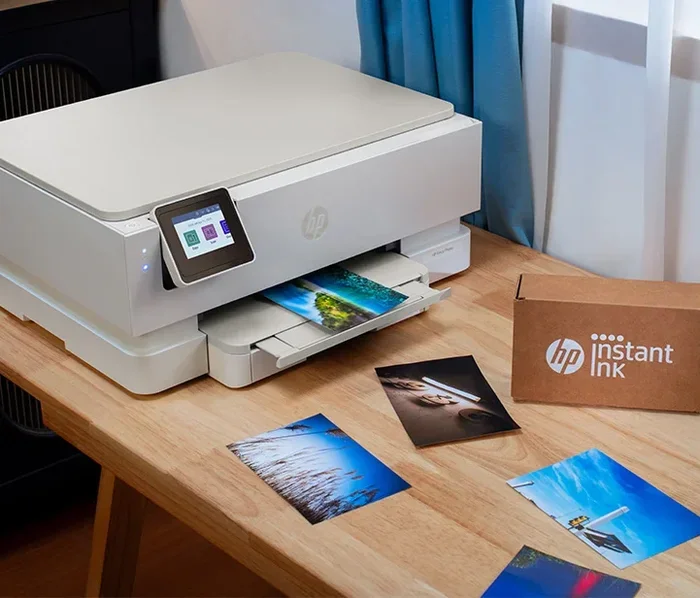
- HP Envy series: Great all-in-one printers that handle photo paper beautifully. They offer high resolution and excellent color accuracy.
- HP OfficeJet series: While designed for office use, many models support photo paper for occasional high-quality prints.
- HP DeskJet series: Budget-friendly options that still deliver solid photo prints when paired with the right paper.
Before buying photo paper, check your printer’s specifications. Look for supported paper weight and paper size ranges. Most HP printers handle photo paper between 105 and 200 gsm (grams per square meter). This range covers most standard photo paper weights.
Step-by-Step: How to Load Photo Paper in HP Printer
Loading photo paper the wrong way is one of the most common mistakes people make. Follow these steps to get it right every time.
Step 1: Choose the Right Paper Tray
Open your HP printer and locate the paper tray. Many HP printers have a rear slot specifically for thicker paper like photo paper. If your printer has a dedicated photo tray, use it. If not, the rear feed slot works perfectly. Avoid the front paper tray for photo paper unless your manual says it is okay. The front tray is designed for standard paper and may not support the thickness of photo paper.
Step 2: Check the Paper Orientation
Photo paper has a coated side and a plain side. The coated side is where the ink lands. Check your HP printer manual to see which way the coated side should face. Generally, the coated side faces down toward the print head. But some HP models work differently. When in doubt, look for a small icon or arrow on the printer that shows the correct paper orientation.
Step 3: Adjust the Paper Guides
Slide the paper guides on the tray so they snugly fit around the photo paper. Do not push them too tight or too loose. If the guides are too loose, the paper will feed crooked and cause jams. If they are too tight, they can bend the photo paper. A snug but gentle fit is perfect.
Step 4: Set the Correct Paper Type in the Driver
This step is crucial. On your computer, open your printer settings and select the paper type. Choose the option that matches your photo paper. For example, if you are using glossy photo paper, select “Glossy” or “Photo Paper Glossy” from the dropdown menu. This tells the printer to use the right ink density and drying settings. If you skip this step, your prints may come out blurry, smudged, or dull.
Step 5: Print a Test Page
Before printing your important photos, print a test page. This lets you check the alignment, color accuracy, and paper feed. If the test page looks good, you are ready to print your real photos. If not, adjust your settings and try again.
Best HP Printer Settings for Photo Paper
Getting the settings right on your HP printer makes a massive difference in print quality. Here is what you need to do:
Select the Right Paper Type
In the print dialog on your computer, click “Properties” or “Preferences” next to your HP printer. Look for the “Paper Type” or “Media Type” option. Select the type that matches your photo paper. Common options include:
- Photo Paper Glossy
- Photo Paper Matte
- HP Premium Photo Paper
- Heavyweight Matte
- Lustre
Choosing the right paper type tells the printer how much ink to apply and how long to let it dry before the paper moves forward.
Set the Print Quality to High or Best
For photo prints, always choose the highest print quality available. In the printer settings, look for “Print Quality” or “Quality” and select “Best” or “High.” This uses more ink and takes longer, but the results are worth it. Standard or draft quality will not bring out the details and colors that photo paper is designed to display.
Choose the Right Resolution (DPI)
DPI stands for dots per inch. Higher DPI means more detail. For photo printing, aim for a resolution of at least 1200 DPI. Many HP printers let you set the resolution in the advanced settings. If you want poster-sized prints, go even higher. For standard 4×6 prints, 1200 DPI is more than enough.
Enable Color Management
HP printers have built-in color management tools. Make sure “Color” is selected (not “Black and White” or “Grayscale”). You can also enable “HP Instant Printing” or “HP Photo Creations” for even better color accuracy. These features help match the colors on your screen to the colors on your printed photo.
Common Mistakes When Using Photo Paper in HP Printers
Even with the best intentions, people make mistakes that can ruin their prints or their printers. Here are the most common ones to avoid.
Using Photo Paper in a Laser Printer
This is the biggest mistake. Laser printers use heat to melt toner onto paper. Photo paper has a plastic-like coating that cannot handle that heat. The coating can melt inside the printer, ruin the print, and even damage the roller mechanism. Always use photo paper only in inkjet printers, not laser printers.
Forgetting to Match Paper Settings
If you load glossy photo paper but select “Plain Paper” in your settings, the printer will not know how to handle it. It will apply the wrong amount of ink, and the print will look washed out or smudgy. Always match your printer settings to the paper you loaded.
Overloading the Paper Tray
Photo paper is thicker than regular paper. If you put too many sheets in the tray at once, the printer may jam. Keep the stack to about 10 to 15 sheets at a time. This helps the feed rollers grab each sheet properly.
Ignoring Paper Weight Compatibility
Every HP printer has a maximum paper weight it can handle. If your photo paper is too thick for your printer, it will not feed correctly. Check your printer manual for the supported paper weight range. Most HP printers handle up to 200 gsm, but some models are lower.
Not Letting Prints Dry
Photo ink takes longer to dry than regular ink, especially on glossy surfaces. If you handle your prints too soon, the ink will smear. Let your prints sit for at least 1 to 2 minutes before touching them. For glossy paper, wait a little longer.
Tips for Stunning Photo Prints from Your HP Printer
Want to get the most out of your photo printing? Try these expert tips.
Use HP-Certified Photo Paper
HP makes its own line of photo paper that is designed to work perfectly with HP printers. These papers are tested for optimal ink absorption, color vibrancy, and drying time. While third-party photo paper can work, HP-certified paper gives you the most consistent results. It is a small investment that makes a big difference.
Store Photo Paper Properly
Photo paper is sensitive to humidity, heat, and light. Store it in a cool, dry place with the packaging sealed. If photo paper gets damp, it will not feed correctly and the print quality will suffer. Keep it flat and protected from direct sunlight.
Clean Your Print Heads Regularly
Over time, tiny ink particles can clog your HP printer’s print heads. This leads to streaks, banding, and dull colors. Most HP printers have a built-in “Clean Print Head” tool in the maintenance menu. Run this once a month if you print photos regularly. It keeps your print heads clear and your colors vibrant.
Use Original HP Ink Cartridges
Compatible or refilled ink cartridges can save money, but they may not deliver the same quality on photo paper. Original HP inks are formulated to work with HP photo paper coatings. They produce sharper details, better color accuracy, and longer-lasting prints. If print quality matters to you, stick with original HP ink.
Print from High-Resolution Images
Photo paper can only show the detail that is in your digital file. If your image is low resolution or compressed, the print will look pixelated. Use images that are at least 300 DPI for best results. The higher the resolution of your source image, the better your printed photo will look.
Let the Printer Warm Up
HP printers work best when they are warm. If you have not printed in a while, let the printer run a few test pages before printing your actual photos. This warms up the ink and ensures smooth flow through the print heads.
How Photo Printing Connects to Broader Technology Use
Photo printing is just one small part of how computers and printers work together in our daily lives. In many professional settings, including healthcare and medical offices, printers play a vital role alongside computers. For example, medical facilities use printers for patient labels, reports, and even visual documentation. Understanding how computers and printers interact in these environments gives you a better appreciation for getting your home or office setup right. You can learn more about how computers are used across different fields in this detailed guide on 10 Ways Computers Are Used In Medicine. The principles of proper hardware use, correct settings, and quality materials apply whether you are printing photos at home or documents in a professional environment.
HP printers are trusted tools in both homes and offices. They bridge the gap between digital files and physical prints. When you use photo paper correctly in your HP printer, you are making the most of that connection. You are turning digital memories into tangible keepsakes or turning creative work into professional-grade output.
Frequently Asked Questions About Photo Paper in HP Printers
Can I use glossy photo paper in my HP printer?
Yes, absolutely. Most HP inkjet printers handle glossy photo paper very well. Just make sure you select “Glossy” or “Photo Paper Glossy” in your printer settings. Also, load the paper with the coated side facing the correct direction for your HP model. Glossy paper produces vibrant, sharp images that look stunning.
Will photo paper damage my HP printer?
No, photo paper will not damage your HP inkjet printer when used correctly. The key is to use photo paper only in inkjet printers, not laser printers. Also, make sure the paper weight and size are within your printer’s supported range. Following the loading and setting instructions in this guide keeps your printer safe.
Can I put photo paper in the front paper tray?
It depends on your HP printer model. Some HP printers allow photo paper in the front tray. But many models work best with the rear feed slot or a dedicated photo tray. Check your printer manual to find the recommended paper path. Using the wrong tray can cause jams and misfeeds.
What is the best HP printer for photo paper?
The HP Photosmart series and HP Envy series are widely considered the best for photo printing. They offer high resolution, excellent color accuracy, and dedicated photo paper handling. The HP Envy Photo 7855 and HP Photosmart 8515 are popular choices among home users and hobbyists alike.
How do I prevent photo paper jams in my HP printer?
To prevent jams, do not overload the paper tray. Keep no more than 10 to 15 sheets at a time. Make sure the paper guides fit snugly around the photo paper. Also, always select the correct paper type in your printer settings. If jams persist, clean the feed rollers with a dry cloth.
Can I print photos on both sides of photo paper?
It is not recommended. Photo paper coatings are designed for single-sided printing. Printing on the back side can cause ink to bleed, smudge, or not adhere properly. For the best results, print on the coated side only and leave the back plain.
Final Thoughts on Using Photo Paper in HP Printers
The answer to “Can I put photo paper in HP printer without ruining it?” is a confident yes. You just need to use the right printer type, load the paper correctly, and set your printer to match the paper you are using. HP inkjet printers and photo paper are a perfect match when you follow the simple steps in this guide.
Take a moment to review your printer model’s manual. Check the supported paper types, weights, and sizes. Then match your HP printer settings to your photo paper every single time. These small habits make a world of difference in your print quality.
Whether you are printing vacation photos, birthday cards, or professional portfolios, your HP printer can deliver results that look amazing. The key is to treat photo paper with the care it deserves. Use the right paper, the right settings, and a little patience. Your prints will thank you for it.
Start today. Load some photo paper into your HP printer, run a test print, and see the difference for yourself. Once you see the vibrant colors and sharp details that photo paper produces, you will never go back to plain paper again.