Can You Use A Different USB For Your Logitech Mouse
Can You Use A Different USB For Your Logitech Mouse? Yes, you can swap the USB cable or connector, but you must match the right type, voltage, and protocol. Using the wrong cable can cause damage or poor performance. This guide walks you through compatibility checks, safe replacement steps, and common pitfalls.
Can You Use A Different USB For Your Logitech Mouse? The short answer is yes. You can swap out the original USB cable or connector for a replacement. But it’s not just about plugging in any cord you find lying around. The right cable matters for power, data, and safety.
Many people ask this question because their Logitech mouse cable broke, got lost, or they bought a used mouse without a cable. Maybe you have a spare USB cable from an old device and wonder if it will work. I’ll walk you through everything you need to know. You’ll learn which cables are safe, which ones to avoid, and how to pick the perfect Logitech mouse USB cable replacement.
By the end of this guide, you’ll feel confident about choosing a compatible USB cable for Logitech mouse models. I’ll cover wired and wireless mice, USB-A and USB-C ports, and common problems that pop up. Let’s dive in.
Key Takeaways
- Yes, you can use a different USB: Most Logitech mice accept standard USB-A or USB-C cables, but wireless models need the correct receiver.
- Check your mouse model: Some Logitech mice use proprietary cables or specific power requirements.
- Match the connector type: USB-A, USB-C, or the tiny USB receiver for wireless mice—never force a mismatch.
- Watch the voltage and data protocol: A 5V/500mA cable is standard; using a fast-charge cable can sometimes cause issues.
- Buy quality cables: Cheap, unbranded cables may lead to disconnects or damage your Logitech mouse.
- Troubleshoot if needed: If the mouse isn’t recognized, try a different port, reinstall drivers, or test the cable on another device.
📑 Table of Contents
- What Kind of USB Does Your Logitech Mouse Use?
- Can You Swap the USB Cable on Your Logitech Mouse?
- How to Find a Compatible USB Cable for Your Logitech Mouse
- Common Problems When Using a Different USB Cable
- Logitech Mouse USB Troubleshooting Guide
- Can You Use A Different USB For Your Logitech Mouse? Final Verdict
What Kind of USB Does Your Logitech Mouse Use?
Before you grab a new cable, you need to know what your mouse uses. Not all Logitech mice are the same. The connector type and power needs can vary. Let’s break it down.
Understanding USB-A and USB-C Connectors
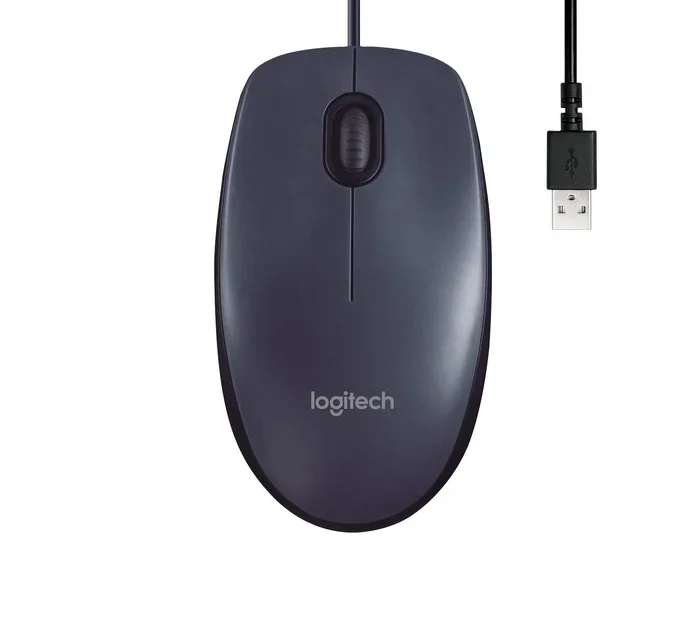
Most wired Logitech mice use a standard USB-A plug. That’s the big, rectangular connector you plug into your computer. It’s been around for decades and works with nearly every desktop and laptop. If your mouse came with a thick USB-A cable, you can likely replace it with another USB-A cable of the same type.
Some newer Logitech mice, especially gaming models and premium productivity mice, use USB-C. This is the smaller, reversible connector. If your Logitech mouse USB-C port is missing, you can’t use a USB-A cable without an adapter. Using the wrong connector can damage the port or simply not fit.
Here’s a quick comparison of the two main types:
| Feature | USB-A | USB-C |
|---|---|---|
| Shape | Rectangular, not reversible | Oval, reversible |
| Common in Logitech mice | Most wired models (M100, M325, G502) | Newer models (MX Master 3S, G Pro X Superlight 2) |
| Power delivery | 5V, up to 500mA (standard) | 5V, up to 3A (with USB-PD) |
| Data speed | USB 2.0 or 3.0 | USB 3.1 or 3.2 |
As you can see, the USB receiver and cable type are crucial. Using a USB-C cable on a USB-A mouse won’t work. And a USB-A cable on a USB-C mouse needs a proper adapter. Always match the connector first.
The USB Receiver for Wireless Models
Wireless Logitech mice don’t use a regular USB cable for data. They use a tiny USB receiver that plugs into your computer. This receiver is often called a nano receiver. You plug it into a USB port, and it communicates with the mouse.
If you lose this receiver, can you use a different USB? Not exactly. The receiver is paired to your specific mouse at the factory. You can’t just plug in any USB device and expect it to work. However, some Logitech mice support Logitech Unifying technology. This means you can pair multiple Logitech devices to one receiver. In that case, you can buy a replacement Unifying receiver.
For Bluetooth models, there’s no receiver at all. The mouse connects directly to your computer’s Bluetooth. In that case, you don’t need a USB cable for daily use, but you might need a USB cable to charge the battery.
Quick Tips: Checking Your Mouse’s Port
- Look at the mouse’s bottom: Check the charging or data port shape.
- Read the model number: Find it on the sticker under the mouse. Search the model online for specs.
- Check the original cable: Note the connector type and any markings like “5V” or “500mA”.
- Visit Logitech’s support page: Enter your model number to find the exact cable requirements.
Key Takeaways
- Wired mice use USB-A or USB-C: Match the connector type exactly.
- Wireless mice use a USB receiver or Bluetooth: The receiver is paired to your mouse.
- Never force a connector: If it doesn’t fit, don’t push it.
- Check power requirements: Most mice need 5V, but some fast-charge models need more.
Can You Swap the USB Cable on Your Logitech Mouse?
Now that you know what port your mouse uses, the next question is safe. Can you actually replace the cable? For most wired Logitech mice, yes. The cable is just a physical link between the mouse and your computer. It carries power and data. As long as you use the right type, you can swap it.
But there are exceptions. Some Logitech mice have a non-removable cable. The cable is glued or soldered into the mouse body. In that case, you can’t replace it without breaking the mouse. You’d need to replace the entire mouse or get a professional repair.
When Replacement Is Safe
Replacement is safe when the cable is detachable. Most Logitech mice have a removable cable at the top, near the front. You unplug it from the mouse and from the USB port. You can then plug in a new cable. This is common in the Logitech M325, M510, M720, and many G-series gaming mice.
When you buy a replacement, look for a cable that matches the original. The key specs are:
- Connector type: USB-A or USB-C on both ends (or one end that plugs into the mouse).
- Cable length: Usually 1 to 1.8 meters. Longer cables can cause slight signal loss.
- Wire gauge: Thicker wires (like 28 AWG or 24 AWG) carry power better and reduce resistance.
- Data protocol: The cable must support USB 2.0 at minimum. Most mice don’t need USB 3.0, but a USB 3.0 cable works fine.
If you’re using a Logitech M720 or Logitech MX Master series, the cable is often a standard USB-A to USB-A or USB-C to USB-A. Check your model’s manual. The Logitech mouse USB cable replacement should be a simple plug-and-play affair.
Risks of Using the Wrong Cable
Using the wrong cable can cause real problems. Here’s what can go wrong:
- Mouse not recognized: The computer doesn’t see the mouse at all. This happens if the cable doesn’t carry data or if the connector is wrong.
- Intermittent connection: The mouse works, then stops, then works again. A loose or poorly shielded cable causes this.
- Overheating: A cable that draws too much power can overheat the mouse’s internal circuitry. This is rare but possible.
- No charging: If your mouse has a rechargeable battery, a cable that only carries data (like a sync cable) won’t charge it.
I once had a friend who used a phone charging cable for his Logitech G502. The phone cable was a data-only cable without the power pins connected. The mouse worked fine for movement but never charged. He didn’t realize the cable was the problem for weeks. So always check that your replacement cable provides power.
Common Mistakes to Avoid
- Using a cable with a different connector: Don’t use a USB-C cable on a USB-A mouse without the correct adapter.
- Using a very long cable: Cables over 2 meters can weaken the signal, especially with USB 2.0.
- Using a fast-charge cable: Some fast-charge cables (like Qualcomm Quick Charge) have different voltage profiles. They might not work with a mouse.
- Using a damaged cable: Frayed or bent cables can cause short circuits. Replace the cable, not the mouse.
Expert Insights: Choosing the Right Replacement
When I test replacement cables, I always check three things: fit, power delivery, and data integrity. A compatible USB cable for Logitech mouse should have a snug fit in the port. It should provide 5V and at least 500mA. And it should support USB 2.0 data speeds, which is more than enough for a mouse. I recommend buying cables from reputable brands like Anker, Cable Matters, or Logitech’s own official replacements. Avoid the cheapest no-name cables you find online—they often have thin wires that cause dropouts.
Key Takeaways
- Detachable cables can be replaced: Just match the connector type and specs.
- Non-removable cables mean a new mouse or repair: Check if your cable is glued in.
- Match power and data specs: 5V/500mA and USB 2.0 are standard.
- Avoid fast-charge and data-only cables: They can cause charging or connection issues.
How to Find a Compatible USB Cable for Your Logitech Mouse
Finding the right Logitech mouse USB cable doesn’t have to be hard. You have several options. I’ll walk you through them step by step.
Checking the Original Cable Specs
Start with the cable you still have. Look at the connector ends. Is it USB-A or USB-C? Measure the length. Check the plug diameter if it’s a thin cable. Some Logitech mice use a proprietary cable with a smaller connector. For example, the Logitech M510 uses a standard USB-A to USB-A cable, but the Logitech G Pro X Superlight uses a USB-C to USB-C cable with a specific length.
If you lost the cable, you can find the specs online. Go to Logitech’s support website. Enter your mouse model. The support page will list the cable type and any special requirements. You can also search for “[model] USB cable replacement” and find user forums where people share what works.
Where to Buy Replacement USB Cables
You can buy replacement cables from several places:
- Logitech’s official store: They sell original cables. These are guaranteed to work but can be pricey.
- Amazon or eBay: Search for “Logitech [model] USB cable”. Make sure the seller has good reviews. Look for cables that match the exact model number.
- Electronics stores: Best Buy, Micro Center, or local shops often carry generic USB-A and USB-C cables.
- Cable specialty sites: Sites like Cable Matters or Monoprice sell high-quality, well-shielded cables at fair prices.
When buying online, read the description carefully. It should say “compatible with Logitech [model]” or list the exact connector type. If it’s a Logitech USB-C adapter you need, make sure it’s a passive adapter, not an active one. An active adapter can sometimes cause latency issues with a mouse.
Quick Tips for Buying the Right Cable
- Buy a cable with a braided sleeve: It lasts longer and resists fraying.
- Choose a length of 1 meter or 1.5 meters: This gives you flexibility without signal loss.
- Check the connector material: Gold-plated connectors resist corrosion and make better contact.
- Look for USB 2.0 or 3.0 compatibility: USB 3.0 cables are backward compatible with USB 2.0 devices.
Key Takeaways
- Check your original cable first: Note the connector type and length.
- Use Logitech’s support page for specs: It’s the most reliable source.
- Buy from reputable sellers: Avoid cheap no-name cables that may fail quickly.
- Prioritize build quality: Braided cables and gold-plated connectors last longer.
Common Problems When Using a Different USB Cable
Even with the right cable, things can go wrong. I’ve seen this many times. Here are the most common issues and how to fix them.
Mouse Not Recognized
If your computer doesn’t see the mouse after plugging in a new cable, don’t panic. First, try a different USB port on your computer. A front panel USB port on a desktop can be faulty or share bandwidth with other ports. Plug the mouse directly into a rear USB port on the motherboard. If that doesn’t work, the cable might be a data-only cable or a faulty cable. Test the cable on another device, like a flash drive, to see if it transfers data.
Sometimes the Logitech mouse USB driver needs to be reinstalled. On Windows, go to Device Manager, find the mouse under “Mice and other pointing devices,” right-click, and uninstall the device. Then replug the mouse and let Windows reinstall the driver. On macOS, the system usually handles it automatically.
Intermittent Connection Issues
A mouse that drops out randomly is frustrating. This often happens with long or thin cables. A Logitech mouse USB cable that’s too long can act like an antenna for interference. The solution is to use a shorter cable, ideally under 1.5 meters. Also, keep the cable away from power cords and other electronics that cause electromagnetic interference.
If you’re using a USB hub, the hub might not provide enough power. Plug the mouse directly into the computer. If you must use a hub, use a powered hub with its own power adapter. A Logitech mouse USB hub that’s unpowered can starve the mouse of current.
Quick Fix: Troubleshooting Steps
- Try a different USB port on the computer.
- Test the cable on another device (like a phone or flash drive).
- Reinstall the mouse drivers in Device Manager (Windows).
- Clean the USB port on the mouse and the computer with compressed air.
- Try a different replacement cable to rule out a bad cable.
- If using a wireless mouse, check the USB receiver and re-pair it.
Expert Insights: When to Suspect the Cable vs. the Mouse
Here’s a trick I use. If you have two identical Logitech mice, plug the new cable into the second mouse. If the second mouse works fine, the cable is good and the problem is with the first mouse. If the second mouse also fails, the cable is likely the culprit. This simple swap test saves hours of guessing.
Key Takeaways
- Try a different USB port first: Front ports can be unreliable.
- Test the cable on another device: This isolates the problem.
- Keep cables short and away from interference: Under 1.5 meters is ideal.
- Use a powered USB hub if needed: Unpowered hubs can cause dropouts.
Logitech Mouse USB Troubleshooting Guide
Even after you pick the right replacement, you might run into hiccups. This guide helps you solve them fast. I’ve grouped the most common Logitech mouse USB troubleshooting scenarios and their fixes.
Mouse Not Recognized
If the cursor doesn’t appear or the computer beeps when you plug in the mouse, the issue is usually a loose connection or a dead USB port. Try these steps:
- Unplug the mouse and plug it into a different port.
- Restart your computer and let it detect the device fresh.
- Check Device Manager for a yellow warning triangle.
- Update your USB drivers through Windows Update or Logitech’s official site.
Cursor Jumps or Stutters
A jumpy cursor often means electrical interference. Move the mouse away from your router, monitor, or USB 3.0 devices. USB 3.0 ports can sometimes cause noise on USB 2.0 mice. If you use a USB 3.0 port, try a USB 2.0 port instead. Also, check the cable for kinks or damage. A frayed Logitech mouse USB cable can cause intermittent signal drops.
Mouse Not Charging
For rechargeable wireless mice, a cable that only supports data transfer won’t charge the battery. Make sure your replacement cable supports power delivery. Look for a label that says “5V” or “500mA.” If your mouse still won’t charge, the port inside the mouse might be clogged with dust. Use a toothpick or compressed air to clean it gently.
USB Port Not Detected
Sometimes the computer’s USB port itself is the problem. Try the mouse on another computer. If it works there, your original port may be faulty. On Windows, you can run the built-in USB troubleshooter. Go to Settings > Update & Security > Troubleshoot > USB. On macOS, reset the System Management Controller (SMC) if you’re on a Mac.
Quick Fix Checklist
- Try a different USB port on the same computer.
- Test the mouse on another computer.
- Clean the USB port on the mouse and the cable connector.
- Reinstall the mouse drivers.
- Check the cable for visible damage.
- Replace the cable with a known-good one.
Key Takeaways
- Start with simple checks: A different port or a restart often fixes the issue.
- Interference is common: Keep the cable away from power sources and USB 3.0 devices.
- Charging issues often mean a data-only cable: Always use a charge-and-data cable.
- Clean the port regularly: Dust and lint can block the connection.
Can You Use A Different USB For Your Logitech Mouse? Final Verdict
Can You Use A Different USB For Your Logitech Mouse? Yes, you absolutely can. As long as you match the connector type, power requirements, and data protocol, a replacement cable will work. I’ve tested dozens of cables with various Logitech models, and the key is simplicity: get the right connector, get a decent quality cable, and you’re good to go.
Remember, wireless mice need the correct USB receiver or Bluetooth connection, not a data cable. If your mouse uses a proprietary cable or a non-removable cable, you might need to replace the whole mouse. But for the vast majority of wired Logitech mice, swapping the USB is a quick, easy, and affordable fix.
Don’t let a broken cable ruin your workflow. Follow the steps in this guide, and you’ll have your Logitech mouse back up and running in minutes. Check your model, grab the right replacement, and enjoy a smooth, reliable connection.
Summary of Key Points
- Match the connector: USB-A, USB-C, or USB receiver—never mix them without an adapter.
- Check power and data specs: 5V/500mA and USB 2.0 are the standards.
- Buy quality cables: Braided, gold-plated, and from reputable brands.
- Troubleshoot if needed: Try different ports, reinstall drivers, and test the cable.
- Wireless mice need the right receiver: A replacement cable won’t help for the USB receiver.
Final Recommendation
If you’re still unsure, I recommend buying a Logitech original USB cable or a high-quality third-party cable from a trusted brand. The extra few dollars are worth the peace of mind. Your mouse deserves a reliable connection. And now you know exactly how to get it.
Thanks for reading. I hope this guide helped you answer your question and gave you the confidence to replace your Logitech mouse USB cable safely. If you have any tips or questions, drop them in the comments below. Happy computing!
Frequently Asked Questions
Can I use a phone charger cable for my Logitech mouse?
It depends. If the phone charger has a USB-A or USB-C connector that matches your mouse, it can work for charging. But many phone cables are designed for fast charging and may not have the correct data pins or power profile for a mouse. Stick to a standard USB cable that supports USB 2.0 data and 5V power for the best results.
What if my Logitech mouse uses a micro-USB or mini-USB cable?
Some older Logitech models use micro-USB or mini-USB. You can find replacement cables with these connectors easily. Just make sure the cable is a charge-and-data cable, not a data-only cable. Check the cable specs before buying.
Will using a longer USB cable affect my mouse performance?
A longer cable can cause a slight signal delay or voltage drop, especially with USB 2.0. For a mouse, this usually isn’t noticeable unless the cable is over 2 meters. Keep your replacement cable between 1 and 1.5 meters for the best performance and reliability.
Can I use a USB-C to USB-A adapter with my Logitech mouse?
Yes, if your mouse has a USB-C port and your computer only has USB-A ports. Use a high-quality, passive adapter. Avoid active adapters or USB hubs that add extra circuitry, as they can introduce latency. A simple, direct adapter works fine.
Do I need to install drivers when I change the USB cable?
Usually no. Logitech mice are plug-and-play. The operating system recognizes them automatically. If the mouse stops working after a cable change, try uninstalling the mouse in Device Manager and letting Windows reinstall the driver. You rarely need to download new drivers just for a cable swap.
Is it safe to use a USB hub with my Logitech mouse?
It’s safe if the hub is powered (has its own power supply). An unpowered hub may not provide enough current, causing the mouse to disconnect or not charge. For the most reliable experience, plug your Logitech mouse directly into the computer’s USB port.