Can I Use Any Usb Cable For My Printer Here Is The Answer
Can I Use Any Usb Cable For My Printer? The answer is no, you cannot use just any USB cable. The right printer USB cable ensures fast data transfer and prevents connection errors. Using the wrong cable can damage your printer or cause frustrating setup problems. This guide shows you exactly which cable works and why it matters.
Many people assume all USB cables are the same. They grab any old cable from a drawer and plug it into their printer. But printers have specific needs that standard phone chargers or data cables can’t meet. Using the wrong cable can cause frustrating delays and even hardware problems. So, it’s important to understand what kind of printer USB cable you actually need.
You might wonder, Can I Use Any Usb Cable For My Printer? The short answer is no, not just any cable will work reliably. The right USB cable for printer ensures your documents print quickly and without errors. In this article, we’ll break down everything you need to know. You’ll learn about cable types, how to choose the correct one, and common mistakes to avoid.
Key Takeaways
- Not all USB cables work for printers: Printers need specific cable types like USB A to B.
- Check your printer manual: It lists the exact cable model and connector type required.
- Cable length matters: Keep it under 6 feet for best signal strength and reliable printer connection.
- Avoid cheap, unbranded cables: They often lack proper shielding and can cause data errors.
- USB 2.0 is usually enough: Most printers do not need USB 3.0 speeds for printing tasks.
- Look for USB A to B or USB C to B: Match the connector to your printer port.
- Troubleshoot if the printer is not recognized: Try a different cable or USB port before replacing the printer.
📑 Table of Contents
Understanding USB Cable Types for Printers
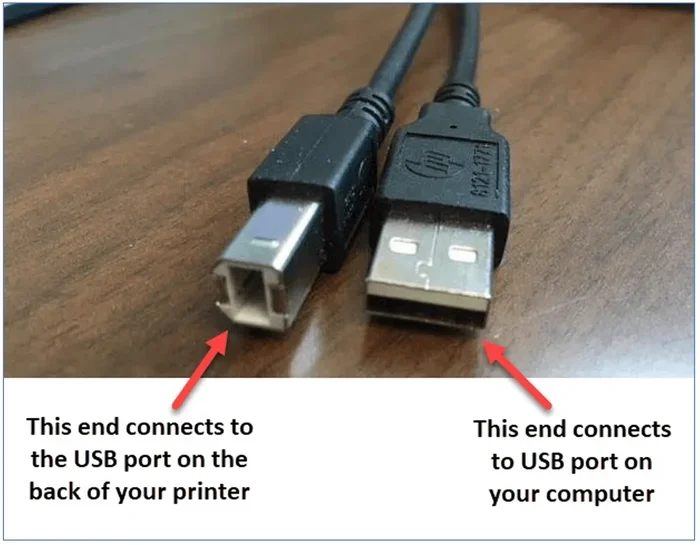
Printers use different USB connectors than phones or tablets. The most common is the USB A to B cable. It has a square-ish connector on one end and a flat rectangular connector on the other. This design is built specifically for printers and other office devices. Let’s look at the main options available.
USB A to B vs. USB C for Printers
Older printers almost always use USB A to B cables. The square B connector plugs into the printer, while the A connector goes into your computer. Newer printers may use USB C to B or USB C to A cables. USB C is smaller and reversible, which makes it easier to plug in. However, not all USB C cables support printer data transfer. You must check the cable specs.
Printer USB Port Types
Printers have different port shapes. The USB B port looks like a small square with slightly beveled corners. USB C ports are oval and compact. Some older printers use USB A ports directly. Knowing your port type is the first step to picking the right cable. You can find this information on the back of your printer or in the user guide.
Quick Tips for Choosing the Right Cable
- Match the connector shape to your printer port exactly.
- Check the cable label for USB 2.0 or USB 3.0 compatibility.
- Choose a shielded cable to reduce electromagnetic interference.
- Buy from reputable brands like USB Implementers Forum certified cables.
- Avoid extension cables unless they are active repeater cables.
| Cable Type | Connector A | Connector B | Common Use | Speed |
|---|---|---|---|---|
| USB A to B | Flat rectangular | Square | Most printers | USB 2.0 (480 Mbps) |
| USB A to B (USB 3.0) | Flat rectangular (blue) | Square | High-speed printers | USB 3.0 (5 Gbps) |
| USB C to B | Oval reversible | Square | Newer printers | USB 2.0 or 3.0 |
| USB C to A | Oval reversible | Flat rectangular | Printers with USB C | USB 2.0 or 3.0 |
Can I Use Any Usb Cable For My Printer?
The direct answer is no. Not every USB cable is safe or effective for your printer. A random cable might power the device but fail to transmit data correctly. This can lead to a printer that shows up as offline or prints very slowly. Always use a cable designed for printer data transfer.
The Danger of Using Random USB Cables
Cheap, unbranded cables often have thin wires and poor shielding. They might work for charging a phone but cannot handle the data demands of a printer. When you plug a random cable into your printer, you risk connection drops and corrupted print jobs. Over time, this can even damage the printer’s USB port. It’s not worth the small savings on a $2 cable.
When a Standard Cable Might Work
Some standard USB cables may work if they meet the right specs. For example, a USB 2.0 A to B cable from a trusted brand usually works fine. But if your printer needs USB 3.0 speeds, a standard USB 2.0 cable will limit performance. Always check the printer’s requirements before using any spare cable you find at home.
How to Identify the Correct Printer USB Cable
Finding the right cable is simple if you follow a few steps. You don’t need to be a tech expert. Just take your time and check the details.
Checking Your Printer’s Manual
The user manual is your best friend. It lists the exact cable model and connector type. Look for a section called “Connections” or “Cables.” If you lost the manual, you can often find a PDF on the manufacturer’s website. Search for your printer model number and the word “manual.”
Looking at the Connector Shape
Examine the USB port on the back of your printer. Is it a square port or an oval port? A square port needs a USB B connector. An oval port needs a USB C connector. Match the cable end to the port shape. Never force a connector in. If it doesn’t fit, it’s the wrong cable.
Cable Length Matters
The ideal printer cable length is between 3 and 6 feet. Longer cables can weaken the signal and cause slow printing or disconnects. If you need a longer run, use an active repeater cable instead of a passive long cable. A 10-foot passive USB cable often causes data errors. Keep the cable as short as possible for the best printer connection.
Common Printer Connection Problems and Fixes
Even with the right cable, you might run into issues. Here are the most common problems and how to solve them quickly.
Printer Not Recognized by Computer
If your computer doesn’t see the printer, try these steps. First, unplug the cable from both the printer and the computer. Wait 10 seconds and plug it back in. Try a different USB port on your computer. Avoid USB hubs; plug directly into the motherboard port. If it still fails, test the cable on another printer or another computer. This helps you know if the cable is bad.
Slow Data Transfer Speeds
Slow printing often comes from a USB 2.0 cable on a USB 3.0 port. Check if your cable supports USB 3.0. Look for a blue insert inside the USB A connector. If your printer supports USB 3.0, use a USB 3.0 cable. Also, make sure you are not using a long, thin cable. A short, thick cable transfers data faster. For most home printers, USB 2.0 is plenty fast. But for large graphic files, USB 3.0 helps.
Frequent Disconnects
A printer that keeps dropping offline is annoying. Loose cables are the usual cause. Check if the connector is firmly seated in the port. Try a different cable to rule out a worn-out end. Dust in the USB port can also cause disconnects. Blow gently into the port or use a soft brush. If the problem continues, the cable shielding might be damaged. Replace the cable with a high-quality one.
Expert Insights on Printer Cable Quality
Why Cheap Cables Fail
Cheap cables often use thinner copper wires and minimal shielding. They can overheat during long print jobs. The data transfer becomes unstable, leading to garbled printouts or incomplete jobs. A good printer cable has braided shielding and thick conductors. It also has a strain relief boot that prevents the connector from bending and breaking. Always buy cables from known brands or certified retailers.
USB 2.0 vs. USB 3.0 for Printers
Most printers do not need USB 3.0 speeds. A USB 2.0 cable handles text documents and simple graphics easily. USB 3.0 cables are useful for large photo prints or frequent high-volume jobs. USB 3.0 cables are backward compatible, so they work in USB 2.0 ports too. However, they cost more. If you don’t print large files often, a USB 2.0 cable is the smart choice. It’s cheaper and perfectly reliable for everyday printer setup.
Cable Durability and Shielding
Look for cables with molded connectors and nylon braided sleeves. These resist fraying and last longer. Shielding protects against interference from other electronics. A well-shielded USB printer cable ensures clean data signals. This reduces the need for printer troubleshooting caused by cable faults. Invest in a durable cable to save time and frustration.
Final Verdict and Best Practices
So, can you use any USB cable for your printer? No. Using the right cable protects your device and ensures smooth printing. Always match the cable type to your printer’s port. Choose a shielded, certified cable from a reputable brand. Keep the length between 3 and 6 feet for the best performance. Avoid cheap, unbranded cables that may seem like a bargain but cause more problems than they solve.
Key Takeaways Recap
- Use a USB A to B cable for most older printers.
- Use a USB C to B or USB C to A cable for newer models.
- Check your printer manual for the exact cable specification.
- Keep cables short and shielded for reliable printer connection.
- Replace damaged cables immediately to avoid data loss or port damage.
Final Thoughts
Taking a few minutes to choose the correct printer USB cable saves hours of frustration. A proper cable ensures fast, error-free printing and extends the life of your device. Next time you need a replacement, don’t grab just any cable from the junk drawer. Follow the tips in this guide and pick the right one. Your printer will thank you with clear, crisp prints every time.
Frequently Asked Questions
Can I Use Any Usb Cable For My Printer?
No, you cannot use just any USB cable. Printers need specific cables like USB A to B or USB C to B that support data transfer. Using a random cable can cause connection errors, slow printing, or even damage the printer port. Always check your printer manual for the correct cable type.
What kind of USB cable do most printers use?
Most printers use a USB A to B cable. The square B connector plugs into the printer, and the flat A connector goes into the computer. Newer printers may use USB C to B cables. Always match the connector shape to your printer’s USB port.
Does the length of the USB cable matter for printers?
Yes, cable length matters. Keep the cable between 3 and 6 feet for the best signal strength. Longer cables can weaken the data signal and cause slow printing or disconnects. If you need a longer run, use an active repeater cable instead of a passive long cable.
Why does my printer keep disconnecting when I use a USB cable?
Frequent disconnects often happen because of a loose cable, damaged shielding, or a worn-out connector. Try unplugging and firmly reseating the cable. Test a different cable to see if the problem goes away. Dust in the USB port can also cause this issue, so clean the port gently.
Is USB 3.0 cable better for printers than USB 2.0?
USB 3.0 cables are faster, but most printers do not need that speed. A USB 2.0 cable handles text and simple graphics perfectly well. Use USB 3.0 only if you print large photo files or do high-volume graphic printing. USB 3.0 cables are backward compatible with USB 2.0 ports.
Can a cheap USB cable damage my printer?
Yes, cheap cables with poor shielding and thin wires can overheat and cause data errors. Over time, they may damage the printer’s USB port or lead to corrupted print jobs. Always buy cables from reputable brands that are certified for data transfer and have proper strain relief.