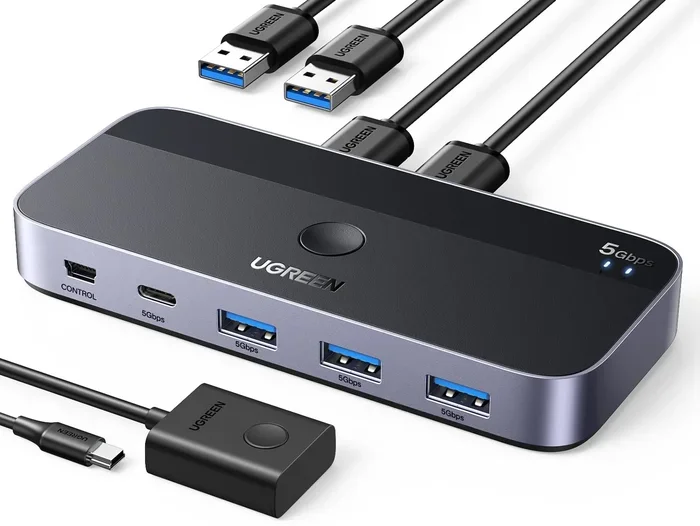
Can I Use One Usb Port For 2 Devices At The Same Time
Yes, you can use one USB port for two devices, but it depends on the method you choose. Using a USB hub is the most reliable and popular way to share a single port between multiple devices. This guide covers everything from powered and unpowered hubs to practical tips, common mistakes, and expert advice to help you get the best results.
Key Takeaways
- A USB hub is the safest and easiest way to connect two or more devices to a single port.
- Powered hubs provide stable power and are ideal for devices that need more energy, like external hard drives.
- Unpowered hubs work for low-drain devices such as keyboards, mice, and flash drives.
- Avoid cheap, uncertified hubs as they can cause data loss, slow speeds, or even damage your devices.
- USB version matters — USB 3.0 and USB-C offer much faster speeds than older USB 2.0 ports.
- Bandwidth is shared across all connected devices, so performance may drop with too many high-demand peripherals.
- Always check compatibility between your devices, hub, and computer before purchasing.
📑 Table of Contents
- Can You Use One USB Port For Two Devices?
- How USB Ports and Data Sharing Work
- Methods to Connect Two Devices to One USB Port
- Powered vs Unpowered USB Hubs: Which Should You Choose?
- Common Mistakes When Sharing USB Ports
- Expert Tips for Best Performance When Sharing Ports
- When Should You NOT Share a USB Port?
- The Future of USB Connectivity
- Conclusion
Can You Use One USB Port For Two Devices?
You have a single USB port on your laptop or desktop. But you need to plug in two things at once — maybe a flash drive and a mouse, or a hard drive and a keyboard. The question is simple: can you use one USB port for 2 devices at the same time?
The short answer is yes. But how you do it matters a lot. Plugging two devices directly into one port will not work. You need a middleman — a device that splits or multiplies the connection. The most common solution is a USB hub. But there are other methods too, and each has its own pros and cons.
In this guide, we will walk you through every option. You will learn how USB hubs work, when to use powered vs unpowered hubs, and what mistakes to avoid. By the end, you will know exactly what to do to connect two devices to a single port without any hassle.
Whether you are at home, in the office, or working remotely, this guide has you covered. Let us dive in.
How USB Ports and Data Sharing Work
To understand how to share a port, you first need to know what a USB port does. A USB port sends and receives data. It also delivers power to connected devices. Each port has a fixed amount of bandwidth — that is the maximum speed it can handle.
When you connect one device, it gets the full bandwidth. When you split that connection between two devices, the bandwidth gets divided. This is why the type of hub or splitter you choose matters so much.
Think of it like a water pipe. One pipe can fill one bucket quickly. If you split it into two streams, each bucket fills slower. The same idea applies to data transfer. The good news is that modern USB speeds are so fast that the slowdown is often barely noticeable for everyday tasks.
For more on how connectivity impacts data sharing across networks, you can explore advantages and disadvantages of using a Value Added Network for electronic commerce communication to understand broader connectivity concepts.
USB Versions and Their Speeds
Not all USB ports are the same. Here is a quick look at the main versions you will encounter:
- USB 2.0: Max speed of 480 Mbps. Still common on older devices and basic peripherals.
- USB 3.0 (USB 3.2 Gen 1): Max speed of 5 Gbps. Much faster. Most modern laptops have at least one.
- USB 3.1 (USB 3.2 Gen 2): Max speed of 10 Gbps. Found on newer computers and premium hubs.
- USB 3.2 Gen 2×2: Max speed of 20 Gbps. Rare but growing in high-end machines.
- USB-C: A connector type, not a speed. USB-C can support USB 3.2 or even USB4 speeds depending on the cable and port.
When choosing a hub, match the hub speed to your port speed. A USB 3.0 hub on a USB 3.0 port will give you the best results. Using a USB 2.0 hub on a USB 3.0 port will cap your speed at USB 2.0 levels.
Methods to Connect Two Devices to One USB Port
There are several ways to share a single USB port between two devices. Let us look at each one in detail.
Method 1: USB Hub
A USB hub is the most popular and reliable method. It plugs into your computer’s USB port and gives you extra ports to connect more devices. Most hubs offer 4 to 7 additional ports.
USB hubs come in two main types:
- Powered hubs: These have their own power source (usually a wall plug). They provide full power to all connected devices. Ideal for external hard drives, monitors, and other power-hungry peripherals.
- Unpowered hubs: These draw power from the computer’s USB port. They work fine for low-power devices like keyboards, mice, and flash drives.
Using a USB hub is plug-and-play. You do not need to install any software. Just plug it in, connect your devices, and you are good to go.
Method 2: USB Splitter Cable
A USB splitter cable has one male end and two female ends. It looks like a Y-cable. You plug the male end into your computer and connect two devices to the female ends.
However, USB splitters have a big limitation. They share the power and bandwidth of a single port. If both devices need a lot of power, neither will work properly. Splitters are best for simple tasks like connecting two low-power flash drives.
Also, not all computers support USB splitting. Some systems will simply refuse to recognize both devices. If you try a splitter and nothing happens, a USB hub is a better choice.
Method 3: Docking Station
A docking station is like a supercharged USB hub. It connects to your laptop (usually through USB-C or Thunderbolt) and gives you multiple ports — USB, HDMI, Ethernet, and more.
Docks are perfect for office setups. They let you connect monitors, keyboards, mice, external drives, and more — all through a single cable to your laptop. They are more expensive than basic hubs, but they offer much better performance and reliability.
For remote workers and professionals, a docking station is often the best long-term investment. It turns any laptop into a full desktop workstation in seconds.
Method 4: KVM Switch
A KVM (Keyboard, Video, Mouse) switch lets you control multiple computers with one set of peripherals. It is not exactly the same as sharing a port for two devices, but it solves a related problem.
If you have two computers and want to use one keyboard, one mouse, and one monitor with both, a KVM switch is the answer. Some KVM switches also include USB sharing, so you can plug in a printer or external drive and switch it between computers.
Powered vs Unpowered USB Hubs: Which Should You Choose?
This is one of the most common questions people ask. The answer depends on what devices you want to connect.
| Feature | Powered Hub | Unpowered Hub |
|---|---|---|
| Power Source | Wall adapter | Computer USB port |
| Max Power Per Port | Up to 2.4A or more | Up to 0.5A (USB 2.0) or 0.9A (USB 3.0) |
| Best For | Hard drives, monitors, printers | Keyboards, mice, flash drives |
| Price | Higher | Lower |
| Portability | Less portable (needs power outlet) | Very portable |
| Reliability | Very stable | Can be unstable with many devices |
If you are unsure, go with a powered hub. The extra cost is worth the peace of mind. Your devices will stay powered, and you will avoid frustrating disconnections.
Quick Tip: Always look for a hub that is USB-IF certified. This ensures it meets safety and performance standards. Cheap, uncertified hubs can overheat, damage your devices, or cause data corruption.
Common Mistakes When Sharing USB Ports
Many people run into problems when trying to connect multiple devices to one port. Here are the most common mistakes and how to avoid them.
Using a Cheap, Uncertified Hub
Not all USB hubs are created equal. A $5 no-name hub from an unknown seller might seem like a great deal. But it often delivers poor power output, slow speeds, and unreliable connections. Over time, it can even harm your devices.
Always buy from reputable brands. Look for reviews and certifications. A good hub costs a little more, but it protects your investment.
Overloading the Hub
Even a powered hub has limits. If you connect too many power-hungry devices at once, the hub may not deliver enough power. This can cause devices to disconnect or stop working.
Check the total power rating of your hub before connecting multiple devices. If you need more power, use a hub with a stronger power adapter or connect high-power devices directly to your computer.
Ignoring USB Version Compatibility
Plugging a USB 2.0 hub into a USB 3.0 port will not give you USB 3.0 speeds. The connection will run at the speed of the slowest device in the chain. Always match your hub to your port speed for the best performance.
Forcing Devices That Need More Power
Some devices simply need more power than a single USB port can provide. External hard drives with spinning disks, for example, often need their own power source. Plugging one into an unpowered hub will likely fail.
If a device keeps disconnecting or not showing up, check its power requirements first. This simple step can save you hours of troubleshooting.
Expert Tips for Best Performance When Sharing Ports
Want to get the most out of your shared USB setup? Follow these expert tips:
- Use USB 3.0 or higher whenever possible. The speed difference is huge, and modern hubs are affordable.
- Keep your hub firmware updated. Some hubs receive updates that improve stability and speed.
- Avoid daisy-chaining hubs. Plugging one hub into another can cause power and bandwidth issues. Connect hubs directly to your computer.
- Use short, high-quality cables. Long cables reduce signal strength and speed. Keep your connections as short as practical.
- Distribute devices evenly. If you have a powered hub, spread high-power devices across different ports rather than clustering them together.
- Restart your computer if devices are not recognized. Sometimes a simple reboot fixes USB detection issues.
- Check your device manager on Windows or system information on Mac to see if there are driver issues affecting your USB connections.
These small steps make a big difference. Your shared USB setup will be faster, more stable, and last longer.
In broader connectivity scenarios, especially in enterprise environments where data flows through multiple channels, understanding how networks handle shared resources can be valuable. You might find it helpful to read more about Value Added Networks and their role in electronic commerce communication for a deeper understanding of how shared infrastructure impacts performance.
When Should You NOT Share a USB Port?
Sharing a port works great for most situations. But there are times when it is better not to share.
If you are transferring very large files, connecting two external hard drives to the same hub will slow things down. The shared bandwidth means both drives compete for speed. For the fastest transfer rates, plug each drive into its own port directly on the computer.
Similarly, if you are using a device for mission-critical work — like a professional audio interface or a medical device — do not share its port. The risk of disconnection or interference is too high.
Also, avoid sharing ports for devices that need constant, uninterrupted power. A webcam used for important video calls, for example, should have its own dedicated connection to prevent dropouts.
The Future of USB Connectivity
USB technology keeps evolving. USB4 is the latest standard, offering speeds up to 40 Gbps. It uses the USB-C connector and supports multiple protocols, including Thunderbolt 3 and PCIe.
As USB4 becomes more common, sharing ports between devices will get even easier. Docking stations and hubs built on USB4 will offer more bandwidth, faster charging, and better compatibility with a wider range of devices.
For now, USB 3.0 and USB-C hubs remain the best options for most users. They are affordable, widely available, and deliver excellent performance for everyday tasks.
Understanding how to make the most of your current setup — while keeping an eye on new developments — is the smartest approach. You do not need to replace your gear every year. A good USB hub today will serve you well for years.
Conclusion
Can you use one USB port for 2 devices at the same time? Absolutely yes. A USB hub is the easiest, safest, and most affordable way to do it. Whether you choose a powered or unpowered hub depends on your devices and needs.
Remember to avoid cheap, uncertified hubs. Match your hub speed to your port speed. And do not overload your hub with too many power-hungry devices. Follow the expert tips in this guide, and your shared USB setup will work flawlessly.
With the right approach, one port can handle multiple devices without any sacrifice in speed or reliability. You will wonder how you ever managed without a hub. So go ahead, plug in that extra device, and enjoy the convenience of expanded connectivity.
For those interested in how shared connectivity infrastructure works at a larger scale, exploring the benefits and drawbacks of Value Added Networks in electronic commerce communication can provide valuable insights into how shared resources impact overall system performance and reliability.
Frequently Asked Questions
Can I plug two USB devices directly into one port?
No, you cannot plug two devices directly into a single USB port. A USB port has one connector. You need a USB hub, splitter cable, or docking station to connect multiple devices. Without a splitter device, only one device will be recognized.
Will using a USB hub slow down my devices?
It can, but usually not by much. When you connect multiple devices to a hub, they share the port’s bandwidth. For everyday tasks like typing, browsing, or using a flash drive, the slowdown is barely noticeable. For heavy tasks like large file transfers, the speed may drop slightly.
Do I need a powered USB hub for a mouse and keyboard?
No, a powered hub is not necessary for a mouse and keyboard. These devices use very little power. An unpowered hub will work perfectly fine. Powered hubs become important when you connect devices like external hard drives or printers that need more electricity.
Can I chain multiple USB hubs together?
Yes, you can chain hubs, but it is not recommended. Daisy-chaining can cause power shortages, bandwidth drops, and connection instability. It is better to use a single hub with enough ports for all your devices, or connect additional hubs directly to your computer’s remaining ports.
Is a USB splitter the same as a USB hub?
No, they are different. A USB splitter is a simple Y-cable that divides one port into two connections. A USB hub is a powered or unpowered device with multiple ports and better circuitry. Hubs are far more reliable and support more devices than splitters.
What should I look for when buying a USB hub?
Look for USB-IF certification, enough ports for your needs, the right USB version (USB 3.0 or higher for best speed), and a power adapter if you plan to connect power-hungry devices. Reading reviews from trusted sources also helps you avoid low-quality products.
=== CONCLUSION ===
Using one USB port for two devices is simple, practical, and very doable with the right tool. A USB hub gives you the freedom to connect multiple peripherals without buying a new computer. Whether you are a student, a professional, or a casual user, a hub is a small investment that pays off big.
Follow the tips in this guide. Avoid the common mistakes. And enjoy the convenience of expanded USB connectivity. Your devices — and your workflow — will thank you.