Can Lines On Laptop Screen Be Fixed And Repaired Fast
Yes, lines on a laptop screen can often be fixed depending on the root cause. Whether the issue stems from a loose cable, a damaged LCD panel, or a graphics card problem, there are solutions available. This guide covers every possible reason for lines on laptop screen and walks you through practical repair steps. You will learn when a simple fix works and when you need professional laptop screen repair. Read on to save time, money, and frustration.
You sit down at your laptop, ready to work or watch something fun, and then you see it. A thin line runs across your screen. Maybe it is a single horizontal line on the laptop screen. Or perhaps there are several vertical lines on laptop display that make everything look broken. Either way, it is frustrating and alarming.
The good news is that lines on laptop screen can be fixed in many cases. The real question is what is causing them and how much effort or money it will take to solve the problem. This guide answers that question in full detail. You will learn about every common cause, every fix option, and every cost scenario. By the end, you will know exactly what to do next.
Screen lines are more common than most people think. They can appear slowly over time or show up suddenly after a drop or bump. No matter how they got there, understanding the root cause is the first step toward a solution. Let us dive in.
Key Takeaways
- Multiple causes exist: Lines on a laptop screen can come from loose cables, physical damage, software issues, or failing hardware components.
- DIY fixes work for minor issues: Reconnecting cables or updating drivers can resolve simple display problems at home.
- Professional repair is often needed: Cracked panels or damaged ribbon cables usually require expert hands or full screen replacement.
- Cost varies widely: Repair costs range from free (software fix) to several hundred dollars (panel replacement).
- Prevention is possible: Proper care and handling can significantly reduce the risk of future screen line problems.
- Warranty may cover the fix: Check your laptop warranty before paying for any repairs.
- Act quickly: Ignoring screen lines can worsen the damage and increase repair costs over time.
📑 Table of Contents
- Why Do Lines Appear On Your Laptop Screen?
- Can You Fix Lines On A Laptop Screen At Home?
- When To Seek Professional Laptop Screen Repair
- How Much Does It Cost To Fix Lines On A Laptop Screen?
- Preventing Lines On Your Laptop Screen In The Future
- Expert Insights On Laptop Screen Line Repairs
- Key Takeaways
- Conclusion
Why Do Lines Appear On Your Laptop Screen?
Before you can fix something, you need to understand why it broke. Lines on a laptop screen can come from many different sources. Some are simple software glitches. Others are serious hardware failures. Here are the most common reasons laptop display problems like lines appear.
Loose or Damaged Display Cable
The cable that connects your screen to the motherboard runs through the laptop hinge. Every time you open and close your laptop, this cable moves. Over time, it can become loose or frayed. When the connection weakens, you often see horizontal lines on screen or flickering vertical lines. This is one of the most common causes, especially in older laptops.
Cracked or Broken LCD Panel
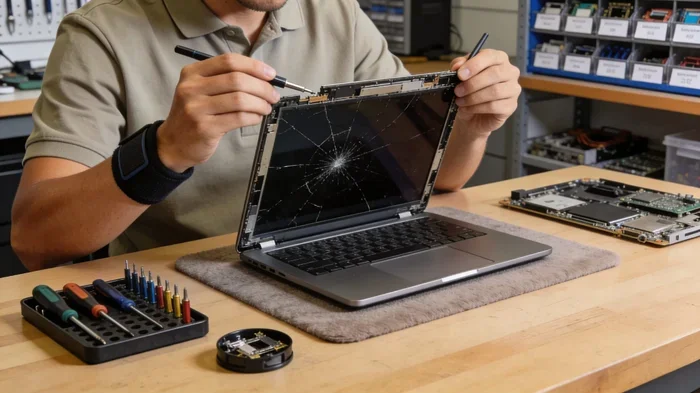
If your laptop has been dropped, bumped hard, or pressed too much, the LCD screen inside can crack. Even if the outside looks fine, the panel inside may be damaged. A cracked panel will often show lines, dark spots, or discoloration. Unfortunately, a broken panel usually cannot be repaired. It needs full screen replacement.
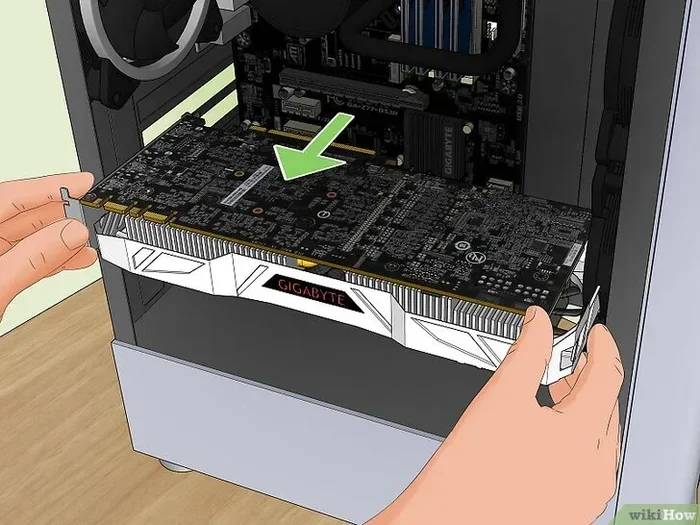
Graphics Card or GPU Problems
Your laptop’s graphics card handles everything you see on the display. If the GPU starts to fail or has driver issues, lines can appear across the screen. These lines might move, change color, or appear only when you run certain programs. A graphics card issue can sometimes be fixed with a driver update, but a failing GPU may need professional attention.
Faulty Inverter Board
Older laptops use an inverter board to power the backlight of the screen. When this board fails, you might see dim lines or bands across the display. This problem is less common in newer laptops, which use LED backlighting instead. But if you have an older machine, the inverter could be the culprit.
Pressure Damage to the Screen
Pressing too hard on the laptop screen can damage the internal layers. This often happens when you close the lid with something on the keyboard, like a pen or a charger. The pressure creates pixel damage and visible lines. This type of damage is preventable with careful handling.
Software or Driver Issues
Not all screen lines are physical. Sometimes a screen flickering problem is caused by outdated or corrupted display drivers. A software glitch can create visual artifacts that look like lines on the screen. Before assuming the worst, it is always worth checking your software first.
Can You Fix Lines On A Laptop Screen At Home?
The short answer is yes, sometimes. Whether you can fix lines on laptop screen at home depends entirely on what is causing the problem. Simple issues can be resolved with a few easy steps. More serious damage will need professional tools and parts. Let us look at what you can try yourself.
Step 1: Check the Cable Connection
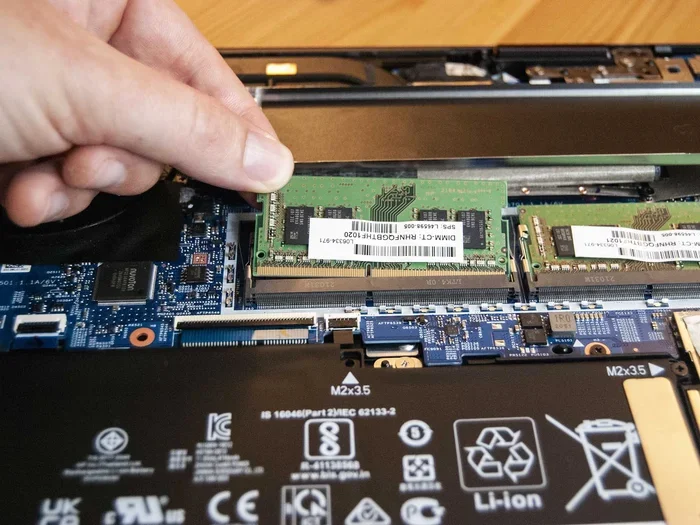
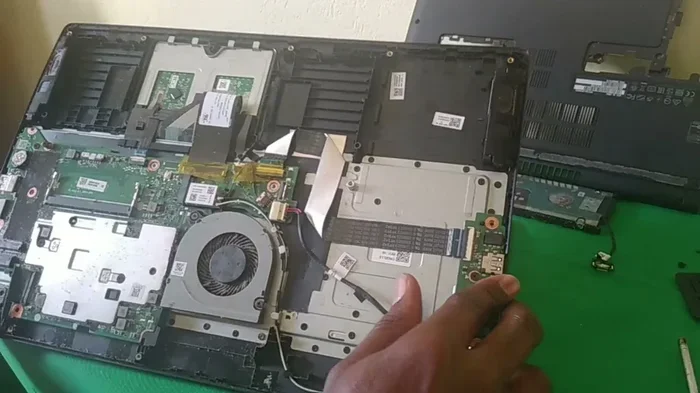
Start by opening and closing your laptop gently while watching the screen. If the lines change or disappear for a moment, the cable connection is likely the problem. You can try reseating the cable yourself if you feel comfortable opening the laptop back panel. Use a screwdriver to remove the screws, disconnect the screen ribbon cable, and reconnect it firmly. This simple step fixes many cases of horizontal lines on screen.
Step 2: Update Your Display Drivers
Go to your device manager and check for display driver updates. Outdated drivers are a leading cause of laptop display problems. Visit the manufacturer’s website, download the latest driver for your specific model, and install it. Restart your laptop and check if the lines are gone. This fix is free and takes only a few minutes.
Step 3: Run a Screen Test
Many laptop manufacturers offer built-in screen diagnostic tools. You can also use free online tools like the LCD Test page. These tools display solid colors one at a time. Look closely at each color to see if the lines change or disappear. If the lines are always visible, the problem is likely hardware. If they change, it might be a software or driver issue.
Step 4: Adjust Brightness and Refresh Rate
Sometimes the lines are caused by incorrect display settings. Try lowering the brightness to zero and then raising it back up. Also, check your refresh rate in display settings. A mismatch in refresh rate can create visual artifacts that look like lines. Adjusting these settings is a quick and easy first step.
Quick Tips for Home Fixes
- Always power off your laptop before opening the back panel.
- Use an anti-static wrist strap when touching internal components.
- Take photos as you disassemble so you can reassemble correctly.
- Do not apply pressure to the screen during testing.
- Back up your data before attempting any hardware fixes.
Common Mistakes People Make When Trying DIY Repairs
- Opening the laptop without backing up data: A loose connection during repair can sometimes cause data loss.
- Using too much force: Pressing too hard on the screen or cables can make the damage worse.
- Ignoring the warranty: Opening your laptop may void the manufacturer warranty. Always check first.
- Confusing software with hardware issues: Spending hours on driver fixes when the panel is physically broken wastes valuable time.
When To Seek Professional Laptop Screen Repair
Some problems are beyond what a home fix can solve. Knowing when to stop DIY attempts and call a professional saves time, money, and further damage. Here are the clear signs you need professional laptop screen repair.
Lines That Do Not Change With Cable Movement
If you open and close the laptop and the lines stay exactly the same, the cable is probably not the issue. Permanent lines that do not respond to any software or connection changes usually point to a damaged panel or a serious hardware fault.
Visible Cracks or Physical Damage
If you can see any cracks, discoloration, or pressure marks on the screen, the LCD panel is physically broken. No amount of cable reseating or driver updating will fix a cracked panel. You will need a full screen replacement.
Lines Accompanied by Flickering or Complete Blackouts
When lines appear along with frequent flickering or the screen going completely black, the problem is likely the inverter board or the backlight system. These components require professional diagnosis and replacement.
The Laptop Is Still Under Warranty
If your laptop is still under warranty, do not attempt DIY repairs. Opening the device may void the coverage. Contact the manufacturer or an authorized service center instead. Many laptop warranty plans cover screen repairs at no cost to you.
You Are Not Comfortable Opening the Laptop
There is no shame in admitting that DIY repair is not for everyone. If you feel unsure about opening your laptop, a professional repair service is the safest choice. A trained technician can diagnose and fix the problem quickly and correctly.
How Much Does It Cost To Fix Lines On A Laptop Screen?
Cost is one of the biggest concerns when dealing with laptop display problems. The price depends entirely on what is causing the lines and what kind of laptop you have. Here is a breakdown of typical repair costs.
| Repair Type | Estimated Cost | Difficulty Level |
|---|---|---|
| Driver or software update | Free | Easy |
| Cable reseating or replacement | $20 – $80 | Moderate |
| Inverter board replacement | $50 – $120 | Moderate |
| LCD panel replacement | $100 – $400 | Difficult |
| Full screen assembly replacement | $150 – $600 | Difficult |
| GPU motherboard repair | $200 – $500 | Expert |
As you can see, the cost range is very wide. Software fixes cost nothing. A simple cable reseat might be free if you do it yourself. But a full panel replacement can be expensive, especially for premium laptops like MacBook Pro or high-end gaming models.
Factors That Affect Repair Cost
- Laptop brand and model: Premium brands often have more expensive replacement screens.
- Screen size and resolution: Higher resolution and larger screens cost more to replace.
- Age of the laptop: Older models may have screens that are harder to find or discontinued.
- Where you get it repaired: Authorized service centers cost more than independent repair shops.
- Extent of the damage: Multiple issues found during repair can increase the total cost.
Is Repair Worth It or Should You Buy New?
This is a common question. A good rule of thumb is that if the repair cost exceeds 50% of the price of a new laptop, it might be better to buy a replacement. However, if your laptop is relatively new and otherwise in good condition, paying for a screen replacement is usually the smarter choice.
Preventing Lines On Your Laptop Screen In The Future
The best way to deal with lines on laptop screen is to prevent them from happening in the first place. Good habits and proper care go a long way in protecting your display. Here are the most effective prevention tips.
Handle Your Laptop With Care
Always close the lid gently. Never press on the screen with your fingers or any objects. Do not place heavy items on top of a closed laptop. These simple habits prevent pressure damage to the screen that leads to lines and cracks.
Keep the Screen Clean
Use a soft microfiber cloth to clean your screen. Never use harsh chemicals or abrasive materials. Dirt and grime can slowly damage the screen surface over time. A clean screen is a healthy screen.
Update Drivers Regularly
Set a reminder to check for driver updates once a month. Keeping your display drivers current prevents software-related visual artifacts. Most operating systems also offer automatic driver updates, so make sure that feature is turned on.
Use a Protective Case
A padded laptop sleeve or case absorbs shocks during transport. This reduces the risk of internal damage to the screen and cables. A small investment in protection can save you hundreds in repair costs.
Avoid Extreme Temperatures
Excessive heat or cold can damage the internal components of your laptop, including the screen. Do not leave your laptop in a hot car or in freezing conditions for extended periods. Keep it in a temperature-controlled environment.
Check the Hinge Regularly
A worn-out hinge puts extra stress on the display cable. If you notice your screen wobbling or not staying open at certain angles, have the hinge checked. Replacing a hinge early can prevent display cable damage and the lines that come with it.
Expert Insights On Laptop Screen Line Repairs
Professional technicians who specialize in laptop screen repair see these issues every day. Here is what the experts want you to know.
First, do not panic when you see lines. Many people assume the worst and immediately start shopping for a new laptop. In reality, the cause is often simple and inexpensive to fix. A loose cable or a driver update can resolve the problem in minutes.
Second, always back up your data before any repair attempt. Whether it is a DIY fix or a professional repair, data safety should come first. A screen problem should not put your files at risk.
Third, get a proper diagnosis before committing to any repair. Many shops offer free diagnostics. Use this opportunity to understand exactly what is wrong and what it will cost. This prevents surprises and helps you make the best decision for your situation and budget.
What Professionals Look For During Diagnosis
- Physical inspection: Checking for cracks, pressure marks, and loose connections.
- Cable testing: Reseating and testing the display cable to rule out connection issues.
- Software diagnostics: Running driver checks and display tests to identify software causes.
- Component testing: Testing the inverter board, backlight, and GPU individually.
- Panel evaluation: Determining if the LCD panel is salvageable or needs full replacement.
Key Takeaways
- Lines on a laptop screen can be fixed: The solution depends on the root cause, which ranges from simple to complex.
- Start with simple fixes: Cable reseating and driver updates are free and often solve the problem.
- Hardware damage needs professional help: Cracked panels, faulty inverter boards, and GPU issues require expert repair.
- Costs vary from free to hundreds of dollars: Get a diagnosis before committing to any repair expense.
- Prevention saves money: Proper handling, regular updates, and protective cases reduce the risk of future screen problems.
- Check your warranty first: Many repairs may be covered at no cost if your laptop is still under warranty.
- Act quickly: Early intervention prevents minor issues from becoming major and expensive repairs.
Conclusion
Dealing with lines on your laptop screen is never fun, but it is rarely the end of the world. The truth is that lines on laptop screen can be fixed in most situations. Whether the fix is as simple as reconnecting a cable or as involved as replacing the entire panel, there is a solution for every scenario.
Start by identifying the cause. Try the simple DIY steps first. If those do not work, seek professional help. And always remember to prevent future problems with careful handling and regular maintenance. Your laptop screen works hard for you every day. With the right care and attention, you can keep it working well for years to come.
Do not ignore those lines. The sooner you address the problem, the better your chances of a simple and affordable fix. Take action today and get your laptop display back to looking its best.
Frequently Asked Questions
Can lines on a laptop screen be fixed without replacing the screen?
Yes, in many cases lines can be fixed without a full screen replacement. Loose cables, driver issues, and inverter board problems can all be resolved without touching the panel. However, if the LCD screen itself is cracked or physically damaged, replacement is usually the only option.
How do I know if the lines on my screen are caused by software or hardware?
Run a screen test using solid colors. If the lines change or disappear, it is likely a software or driver issue. If the lines stay the same regardless of what you do, the problem is hardware. You can also try connecting your laptop to an external monitor. If the external display shows no lines, the issue is with your laptop screen or its internal components.
Is it safe to open my laptop and reseat the display cable myself?
It can be safe if you are careful and follow proper steps. Power off the laptop, remove the battery if possible, and use the right tools. However, if you are not comfortable, it is better to seek professional help. Opening the laptop may void your warranty, so check that first.
How long does a professional laptop screen repair take?
Most professional repairs take one to three business days. Simple fixes like cable reseating can be done in an hour. Full panel replacements may take longer because the shop needs to order the correct replacement screen for your specific model.
Will my laptop warranty cover the cost of fixing lines on the screen?
It depends on the cause and the terms of your warranty. If the damage is from a manufacturing defect, it is usually covered. Physical damage from drops or pressure is typically not covered. Contact your manufacturer or check your warranty documentation for specific details.
Can a failing graphics card cause lines on the laptop screen?
Yes, a failing or malfunctioning GPU can definitely cause lines, flickering, and other visual artifacts on your screen. These lines may appear only when running graphic-intensive programs or games. Updating or reinstalling the graphics driver can sometimes fix the issue, but a hardware failure in the GPU may require more advanced repair or motherboard replacement.