Can I Use My HP All In One PC As A Monitor Display
Yes, you can use your HP All In One PC as a monitor display in many cases, but it depends on your specific model. Some HP AIO PCs support external display input through HDMI, DisplayPort, or USB-C connections. This guide covers every method, requirement, and troubleshooting step you need.
Key Takeaways
- Not all HP AIO PCs support monitor input: Only certain models have the hardware needed to accept an external video signal.
- Check your ports: Look for HDMI In, DisplayPort, or USB-C ports on the back or side of your AIO.
- HDMI is the most common method: Most HP All In One PCs that support this feature use an HDMI input connection.
- Software settings matter: You may need to change your display settings in Windows to extend or mirror your screen.
- Adapters can help: If your model lacks the right port, a simple adapter can often solve the problem.
- Performance may vary: Using your AIO as a monitor works best for basic tasks. Heavy gaming may need a dedicated graphics card.
- Wireless options exist: Some HP AIO PCs support wireless display mirroring through Miracast or similar technologies.
📑 Table of Contents
- Can I Use My HP All In One PC As A Monitor Display?
- What Makes an HP All In One PC Work as a Monitor?
- Step-by-Step Guide to Using Your HP AIO as a Monitor
- Setting Up Display Settings in Windows
- Common Problems and Troubleshooting
- Common Mistakes to Avoid
- Expert Insights and Pro Tips
- Comparison: HP AIO vs Dedicated Monitor as a Second Screen
- Frequently Asked Questions
- Conclusion
Can I Use My HP All In One PC As A Monitor Display?
So you want to know if you can use your HP All In One PC as a monitor display. Maybe you have a second computer, a gaming console, or a laptop that needs a bigger screen. Whatever the reason, you are not alone. Many people wonder whether their HP AIO PC can double as a display screen for other devices.
The short answer is yes, but there is a catch. Not every HP All In One PC supports this feature. It depends on your specific model, the ports available, and the hardware inside. Some HP AIO computers come with built-in input options. Others simply do not.
This guide will walk you through everything. You will learn how to check if your model supports it, what cables and adapters you need, and how to set it up step by step. We will also cover common mistakes and troubleshooting tips. Let us get into it.
What Makes an HP All In One PC Work as a Monitor?
Understanding the Hardware Requirements
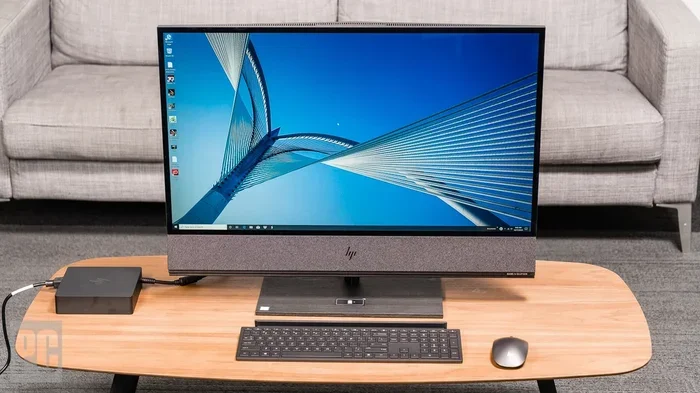
An HP All In One PC is a desktop computer and a display screen built into one unit. The key difference between a regular monitor and an AIO PC is the brain inside. A monitor is just a screen. An AIO PC has a processor, memory, storage, and an operating system.
For your HP AIO to work as a monitor, it needs a specific piece of hardware: a video input port. This is what allows it to receive a video signal from another device. Think of it like a TV with multiple HDMI inputs. Some AIO PCs have this. Most do not.
Here are the main hardware requirements:
- Video input port: Look for HDMI In, DisplayPort In, or a USB-C port that supports video input on the back or side of your AIO.
- Graphics card support: Your AIO needs a graphics card that can handle an external display signal. Many HP AIO PCs use integrated graphics that support this fine.
- Compatible operating system: Windows 10 or Windows 11 is recommended for the best display compatibility and easy settings adjustments.
- Sufficient processing power: While basic display tasks do not need much power, running a second computer’s display can tax older AIO models.
How to Check if Your HP AIO Supports Monitor Input
The easiest way to find out is to look at the ports on your machine. Flip your AIO around and check the back or the side. You are looking for a port labeled “HDMI In” or “DisplayPort In.” If you see one, great news. Your HP All In One PC likely supports external display input.
Here is a quick checklist:
- Check the back panel for HDMI In, DisplayPort, or USB-C ports.
- Look at your HP model number online. Visit the HP support page and check the specifications.
- Open your AIO’s manual or quick-start guide. It often lists input options.
- Search the HP website for your specific model. Look for a feature called “Monitor Mode” or “External Display Support.”
Some popular HP AIO models that support this feature include certain HP Envy, HP Pavilion, and HP Omen series. Newer models tend to have better support. Older models from 2018 or earlier may not have the right ports at all.
Step-by-Step Guide to Using Your HP AIO as a Monitor
Method 1: HDMI Connection
HDMI is the most common and easiest way to connect another device to your HP All In One PC. Most AIO PCs that support monitor input use this method. HDMI cables carry both video and audio, so you get a full experience.
Here is how to do it:
- Get an HDMI cable. Any standard HDMI 2.0 cable works fine for most setups.
- Plug one end into the HDMI Out port on your source device. This could be a laptop, desktop PC, gaming console, or another computer.
- Plug the other end into the HDMI In port on your HP AIO PC.
- Switch your AIO’s display to the correct input source. Many HP AIO PCs have a built-in input selector. You can usually access this through the on-screen display menu.
- On your source device, go to Display Settings and choose to extend or mirror your screen.
That is it. Your HP All In One should now show the display from your other device. You can use it as a second monitor or make it your main screen.
Method 2: DisplayPort or USB-C Connection
If your HP AIO has a DisplayPort or USB-C port that supports video input, you can use that instead. USB-C is becoming more common on newer HP AIO PCs. It is slim, versatile, and fast.
The setup process is similar to HDMI. You will need the right cable or adapter. Many modern laptops output video through USB-C, so this is a great match. Simply connect the USB-C or DisplayPort cable from your source device to the input port on your AIO.
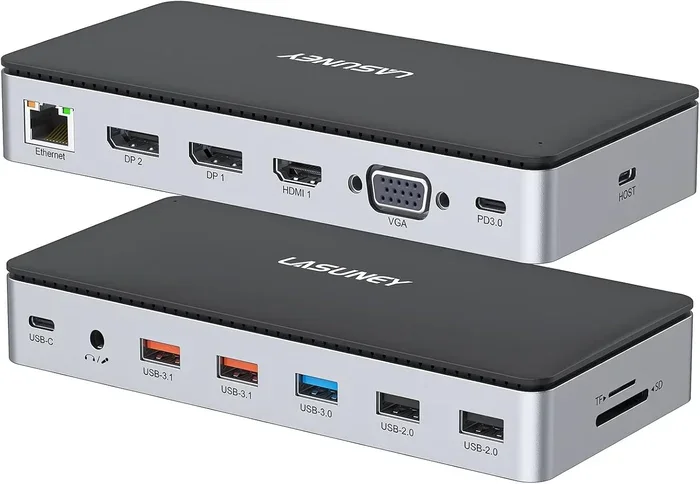
Quick tip: If your source device only has HDMI output and your AIO only has USB-C input, you will need a simple HDMI to USB-C adapter. These are inexpensive and widely available online.
Method 3: Wireless Display Mirroring
Some HP All In One PCs support wireless display options. This means you can mirror a screen without any cables at all. HP includes features like HP Wireless Display or Miracast support in many of its newer AIO models.
To use wireless display:
- Make sure both your HP AIO and your source device are on the same Wi-Fi network.
- Open the wireless display settings on your source device. On Windows, go to Settings and look for “Project to this PC.”
- Select your HP AIO from the list of available devices.
- Accept the connection on your AIO when prompted.
Wireless display is convenient but has some downsides. You may notice a slight delay or lag. Image quality may not be as sharp as a wired connection. For gaming or video editing, stick with HDMI or DisplayPort.
Setting Up Display Settings in Windows
Extending Your Screen
Once you have the physical connection ready, you need to adjust your Windows display settings. This is where you decide how your screens work together.
Right-click on your desktop and select Display Settings. You will see a diagram showing your connected displays. Here is what each option does:
- Extend these displays: This turns your HP AIO into a second screen. You can drag windows from one screen to the other. This is perfect for multitasking.
- Mirror these displays: This shows the same content on both screens. It is useful for presentations or demonstrations.
- Show only on 1 or 2: This lets you use just one display at a time. You can switch between them as needed.
For most users, extending your screen gives the best experience. You get more desktop space and the freedom to move apps wherever you want.
Adjusting Resolution and Orientation
After extending or mirroring, you may want to tweak the resolution. Your HP AIO’s built-in display has a native resolution. Make sure you set it to the recommended setting for the sharpest image.
In Display Settings, click on the display you want to adjust. Scroll down to “Display Resolution” and choose the recommended option. If the image looks stretched or blurry, this is usually the fix.
You can also change the display orientation. Some people prefer to rotate their AIO screen vertically for reading documents. This is easy to do in the same settings menu.
Common Problems and Troubleshooting
No Signal or Blank Screen
This is the most common issue people face. If your HP AIO shows a blank screen or a “No Signal” message, do not panic. Try these steps:
- Check that both ends of the cable are firmly plugged in.
- Try a different HDMI or DisplayPort cable. The cable may be faulty.
- Make sure you selected the correct input source on your AIO.
- Restart both your AIO and your source device.
- Check that your source device is set to output to the correct display.
If none of this works, your AIO model may not support video input. Unfortunately, this is a hardware limitation you cannot fix with software.
Audio Not Working Through the AIO
HDMI carries audio along with video. But sometimes, the sound still plays through your source device instead of your AIO’s speakers. Here is how to fix it:
- Right-click the speaker icon on your taskbar. Select “Sound Settings.”
- Under “Output,” choose your HP AIO’s built-in speakers.
- On the source device, make sure the audio output is also set correctly.
- If you are using a DisplayPort connection, check if you need a separate audio cable or adapter.
Display Lag or Ghosting
Some users notice a slight delay or ghosting on the AIO screen when using it as a monitor. This is more common on older or budget AIO models. To reduce this:
- Lower the resolution on the extended display. A lower resolution puts less strain on the AIO’s graphics processing.
- Check for Windows and driver updates. Updated graphics drivers often fix display performance issues.
- Close unnecessary background apps on your AIO. Freeing up system resources helps a lot.
- If you are using a USB-C connection, make sure the port supports video and data transfer, not just charging.
Common Mistakes to Avoid
Assuming All HP AIO Models Support Monitor Input
This is the biggest mistake people make. Just because a computer is an All In One does not mean it can accept an external video signal. HP makes many AIO models, and only some of them have the input ports needed. Always check your specific model before buying any cables or adapters.
Using the Wrong Cable or Port
HP AIO PCs often have multiple ports on the back. Some ports are for output only. For example, an HDMI Out port on your AIO sends video out to another display. It does not receive a signal. You need the HDMI In port. Mixing these up is a very common and frustrating mistake.
Quick tip: HDMI In ports are often labeled clearly on the back panel. Look closely or check your user manual. If the labels are faded or missing, a quick search for your model number on the HP website will clear things up.
Ignoring Software Updates
Many display issues go away after a simple update. Both Windows and your AIO’s drivers need to stay current. HP regularly releases firmware and display driver updates for its AIO PCs. Do not skip these. They improve compatibility and fix bugs that could affect your monitor setup.
Expert Insights and Pro Tips
Best Use Cases for an HP AIO as a Monitor
Using your HP All In One PC as a monitor works best in certain situations. Here is where it shines:
- Home office setups: Use your AIO as a second screen for email, web browsing, or reference documents while working on your main PC.
- Gaming console display: Connect a PlayStation or Xbox to your AIO for a big screen gaming experience. Many HP AIO monitors have good color accuracy and decent refresh rates.
- Media center: Stream movies, shows, or music from another device onto your AIO display. It works like a large smart TV.
- Presentation tool: Mirror a laptop screen during meetings or presentations. Your AIO becomes a shared display for everyone in the room.
When Not to Use Your AIO as a Monitor
On the flip side, there are times when this setup is not ideal:
- Competitive gaming: AIO PCs typically have 60Hz displays. If you need 144Hz or higher for competitive gaming, a dedicated gaming monitor is a better choice.
- Professional video editing: Color accuracy and wide color gamut are critical. Most AIO displays are not designed for this level of precision.
- Heavy 3D rendering: Running graphically intensive content from another device can slow down your AIO significantly.
Expert insight: According to PC hardware specialists, using an HP AIO as a secondary display is a smart way to repurpose older machines. It extends the life of your device and saves you from buying a separate monitor. Just make sure your model supports it first.
Comparison: HP AIO vs Dedicated Monitor as a Second Screen
Some people wonder whether they should use their HP AIO or buy a dedicated external monitor. Here is a quick comparison to help you decide:
| Feature | HP AIO as Monitor | Dedicated Monitor |
|---|---|---|
| Cost | Free if you already own it | Requires extra purchase |
| Setup Ease | Easy if ports are available | Very easy, plug and play |
| Display Quality | Good for everyday use | Often better, especially gaming or 4K |
| Portability | Fixed in one location | Easily movable |
| Performance Impact | Uses AIO resources | No impact on main PC |
| Audio Support | Built-in speakers | Depends on monitor |
| Refresh Rate | Usually 60Hz | Up to 144Hz or higher |
Both options have their place. If you already own an HP AIO with input support, using it as a second display is a no-brainer. If you need top-tier performance, invest in a dedicated external monitor.
Frequently Asked Questions
Can any HP All In One PC be used as a monitor?
No, not every HP AIO PC supports this feature. You need to check your specific model for an HDMI In, DisplayPort In, or USB-C video input port. Visit the HP support website and look up your model number to confirm whether it has display input capabilities.
What cables do I need to connect another device to my HP AIO?
It depends on your ports. Most setups use a standard HDMI cable. If your AIO has a DisplayPort or USB-C input, you will need the matching cable. Adapters like HDMI to USB-C or HDMI to DisplayPort are also available for mixed setups. Keep in mind that you need an input cable, not an output cable.
Will using my HP AIO as a monitor slow down my main computer?
It depends. Your AIO handles the display output separately from your main computer. However, your AIO uses its own system resources to process and show the incoming display. So the main computer does not slow down, but your AIO may run a bit warmer or use more power. For basic tasks, the impact is minimal.
Can I use my HP AIO as a monitor for a PS5 or Xbox Series X?
Yes, if your HP AIO has an HDMI In port. Simply connect your console to the AIO using an HDMI cable. Then switch the AIO to the correct input source. Most HP AIOs support 1080p or 4K input, so you should get a great gaming display. Check your AIO’s refresh rate for the smoothest experience.
How do I switch back to using my HP AIO as a regular computer?
It is simple. Disconnect the cable from the HDMI In or input port on your AIO. Then change the display settings on your source device to show only on its own screen. Your HP AIO will return to its normal desktop view instantly. You can also switch the input source back through the AIO’s on-screen display menu.
Does using my HP AIO as a monitor affect its warranty?
No, using your AIO as a display does not void your warranty. You are simply using a feature that HP designed into the machine. However, if you damage the port or screen by forcing connections or using incorrect cables, that could be a different story. Always use the right cables and follow proper setup procedures.
Conclusion
So, can I use my HP All In One PC as a monitor display? The answer is yes, as long as your specific model supports video input. Check your ports, confirm your model’s capabilities, and follow the setup steps outlined in this guide. Whether you use HDMI, DisplayPort, USB-C, or wireless display, the process is straightforward and well worth the effort.
Using your HP AIO as a second screen is a smart, budget-friendly way to boost your productivity, enjoy console gaming on a bigger display, or repurpose an older machine. Just avoid the common mistakes we covered, keep your drivers updated, and enjoy the flexibility.
Try it out today. You might be surprised at how useful your HP All In One PC can be as a monitor display. Share this guide with a friend who might benefit from it too.