Can I Use SATA to USB for SSD and Here Is What to Know
Yes, you can use SATA to USB for SSD drives to create portable external storage or clone your disk easily. A SATA-to-USB adapter lets you connect almost any solid state drive to a computer without opening the case. This guide covers speed limits, compatibility, setup steps, and common mistakes so you get the best results every time.
Have you ever pulled an old solid state drive out of a computer and wondered if you could still use it? Maybe you upgraded your laptop and now you have a perfectly good SSD drive sitting on your desk. Or perhaps you need extra portable storage without buying a brand new external hard drive.
The good news is that you can absolutely use SATA to USB for SSD connections. A simple adapter cable or enclosure turns any internal SATA solid state drive into an external drive you can carry anywhere. This is one of the smartest and most affordable upgrades you can make for your data storage setup.
In this guide, we walk through everything you need to know. From choosing the right SATA adapter to understanding transfer speed limits, we cover it all. Whether you want to back up files, clone a disk, or just free up space on your main computer, this article has you covered.
Key Takeaways
- SATA to USB adapters work great for SSDs: They let you turn any internal drive into portable external storage in minutes.
- USB 3.0 and USB 3.1 offer the best speeds: These ports match or exceed typical SATA III transfer rates for most users.
- Compatibility matters: Check your SSD’s SATA generation and your computer’s USB port version before buying an adapter.
- You can use SATA to USB for SSD cloning and backups: Disk imaging tools make full drive copies simple and reliable.
- Watch out for power issues: Some drives need extra power, so pick an adapter with a dedicated power supply when needed.
- Plug and play is common: Most modern operating systems recognize SATA-to-USB connected SSDs instantly without extra software.
📑 Table of Contents
What Is a SATA to USB Adapter for SSD?
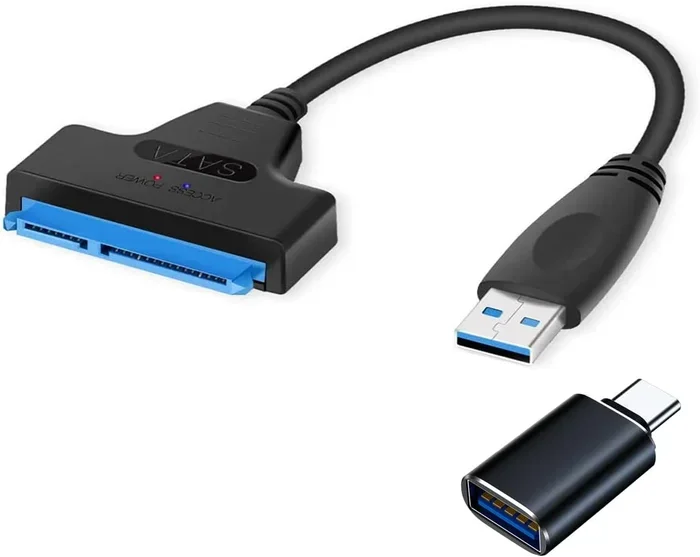
A SATA to USB adapter is a small device that bridges your internal solid state drive to a USB port on your computer. The SATA side plugs directly into the drive’s connector. The USB side plugs into your laptop or desktop. That is all there is to it.
These adapters come in a few different shapes. You can get a simple cable with a SATA connector on one end and a USB plug on the other. You can also buy a full hard drive enclosure that houses the drive inside a protective shell with a USB cable attached.
Types of SATA to USB Adapters
- SATA-to-USB cable adapters: These are the simplest and cheapest option. You plug the cable into your SSD and into a USB port. Done.
- SATA hard drive enclosures: These are protective cases you slide the SSD into. They look like small external drives and offer better protection.
- Docking stations: These let you connect multiple drives at once. They are great if you work with several storage devices regularly.
Each option has its place. For quick one-time tasks, a cable adapter works perfectly. For regular use, an enclosure or docking station is a better long-term choice.
How Does SATA to USB Work with SSDs?
Here is how the SATA to USB for SSD connection works in simple terms. Your solid state drive uses the SATA interface to communicate with a computer’s motherboard. The adapter takes that SATA signal and converts it into a USB signal. Your computer then sees the drive as a regular USB storage device.
The process is almost always plug and play. Most modern operating systems like Windows 10, Windows 11, macOS, and Linux recognize the drive the moment you connect it. You do not need to install special drivers in most cases.
The Role of USB Versions in Speed
The transfer speed you get depends heavily on the USB version your adapter and port support. Here is a quick look at the most common USB versions and what they mean for your SSD:
- USB 2.0: Maxes out around 480 Mbps. This is very slow for modern SSDs and will bottleneck your data transfer speeds.
- USB 3.0 (USB 3.2 Gen 1): Offers up to 5 Gbps. This matches the SATA III limit of 6 Gbps closely and works great for most SSDs.
- USB 3.1 (USB 3.2 Gen 2): Provides up to 10 Gbps. This is faster than SATA III and lets your SSD reach its full potential.
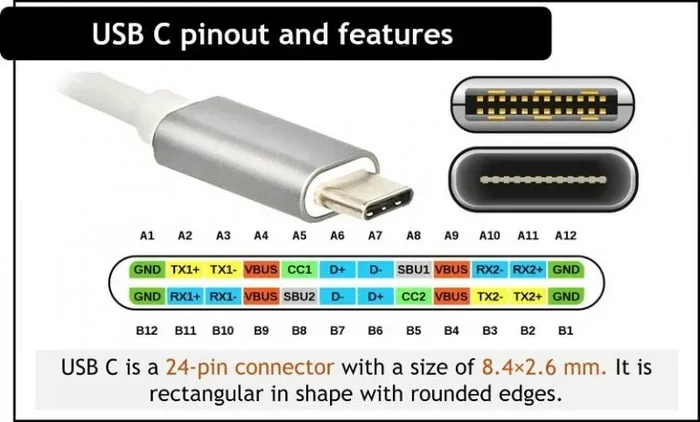
- USB-C with USB 3.2 Gen 2 or Thunderbolt: Even faster options that future-proof your setup for high-speed external SSD use.
Always match your adapter’s USB version to your computer’s port. Using a USB 3.0 adapter on a USB 3.0 port gives you the best balance of speed and compatibility.
Benefits of Using SATA to USB for Your SSD
There are many reasons to use a SATA to USB adapter with your solid state drive. Here are the biggest advantages:
1. Saves Money
Buying a new external drive can cost $50 to $150 or more. A SATA-to-USB adapter costs $10 to $30. You save a lot of money by reusing a drive you already own.
2. Portable and Convenient
Once connected, your SSD becomes a portable storage device you can carry in a bag or pocket. This is perfect for professionals who need to move large files between locations.
3. Easy Disk Cloning and Backups
You can use a SATA-to-USB connection to clone your disk or create full backups. Tools like Macrium Reflect, Acronis True Image, and Clonezilla all support external drives connected this way. This makes disaster recovery simple and reliable.
4. Works Across Devices
You can connect the adapter to laptops, desktops, and even some smart TVs or gaming consoles that support USB mass storage. This gives you versatile storage options without extra hardware.
5. No Installation Required
Unlike internal drives, you do not need to open your computer case or deal with screws and cables inside. Just plug in the adapter and start working. This simple setup makes it ideal for beginners and experts alike.
Some users also connect drives this way for secure data transfer in professional environments. For more on secure communication methods in data transfer contexts, you can explore this overview of value added networks for secure electronic communication to understand how different transfer methods compare in terms of security and reliability.
Things to Watch Out For
Using SATA to USB for SSD is straightforward, but there are a few pitfalls to avoid. Here are the most common issues and how to handle them.
Power Supply Problems
Some SSDs, especially larger 3.5-inch drives or high-performance models, need more power than a single USB port can provide. If your drive flickers, disconnects, or does not show up, try a dual USB connector adapter or use a powered USB hub. A dedicated power supply on the adapter solves this problem completely.
SATA Generation Mismatch
Not all SSDs are the same. A SATA II drive will not reach SATA III speeds even with the best adapter. Check your drive’s specifications before expecting top performance. A SATA II SSD will max out around 300 Mbps regardless of your USB connection.
Operating System Compatibility
Most modern systems handle SATA-to-USB connections without issues. However, older versions of Windows or niche operating systems might need additional drivers. Always check the adapter manufacturer’s compatibility list before purchasing.
Drive Formatting Issues
If your SSD shows up as unformatted or RAW, do not panic. This usually means the drive uses a file system your current OS does not support. You can format the drive, but remember that formatting erases all data. Always back up first.
Quick Tips for Best Results
- Always use a USB 3.0 or higher adapter for the best speeds.
- Keep your SSD firmware updated for optimal compatibility and performance.
- Store your adapter in a safe place when not in use to avoid connector damage.
- Eject the drive properly through your operating system before unplugging.
- Use a short, high-quality USB cable to minimize signal loss.
Step-by-Step Guide to Setting Up Your SATA to USB Connection
Setting up your SATA to USB for SSD connection takes only a few minutes. Follow these simple steps for a smooth setup every time.
- Choose the right adapter: Pick a SATA-to-USB adapter or enclosure that matches your SSD’s form factor. 2.5-inch drives are the most common for laptops and portable use.
- Prepare your SSD: If the drive is still inside a computer, power down the machine and unplug it. Carefully disconnect the SATA data and power cables from the drive.
- Connect the SSD to the adapter: Plug the SATA connector on the adapter into the drive. Make sure it clicks into place securely.
- Connect the USB end to your computer: Plug the USB connector into an available port. For best speeds, use a USB 3.0 or USB 3.1 port.
- Wait for detection: Your operating system should recognize the drive within seconds. You will see it appear in File Explorer (Windows) or Finder (Mac).
- Access your files: Open the drive and start copying, backing up, or cloning data as needed.
- Eject safely: When you are done, always use the safe eject option before unplugging the adapter.
That is it. Your internal SSD is now an external drive ready for any task. If the drive does not appear, try a different USB port or cable. A faulty cable is the most common cause of connection problems.
For users who need to connect multiple drives or want a more permanent setup, consider a docking station with SATA-to-USB capability. These devices offer the convenience of swapping drives without buying multiple adapters.
Common Mistakes to Avoid
Even with a simple setup like this, people make mistakes that cause frustration. Here are the ones to watch for.
- Using a USB 2.0 adapter for a fast SSD: This wastes your drive’s speed potential and makes transfers painfully slow.
- Forgetting to check drive compatibility: Some adapters only support 2.5-inch drives. A 3.5-inch drive will not fit without an adapter bracket.
- Skipping the safe eject: Pulling the cable out while data is writing can corrupt files or damage the drive.
- Buying cheap, uncertified adapters: Low-quality adapters can cause data loss or connection drops. Stick to reputable brands.
- Ignoring heat management: SSDs can get warm during heavy transfers. Make sure the adapter and drive have some airflow.
Avoiding these mistakes keeps your data safe and your SSD drive working reliably for years.
When choosing an adapter, it helps to understand the broader ecosystem of external storage solutions and how different connection standards compare. The way you connect and transfer data between devices plays a big role in overall performance and reliability.
Frequently Asked Questions
Can I boot from a SATA to USB connected SSD?
Yes, you can boot from an SSD connected via SATA to USB in most cases. You need to enter your computer’s BIOS or UEFI settings and change the boot order to prioritize the USB-connected drive. Keep in mind that boot speeds will be slightly slower than an internal connection due to the USB overhead. This method works great for running portable operating systems or recovering a broken computer.
What is the best SATA to USB adapter for SSDs?
The best adapter depends on your needs. For simple backup tasks, a basic SATA-to-USB 3.0 cable works perfectly and costs under $15. For regular use, a quality enclosure from brands like Sabrent, UGREEN, or Orico offers better protection and reliability. If you work with many drives, a docking station with multiple SATA ports is the most versatile option.
Will my SSD run at full speed with a SATA to USB adapter?
Mostly yes. A USB 3.0 adapter supports up to 5 Gbps, which is close to the SATA III limit of 6 Gbps. Your SSD will run at near its maximum speed. A USB 3.1 or USB-C adapter goes even faster but the SSD itself becomes the bottleneck. Avoid USB 2.0 adapters since they cap speeds at 480 Mbps.
Can I use SATA to USB for SSD on a Mac?
Absolutely. Most SATA-to-USB adapters work with macOS without extra drivers. Your Mac will recognize the connected SSD as an external drive. You can format the drive as APFS or Mac OS Extended for best compatibility, or use exFAT if you need to share files with Windows machines.
Is it safe to leave an SSD connected via SATA to USB all the time?
It is generally safe for short-term use, but not ideal for long-term continuous connection. USB connections are less stable than internal SATA connections. If you need the drive connected permanently, an enclosure with a stable USB connection is better than a bare cable adapter. Always use the safe eject feature before disconnecting.
Can I use a SATA to USB adapter with NVMe SSDs?
No, standard SATA-to-USB adapters only work with SATA SSDs. NVMe drives use the PCIe interface and require a different type of adapter, typically an NVMe-to-USB enclosure that connects via USB-C. Make sure you know which type of SSD you have before purchasing an adapter.
Conclusion
Using SATA to USB for SSD is one of the easiest and most cost-effective ways to repurpose an old drive or expand your storage. Whether you need portable storage, a backup solution, or a disk cloning tool, a simple adapter gets the job done.
Just remember to match your USB version to your needs, watch for power and compatibility issues, and always eject the drive safely. With the right setup, your solid state drive becomes a versatile external tool you can use anywhere.
Start with a basic SATA adapter and test your setup. Once you see how easy and fast it is, you will wonder why you did not do it sooner. Your old SSD has plenty of life left in it, and now you know exactly how to put it to good use.