Can I Use USB 3 0 To USB C Everything You Need To Know
Yes, you can use a USB 3.0 to USB-C cable, but there are a few things you need to know first. The USB 3.0 to USB-C connection works with many modern devices, but speeds and power delivery depend on the cable and port you use. This guide covers everything about USB 3.0 to USB-C compatibility, speeds, and which setup is best for you.
Have you ever looked at your old USB 3.0 cable and wondered if it would work with your new laptop that has a USB-C connector? You are not alone. Many people face this exact question when they upgrade to a newer device but still have cables from older gear lying around.
The good news is that USB 3.0 to USB-C connections are very much a thing, and they work in most situations. But there are some important details you need to understand before you plug anything in. Not every cable delivers the same speeds, and not every port supports the same features.
In this guide, we will walk you through everything you need to know about using USB 3.0 to USB-C. We will cover compatibility, data transfer speeds, power delivery, and how to pick the right cable for your needs. By the end, you will feel confident about making the right connection every time.
Key Takeaways
- USB 3.0 to USB-C works: The connection is fully compatible with most modern devices that have USB-C ports.
- Speed is limited to 5 Gbps: USB 3.0 caps data transfer at 5 gigabits per second, which is fast enough for most everyday tasks.
- Power delivery is limited: USB 3.0 cables deliver about 4.5 watts, which may not be enough for laptops.
- Check your cable specs: Not all USB-C cables are the same. Always verify the USB standard and power rating before buying.
- Use trusted brands: Certified cables from reputable brands ensure reliability and safety.
- Upgrade when needed: If you need faster speeds or more power, consider USB 3.1, USB 3.2, or Thunderbolt 3 cables.
📑 Table of Contents
What Is USB 3.0 to USB-C?
Before we dive into the details, let us clear up what these terms actually mean. USB 3.0 refers to a specific USB standard that was introduced back in 2008. It brought a big jump in data transfer speed compared to the older USB 2.0 versions. When people talk about USB 3.0, they often mean the SuperSpeed USB technology that can push data at up to 5 gigabits per second.
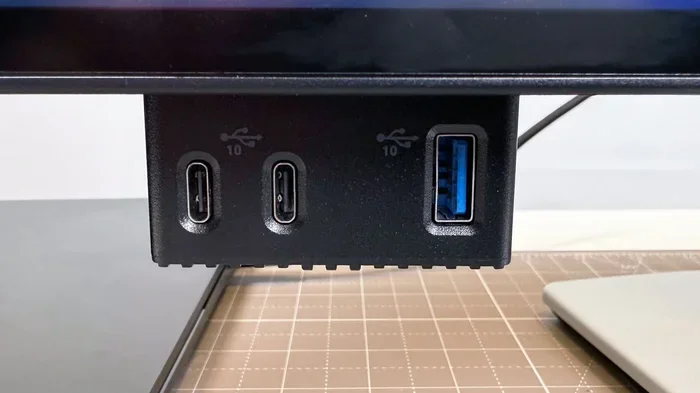
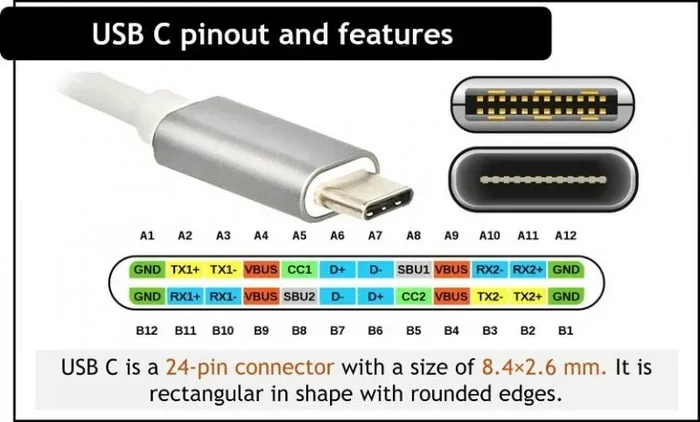
On the other side, USB-C is a connector type, not a speed standard. The USB-C connector is small, reversible, and designed to work with many different USB versions, including USB 3.0, USB 3.1, USB 3.2, and even USB4. Think of it this way: USB 3.0 describes how fast the data moves, while USB-C describes the shape of the plug.
So when we talk about a USB 3.0 to USB-C setup, we mean using a cable or adapter that has a USB 3.0 standard inside but connects through a USB-C connector type. This combination is very common today, especially in adapters and cables that bridge older standards with newer devices.
Understanding USB Standards and Connector Types
It helps to think of the USB standard and the USB connector type as two separate things. The standard is like the engine inside a car. It determines how fast things go. The connector is like the steering wheel. It is the part you physically hold and plug in.
Here are the main USB cable types you will encounter:
- USB-A – The classic flat rectangular plug found on most computers and chargers.
- USB-B – The square-ish plug often used with printers and scanners.
- USB-C – The small, oval-shaped, reversible plug used on modern laptops, phones, and tablets.
- Micro-USB – The older small plug found on many Android devices before USB-C took over.
A USB 3.0 to USB-C cable simply means one end uses the USB-A shape (or sometimes USB-B) and the other end uses the USB-C shape, while the cable supports the USB 3.0 speed standard inside.
Quick Tip: USB vs USB-C
A quick way to remember the difference is this: USB 3.0 is the speed language, and USB-C is the physical shape. A cable can speak USB 3.0 language through a USB-C shape. They are not the same thing, even though people often use the terms together.
Is USB 3.0 Compatible with USB-C?
The short answer is yes. A USB 3.0 to USB-C cable is fully backward compatible with USB-C ports on modern devices. Your laptop, tablet, or phone with a USB-C port can accept a USB 3.0 cable just fine. The connection will work, and your device will communicate with the cable properly.
However, compatibility is not always perfect. Here are some things to keep in mind:
- Speed matching: If you plug a USB 3.0 cable into a USB-C port that supports USB 3.1 or USB 3.2, the connection will default to the slower USB 3.0 speed. The cable cannot go faster than its own standard allows.
- Power limits: USB 3.0 cables typically support up to 900 milliamps of power. Newer USB-C ports can deliver much more through USB Power Delivery, but a USB 3.0 cable may not be able to handle the full power.
- Feature support: Some advanced features like Thunderbolt 3 or video output over USB-C require specific cable specifications. A basic USB 3.0 to USB-C cable may not support these features.
When Does Compatibility Work Perfectly?
Most of the time, a USB 3.0 to USB-C connection works without any issues at all. If you are just transferring files from an external hard drive or charging your phone, the setup will work just fine. The USB-C connector fits into the port, and the USB 3.0 standard handles the data transfer at its rated speed.
You will run into problems mainly when you need faster speeds or higher power delivery. For example, if you are using a USB-C port on your laptop to connect an external SSD and you want the fastest possible data transfer speed, a USB 3.0 cable will hold you back. In that case, you would want a USB 3.1 or USB 3.2 cable instead.
Expert Insight: The Role of USB-IF Certification
According to USB-IF (USB Implementers Forum), certified cables carry the USB certification logo. This logo guarantees the cable meets the official standard it claims to support. When shopping for a USB 3.0 to USB-C cable, look for this logo. It is your best assurance that the cable will perform as advertised.
Data Transfer Speeds and Bandwidth
One of the most common reasons people ask about USB 3.0 to USB-C is the data transfer speed. Understanding how fast your connection can be helps you choose the right cable and avoid frustration.
USB 3.0 Speed Basics
The USB 3.0 standard supports a maximum data transfer speed of 5 gigabits per second, or about 625 megabytes per second. In real-world use, you can expect speeds between 300 and 500 megabytes per second, depending on the files and the devices involved.
This is already much faster than USB 2.0, which maxes out at about 60 megabytes per second. For most everyday tasks like moving photos, backing up documents, or transferring videos, USB 3.0 speed is more than enough.
How the USB-C Connector Affects Speed
Here is an important detail: the USB-C connector itself does not determine the speed. The speed comes from the USB standard built into the cable and the ports at both ends. A USB-C port can support USB 3.0, USB 3.1, USB 3.2, or even USB4, depending on the device.
When you use a USB 3.0 to USB-C cable, the bandwidth is limited to what USB 3.0 can handle. Even if your USB-C port supports faster standards, the cable acts as a bottleneck. The connection will only run as fast as the slowest part of the chain.
Here is a simple comparison to help you understand:
| Cable Standard | Max Speed | Best For |
|---|---|---|
| USB 2.0 to USB-C | 60 Mbps | Basic charging and peripherals |
| USB 3.0 to USB-C | 5 Gbps | Everyday file transfers and charging |
| USB 3.1 Gen 2 to USB-C | 10 Gbps | Large file transfers and external drives |
| USB 3.2 Gen 2×2 to USB-C | 20 Gbps | Professional workflows and video |
| Thunderbolt 3 to USB-C | 40 Gbps | High-end external GPUs and RAID arrays |
If you want the fastest data transfer speed, you need a cable that supports a faster standard than USB 3.0. But if your needs are modest, a USB 3.0 to USB-C cable works perfectly well.
Real-World Speed Examples
Let us say you are copying a 10-gigabyte video file from an external drive to your laptop. With a USB 3.0 to USB-C cable, this should take roughly 20 to 30 seconds. With USB 2.0, the same transfer would take over two minutes. The difference is huge, and USB 3.0 makes a real impact in daily use.
Key Takeaway: USB 3.0 to USB-C gives you solid speeds for everyday tasks. You will not notice any lag when moving documents, photos, or music files. But for heavy professional work, consider a faster cable standard.
Power Delivery and Charging with USB 3.0 to USB-C
Another big reason people use USB 3.0 to USB-C cables is for charging. USB-C has become the go-to charging port on many laptops, phones, and tablets. But can a USB 3.0 cable handle the power your device needs?
USB 3.0 Power Delivery Limits
Standard USB 3.0 cables are designed to carry up to 900 milliamps of current at 5 volts. That gives a maximum power delivery of about 4.5 watts. For small devices like phones, e-readers, and Bluetooth headphones, this is usually enough to charge the device, though it may be slower than using the original charger.
For larger devices like laptops or tablets, 4.5 watts is not enough. These devices need more power, and that is where USB Power Delivery comes in. USB Power Delivery is a separate specification that allows USB-C ports to deliver up to 100 watts or more through compatible cables.
When USB 3.0 Power Falls Short
If you try to charge a laptop using a basic USB 3.0 to USB-C cable, you might notice that the battery barely charges or does not charge at all while you use the device. This happens because the power demand of the laptop exceeds what the USB 3.0 cable can supply.
In these cases, you need a USB-C cable that supports USB Power Delivery and can handle higher wattage. These cables have extra wires inside that allow more current to flow safely. They often look similar to regular USB 3.0 cables, so always check the specifications before you buy.
Quick Tip: If you are not sure whether your cable supports fast charging, look for a USB-C cable that is labeled with its wattage rating or mentions USB Power Delivery support. A basic USB 3.0 cable will not have this labeling.
Devices and Gear That Use USB 3.0 to USB-C Connections
You will find USB 3.0 to USB-C setups in many places. Manufacturers use this combination because it bridges older standards with the newest connector shapes. Here are some common devices and situations where you will see this connection in action.
External Hard Drives and SSDs
Many portable hard drives and solid-state drives come with a USB 3.0 to USB-C cable or offer it as an option. These drives use the USB 3.0 standard for reliable data transfer while taking advantage of the smaller, more convenient USB-C connector shape.
If you have an older external drive with a USB-A connector and your new laptop only has USB-C ports, you will need a USB adapter or a USB-A to USB-C cable to make it work. This is one of the most common use cases for USB 3.0 to USB-C cables.
USB Hubs and Docks
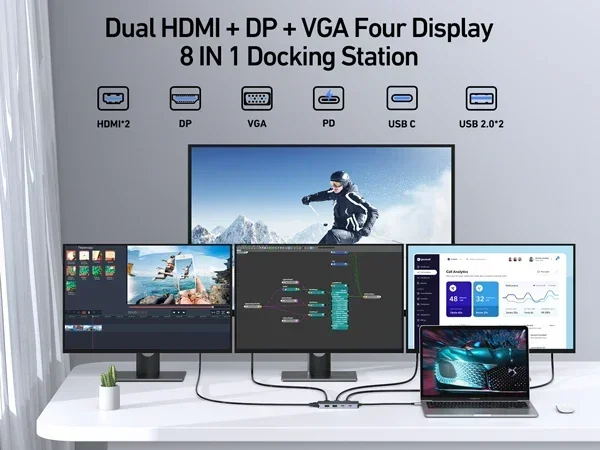
USB hubs and docking stations are another place where you will encounter this connection. Many USB-C hubs include USB-A ports that operate at USB 3.0 speeds. When you plug a USB-A device into the hub, the USB 3.0 standard ensures decent data transfer rates for keyboards, mice, and flash drives.
Some docking stations also use a USB 3.0 to USB-C cable to connect to the laptop, while providing additional ports on the dock itself. This setup is popular among office workers who need to connect multiple peripheral devices to a single laptop.
Printers and Audio Equipment
Older printers and scanners often use USB-B or USB-A connectors. If your computer has moved to USB-C ports, a USB 3.0 to USB-C cable or adapter lets you keep using your existing printer without buying a new one. This is a great way to save money and reduce electronic waste.
Musicians and podcasters often use audio interfaces that connect via USB. Many of these devices still use USB-A or USB-B connectors, so a USB 3.0 to USB-C cable is essential for connecting them to modern laptops and tablets. The stable data transfer of USB 3.0 helps ensure clean audio without dropouts or latency issues.
How to Choose the Right USB 3.0 to USB-C Cable
Not all cables are created equal. When shopping for a USB 3.0 to USB-C cable, there are a few key things to look for to make sure you get a quality product that does what you need.
Check the Cable Specifications
Always look at the specifications listed on the packaging or product page. A genuine USB 3.0 cable should clearly state that it supports 5 Gbps data transfer speeds. If the packaging does not mention a speed rating, be cautious. Some cheap cables are only USB 2.0 inside but use a USB-C connector shape.
Here are the key specs to check:
- Data speed: Should be 5 Gbps for USB 3.0
- Power rating: Look for at least 3 amps if you plan to charge devices
- Cable length: Longer cables may have slightly slower speeds. Keep cables under 6 feet for best performance
- Connector quality: Gold-plated connectors resist corrosion and provide a more reliable connection
Brand Reputation Matters
Buying from a reputable brand is one of the best ways to ensure you get a reliable cable. Brands like Anker, Cable Matters, Belkin, and UGREEN have built their names on quality USB accessories. A cheap no-name cable might work today but could fail after a few months of use.
Expert Insight: According to USB-IF (USB Implementers Forum), certified cables carry the USB certification logo. Look for this logo when buying any USB cable. It guarantees the cable meets the official standard it claims to support.
Do You Need More Than USB 3.0?
Think about what you actually need the cable for. If you are mostly transferring documents, charging phones, or connecting basic peripherals, a USB 3.0 to USB-C cable is more than enough. But if you work with large video files, run an external GPU, or need the fastest possible speeds, consider upgrading to a USB 3.1 or USB 3.2 cable.
Common Mistake: Many people buy a USB-C cable assuming it is automatically fast. The connector shape does not tell you the speed. Always check the USB standard printed on the cable or listed in the product details.
Common Mistakes and How to Avoid Them
Even with the best intentions, people make mistakes when using USB 3.0 to USB-C cables and adapters. Here are the most common ones and how to avoid them.
Assuming All USB-C Cables Are the Same
This is the biggest mistake people make. Not all USB-C cables support the same speeds or power levels. Some USB-C cables are only USB 2.0 inside, which means they are very slow even though they fit into modern ports. Always verify the cable standard before you rely on it for important tasks.
Using the Wrong Cable for Charging
As we discussed earlier, a basic USB 3.0 cable cannot deliver enough power to charge a laptop quickly. If your laptop supports USB Power Delivery, make sure your cable supports it too. Using the wrong cable can lead to very slow charging or no charging at all.
Ignoring Cable Length
Longer USB cables can suffer from signal loss, especially at higher speeds. If you need a cable longer than 6 feet, consider getting an active cable with a built-in signal booster. For most desk setups, a 3-foot or 6-foot USB 3.0 to USB-C cable is the sweet spot.
Forcing Connectors
The USB-C connector is reversible, which means it can go in either way. But that does not mean you should force it. If the cable does not fit easily, check that you are using the right port and the right cable type. Forcing a connector can damage both the cable and the port on your device.
Final Thoughts
Using USB 3.0 to USB-C is a practical and affordable way to connect your older cables and devices to modern laptops and gadgets. The connection works reliably for most everyday tasks, from file transfers to charging phones and tablets.
The key is understanding what your USB 3.0 cable can and cannot do. It handles data transfer at up to 5 Gbps and delivers up to about 4.5 watts of power. For most personal use, that is perfectly fine. But for heavy-duty tasks like charging laptops or transferring massive video files, you may want to step up to a faster cable standard.
Key Takeaway: Always match your cable to your needs. Check the speed rating, power delivery capability, and build quality before you buy. A good USB 3.0 to USB-C cable from a trusted brand will serve you well for years and keep all your devices connected without any hassle.
So the next time you pick up a USB 3.0 to USB-C cable, you will know exactly what to expect. Plug it in with confidence, and enjoy the seamless connection between your older gear and your new devices.
Frequently Asked Questions
Can I use a USB 3.0 to USB-C cable for charging my phone?
Yes, you can. Most phones charge just fine with a USB 3.0 to USB-C cable. However, the charging speed may be slower than using the original charger that came with your phone. For the fastest charging, look for a cable that supports USB Power Delivery.
Will a USB 3.0 to USB-C cable work with my new laptop?
In most cases, yes. Your laptop’s USB-C port will accept a USB 3.0 cable without any issues. The connection will work for data transfer and basic charging. Just remember that the speed will be limited to USB 3.0 rates, which is 5 Gbps.
Can I transfer 4K video using a USB 3.0 to USB-C cable?
Yes, you can transfer 4K video files with a USB 3.0 to USB-C cable. The 5 Gbps speed is enough to handle large video files. However, if you need to display 4K video on an external monitor through the same cable, you may need a cable that supports video output, which basic USB 3.0 cables do not always do.
What is the difference between USB 3.0 and USB 3.1?
The main difference is speed. USB 3.0 supports up to 5 Gbps, while USB 3.1 Gen 2 supports up to 10 Gbps. Both can use the same USB-C connector shape. If you need faster transfers, a USB 3.1 cable is a worthwhile upgrade from a standard USB 3.0 cable.
Do I need a special adapter to connect USB 3.0 to USB-C?
It depends on your devices. If your device has a USB-C port and your cable has a USB-A end, you need a USB-A to USB-C adapter or cable. Many USB 3.0 to USB-C cables come ready to use with the correct connectors on each end, so no extra adapter is needed.
Are all USB-C cables capable of USB 3.0 speeds?
No, not all USB-C cables support USB 3.0 speeds. Some USB-C cables are only USB 2.0 inside, which limits them to 60 Mbps. Always check the specifications on the packaging or product listing to confirm the cable supports the speed standard you need.