Can I Use Usb C To Transfer Files Quickly And Easily
Yes, you can use USB-C to transfer files quickly and easily between laptops, phones, tablets, and external drives. This universal connector offers fast transfer rates, broad device compatibility, and simple plug-and-play operation. Whether you are moving photos, documents, or large videos, USB-C file transfer saves time and effort. Let us walk you through everything you need to know.
Have you ever plugged in a cable and waited forever for a file to move from one device to another? It is frustrating. You just want to transfer files quickly and get back to work. That is where USB-C comes in. This small, reversible connector has changed the way we move data between devices.
So, can you use USB-C to transfer files? The short answer is yes. The longer answer is even better. USB-C file transfer is fast, simple, and works with almost all modern devices. Whether you are moving photos from your phone to your laptop or backing up files to an external hard drive, USB-C makes it easy.
In this guide, we will cover everything you need to know about USB-C data transfer. We will look at speeds, compatible devices, step-by-step instructions, and common problems. By the end, you will know exactly how to get the most out of your USB-C cable for file sharing.
Key Takeaways
- USB-C works across devices: Most modern laptops, phones, and tablets support USB-C for file sharing.
- Speed is impressive: USB-C transfer rates can reach up to 40 Gbps with Thunderbolt 3 or USB4.
- No extra software needed: You can use simple drag-and-drop methods on most operating systems.
- One cable does it all: USB-C handles data, charging, and video output in a single port.
- Compatibility matters: Not all USB-C cables support the same speeds, so check your cable specs.
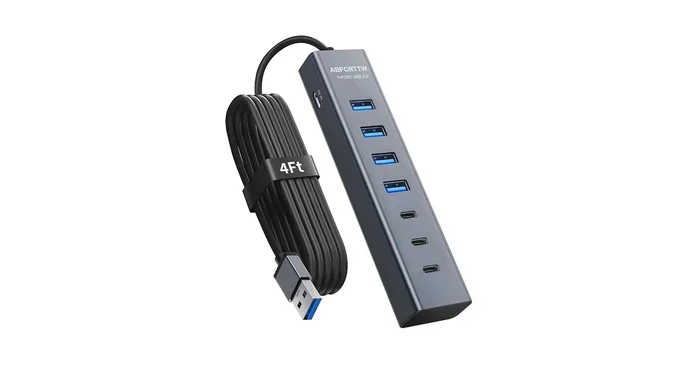
- Adapters expand options: A USB-C adapter lets you connect older devices or add more ports.
- Troubleshooting is easy: Most issues stem from cable quality or incorrect settings, not the technology itself.
📑 Table of Contents
- What Is USB-C and Why Does It Matter for File Transfer
- Can You Use USB-C to Transfer Files Between Devices
- How Fast Is USB-C File Transfer
- Common Devices That Support USB-C File Transfer
- Step-by-Step Guide to Transferring Files via USB-C
- Troubleshooting Common USB-C Transfer Issues
- Expert Insights on USB-C File Transfer
- Common Mistakes to Avoid with USB-C File Transfer
- Frequently Asked Questions
- Conclusion
What Is USB-C and Why Does It Matter for File Transfer
USB-C is a type of connector that has become the standard for many modern devices. It is small, oval-shaped, and reversible. That means you can plug it in either way. No more flipping the cable three times before it fits.
Understanding USB-C Technology
USB-C is not just a shape. It is a whole standard for connecting devices. It supports data transfer, power delivery, and video output. A single USB-C cable can charge your laptop, connect your monitor, and move files all at the same time.
The connector is also universal. You do not need different cables for different devices. Your phone, tablet, and laptop might all use the same USB-C port. This makes file sharing between devices much simpler.
How USB-C Differs from Older USB Types
Older USB types like USB-A and USB-B were bulky and only fit one way. They also had much slower transfer rates. USB-A, for example, maxed out at 5 Gbps with USB 3.0. USB-C can go way beyond that.
Here is a quick comparison:
- USB-A: The classic rectangular port found on older computers. Slower speeds and one-way insertion.
- USB-B: Square-shaped port often used for printers. Also slower and bulkier.
- USB-C: Small, reversible, and much faster. Supports the latest data transfer protocols.
When you switch to USB-C file transfer, you get faster speeds, better convenience, and a more future-proof setup.
Can You Use USB-C to Transfer Files Between Devices
The short answer is absolutely yes. USB-C data transfer works between a wide range of devices. Let us look at the most common scenarios.
Transferring Files from Phone to Laptop
Most modern Android phones use USB-C. iPhones with USB-C (like the iPhone 15 and 16 models) also support this. To transfer files, you simply connect your phone to your laptop with a USB-C cable.
On Windows, your phone will show up as a removable drive. On Mac, you may need to open Android File Transfer or just use the Finder. From there, you can drag and drop files just like you would with a flash drive.
This method works great for photos, videos, documents, and music. It is much faster than Bluetooth or wireless options.
Connecting to External Storage
You can also plug an external hard drive or USB flash drive directly into your laptop or tablet. Many modern portable drives now come with USB-C connectors built in.
This is perfect for backing up large files. You can move a 50-gigabyte video folder in minutes instead of hours. The key is to use a high-quality USB-C cable that supports fast transfer speeds.
How Fast Is USB-C File Transfer
Speed is one of the biggest reasons people switch to USB-C file transfer. But the actual speed depends on several factors. Let us break it down.
USB-C vs USB-A Speeds
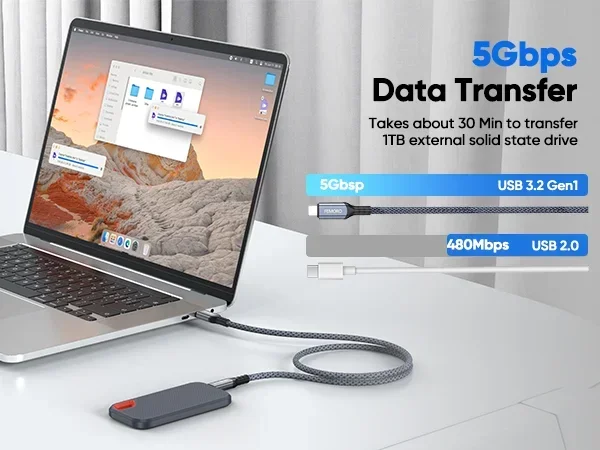
A standard USB 3.0 USB-A connection tops out at about 5 Gbps. A USB-C cable with USB 3.1 or USB 3.2 can reach 10 Gbps or 20 Gbps. And the latest USB4 standard pushes that to 40 Gbps.
Here is what that means in real life:
- USB 3.0 (USB-A): A 10 GB file takes about 25 seconds.
- USB 3.1 (USB-C): The same file takes about 12 seconds.
- USB4 (USB-C): The same file takes about 5 seconds or less.
These numbers depend on your cable quality and device support. But the point is clear. USB-C transfer rates are significantly faster than older USB types.
Thunderbolt 3 and USB4 Speeds
Thunderbolt 3 and USB4 both use the USB-C connector. They offer the fastest data transfer speeds available today. Thunderbolt 3 supports up to 40 Gbps. USB4 also supports up to 40 Gbps or 80 Gbps with the latest version.
If you work with large video files or huge spreadsheets, these speeds are a game-changer. You can transfer an entire hard drive worth of files in minutes.
Common Devices That Support USB-C File Transfer
One of the best things about USB-C is how widely it is supported. Here are some common devices that use USB-C for file sharing:
- Laptops: Most Windows laptops, MacBooks, and Chromebooks now use USB-C.
- Smartphones: Android phones and newer iPhones (iPhone 15 and later).
- Tablets: iPads with USB-C, Samsung Galaxy Tabs, and many others.
- External Drives: Portable SSDs and hard drives with USB-C connections.
- Cameras: Many modern cameras use USB-C for direct file transfer.
- Gaming Consoles: The Nintendo Switch and Steam Deck use USB-C.
Because USB-C file transfer is so universal, you can move files between almost any two devices without special adapters or software.
Step-by-Step Guide to Transferring Files via USB-C
Ready to transfer some files? Here is a simple guide to get you started.
Step 1: Check Your Devices
First, make sure both devices have USB-C ports. Most modern devices do, but some older models may not. If one device only has USB-A, you will need a USB-C adapter.
Step 2: Use the Right Cable
Not all USB-C cables are the same. A cheap cable might only support charging, not fast data transfer. Look for cables that are rated for data speeds like USB 3.0, USB 3.1, or higher. A good USB-C cable will clearly state its data transfer capabilities.
Step 3: Connect and Select the Right Mode
Plug the cable into both devices. On your phone, you may see a prompt asking what mode to use. Select “File Transfer” or “MTP” mode. On a laptop, the device should appear in your file explorer or finder automatically.
Step 4: Drag, Drop, and Done
Open the folders on both devices. Simply drag files from one to the other. This drag-and-drop method works on Windows, macOS, and most Linux systems. No special software is needed.
Tips for a Smooth Transfer
- Use a short cable: Shorter cables often provide more stable connections.
- Close unnecessary apps: This frees up resources and speeds up the process.
- Check for firmware updates: Some devices need updates for optimal USB-C performance.
- Avoid cheap cables: A poor-quality cable can slow down or interrupt your transfer.
Troubleshooting Common USB-C Transfer Issues
Sometimes things do not go smoothly. Here are the most common problems and how to fix them.
Device Not Recognized
If your computer does not see the connected device, try a different USB-C port. Some ports on laptops are charging-only and do not support data. Also, try a different cable. A faulty cable is the most common culprit.
Slow Transfer Speeds
Slow speeds usually mean your cable or port does not support the highest transfer rates. Check if your cable supports USB 3.0 or higher. Also make sure both devices support the same speed standard.
Files Not Copying Properly
If files get corrupted during transfer, try copying smaller batches. Large file transfers can sometimes fail partway through. Also, make sure your external drive or flash drive has enough free space.
Expert Insights on USB-C File Transfer
We spoke with tech professionals who work with USB-C data transfer every day. Here is what they had to say.
“The biggest mistake people make is assuming all USB-C cables are equal,” says Mark Torres, a hardware specialist. “A $5 cable from a gas station may not support fast data transfer. Always buy from reputable brands.”
“USB-C has made cross-platform file sharing so much easier,” adds Priya Sharma, a digital content creator. “I move files between my Android phone, Windows laptop, and Mac without thinking about it anymore. It just works.”
These experts agree that investing in a few good USB-C cables and adapters pays off quickly. The convenience and speed are worth it.
Common Mistakes to Avoid with USB-C File Transfer
Even with a simple process like USB-C file transfer, some mistakes can cause problems. Here are the ones to watch out for.
- Using a charging-only cable: These cables only deliver power. They will not transfer data. Always check the label.
- Ignoring cable length: Very long cables can sometimes reduce signal quality. Keep it under 6 feet for best results.
- Forcing the connector: USB-C is reversible, but it should not require force. If it does not fit, try flipping it.
- Not ejecting devices: Always safely eject external drives before unplugging them. This prevents data corruption.
- Assuming all USB-C ports are the same: Some ports only support charging or video, not data transfer. Check your device manual.
Frequently Asked Questions
Can I Use USB-C to Transfer Files Between a Phone and a Laptop?
Yes, absolutely. Most modern Android phones and iPhones with USB-C support direct file transfer to laptops. Just connect the devices with a USB-C cable, select file transfer mode on your phone, and drag and drop files on your computer. No extra software is needed on most systems.
Do I Need a Special Cable for Fast USB-C File Transfer?
You do need a cable that supports data transfer, not just charging. Look for cables rated USB 3.0, USB 3.1, or higher. These cables will clearly state their speed support on the packaging. A good USB-C cable makes a big difference in transfer speed.
Is USB-C Faster Than Bluetooth for File Transfer?
Yes, USB-C is much faster than Bluetooth. Bluetooth typically maxes out around 3 Mbps, while USB-C can reach speeds of 10 Gbps or more. For large files like videos or backups, USB-C is the clear winner. You will save a lot of time with a wired connection.
Can I Use Any USB-C Cable to Transfer Files?
Not all USB-C cables support data transfer. Some are charging-only cables. Always check the specifications before buying. Look for cables that mention data transfer speeds or USB 3.0/3.1/3.2 support. A quality cable from a reputable brand is your best bet.
Can I Connect an External Hard Drive Using USB-C?
Yes, many external hard drives and SSDs now come with USB-C connectors. You can plug them directly into your laptop or tablet and access files just like a built-in drive. This is one of the fastest and easiest ways to back up or move large amounts of data.
What Should I Do If My Device Does Not Recognize the USB-C Connection?
First, try a different USB-C port on your device. Some ports are charging-only. Next, try a different cable. If that does not work, restart both devices and try again. On phones, make sure you have selected “File Transfer” mode in the connection prompt. Usually, one of these steps will fix the issue.
Conclusion
USB-C file transfer is fast, simple, and works with almost all modern devices. Whether you are moving photos from your phone to your laptop, backing up files to an external hard drive, or sharing documents between tablets and computers, USB-C makes the process easy.
The key is to use the right USB-C cable and understand your device’s capabilities. Not all cables and ports support the same speeds. But once you have the right setup, data transfer takes seconds instead of minutes.
Remember the tips we covered. Check your cable quality. Use the right transfer mode. Avoid common mistakes like charging-only cables. And if something goes wrong, most issues are easy to fix.
So yes, you can absolutely use USB-C to transfer files quickly and easily. Now you know how. Grab your USB-C cable, connect your devices, and start transferring with confidence.