Do All Bluetooth Mice Need A Receiver To Work Wirelessly
Not all Bluetooth mice need a receiver. Some Bluetooth mice connect directly to your device using built-in Bluetooth, while others require a small USB dongle or adapter to work. Understanding the difference helps you choose the right wireless mouse for your setup.
Have you ever unboxed a new wireless mouse only to realize you need a tiny USB receiver? Or maybe you bought a sleek Bluetooth mouse and wondered if it would actually work without any extra hardware. The truth is, not all Bluetooth mice are created equal when it comes to connectivity.
Some Bluetooth mice need a small receiver plugged into your USB port. Others connect directly to your device using built-in Bluetooth. And a few even work both ways. If you have ever felt confused by the different types of wireless mice on the market, you are not alone. This guide breaks it all down in simple terms.
We will explore how Bluetooth mice work, which ones need a receiver, and how to pick the right one for your needs. By the end, you will know exactly what to look for when shopping for a wireless mouse that fits your setup perfectly.
Key Takeaways
- Bluetooth mice come in two types: those with a USB receiver and those that connect directly without one.
- Receiver-free Bluetooth mice use built-in Bluetooth on your laptop, tablet, or desktop.
- USB dongle mice offer a dedicated connection that can be more stable and responsive.
- Gaming mice often use proprietary USB receivers for lower latency and better performance.
- Compatibility matters — always check if your device supports Bluetooth before buying a receiver-free mouse.
- You can add Bluetooth to non-Bluetooth devices using a USB Bluetooth dongle or adapter.
📑 Table of Contents
- What Is a Bluetooth Mouse and How Does It Work?
- Do All Bluetooth Mice Need a Receiver?
- Pros and Cons of Receiver vs. Receiver-Free Bluetooth Mice
- Can You Use a Bluetooth Mouse Without Built-in Bluetooth on Your Computer?
- How to Choose the Right Bluetooth Mouse for You
- Common Mistakes People Make with Bluetooth Mice
- Do You Need to Uninstall Bluetooth to Fix Connection Issues?
- Final Thoughts
What Is a Bluetooth Mouse and How Does It Work?
A Bluetooth mouse is a wireless pointing device that uses Bluetooth technology to communicate with your computer or other device. Instead of a cable, it sends signals through the air using short-range radio waves. This gives you freedom to move your mouse without being tied to your desk.
Bluetooth is a short-range wireless protocol. It lets devices talk to each other over distances of about 30 feet. Most modern laptops, tablets, and desktops come with Bluetooth built in. That means they can connect to Bluetooth accessories like mice, keyboards, and headphones without any extra hardware.
But here is where it gets interesting. Not every Bluetooth mouse works the same way. Some rely on a USB receiver to create the connection. Others skip the receiver entirely and pair directly with your device’s Bluetooth chip. Let us look at both types more closely.
How Bluetooth Technology Connects Your Mouse
When you pair a Bluetooth mouse, your device and the mouse exchange information. They agree on a connection frequency and a pairing code. Once paired, the mouse sends movement data to your computer in real time. This all happens through radio waves in the 2.4 GHz frequency band.
The process is similar to how Bluetooth headphones connect to your phone. You turn on pairing mode, your device finds the mouse, and you confirm the connection. No cables. No fuss. But the behind-the-scenes process can vary depending on whether the mouse uses a receiver or not.
Bluetooth vs. Wi-Fi Mice: What Is the Difference?
Some people confuse Bluetooth mice with Wi-Fi mice. They are not the same thing. A Wi-Fi mouse connects to your home wireless network. A Bluetooth mouse creates a direct connection between the mouse and your device. Bluetooth mice use less power and connect faster than Wi-Fi mice. For most users, Bluetooth is the better choice for a simple pointing device.
Do All Bluetooth Mice Need a Receiver?
This is the big question. The short answer is no. But the full answer depends on the type of Bluetooth mouse you buy. Let us break it down.
Bluetooth Mice That Do NOT Need a Receiver
These mice connect directly to your device using its built-in Bluetooth. You do not need to plug in any USB dongle. You just turn on the mouse, go to your device’s Bluetooth settings, and pair them. That is it.
Many modern laptops and tablets have Bluetooth built in. So if you own a newer MacBook, Windows laptop, or iPad, you can use a receiver-free Bluetooth mouse right out of the box. This is great for people who want a clean, clutter-free desk setup.
Popular brands like Logitech, Microsoft, and Apple make Bluetooth mice that work without a receiver. For example, the Logitech Pebble and Microsoft Sculpt Mobile Mouse both connect directly via Bluetooth. They are compact, portable, and perfect for travel.
Bluetooth Mice That DO Need a Receiver
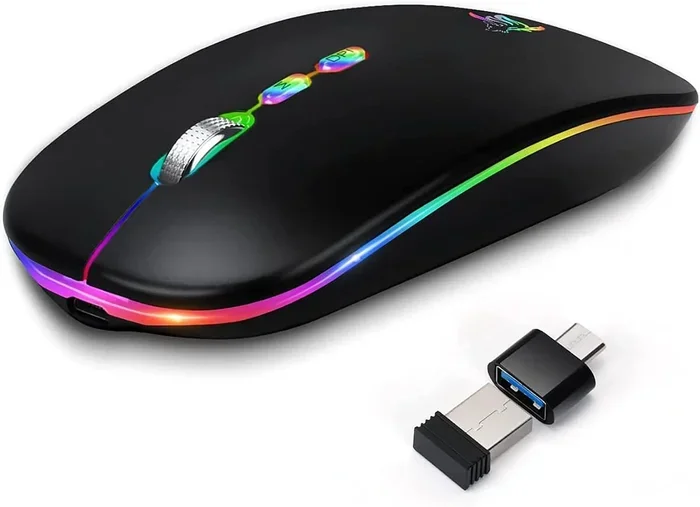
Some Bluetooth mice come with a small USB receiver, also called a dongle. You plug this into a USB port on your computer. The receiver acts as a bridge between the mouse and your device. It handles the Bluetooth connection for you.
Gaming mice are a common example. Many wireless gaming mice from brands like Razer, Logitech G, and SteelSeries come with a dedicated USB receiver. This receiver provides a faster and more stable connection than standard Bluetooth. For competitive gamers, that lower latency can make a big difference.
Some office mice also include a USB receiver. These mice often offer better battery life and more reliable connectivity compared to receiver-free models. The trade-off is that you need to keep track of the tiny dongle. Lose it, and you may need a replacement.
Dual-Mode Mice: The Best of Both Worlds
Here is where things get really interesting. Some Bluetooth mice are dual-mode. They can connect either through a USB receiver or through built-in Bluetooth. This gives you flexibility. You can use the receiver for a wired-like experience on your desktop, or switch to Bluetooth when you want to go mobile.
Dual-mode mice are especially popular among people who use multiple devices. You can pair the mouse with your desktop computer using the receiver and with your laptop using Bluetooth. One mouse, two connections. It is incredibly convenient.
However, dual-mode mice tend to be a bit more expensive than single-mode options. They also come with more buttons and settings to manage. If you just need a simple mouse for everyday tasks, a single-mode model might be a better fit.
Pros and Cons of Receiver vs. Receiver-Free Bluetooth Mice
Both types of Bluetooth mice have advantages and disadvantages. Let us compare them so you can make an informed decision.
Advantages of Receiver-Free Bluetooth Mice
- No extra hardware needed. You do not have to worry about losing a tiny USB dongle.
- Cleaner desk setup. Fewer cables and devices plugged into your computer.
- More portable. Great for travel since you only carry the mouse.
- Works with any Bluetooth-enabled device. Tablets, laptops, and some desktops all support it.
- Easy to switch between devices. Many models let you pair with three or more devices and switch between them.
Disadvantages of Receiver-Free Bluetooth Mice
- Requires built-in Bluetooth on your device. Older computers or desktops without Bluetooth cannot use them.
- Slightly higher latency. Standard Bluetooth can have a tiny delay compared to a dedicated USB receiver.
- More battery drain. Bluetooth can use more power than a proprietary wireless connection.
- Connection can be less stable. Interference from other Bluetooth devices may cause occasional hiccups.
Advantages of USB Receiver Bluetooth Mice
- Faster and more stable connection. The dedicated receiver provides a direct link to your computer.
- Lower latency. Great for gaming and precise tasks like graphic design.
- Works with any computer that has a USB port. No need for built-in Bluetooth.
- Better battery life. Proprietary receivers often use less power than standard Bluetooth.
Disadvantages of USB Receiver Bluetooth Mice
- Extra hardware to carry. The dongle is small but easy to lose.
- Cluttered USB ports. If you have many devices plugged in, adding a receiver takes up space.
- Less portable. You need to remember to pack the receiver when traveling.
Can You Use a Bluetooth Mouse Without Built-in Bluetooth on Your Computer?
Yes, you can. If your computer does not have built-in Bluetooth, you can still use a Bluetooth mouse. You just need a Bluetooth adapter or dongle. These small devices plug into your USB port and add Bluetooth capability to your computer.
You might also hear people call these Bluetooth transmitters or Bluetooth dongles. They work the same way. You plug them in, install any needed drivers, and your computer can now connect to Bluetooth accessories.
For example, if you have an older desktop computer without Bluetooth, a simple USB Bluetooth adapter will let you use a receiver-free Bluetooth mouse. This is a cheap and easy fix. Most Bluetooth adapters cost under $15 and work right out of the box.
Just keep in mind that if you buy a Bluetooth mouse that needs a receiver, you do not need a separate Bluetooth adapter. The receiver that comes with the mouse handles the connection. But if you buy a receiver-free Bluetooth mouse and your computer lacks Bluetooth, you will need that USB adapter.
How to Choose the Right Bluetooth Mouse for You
Choosing the right Bluetooth mouse depends on a few key factors. Let us walk through what to consider before you buy.
Think About Your Device
First, check if your device has built-in Bluetooth. Most modern laptops and tablets do. If you are using a desktop computer, check the back or front of the tower for Bluetooth capability. If your device does not have Bluetooth, you will need either a receiver-based mouse or a USB Bluetooth adapter.
If you use a Mac, you should know that Apple devices support Bluetooth mice very well. However, you may need to do some extra setup depending on your macOS version. If you are curious about how Bluetooth works on Apple devices, you might want to check out how does Bluetooth work on Apple Watch without iPhone for more insights on Apple Bluetooth connectivity.
Consider Your Use Case
What will you use the mouse for? If you are a gamer, a receiver-based gaming mouse will give you the best performance. The dedicated USB receiver reduces lag and provides a more responsive experience.
If you are a casual user who works from home, a receiver-free Bluetooth mouse is a great choice. It keeps your desk clean and works easily with laptops and tablets. For people who travel often, a compact Bluetooth mouse without a receiver is the most convenient option.
Check Compatibility
Before you buy, make sure the mouse is compatible with your operating system. Most Bluetooth mice work with Windows, macOS, and ChromeOS. Some also work with iPadOS and Android. Check the product specifications to confirm.
Think About Battery Life
Bluetooth mice can vary widely in battery life. Some last for months on a single charge. Others need to be recharged every week or two. If you hate dealing with batteries, look for a mouse with a long-lasting battery or one that uses a rechargeable built-in battery.
Consider Multi-Device Pairing
Many modern Bluetooth mice let you pair with up to three devices. You can switch between your laptop, desktop, and tablet with the press of a button. This is incredibly useful for people who work across multiple screens or devices throughout the day.
Common Mistakes People Make with Bluetooth Mice
There are a few common mistakes that people make when buying and using Bluetooth mice. Avoiding these can save you time, money, and frustration.
Assuming All Wireless Mice Are Bluetooth
Not all wireless mice use Bluetooth. Some wireless mice use a proprietary RF (radio frequency) connection that requires a specific USB receiver. These mice are not the same as Bluetooth mice. Make sure you check the product description before you buy.
Forgetting to Check Bluetooth Compatibility
Some older computers and devices do not support Bluetooth. Buying a receiver-free Bluetooth mouse for an incompatible device will not work. Always verify that your device has Bluetooth before purchasing.
Ignoring the Need for Drivers or Software
Most Bluetooth mice work plug-and-play. But some advanced models, especially gaming mice, may need software or drivers to unlock all their features. If you are unsure, check the manufacturer’s website for support information. For instance, some specialized devices require additional setup, and you can learn more about whether certain peripherals need extra software by exploring topics like do you need software for Blue Yeti mic to understand how some devices require additional configuration.
Not Keeping the Receiver Safe
If your mouse comes with a USB receiver, keep it in a safe place. These tiny devices are easy to lose. Some mice come with a slot to store the receiver inside the mouse itself. This is a great feature to look for.
Overlooking Bluetooth Range Limitations
Bluetooth has a limited range, usually about 30 feet. If you sit far from your computer or have walls and obstacles between you and the device, the connection may weaken. Keep this in mind if you like to move around while working.
Do You Need to Uninstall Bluetooth to Fix Connection Issues?
Sometimes Bluetooth mice stop working properly. Before you try anything drastic, try the simple fixes first. Turn the mouse off and back on. Make sure it is charged. Check that Bluetooth is enabled on your device. Move closer to your computer to rule out range issues.
If those steps do not work, you might consider removing the Bluetooth device from your system and pairing it again. In some cases, you may need to uninstall Bluetooth drivers and reinstall them. This can refresh the connection and fix glitches. However, this should be a last resort since it affects all Bluetooth devices on your computer.
If you are dealing with Bluetooth issues and wondering about managing your Bluetooth settings, it helps to understand how your device handles Bluetooth connections. For more information on managing Bluetooth on your system, you can explore resources about can I uninstall Bluetooth to learn about safely removing and reinstalling Bluetooth components.
Final Thoughts
So, do all Bluetooth mice need a receiver? The answer is a clear no. Some Bluetooth mice work perfectly without any extra hardware. Others rely on a small USB receiver for a faster, more stable connection. And some offer both options in one device.
The right choice depends on your device, your needs, and your budget. If you have a modern laptop or tablet with built-in Bluetooth, a receiver-free mouse is a clean and simple option. If you are a gamer or need the most responsive connection, a receiver-based mouse is the way to go.
Whatever you choose, make sure you understand what you are buying. Check the specifications. Read the reviews. And do not be afraid to ask questions. A good wireless mouse should make your life easier, not harder.
Now that you know the difference, you are ready to shop with confidence. Pick the right Bluetooth mouse for your setup and enjoy the freedom of a clean, wireless workspace.
Frequently Asked Questions
Can I use a Bluetooth mouse with any computer?
Not all computers have built-in Bluetooth. If your computer does not support Bluetooth, you can still use a Bluetooth mouse by adding a USB Bluetooth adapter. Alternatively, you can buy a Bluetooth mouse that comes with its own USB receiver.
Does a Bluetooth mouse work without a USB receiver?
Yes, if the mouse is a receiver-free Bluetooth model and your device has built-in Bluetooth. You simply pair the mouse through your device’s Bluetooth settings. No USB dongle is needed.
Is a USB receiver better than built-in Bluetooth for a mouse?
A USB receiver often provides a faster and more stable connection with lower latency. This makes it better for gaming and precise work. Built-in Bluetooth is more convenient and keeps your setup cleaner, but it may have slightly more lag.
Can I connect a Bluetooth mouse to my phone or tablet?
Yes, most Bluetooth mice work with smartphones and tablets that support Bluetooth. This is especially useful for tablets used as productivity devices. Just go to your device’s Bluetooth settings and pair the mouse.
Why does my Bluetooth mouse keep disconnecting?
Interference from other Bluetooth devices, low battery, or distance from your computer can cause disconnections. Try moving closer to your device, turning off nearby Bluetooth devices, or replacing the mouse batteries to fix the issue.
Do dual-mode Bluetooth mice need both a receiver and Bluetooth?
No, dual-mode mice let you choose one connection method at a time. You can use either the USB receiver or Bluetooth, but not both simultaneously. This gives you flexibility depending on your needs and setup.
=== CONCLUSION ===
Do all Bluetooth mice need a receiver? No, they do not. The world of wireless mice has evolved to offer multiple connectivity options. Some mice need a USB dongle, some connect directly via Bluetooth, and some offer both. Understanding these differences empowers you to make the right choice for your specific needs.
Whether you are a gamer, a casual user, or someone who works across multiple devices, there is a Bluetooth mouse out there for you. Consider your device compatibility, your performance needs, and your desk setup. Then pick the mouse that fits best.
With the right Bluetooth mouse, you can enjoy a clean, clutter-free workspace without sacrificing performance. Happy shopping, and enjoy the wireless freedom.