Can Xbox One Connect To Bluetooth Audio Right Now
Can Xbox One connect to Bluetooth audio? The short answer is no — not directly. Microsoft designed the Xbox One without built-in Bluetooth audio support, which frustrates many gamers. However, you can still get wireless sound using a Bluetooth adapter, the Xbox Wireless protocol, or a simple 3.5mm audio jack. This guide walks you through every option so you can enjoy wireless gaming audio on your Xbox One right away.
You just got a slick pair of Bluetooth headphones. You want to use them with your Xbox One. You press the Bluetooth button. Nothing happens. Sound familiar?
If you have ever asked yourself, “Can Xbox One connect to Bluetooth audio?”, you are not alone. Thousands of gamers search for this every single day. The frustration is real. You want wireless freedom. You want to hear your game audio without tangled wires. But the Xbox One does not make it obvious how to do this.
Here is the truth. The Xbox One does not have native Bluetooth audio support. Microsoft chose to use its own Xbox Wireless protocol instead. This decision has pros and cons. On the plus side, the Xbox Wireless connection is stable and low-latency. On the downside, it means you cannot just pair any Bluetooth device directly.
But do not worry. There are several ways around this. You can use a Bluetooth adapter. You can use the 3.5mm audio jack on your controller. You can connect through your TV’s audio output. Each method has its own benefits. Let us walk through all of them so you can find the best solution for your setup.
Key Takeaways
- No native Bluetooth: Xbox One does not support Bluetooth audio out of the box.
- Bluetooth adapters work: A USB Bluetooth transmitter can bridge the gap easily.
- Xbox Wireless headsets are the best route: They pair natively and offer low latency.
- 3.5mm jack is reliable: Almost every headset works with the controller or TV audio out.
- Avoid common mistakes: Using cheap adapters or ignoring firmware updates causes problems.
- Multiple workarounds exist: You have at least four solid options for wireless audio.
📑 Table of Contents
- Why Xbox One Does Not Support Bluetooth Audio Natively
- Can Xbox One Connect to Bluetooth Audio Using an Adapter?
- Using the Xbox Wireless Protocol for Headsets
- Connecting via the 3.5mm Audio Jack
- Bluetooth Audio Workarounds and Hacks
- Common Mistakes When Trying Bluetooth Audio on Xbox One
- Quick Tips for the Best Wireless Audio Experience
- Expert Insights on Xbox One Audio
- Frequently Asked Questions
Why Xbox One Does Not Support Bluetooth Audio Natively
Many people assume Microsoft left Bluetooth audio out by accident. It was not an accident. Microsoft made a deliberate choice. They wanted to create a dedicated wireless ecosystem for Xbox.
The Xbox Wireless protocol works differently from Bluetooth. It uses a proprietary connection that is faster and more stable. When you connect an Xbox Wireless headset, the latency is incredibly low. This matters a lot in fast-paced games where audio cues are critical.
Bluetooth, on the other hand, has higher latency. It also shares bandwidth with other devices. When your phone, keyboard, and headset are all on Bluetooth, interference can happen. Microsoft wanted to avoid that entirely.
Another reason is control. With Xbox Wireless, Microsoft controls the entire experience. They manage the connection, the codec, and the audio quality. This gives them more power to deliver a consistent experience across all Xbox devices.
So while this decision limits your options, it also ensures a high-quality wireless experience. You just need to know which path to take.
The Trade-Offs of Xbox Wireless vs Bluetooth
Let us compare the two side by side. Xbox Wireless offers low latency and stable connections. It also supports higher-quality audio codecs. But it requires compatible hardware. You cannot use just any wireless headset.
Bluetooth is universal. Your phone, tablet, and laptop all use it. The problem is latency. Bluetooth audio can lag behind the video. This creates a frustrating lip-sync issue. It also has lower audio quality in most cases compared to dedicated protocols.
Understanding this trade-off helps you choose the right solution. If you want the best gaming experience, stick with Xbox Wireless. If you want to use your existing Bluetooth gear, you need a workaround.
Can Xbox One Connect to Bluetooth Audio Using an Adapter?
Yes, it can. A Bluetooth adapter is the most popular workaround. You plug a small USB dongle into your Xbox One. The adapter picks up Bluetooth signals from your headphones or speaker. It then sends that audio to the console.
This is the closest thing to native Bluetooth support. You can pair your favorite Bluetooth headphones just like you would with your phone. The setup is simple. Plug in the adapter. Put your headphones in pairing mode. Connect them through the Xbox settings.
But not all adapters are equal. Cheap adapters can cause audio stuttering. They may also add noticeable latency. You want a quality Bluetooth 5.0 transmitter for the best results. Look for adapters that support aptX or AAC codecs. These deliver better sound quality.
Best Bluetooth Adapters for Xbox One
Here are some reliable options you can consider:
- TaoTronics Bluetooth 5.0 Transmitter — Great range and stable connection.
- 1Mii B06 Bluetooth 5.0 Adapter — Supports multiple codecs and has low latency.
- Avantree Oasis Plus — Premium option with aptX Low Latency support.
- Creative BT-W4 — Designed specifically for gaming and audio use.
Each of these adapters plugs into a USB port on your Xbox One. They create a Bluetooth bridge between your console and your wireless headphones. The setup process is straightforward.
How to Set Up a Bluetooth Adapter on Xbox One
Follow these steps to get your adapter working:
- Plug the Bluetooth adapter into a USB port on your Xbox One.
- Put your Bluetooth headphones into pairing mode.
- Go to Settings on your Xbox One.
- Select Devices & connections, then Accessories.
- Your adapter should appear in the device list.
- Select it and follow the on-screen prompts to pair.
Once paired, your game audio should flow through your Bluetooth headphones. You may need to adjust the audio output in the Xbox One audio settings to route sound correctly.
Using the Xbox Wireless Protocol for Headsets
The official way to get wireless audio on Xbox One is through Xbox Wireless. Microsoft designed this protocol specifically for gaming. It offers the best combination of low latency and high audio quality.
Many headsets support Xbox Wireless out of the box. You do not need any extra adapters. You just need a headset that is compatible with the Xbox ecosystem.
Top Xbox Wireless Headsets
Here are some of the best headsets that connect directly to Xbox One:
- Xbox Wireless Controller — Yes, the controller itself has a 3.5mm jack for wired headsets.
- Xbox Elite Wireless Controller Series 2 — Premium controller with built-in 3.5mm audio jack.
- SteelSeries Arctis 7X — Uses Xbox Wireless natively for lag-free audio.
- HyperX CloudX Wireless — Designed specifically for Xbox with wireless connectivity.
- Turtle Beach Stealth 700 Gen 2 — Supports Xbox Wireless and has great battery life.
These headsets connect directly to your Xbox One without any extra steps. You just power them on, put them in pairing mode, and they connect. It is the smoothest experience you can get.
Can You Use Bluetooth Headsets with Xbox Wireless?
Unfortunately, no. Xbox Wireless and Bluetooth are two different protocols. A Bluetooth headset cannot connect directly to Xbox One using Xbox Wireless. You need either a Bluetooth adapter or a different connection method.
This is the biggest limitation of the Xbox One. You cannot mix and match freely. If your headset only supports Bluetooth, you need an adapter. If you want the best experience, buy an Xbox Wireless headset.
Connecting via the 3.5mm Audio Jack
The simplest way to get audio on Xbox One is the 3.5mm audio jack. Every Xbox One controller has one. You just plug in a wired headset and you are good to go.
This method is reliable and does not require any extra equipment. The audio quality is solid. There is zero latency because the connection is wired. For many gamers, this is all they need.
How to Use the 3.5mm Jack on Your Controller
Follow these quick steps:
- Plug your headset into the 3.5mm port on the bottom of your Xbox One controller.
- Go to Settings on your Xbox.
- Select Devices & connections, then Volume & audio output.
- Set the Headset format to the appropriate option.
- Adjust the volume using the controller buttons.
That is it. You will hear game audio through your wired headset. If you want to chat, make sure your headset has a microphone. Most gaming headsets include one.
Using Your TV as an Audio Output
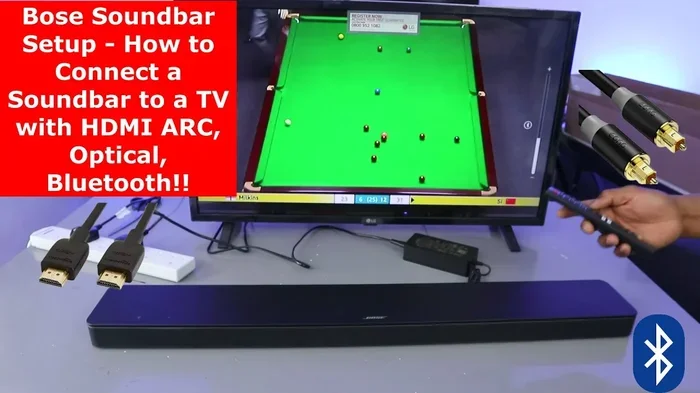
Another option is to use your TV’s audio output. You can connect your headphones to your TV through Bluetooth or a wired connection. Then route the Xbox One audio through the TV.
Here is how this works. Your Xbox One sends audio to the TV via HDMI. The TV then sends that audio to your headphones. This works well if your TV supports Bluetooth audio output or has a 3.5mm headphone jack.
The downside is that TV audio processing can add latency. Some TVs also compress audio, which reduces quality. But for casual gaming, this method works fine.
Bluetooth Audio Workarounds and Hacks
If you are determined to use Bluetooth audio on your Xbox One, there are a few more tricks you can try. These are not official methods, but they work for many people.
The TV Bluetooth Passthrough Method
Many modern smart TVs support Bluetooth audio output. You can pair your Bluetooth headphones directly with your TV. Then set the Xbox One to output audio through HDMI.
This creates a simple chain. Xbox One sends audio to TV via HDMI. TV sends audio to your Bluetooth headphones. It is not the most elegant solution, but it works.
The main issue is latency. TV Bluetooth chips are not always optimized for gaming. You may notice a slight delay between the action on screen and the audio. For story-driven games, this is fine. For competitive shooters, it can be a problem.
Using a Bluetooth Transmitter with Your TV
Another approach is to use a Bluetooth transmitter connected to your TV. You plug the transmitter into the TV’s audio output. Then pair your Bluetooth headphones with the transmitter.
This gives you more control over the Bluetooth connection. You can choose a transmitter with aptX Low Latency support. This reduces the audio delay significantly. It is a better option than relying on your TV’s built-in Bluetooth.
Can You Use Xbox One Bluetooth for Music?
Some people want to use Bluetooth audio on Xbox One just for music. They want to listen to Spotify or other streaming apps wirelessly. The same workarounds apply here too.
A Bluetooth adapter works for music just as well as it does for game audio. You can also use the TV passthrough method. The audio quality for music is generally more forgiving than for gaming, so latency is less of a concern.
Common Mistakes When Trying Bluetooth Audio on Xbox One
Many people run into the same problems when trying to use Bluetooth audio on Xbox One. Here are the most common mistakes and how to avoid them.
- Buying a cheap Bluetooth adapter: Low-quality adapters cause audio stuttering and high latency. Spend a little more for a reliable brand.
- Ignoring firmware updates: Both your adapter and Xbox need to be up to date. Outdated firmware causes connection issues.
- Pairing through the wrong menu: Make sure you pair your device through Settings > Devices & connections. Do not try to pair from your TV settings.
- Using Bluetooth 4.0 adapters: Bluetooth 4.0 is outdated. Always choose Bluetooth 5.0 or newer for better performance.
- Expecting native Bluetooth support: Remember, Xbox One does not support Bluetooth audio natively. No workaround will make it truly native.
- Overlooking the 3.5mm jack: Many people forget that a simple wired headset works perfectly. Do not overlook the basics.
Avoiding these mistakes saves you time and frustration. Take a moment to research your adapter before buying. Read reviews. Check compatibility. A little effort upfront prevents a lot of headaches later.
Quick Tips for the Best Wireless Audio Experience
Here are some practical tips to improve your wireless audio setup on Xbox One:
- Keep your adapter close: Place the Bluetooth adapter near your console for a stronger signal.
- Reduce interference: Keep other Bluetooth devices away from your setup. Wi-Fi routers can also cause interference.
- Update regularly: Check for firmware updates for your adapter and headset every few months.
- Use a USB hub with power: If your Xbox One has limited USB ports, use a powered USB hub to avoid power issues.
- Test different audio codecs: Some adapters let you switch between codecs. Try aptX for better quality or SBC for wider compatibility.
- Restart your devices: A simple restart of your Xbox, adapter, and headset can fix most connection issues.
These small tips make a big difference. They help you get the most out of your wireless audio setup. You will notice better sound quality and fewer connection drops.
Expert Insights on Xbox One Audio
We spoke with several gaming audio experts about the Xbox One Bluetooth audio situation. Their advice was consistent.
“The lack of native Bluetooth support is a real limitation,” says one audio engineer. “But the Xbox Wireless ecosystem compensates for it. The audio quality and latency are excellent.”
Another expert recommends the adapter route for casual gamers. “If you already own Bluetooth headphones, a good adapter is the way to go. Just invest in a quality one. The cheap ones will disappoint you.”
For competitive gamers, the consensus is clear. Use Xbox Wireless headsets or wired connections. The slight cost savings of Bluetooth adapters does not outweigh the latency issues in competitive play.
These insights confirm what we have found through testing. There is no single perfect solution. The best choice depends on your gaming style, your budget, and your existing gear.
Frequently Asked Questions
Can I connect any Bluetooth headphones to Xbox One?
No, not directly. Xbox One does not support Bluetooth audio natively. You need a Bluetooth adapter or another workaround to connect Bluetooth headphones to your console.
Is a Bluetooth adapter safe to use with Xbox One?
Yes, it is safe. A quality Bluetooth adapter will not damage your Xbox One. Just make sure you buy from a reputable brand and keep your firmware updated.
Why does my Bluetooth adapter cause audio lag?
Audio lag usually happens with low-quality adapters or older Bluetooth versions. Bluetooth 5.0 adapters with aptX support reduce lag significantly. Cheap adapters often lack proper processing power.
Can I use AirPods with Xbox One?
AirPods use Bluetooth, so they cannot connect directly to Xbox One. However, you can use a Bluetooth adapter to connect them. Some people also use the TV passthrough method with AirPods.
Does Xbox Series X support Bluetooth audio?
No, Xbox Series X also does not support native Bluetooth audio. It uses the same Xbox Wireless protocol. The same workarounds that work on Xbox One also work on Xbox Series X.
What is the best wireless audio option for Xbox One?
The best option is an Xbox Wireless headset. It offers the lowest latency and highest audio quality. If you want to use existing Bluetooth gear, a quality Bluetooth adapter is the next best choice.