Can You Play Netflix On a High Peak Mini Projector
Yes, you can play Netflix on a High Peak Mini Projector using several different methods, including screen mirroring, HDMI connections, and streaming sticks. Whether you want a portable movie night or a backyard cinema setup, this guide covers everything you need to know about streaming Netflix on your High Peak projector with ease.
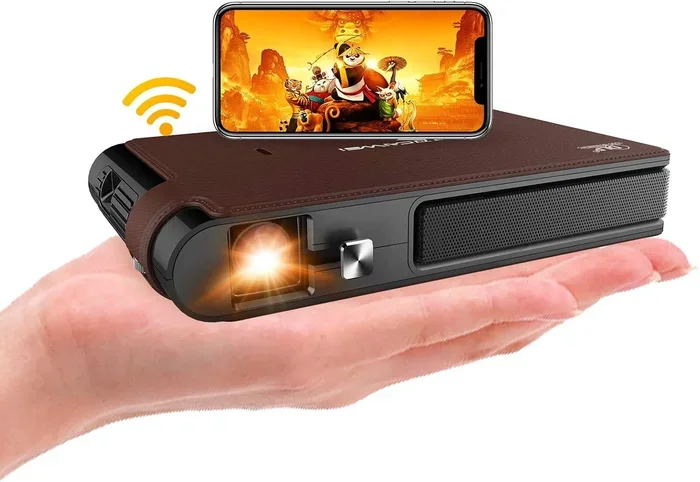
Have you ever wanted to watch Netflix on a big screen but didn’t want to deal with a bulky TV? A High Peak Mini Projector might be exactly what you need. These tiny devices pack a punch, and they can turn any blank wall into your personal theater.
The short answer is yes, you can play Netflix on a High Peak Mini Projector. But how you do it depends on your specific model, your setup, and the tools you have on hand. In this guide, we walk you through every method, every tip, and every common mistake to avoid.
Whether you’re camping in the backyard, setting up a bedroom movie nook, or just want a bigger screen for your living room, this article has you covered. Let’s dive in and get you streaming.
Key Takeaways
- Multiple Methods Work: You can stream Netflix using screen mirroring, HDMI cables, USB streaming sticks, or built-in smart features depending on your model.
- Setup Is Simple: Most methods take less than 10 minutes and require no technical expertise.
- WiFi Matters: A strong and stable WiFi connection is essential for smooth Netflix playback on any projector.
- Audio Upgrades Help: Pairing your projector with external speakers can dramatically improve your viewing experience.
- Battery Life Varies: Plan your movie sessions around your projector’s battery capacity for uninterrupted entertainment.
📑 Table of Contents
- Understanding the High Peak Mini Projector
- Method 1: Screen Mirroring from Your Phone or Tablet
- Method 2: Using an HDMI Connection with a Streaming Device
- Method 3: Connecting Your Phone Directly with a USB Cable
- Method 4: Projecting Directly from a Laptop or Computer
- Troubleshooting Common Netflix Streaming Issues
- Comparing Netflix Streaming Methods for High Peak Projectors
- Tips for the Best Netflix Experience on Your Projector
- Can You Use Netflix Offline on a High Peak Projector?
- Common Mistakes to Avoid When Streaming Netflix on a Projector
- Final Thoughts
Understanding the High Peak Mini Projector
The High Peak Mini Projector is a popular choice for people who want a portable projector without spending a fortune. These projectors are lightweight, compact, and designed for everyday use. But not all models are created equal when it comes to streaming capabilities.
What Makes a Projector Smart Enough for Netflix?
To stream Netflix, your projector needs a few key features. First, it needs access to the internet, either through built-in WiFi or a connected device. Second, it needs a way to run apps or display content from a streaming source. Some High Peak models come with smart features built in, while others rely on external devices to handle the heavy lifting.
Here are the things to look for in a projector that can handle Netflix:
- WiFi connectivity or WiFi dongle support
- HDMI port for connecting streaming devices
- USB port for media playback or adapters
- Screen mirroring capability
- Decent resolution for clear picture quality
If your High Peak model has any of these features, you’re in good shape. Even if your projector is more basic, don’t worry. We’ll show you workarounds that make streaming Netflix totally possible.
Method 1: Screen Mirroring from Your Phone or Tablet
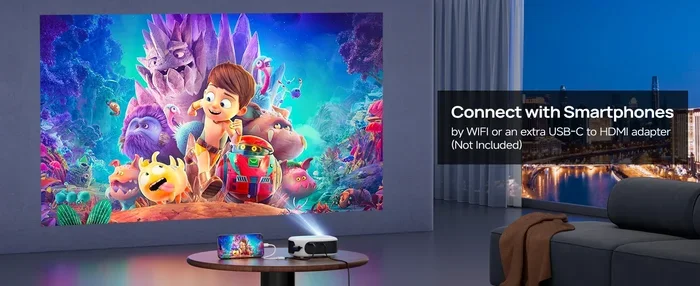
Screen mirroring is one of the easiest ways to play Netflix on your High Peak Mini Projector. This method lets you display your phone or tablet screen on the big projected image. It works wirelessly, so there are no cables to fuss with.
How to Set Up Screen Mirroring
First, make sure your phone and your projector are connected to the same WiFi network. This is critical for a smooth connection. Then follow these simple steps:
- Open the Netflix app on your phone or tablet.
- Look for the screen mirroring or cast icon in the app.
- Select your High Peak projector from the list of available devices.
- Your screen should now appear on the projected image.
- Start playing your movie and enjoy.
Not every High Peak model supports screen mirroring natively. If yours doesn’t, you can use a WiFi display adapter that plugs into the projector’s HDMI or USB port. These adapters act as a bridge between your phone and the projector.
Quick Tip: Screen mirroring can sometimes lag or stutter. If you notice this, move closer to your router or reduce the number of devices using your network. A strong WiFi signal makes all the difference.
Method 2: Using an HDMI Connection with a Streaming Device
This is the most reliable method for streaming Netflix on any projector. By connecting a streaming device like a Roku, Fire Stick, or Chromecast through an HDMI cable, you get access to the full Netflix app right on your projected screen.
What You’ll Need
- A streaming device (Roku, Amazon Fire Stick, Chromecast, etc.)
- An HDMI cable
- A High Peak projector with an HDMI port
- A WiFi connection
The setup is straightforward. Plug the streaming device into the HDMI port on your projector. Connect the device to your WiFi network. Open the Netflix app on the streaming device, and you’re ready to go. This method gives you the best picture quality and the most stable connection.
If you’re wondering whether you can use a Roku with your projector, the answer is yes. Can I Use A Roku With A Projector is a common question, and the answer is that most Roku devices work perfectly with any projector that has an HDMI input. You get all the Netflix features, including 4K quality if your projector supports it.
Expert Insight: Using an HDMI connection eliminates most buffering issues. Unlike wireless methods, a wired HDMI connection delivers a consistent, high-quality signal every time. If you want the best Netflix experience on your High Peak projector, this is the way to go.
Method 3: Connecting Your Phone Directly with a USB Cable
Another option is to connect your phone directly to the projector using a USB cable. This works well if your projector has a USB input and your phone supports USB output. It’s a simple, cable-based solution that doesn’t rely on WiFi at all.
Step-by-Step Connection Guide
Here’s how to get your phone connected to your High Peak projector using a USB cable:
- Check your projector’s USB port type (USB-A or USB-C).
- Get the right cable for your phone (Lightning, USB-C, or Micro-USB).
- Connect your phone to the projector.
- Switch your projector input to the USB source.
- Navigate to your Netflix app or cast your screen.
Keep in mind that not all phones allow video output through USB. Some phones require MHL or SlimPort adapters to send video signals. Check your phone’s specifications before trying this method.
If you’re looking for more details on connecting your phone to a projector, our guide on Can I Connect My Phone To Projector With USB Cable covers this topic in depth.
Method 4: Projecting Directly from a Laptop or Computer
If you have a laptop with Netflix access, you can project it directly onto your High Peak Mini Projector. This method works through HDMI or VGA connections and gives you a full-screen Netflix experience.
Setting Up Laptop-to-Projector Streaming
To stream Netflix from your laptop, follow these steps:
- Connect your laptop to the projector using an HDMI cable.
- Adjust your laptop’s display settings to mirror or extend the screen.
- Open Netflix in your web browser or desktop app.
- Select your preferred video quality and start watching.
This method is great for longer movie sessions because laptops typically have stronger processing power than phones. You won’t experience the same battery drain or overheating issues that can occur with phone-based streaming.
One thing to keep in mind: some laptops have smaller HDMI ports or no HDMI port at all. In that case, you can use an adapter to convert USB-C or DisplayPort to HDMI. These adapters are inexpensive and widely available.
Troubleshooting Common Netflix Streaming Issues
Even with the right setup, you might run into some hiccups when trying to stream Netflix on your High Peak projector. Here are the most common problems and how to fix them.
Buffering and Lag
Buffering is the number one enemy of a good movie night. If your Netflix stream keeps pausing to load, the issue is almost always your internet connection. Try these fixes:
- Move your router closer to the projector.
- Reduce the number of devices connected to your WiFi.
- Lower the video quality in Netflix settings.
- Use a wired connection instead of WiFi when possible.
No Sound or Poor Audio Quality
Mini projectors often have small built-in speakers that don’t deliver great sound. If you’re experiencing audio issues, try connecting external speakers through Bluetooth or an audio cable. Can I Use Any Bluetooth Headphones With My TV is a similar question many people ask, and the same Bluetooth principles apply to projectors too.
Image Not Displaying Correctly
If your projected image looks blurry or cut off, check your projector’s focus ring and keystone settings. Also make sure your HDMI cable is fully inserted and not damaged. Sometimes simply unplugging and replugging the cable resolves the issue.
Netflix App Not Available
Some basic projectors don’t have access to app stores. If you can’t download the Netflix app directly on your projector, use one of the external device methods described above. A streaming stick or screen mirroring will get Netflix running in no time.
Comparing Netflix Streaming Methods for High Peak Projectors
Not sure which method is best for your situation? Here’s a quick comparison of the four main ways to stream Netflix on a High Peak Mini Projector.
| Method | Ease of Setup | Picture Quality | Reliability | Cost |
|---|---|---|---|---|
| Screen Mirroring | Very Easy | Good | Moderate | Free |
| HDMI + Streaming Device | Easy | Excellent | Very High | $30-$60 |
| USB Cable Connection | Moderate | Good | High | Free |
| Laptop/Computer | Easy | Excellent | Very High | Free |
As you can see, each method has its strengths. For the best overall experience, an HDMI streaming device is hard to beat. But if you want a free and quick setup, screen mirroring works well for casual viewing.
Tips for the Best Netflix Experience on Your Projector
Want to get the most out of your High Peak Mini Projector for Netflix streaming? Here are some practical tips that make a big difference.
Optimize Your Projection Surface
The surface you project onto matters a lot. A white, flat wall works best for most situations. If you want a more professional setup, consider a portable projector screen. Avoid projecting onto textured or colored walls, as they can distort the image and reduce clarity.
If you’re projecting in a dark room, you’ll notice a significant improvement in picture quality. Can I Project Directly On The Wall is a question many projector owners ask, and the answer is yes, but the surface quality affects your viewing experience.
Control Ambient Light
Mini projectors are not as bright as large home theater projectors. To get the best Netflix picture, dim the lights in your room or watch in a dark environment. This simple step dramatically improves contrast and color vibrancy.
Keep Your Projector Ventilated
Projectors generate heat, especially during long streaming sessions. Make sure your projector has enough airflow around it. Don’t place it on soft surfaces like beds or couches that can block the vents. Overheating can cause performance issues and shorten the lifespan of your device.
Use a Power Source for Long Sessions
If your High Peak projector runs on battery, plan your Netflix sessions accordingly. Most mini projectors last between 1.5 and 3 hours on a single charge. For longer movies, keep your projector plugged in or have a portable power bank ready.
Can You Use Netflix Offline on a High Peak Projector?
Netflix offers a download feature that lets you save movies and shows for offline viewing. But here’s the catch: you need a device that supports the Netflix app to download content. You can’t download directly through the projector itself.
The workaround is simple. Download your favorite shows on your phone, tablet, or laptop. Then mirror or connect that device to your High Peak projector. You’ll be able to watch downloaded content without needing an active WiFi connection. This is perfect for camping trips or areas with unreliable internet.
Keep in mind that some Netflix titles have download restrictions due to licensing agreements. Not every show or movie is available for offline viewing. Always check the download option within the Netflix app before your trip.
Common Mistakes to Avoid When Streaming Netflix on a Projector
Avoiding these common mistakes can save you frustration and help you get the best results from your High Peak Mini Projector.
- Skipping the firmware update: Always keep your projector updated. Firmware updates often fix bugs and improve streaming performance.
- Using a low-quality HDMI cable: A cheap or damaged cable can cause signal loss and poor picture quality. Invest in a good quality HDMI cable.
- Ignoring WiFi bandwidth: Streaming Netflix in HD or 4K requires a solid internet connection. If your WiFi is weak, your stream will suffer.
- Overlooking audio setup: Projector speakers are often an afterthought. Pairing with a Bluetooth speaker or soundbar transforms your viewing experience.
- Forgetting about keystone correction: If your image looks skewed, use the keystone setting to straighten it out before you start watching.
Final Thoughts
Playing Netflix on a High Peak Mini Projector is absolutely doable, and it’s easier than most people think. Whether you choose screen mirroring, an HDMI streaming device, a USB cable connection, or a laptop setup, you have multiple paths to a great viewing experience.
The best method for you depends on your projector model, your budget, and how often you plan to stream. For the most reliable and highest-quality experience, an HDMI streaming device is the top recommendation. But for quick and casual viewing, screen mirroring from your phone gets the job done.
Remember to optimize your setup with the right surface, good lighting control, and a strong WiFi connection. These small steps make a huge difference in your streaming quality. Now grab some popcorn, dim the lights, and enjoy Netflix on the big screen. Your High Peak Mini Projector is ready to deliver the show.
Frequently Asked Questions
Can all High Peak Mini Projectors play Netflix?
Most High Peak Mini Projectors can play Netflix, but the method varies. Models with smart features and WiFi can run Netflix directly or through screen mirroring. Basic models without smart features will need an external streaming device or a connected phone or laptop to display Netflix content.
Do I need WiFi to stream Netflix on a High Peak projector?
Yes, for live streaming you need a WiFi connection. However, you can download Netflix content on your phone or laptop first and then mirror it to the projector without WiFi. This works great for offline viewing in areas without internet access.
What streaming devices work best with High Peak Mini Projectors?
Amazon Fire Stick, Roku, and Chromecast are the most popular and reliable options. They all connect through HDMI and provide full access to the Netflix app. Choose a device that matches your projector’s HDMI port and your budget.
Why is my Netflix stream blurry on the projector?
Blurry Netflix streams are usually caused by a weak WiFi signal, low video quality settings, or an outdated HDMI cable. Try moving closer to your router, increasing the video quality in Netflix settings, and using a high-speed HDMI cable for a sharper image.
Can I use a portable battery pack to power my High Peak projector for Netflix?
Yes, many High Peak Mini Projectors can run on portable power banks. Check your projector’s power requirements and make sure your power bank supports the correct output. A quality power bank can extend your viewing time significantly for outdoor movie nights.
Is screen mirroring the best way to watch Netflix on a High Peak projector?
Screen mirroring is convenient and free, but it’s not always the most reliable. For the best picture quality and stability, an HDMI streaming device is the preferred method. Screen mirroring works well for quick, casual viewing sessions when you don’t want to deal with cables.