Can Epson Projector Connect To Phone Without Cables
Yes, you can connect your phone to an Epson projector without any cables. This guide shows you how to use wireless projection, the Epson iProjection app, and Wi-Fi Direct to stream your screen. You’ll learn simple steps for Epson projector phone connection in under five minutes.
Imagine this. You are sitting on the couch with your phone in hand. You want to show your friends that funny video on a bigger screen. You look at your Epson projector and wonder, can Epson projector connect to phone without cables? The answer is a clear yes. You do not need a single wire to cast your phone screen to an Epson projector. In this guide, we will walk you through every method. You will learn about wireless projection, the Epson iProjection app, and quick tips for a flawless connection. By the end, you will be streaming from your phone like a pro.
Many people think they need an HDMI cable and a laptop to use a projector. That is no longer true. Modern Epson projectors come with built-in Wi-Fi and smart features. You can connect your iPhone or Android phone directly. Whether you want to watch a movie, share a presentation, or display family photos, Epson projector phone connection is easier than you think. This article covers everything you need to know. We will explain each method in simple steps. So grab your phone and let us get started.
Key Takeaways
- Wireless connection is possible: Most modern Epson projectors support Wi-Fi Direct, Miracast, and the Epson iProjection app for cable-free phone casting.
- No extra hardware needed: If your projector has built-in Wi-Fi, you can mirror your phone screen using just your device and the projector.
- Older models can still connect: You can use a wireless HDMI adapter or Bluetooth audio to add wireless features to any Epson projector.
- Setup takes minutes: The Epson iProjection app makes the process simple, and you can cast photos, videos, and presentations instantly.
- Avoid common mistakes: Keeping both devices on the same network and updating firmware ensures a smooth Epson projector phone connection.
- Best for home and office: Wireless projection is perfect for movie nights, presentations, and sharing memories on a big screen.
- Can Epson Projector Connect To Phone Without Cables?
- How To Connect Your Phone To An Epson Projector Wirelessly
- The Epson iProjection App: Your Best Friend For Phone Connection
- What If Your Epson Projector Does Not Have Wi-Fi?
- Quick Tips For A Smooth Wireless Connection
- Common Mistakes To Avoid When Connecting Phone To Epson Projector
- Final Verdict: Is Wireless Projection Worth It?
📑 Table of Contents
Can Epson Projector Connect To Phone Without Cables?
The short answer is yes. Can Epson projector connect to phone without cables? Absolutely. Epson has designed many of its projectors with wireless connectivity in mind. You can use Wi-Fi Direct, Miracast, or the Epson iProjection app to stream content from your phone. No cables, no adapters, no fuss. You just need a compatible Epson projector and a smartphone with Wi-Fi.
Not all Epson models are the same. Some projectors have full smart features, while others need a small accessory. But the good news is that almost every Epson projector made in the last five years can connect to a phone wirelessly. Let us look at the different ways this works.
Understanding Wireless Projection
Wireless projection means sending your phone screen to the projector over the air. There are two main ways this happens. The first is through a built-in wireless module in the projector. The second is through a wireless adapter that plugs into the projector’s HDMI port. Both methods let you connect phone to projector without a single cable. The projector receives the signal and displays it on the big screen. It is like having a wireless monitor for your phone.
Supported Epson Models
Most Epson home theater projectors support wireless casting. Models like the Epson Home Cinema series, Epson PowerLite series, and Epson portable projectors often include Wi-Fi Direct. You can check your model number on the Epson website or in the user manual. Look for features like “wireless projection,” “screen mirroring,” or “Epson iProjection ready.” If your projector has these labels, it can connect to your phone without cables.
What You Need To Get Started
Before you begin, make sure you have the basics. You need an Epson projector that supports Wi-Fi or wireless display. You need a smartphone running iOS or Android. Both devices must be powered on. Ideally, they should be in the same room for a strong signal. You do not need a wireless router if you use Wi-Fi Direct. The projector and phone can create their own direct network. That is the beauty of Epson projector without cables setup.
How To Connect Your Phone To An Epson Projector Wirelessly
Now let us get into the step-by-step process. You can choose the method that works best for your projector and phone. Here are the most common ways to achieve wireless projection with an Epson projector.
Using Wi-Fi Direct
Wi-Fi Direct lets two devices connect directly without a router. Your Epson projector can act as a Wi-Fi hotspot. Your phone connects to it just like you would connect to a wireless network. This method works great for Epson projector phone connection when you do not have a Wi-Fi network available. Here is how to do it.
- Turn on your Epson projector and go to the home menu.
- Select the “Network” or “Settings” icon.
- Choose “Wi-Fi Direct” and turn it on.
- The projector will display a network name and password.
- On your phone, open the Wi-Fi settings.
- Find the projector’s network name and tap it.
- Enter the password shown on the projector screen.
- Once connected, open the screen mirroring or cast feature on your phone.
- Select the Epson projector from the list of available devices.
- Your phone screen should now appear on the projector.
This method is fast and does not require any extra apps. It works with most Android phones and some Windows devices. For Apple iPhones, you may need to use a different method like AirPlay if the projector supports it.
Screen Mirroring With Miracast
Miracast is a wireless standard for screen mirroring. Many Epson projectors support Miracast built-in. If your projector has Miracast, you can cast your Android phone screen instantly. The process is similar to Wi-Fi Direct. You go to your phone’s settings, look for “Cast” or “Screen Mirroring,” and select the Epson projector. The projector will show a confirmation prompt. Once you accept, your phone screen mirrors in real time. This is perfect for showing apps, games, and videos on a big screen.
AirPlay For Apple Devices
If you have an iPhone or iPad, you can use AirPlay if your Epson projector supports it. Some Epson projectors come with built-in AirPlay compatibility. You simply open the Control Center on your iPhone, tap “Screen Mirroring,” and choose your Epson projector. The phone screen appears on the projector wirelessly. If your projector does not support AirPlay natively, you can use an Apple TV or an AirPlay-compatible adapter. But many newer Epson models have AirPlay right out of the box.
The Epson iProjection App: Your Best Friend For Phone Connection
The Epson iProjection app is a free tool that makes connecting your phone to an Epson projector easy. It is available for both Android and iOS. The app lets you project images, PDFs, and web pages directly from your phone. You can also mirror your phone screen in some cases. This is one of the simplest ways to achieve Epson projector phone connection without cables.
Downloading And Setting Up The App
First, download the Epson iProjection app from the Google Play Store or Apple App Store. Make sure your Epson projector is turned on and connected to the same Wi-Fi network as your phone. Open the app and it will automatically search for available Epson projectors. Tap on your projector’s name. A connection prompt will appear on the projector screen. Accept it, and you are ready to project. The app gives you a simple interface to select what you want to share. You can choose a single image, a photo gallery, or a document. It is very user-friendly.
Features You Will Love
The Epson iProjection app offers several great features. You can project multiple photos at once with a slide show. You can project PDF files directly from your phone. The app also supports screen mirroring for compatible devices. You can control the projector’s basic settings from your phone, like zoom and focus. This makes the Epson projector without cables experience even smoother. You do not need to get up and walk to the projector to change settings.
Limitations To Keep In Mind
While the Epson iProjection app is excellent, it has some limits. It may not support full-motion video mirroring on all devices. Some older Epson models may not be compatible with the latest version of the app. Also, the app works best when both devices are on the same Wi-Fi network. If you are using Wi-Fi Direct, you may need to use the projector’s built-in mirroring feature instead of the app. Always check the Epson website for the latest supported models.
What If Your Epson Projector Does Not Have Wi-Fi?
Older Epson projectors may not have built-in Wi-Fi. That does not mean you cannot connect your phone wirelessly. You have several options to add wireless capability to any Epson projector. These solutions let you enjoy wireless projection even on older models.
Using A Wireless HDMI Adapter
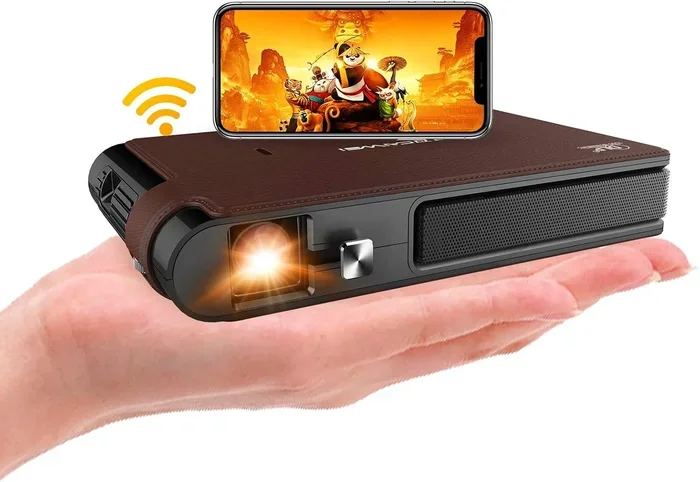
A wireless HDMI adapter is a small device that plugs into your projector’s HDMI port. The adapter creates a wireless bridge between your phone and the projector. You pair the adapter with a transmitter that plugs into your phone or connects via Bluetooth. Many adapters support Miracast and AirPlay. The setup is simple. Plug the adapter into the projector, power it on, and follow the pairing instructions. Once paired, your phone can cast to the projector just like it would to a smart TV. This is one of the best ways to get Epson projector phone connection on non-smart projectors.
Connecting Via Bluetooth Audio
If you only need audio and not video, you can connect your phone to the projector via Bluetooth. Some Epson projectors have built-in Bluetooth for audio output. You can pair your phone with the projector and play music or movie audio through the projector’s speakers. This is not full screen mirroring, but it is a handy wireless option. Check your projector’s settings for Bluetooth availability. If it is not built-in, you can add a Bluetooth audio receiver that plugs into the projector’s audio-out port.
USB Streaming Options
Some Epson projectors allow you to play media files from a USB drive. While this is not direct phone-to-projector streaming, you can use a workaround. Transfer the files you want to show from your phone to a USB drive. Then plug the USB drive into the projector. The projector can play photos, videos, and music from the drive. It is not wireless, but it avoids using an HDMI cable from your phone. This is useful for presenting slideshows or playing stored media.
Quick Tips For A Smooth Wireless Connection
Getting your phone connected to an Epson projector wirelessly is usually easy. But sometimes you may run into small issues. Here are some quick tips to ensure a smooth Epson projector setup every time.
- Keep both devices on the same network: For the Epson iProjection app and most wireless methods, both the phone and projector need to be on the same Wi-Fi network. If you use Wi-Fi Direct, they will create their own network, so a router is not needed.
- Update your firmware: Epson regularly releases firmware updates for its projectors. These updates improve wireless performance and add new features. Check the Epson website or the projector’s menu for firmware updates. A simple update can fix connection problems.
- Stay close for the best signal: Wireless signals weaken with distance. Keep your phone within 15 to 20 feet of the projector for the best experience. Walls and other electronics can interfere with the signal. If you get lag or disconnections, move closer.
- Turn off other wireless devices: Bluetooth devices, microwaves, and other Wi-Fi networks can cause interference. Turn off unnecessary Bluetooth devices and try to use a less crowded Wi-Fi channel if possible.
- Check the projector’s display settings: Make sure the projector is set to the correct input source. For wireless connections, the input is often labeled “Screen Mirroring,” “Miracast,” or “Wi-Fi Direct.” Selecting the right input ensures you see the phone screen.
- Restart both devices if needed: A simple restart can fix most connection issues. Turn off the projector and your phone, wait a few seconds, and turn them back on. This clears temporary glitches and refreshes the wireless connection.
Common Mistakes To Avoid When Connecting Phone To Epson Projector
Even with a simple process, some common mistakes can cause frustration. Avoid these pitfalls to enjoy a seamless Epson projector phone connection.
Ignoring Firmware Updates
Old firmware can cause compatibility issues. If your projector cannot find your phone or the connection drops frequently, check for a firmware update. Epson provides easy-to-follow instructions on its support website. Updating firmware often solves wireless problems instantly.
Overlooking Network Settings
Many users try to connect their phone to the projector using a wireless router when Wi-Fi Direct is the better choice. If you do not have a Wi-Fi network available, Wi-Fi Direct is your best friend. Also, make sure your phone is not connected to a VPN or a guest network that blocks device discovery. The projector and phone need to be on the same local network to find each other.
Using Incompatible Apps
Not all screen mirroring apps work well with Epson projectors. Some third-party apps may cause lag or fail to connect. Stick to the official Epson iProjection app or built-in operating system features like Miracast and AirPlay. These are designed specifically for Epson devices and offer the most reliable performance.
Final Verdict: Is Wireless Projection Worth It?
Absolutely. Connecting your phone to an Epson projector without cables is a game-changer. It gives you freedom and flexibility. You can share anything from your phone on a big screen in seconds. Whether you are at home watching a movie, presenting at work, or showing photos at a party, wireless projection makes it easy. The Epson iProjection app and built-in Wi-Fi Direct make the process simple. Even older projectors can go wireless with a small adapter. Once you try it, you will never want to go back to cables.
So, can Epson projector connect to phone without cables? Yes, and now you know exactly how. Pick the method that suits your projector model and phone type. Follow the steps we shared. You will be casting in no time. Enjoy the big screen experience without any wires. Your Epson projector and phone are meant to work together wirelessly. Embrace the convenience and start projecting today.
Frequently Asked Questions
Can I connect any phone to an Epson projector wirelessly?
Most modern phones can connect to an Epson projector wirelessly. Android phones generally support Wi-Fi Direct and Miracast. iPhones support AirPlay if the projector has built-in AirPlay. If your projector lacks these features, a wireless HDMI adapter works with any phone that supports screen casting.
Do I need an internet connection to connect my phone to an Epson projector?
No, you do not need an internet connection for most wireless methods. Wi-Fi Direct creates a direct network between your phone and the projector. The Epson iProjection app also works over a direct Wi-Fi connection. You only need internet if you are streaming online content, not for the connection itself.
Why is my phone not finding the Epson projector on the network?
This usually happens when the devices are on different networks. Make sure both are on the same Wi-Fi network or that Wi-Fi Direct is turned on. Also, check if your phone’s screen mirroring feature is enabled. Restarting both devices often fixes the issue.
Can I use Bluetooth to connect my phone to an Epson projector for video?
Bluetooth is not suitable for video streaming. Bluetooth has low bandwidth and is designed for audio only. Some Epson projectors support Bluetooth audio output, but for video you need Wi-Fi Direct, Miracast, or a wireless HDMI adapter.
Is the Epson iProjection app free to download?
Yes, the Epson iProjection app is completely free. You can download it from the Google Play Store for Android devices and the Apple App Store for iPhones and iPads. It offers a simple way to project photos, documents, and screens without any extra cost.
Will wireless projection affect the video quality?
Wireless projection can be slightly lower in quality than a wired HDMI connection, especially for fast-moving video. However, for most uses like presentations, photos, and movies, the quality is excellent. A strong Wi-Fi signal and a projector with the latest wireless technology provide the best results.