Can I Use USB For Serial Communication With This Guide
Yes, you can use USB for serial communication with the right adapter or converter. This guide covers everything you need to know about USB-to-serial connections, setup steps, and troubleshooting tips. Whether you are connecting legacy devices or setting up new equipment, understanding USB serial communication saves you time and frustration.
Can you use USB for serial communication? The short answer is yes. But the full answer is much more interesting. If you have ever tried to connect an older device to a newer computer, you know the frustration. Modern laptops and desktops no longer include traditional serial ports. Yet many devices still rely on serial communication protocols to send and receive data. The good news is that USB bridges this gap beautifully. With the right adapter and a bit of know-how, you can make almost any serial device work through a USB connection.
This guide walks you through everything you need to know. We cover how USB serial communication works, which adapters to choose, setup steps, and real-world applications. You will also learn common mistakes to avoid and how to troubleshoot problems. By the end, you will feel confident connecting serial devices through USB like a pro.
Key Takeaways
- USB Can Replace Serial Ports: USB-to-serial adapters let you connect old serial devices to modern computers easily.
- Multiple Adapter Types Exist: Choose from FTDI, Prolific, and CP2102 chips based on your device needs.
- Driver Installation Is Key: Proper drivers create a virtual COM port for seamless communication.
- Baud Rate Matters: Matching baud rates between devices ensures reliable data transfer.
- Common Issues Are Fixable: Most USB serial problems stem from drivers, cable quality, or settings mismatch.
- Wide Range of Applications: From industrial automation to home projects, USB serial communication is everywhere.
📑 Table of Contents
What Is USB Serial Communication?
USB serial communication is a method of transferring data between devices using USB instead of traditional serial ports. The Universal Serial Bus, or USB, has become the standard for connecting peripherals. It offers faster speeds, better reliability, and wider device support compared to older serial standards. But many devices still speak the language of serial communication. They use protocols like RS-232 or UART to exchange information.
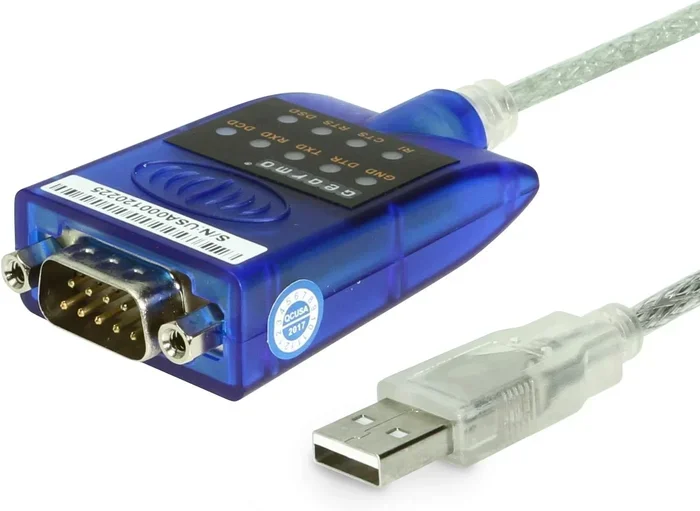
So how does USB fit into this picture? The answer lies in converters. A USB-to-serial adapter translates USB signals into serial signals and vice versa. This allows modern computers to talk to older equipment seamlessly. Think of it as a translator between two different languages. The computer speaks USB, the device speaks serial, and the adapter makes them understand each other.
The process creates what is called a virtual COM port. Your operating system sees this as a regular serial port even though the physical connection is USB. This virtualization is key to making legacy devices work with today’s hardware. Without it, many industrial tools, medical devices, and hobbyist projects would be useless.
How Does Serial Communication Work?
Serial communication sends data one bit at a time over a single channel. This contrasts with parallel communication, which sends multiple bits simultaneously. Serial communication is simpler and more reliable over long distances. It uses standards like RS-232 for defining voltage levels and signal timing.
Key parameters control how serial data flows. The baud rate sets the speed of transmission. Common baud rates include 9600, 19200, and 115200 bits per second. Handshaking signals coordinate when devices send and receive data. These include RTS, CTS, DTR, and DSR lines. Proper configuration of these settings ensures smooth and error-free data transfer.
How USB Replaces Traditional Serial Connections
For decades, serial ports were a standard feature on every computer. They connected modems, mice, printers, and industrial equipment. But as technology evolved, USB offered a better alternative. USB provides faster data rates, supports more devices, and delivers power through the cable. Today, most computers lack built-in serial ports entirely.
USB serial communication fills this gap perfectly. Instead of installing a PCI serial card inside your computer, you simply plug in a USB adapter. This makes setup much simpler and more portable. You can connect serial devices to laptops, tablets, and even some smartphones with the right adapter.
The transition from serial to USB also brings reliability benefits. USB connections are more robust and less prone to interference. They support longer cable runs with active repeaters. Plus, USB hot-swapping lets you connect and disconnect devices without restarting your computer. This convenience alone makes USB serial adapters essential tools for many users.
USB vs Traditional Serial Ports
Let us compare USB serial adapters with traditional serial ports directly. This table highlights the key differences:
Speed: USB supports much faster data transfer rates than traditional serial ports. Standard USB 2.0 offers speeds up to 480 Mbps. Traditional RS-232 serial ports max out around 115.2 Kbps. For most applications, this speed difference is more than enough.
Distance: USB cables can run longer distances than serial cables. A standard serial cable works well up to about 50 feet. USB cables can reach up to 16 feet without active boosting. With USB hubs or active cables, you can extend this further.
Device Support: USB supports many devices on a single bus through hubs. Traditional serial ports typically support one device per port. This makes USB far more practical for setups with multiple serial devices.
Power Delivery: USB can power connected devices directly. Serial ports provide limited power through the RTS and DTR lines. Many USB serial adapters also supply power to the connected device, eliminating the need for external power sources.
Types of USB-to-Serial Adapters
Not all USB-to-serial adapters are the same. Different chipsets and designs serve different purposes. Choosing the right adapter prevents headaches and ensures reliable communication. Here are the most common types available today.
FTDI-Based Adapters
FTDI, or Future Technology Devices International, makes some of the most popular USB serial chips. Their adapters are widely trusted in industrial and professional settings. FTDI chips offer excellent driver support across Windows, macOS, and Linux. They handle high baud rates and complex communication protocols with ease.
These adapters are ideal for industrial automation and engineering projects. Many professional-grade devices use FTDI chips internally. If you need rock-solid reliability, an FTDI-based USB serial adapter is a safe choice.
Prolific-Based Adapters
Prolific Technology is another major player in the USB serial adapter market. Their PL2303 and CP2102 chips are common in budget-friendly adapters. Prolific adapters work well for basic serial communication tasks. They are widely available and affordable, making them popular for hobbyists and students.
However, Prolific adapters sometimes face driver compatibility issues. Some users report problems with newer operating systems. Always check driver support for your specific OS before purchasing a Prolific-based adapter.
CP2102-Based Adapters
The CP2102 chip by Silicon Labs offers a great balance of performance and simplicity. These adapters are compact and energy-efficient. They work well with microcontroller projects, Arduino boards, and embedded systems. CP2102 adapters are plug and play on most modern operating systems.
For hobbyists and makers, CP2102-based adapters are an excellent value. They handle standard baud rates reliably and are easy to set up. Many Arduino and Raspberry Pi projects use this type of adapter for device communication.
Bluetooth USB Serial Adapters
Some adapters convert USB serial to Bluetooth wireless communication. These are useful when you need freedom from cables. They are common in point-of-sale systems, medical devices, and mobile applications. Keep in mind that wireless adapters introduce slight latency compared to wired connections.
Setting Up USB Serial Communication
Setting up USB serial communication is straightforward once you know the steps. Most modern operating systems recognize adapters automatically. But proper configuration ensures reliable and consistent performance. Follow these steps to get your serial device working through USB.
Step 1: Choose the Right Adapter
Select a USB-to-serial adapter that matches your device requirements. Consider the baud rate, connector type, and operating system compatibility. For most applications, an FTDI or CP2102 adapter works well. Make sure the adapter supports the voltage level your device requires, typically 3.3V or 5V.
Step 2: Install Drivers
Plug in the adapter and let your operating system attempt automatic driver installation. On Windows, you may need to download drivers from the manufacturer’s website. Visit the FTDI or Silicon Labs site to get the latest drivers. On macOS and Linux, drivers are usually built into the operating system already.
After driver installation, check your device manager or system settings. You should see a new COM port listed. This virtual COM port is your gateway to serial communication. Note the port number assigned to your adapter.
Step 3: Configure Communication Settings
Open your terminal program or serial communication software. Set the port to match the virtual COM port number. Configure the baud rate to match your device’s settings. Common settings include 9600 baud, 8 data bits, no parity, and 1 stop bit. These are often referred to as 8N1 configuration.
If your device uses different settings, adjust accordingly. Always double-check the baud rate first. A mismatch here is the most common cause of communication failures. Once settings match, you should see data flowing between your computer and the device.
Step 4: Test the Connection
Send a test command or message through your serial software. Observe the response from the connected device. If you receive expected data, your setup is working correctly. If not, check cable connections, driver installation, and settings again.
Many serial communication programs include signal monitoring features. Use these to verify that handshaking signals are active. This helps diagnose issues with flow control and data integrity. A successful test means you are ready for regular use.
Quick Tips for Setup
- Always use the latest drivers from the manufacturer’s official website.
- Label your COM ports to avoid confusion when multiple adapters are connected.
- Keep your adapter firmware updated for best compatibility.
- Use shielded cables in electrically noisy environments to reduce interference.
- Write down your device communication settings before you start troubleshooting.
Common Applications for USB Serial Communication
USB serial communication is used across many industries and hobbies. Its versatility makes it a go-to solution for connecting serial devices to modern computers. Here are some of the most common applications where USB serial adapters shine.
Industrial Automation
Factories and manufacturing plants rely heavily on serial communication. PLCs, sensors, and control systems often use RS-232 or RS-485 protocols. USB serial adapters let engineers connect these devices to modern PCs for programming and monitoring. This is essential for maintaining and updating industrial equipment efficiently.
In industrial settings, reliability is critical. FTDI-based adapters are often preferred here because of their proven track record. They handle the electrical noise common in factory environments better than cheaper alternatives. Many companies also use them as part of their broader electronic commerce communication infrastructure, connecting equipment to networks that feed into value added network systems for electronic commerce communication and data exchange.
Hobbyist and Maker Projects
Arduino, Raspberry Pi, and ESP32 projects frequently use serial communication for debugging and data transfer. USB serial adapters make it easy to connect these microcontrollers to computers. Makers use them to upload code, monitor sensor readings, and interact with their projects in real time.
CP2102 and CH340-based adapters are especially popular in the maker community. They are inexpensive and widely compatible with development boards. If you are starting a new project, a basic USB serial adapter is one of the first accessories you should buy.
Networking and Telecommunications
Network switches, routers, and firewalls often include serial console ports for initial configuration. Network administrators use USB serial adapters to access these ports. This is especially useful for rack-mounted equipment where a traditional serial port is not available on the management computer.
Telecommunications equipment also uses serial interfaces for configuration and monitoring. Technicians rely on USB serial adapters to set up and troubleshoot these systems. The ability to connect from any modern laptop makes the work faster and more flexible.
Medical and Scientific Equipment
Many medical devices and scientific instruments use serial communication for data output. Oscilloscopes, spectrum analyzers, and laboratory sensors commonly include RS-232 ports. USB serial adapters allow researchers and technicians to capture and log data on modern computers.
In medical settings, reliability and accuracy are paramount. Using high-quality adapters with proper shielding ensures data integrity. Always verify that your adapter meets any regulatory requirements for your specific application.
Home and Office Automation
Smart home enthusiasts sometimes use serial communication to interface with custom controllers. USB serial adapters connect these controllers to home automation hubs. This enables monitoring and control of lighting, climate, and security systems through software interfaces.
Even in office settings, serial communication persists. Label printers, barcode scanners, and point-of-sale terminals often use serial connections. USB adapters keep these devices working without requiring legacy hardware upgrades.
Troubleshooting Common USB Serial Issues
Even with the right adapter, you may encounter problems. Most USB serial issues are easy to fix once you identify the cause. Here are the most common problems and their solutions.
Device Not Recognized
If your computer does not detect the adapter, start with the basics. Try a different USB port, preferably a direct port on the computer rather than a hub. Check if the adapter needs external power. Some adapters require a powered USB port to function correctly.
Next, verify driver installation. On Windows, open Device Manager and look for unknown devices. Right-click and update the driver manually if needed. On macOS, check System Information to see if the adapter appears. If the adapter works on another computer, the issue is likely driver-related on your primary machine.
Garbled or Incorrect Data
Garbled data almost always means a settings mismatch. Compare the baud rate, data bits, parity, and stop bits on both sides of the connection. Ensure they match exactly. Even a one-bit difference in baud rate can cause unreadable output.
Also check your cable quality. Cheap or damaged cables can introduce signal noise and corruption. Replace the cable first before diving into complex troubleshooting. If the problem persists, try a different adapter to rule out hardware failure.
Intermittent Connection Drops
Intermittent drops often result from power issues or cable length. Long USB cables can suffer from voltage drop. Use a shorter cable or a powered USB hub to resolve this. Electrical interference from nearby motors or power supplies can also cause drops.
Shielded cables help reduce interference significantly. If you are in an industrial environment, consider using adapters with built-in isolation. This protects both your computer and your serial device from electrical damage.
Driver Conflicts
Having multiple serial adapters connected can cause driver conflicts. Each adapter needs a unique COM port assignment. If ports keep changing between reboots, you can assign static COM port numbers in Device Manager settings. This prevents confusion when switching between devices.
Some chipsets share driver names even though they behave differently. Always install drivers from the specific manufacturer for your adapter chipset. Generic Windows drivers may not support all features of your adapter.
Common Mistakes to Avoid
- Skipping driver updates from the manufacturer’s website.
- Using cables that are too long without signal boosting.
- Assuming all adapters work the same way regardless of chipset.
- Ignoring voltage level compatibility between adapter and device.
- Not testing with a known-good setup before troubleshooting.
Expert Insights on USB Serial Communication
Experienced engineers and technicians share a few insights that can save you time. First, always keep a spare adapter on hand. Adapters are inexpensive and having a backup prevents project delays. Second, invest in quality adapters from reputable brands. The small savings on cheap adapters often cost more in debugging time.
Third, understand your device’s communication protocol fully before connecting. Read the device manual and note all serial settings. This preparation prevents most common setup issues. Fourth, when working in professional environments, document your serial connections. Label cables, note COM port assignments, and save configuration files.
Finally, stay updated on driver and firmware releases. Manufacturers periodically fix bugs and improve compatibility. Subscribing to manufacturer newsletters or checking support pages regularly keeps your setup running smoothly.
USB serial communication has come a long way since the early days of USB 1.0. Today’s adapters are fast, reliable, and universally compatible. Whether you are a professional engineer, a hobbyist, or a student, understanding how to use USB for serial communication opens up a world of connectivity possibilities. The knowledge you gain from this guide will serve you well in countless projects and professional tasks.
Conclusion
USB serial communication is a practical and essential skill for anyone working with serial devices today. The right USB serial adapter bridges the gap between legacy equipment and modern computers seamlessly. You have learned about the different adapter types, setup procedures, common applications, and troubleshooting techniques.
The key to success lies in choosing quality hardware, installing proper drivers, and matching communication settings correctly. With these fundamentals in place, you can connect virtually any serial device through USB with confidence. Start with a reliable adapter, follow the setup steps carefully, and you will be communicating with serial devices in no time.
Remember that practice makes perfect. Each project you work on builds your experience and deepens your understanding. Do not be afraid to experiment and learn from occasional connection issues. They are valuable lessons that make you more skilled over time. Embrace the versatility of USB serial communication and enjoy the freedom it brings to your projects and work.
Frequently Asked Questions
Can any USB port be used for serial communication?
Most standard USB ports work fine for serial communication with the right adapter. USB 2.0 and USB 3.0 ports both support serial communication through adapters. The main difference is speed, which rarely matters for serial data transfer. Just ensure your adapter has the proper drivers for your operating system.
Do I need special software for USB serial communication?
You need serial terminal software to send and receive data. Popular free options include PuTTY, Tera Term, and RealTerm on Windows. On macOS, the built-in Terminal app works with screen or minicom commands. Many devices also come with their own proprietary software that handles serial communication automatically.
What is the difference between RS-232 and USB serial communication?
RS-232 is a traditional serial communication standard that uses specific voltage levels and connector types. USB is a modern universal standard that offers faster speeds and better compatibility. A USB-to-serial adapter converts USB signals to RS-232 signals, allowing the two to work together seamlessly.
Can I use USB for serial communication with Arduino?
Yes, absolutely. Many Arduino boards have built-in USB-to-serial chips. If your board lacks a native USB serial connection, you can use an external USB serial adapter. This lets you upload code and monitor serial output from your Arduino projects on any modern computer.
How do I find the correct COM port for my USB serial adapter?
On Windows, open Device Manager and expand the Ports section. Your USB serial adapter will appear with a COM port number. On macOS, use the System Information tool to find the registered serial ports. On Linux, check the /dev directory for ttyUSB or ttyACM devices.
Are USB serial adapters safe for expensive equipment?
Quality USB serial adapters from reputable brands are safe for expensive equipment. They provide proper electrical isolation and signal level conversion. However, always verify voltage compatibility before connecting. Using a cheap or unverified adapter could potentially damage sensitive devices, so invest in quality hardware for valuable equipment.