Can I Watch TV With an HDMI Cable And How It Works Today
Yes, you can absolutely watch TV with an HDMI cable — it is the most common and reliable way to connect devices to your television. An HDMI cable carries both high-definition video and audio through a single cable, making setup simple and fast. Whether you use a streaming box, gaming console, or laptop, HDMI delivers the best picture and sound quality available today. This guide covers everything you need to know about using HDMI with your TV in 2024.
Can I watch TV with an HDMI cable? The short answer is yes. It is one of the easiest and most reliable ways to get great picture and sound on your television. Whether you are setting up a new TV or trying to fix an existing connection, HDMI cables make it simple.
Almost every modern TV comes with at least one HDMI port. These ports handle both video and audio signals through a single thin cable. That means fewer cables on your floor and a cleaner setup. In this guide, we will walk you through everything you need to know about watching TV with an HDMI cable today.
We will cover how HDMI works, the different types of cables, how to connect your devices, and what to do when things go wrong. By the end, you will feel confident setting up any HDMI connection in your home.
Key Takeaways
- HDMI cables are the standard way to connect devices to your TV and deliver excellent picture and sound quality.
- You can watch TV with HDMI on smart TVs, monitors, projectors, and other compatible devices easily.
- Different HDMI cable versions support different features like 4K resolution, HDR, and higher refresh rates.
- Setting up an HDMI connection takes just a few minutes and requires no technical skills.
- Common issues like no signal or poor quality are usually easy to fix with basic troubleshooting.
- HDMI ARC and eARC features allow you to send audio back to a sound system through the same cable.
- Using the right HDMI port and cable version ensures the best home entertainment experience.
📑 Table of Contents
- What Is an HDMI Cable and Why It Matters for TV
- How to Connect an HDMI Cable to Your TV
- HDMI Cable Types and What You Need to Know
- Can You Watch TV With HDMI on Any Device
- Troubleshooting Common HDMI TV Connection Issues
- HDMI Features That Enhance Your TV Watching Experience
- Expert Insights on Getting the Most From Your HDMI Setup
- Final Thoughts
What Is an HDMI Cable and Why It Matters for TV
HDMI stands for High-Definition Multimedia Interface. It is a standard cable that sends both video and audio from one device to another. Before HDMI, people needed separate cables for picture and sound. That changed everything when HDMI came along.
Today, HDMI is the go-to connection for TVs, streaming boxes, gaming consoles, and laptops. A single HDMI cable can carry uncompressed video and multi-channel audio at the same time. This makes it the best choice for home entertainment setups.
The HDMI cable connects your source device directly to your TV’s HDMI port. Once plugged in, your TV automatically detects the signal. You may need to switch to the correct input source, but that is usually very simple.
Why does this matter? Because HDMI delivers the best display quality available for consumer devices. It supports high resolutions, wide color ranges, and advanced audio formats. Whether you are watching a movie or playing a video game, HDMI gives you a top-quality experience.
How HDMI Carries Video and Audio
An HDMI cable contains multiple tiny wires inside its shielding. Each wire handles a specific part of the signal. Some wires carry video data, while others carry audio data. The cable also has pins that handle things like copyright protection and device communication.
When you press play on your device, the video and audio data travel through the HDMI cable at incredible speeds. Your TV receives this data and displays it on screen while its speakers play the sound. All of this happens in milliseconds.
The beauty of HDMI is that it does all of this with one cable. You do not need to fiddle with multiple cords or adjust separate audio and video settings. Just plug it in and enjoy your content.
How to Connect an HDMI Cable to Your TV
Setting up an HDMI connection is straightforward. Even if you are not tech-savvy, you can do it in just a few minutes. Here is how to get started.
Step-by-Step Connection Guide
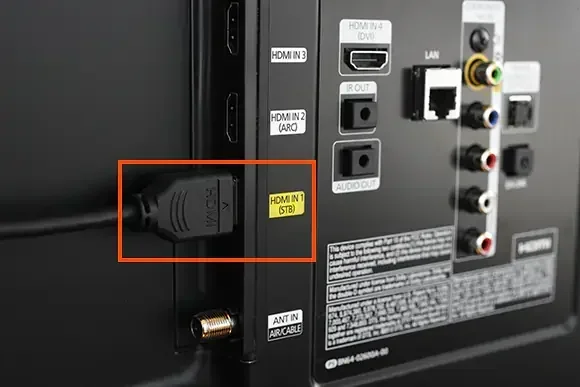
- Find an HDMI port on your TV. Most TVs have two to four HDMI ports on the back or side panel. Look for a small, rectangular port labeled HDMI 1, HDMI 2, and so on.
- Plug the HDMI cable into your source device. This could be a streaming stick, cable box, gaming console, or laptop. Make sure the connector clicks into place firmly.
- Plug the other end into your TV. Match the shape of the connector to the HDMI port. It only fits one way, so do not force it.
- Switch your TV to the correct input. Press the Input or Source button on your remote. Select the HDMI port you plugged into, such as HDMI 1 or HDMI 2.
- Adjust display settings if needed. Go to your TV’s settings menu and make sure the resolution matches your content. For most people, 1080p or 4K works best.
That is it. You should now see your device’s screen on the TV and hear the audio through the TV speakers. If you do not, do not worry. We will cover troubleshooting later in this guide.
Quick Tips for a Clean Setup
- Use a cable that is long enough to reach your device without stretching.
- Keep HDMI cables away from power cords to reduce interference.
- Label your HDMI ports on the TV so you know which one goes to which device.
- Use an HDMI cable organizer or Velcro tie to keep cables neat.
- Turn off your devices before plugging in or unplugging HDMI cables.
HDMI Cable Types and What You Need to Know
Not all HDMI cables are the same. Over the years, HDMI technology has evolved to support better picture quality and new features. Understanding the different types helps you choose the right cable for your TV.
Standard HDMI Cables
Standard HDMI cables support resolutions up to 1080p. They are great for older TVs or basic setups where you do not need ultra-high definition. These cables work well for cable boxes, DVD players, and older gaming consoles.
High-Speed HDMI Cables
High-speed HDMI cables support 4K resolution and higher refresh rates. If you have a 4K TV or a modern streaming device, you need a high-speed cable. These cables also support HDR, which gives you brighter colors and better contrast.
Premium High-Speed HDMI Cables
Premium cables are certified to handle the latest HDMI features. They support 4K at 120Hz, dynamic HDR, and eARC audio. If you have a top-of-the-line TV and want the best quality, a premium cable is worth the investment.
Ultra High-Speed HDMI Cables
Ultra high-speed cables are the newest standard. They support 8K resolution and even 4K at 240Hz. These cables are future-proof and perfect for the latest gaming consoles and 8K TVs. They also handle the newest HDMI 2.1 features.
Comparison Table: HDMI Cable Types
| Cable Type | Max Resolution | Best For | HDR Support |
|---|---|---|---|
| Standard HDMI | 1080p | Basic setups, older TVs | No |
| High-Speed HDMI | 4K at 60Hz | Most modern TVs | Yes |
| Premium High-Speed | 4K at 120Hz | Advanced home theater | Yes, dynamic HDR |
| Ultra High-Speed | 8K at 60Hz | Latest TVs and consoles | Yes, full HDR |
Which cable should you buy? For most people, a high-speed HDMI cable is the sweet spot. It handles 4K content perfectly and costs very little. Only go for premium or ultra high-speed if you have the devices to take advantage of them.
Can You Watch TV With HDMI on Any Device
The short answer is yes, with some conditions. HDMI is a universal standard, which means it works across many different devices. But not every device has the same HDMI capabilities.
Smart TVs and HDMI
Smart TVs are the most common devices people connect with HDMI. Almost every smart TV made in the last decade has multiple HDMI ports. You can plug in streaming sticks, cable boxes, soundbars, and game consoles directly.
Smart TVs also support HDMI-CEC, which lets you control connected devices with one remote. For example, you can turn on your soundbar just by turning on the TV. This feature goes by different names depending on the brand, like Anynet+ or Bravia Sync.
Streaming Devices and HDMI
Devices like Roku, Amazon Fire Stick, Apple TV, and Chromecast all use HDMI. These small streaming boxes plug directly into your TV’s HDMI port and give you access to Netflix, YouTube, and many other apps. They are a great way to turn any TV with an HDMI port into a smart TV.
Most streaming devices support 4K HDR output. This means you need a high-speed HDMI cable to get the best picture. A standard cable will work, but it may limit your resolution to 1080p.
Gaming Consoles and HDMI
Modern gaming consoles like the PlayStation 5 and Xbox Series X rely heavily on HDMI. These consoles support 4K gaming at high frame rates thanks to HDMI 2.1 features. A good HDMI cable ensures you get the smoothest gameplay and the best visuals.
If you have an older console like the PS4 or Xbox One, a standard high-speed HDMI cable is more than enough. These consoles output at 1080p or 4K at 60Hz, which any modern HDMI cable handles easily.
Laptops and HDMI
Many laptops have an HDMI output port. This lets you connect your laptop to your TV for a bigger screen. You can watch movies, give presentations, or even use your TV as a second monitor.
Not all laptops have HDMI ports anymore. Some newer models only have USB-C or Thunderbolt ports. In those cases, you need a USB-C to HDMI adapter or a dedicated converter cable.
What Devices Do Not Support HDMI?
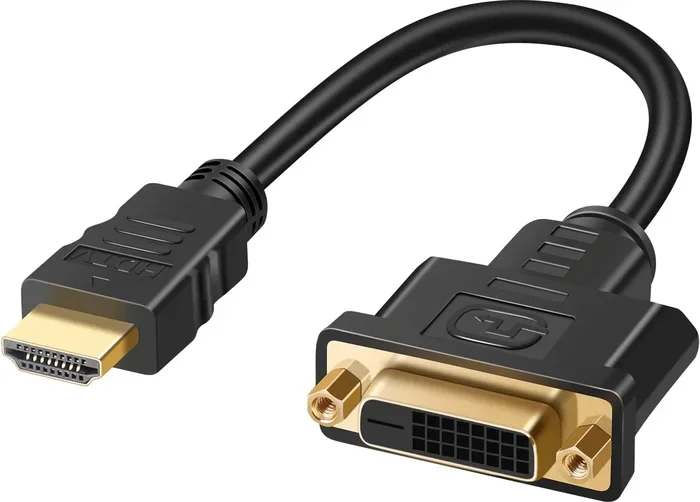
Some older or budget devices may not have HDMI ports. Old DVD players might only have composite or component inputs. Some monitors and projectors use VGA or DVI connections instead. In these cases, you can use an adapter to convert the signal to HDMI.
Also, some very old TVs may only have antenna or coaxial inputs. You would need a converter box to turn an HDMI signal into a format those TVs can read.
Troubleshooting Common HDMI TV Connection Issues
HDMI connections are reliable, but problems can happen. Here are the most common issues and how to fix them.
No Signal or Black Screen
If your TV shows no signal after connecting an HDMI cable, try these steps:
- Check that both ends of the cable are plugged in firmly.
- Try a different HDMI port on your TV.
- Switch the input source to the correct HDMI port.
- Test the cable with a different device to rule out a faulty cable.
- Turn off your TV and device, wait 30 seconds, then turn them back on.
Often, a loose connection is the culprit. Unplugging and replugging the cable can solve the problem instantly.
Poor Picture Quality
If your picture looks blurry or has artifacts, the cable may not be the right type for your setup. A standard HDMI cable cannot carry 4K signals properly. Upgrade to a high-speed or premium high-speed cable for better results.
Also check your TV’s display settings. Make sure the resolution is set to match your content. If your TV is set to 1080p but you are watching 4K content, the picture will look soft.
No Audio or Sound Issues
Sometimes the video works but there is no sound. This usually happens when the TV is set to the wrong audio output. Go to your TV’s audio settings and make sure HDMI is selected as the audio output source.
If you are using an HDMI ARC connection to a soundbar or receiver, make sure ARC is enabled in your TV settings. You may also need to set the audio format to PCM or Dolby Digital, depending on your setup.
HDMI Cable Keeps Disconnecting
A loose HDMI connection can be frustrating. Try these fixes:
- Use a cable with a snug fit. Some cheap cables have loose connectors.
- Bend the cable gently to see if the connection improves. If it does, the cable may be damaged.
- Replace the cable with a new one from a reputable brand.
- Use HDMI cable clips or ties to keep the cable from pulling out.
HDMI Features That Enhance Your TV Watching Experience
Modern HDMI cables do much more than just carry video and audio. They support advanced features that make your TV experience much better.
HDMI ARC and eARC
HDMI ARC stands for Audio Return Channel. It lets your TV send audio back to a soundbar or home theater system through the same HDMI cable. This means you only need one cable for both video input and audio output.
eARC is the enhanced version. It supports higher-quality audio formats like Dolby Atmos and DTS:X. If you have a premium sound system, eARC is the way to go. Look for the ARC or eARC label on your TV’s HDMI port.
4K and HDR Support
4K resolution gives you four times the detail of full HD. HDR, or High Dynamic Range, adds better colors, deeper blacks, and brighter highlights. Together, 4K and HDR make your TV picture look stunning.
To enjoy 4K HDR content, you need a 4K TV, a 4K-compatible source device, and a high-speed HDMI cable. Most modern streaming services like Netflix and Disney+ offer 4K HDR content for subscribers.
HDMI Version Differences
HDMI has gone through several versions over the years. Each version adds new capabilities:
- HDMI 1.4 introduced 4K support at 30Hz and 3D viewing.
- HDMI 2.0 brought 4K at 60Hz and HDR support.
- HDMI 2.0a added dynamic HDR metadata.
- HDMI 2.0b included HDR10 and HLG support.
- HDMI 2.1 supports 4K at 120Hz, 8K at 60Hz, and variable refresh rate.
You do not need to know every version number. Just look for the cable’s speed rating and make sure it matches your devices’ capabilities.
HDCP Content Protection
HDCP stands for High-bandwidth Digital Content Protection. It is a digital copyright safeguard built into HDMI. It prevents unauthorized copying of premium content like movies and sports broadcasts.
If you see a black screen while watching protected content, HDCP might be the issue. This can happen with cheap or damaged cables that do not support the required HDCP version. Using a certified HDMI cable usually fixes this problem.
Using an HDMI Splitter or Switch
If you have more devices than HDMI ports on your TV, an HDMI switch or splitter can help. An HDMI switch lets you connect multiple devices to one TV port. A splitter sends the same signal to multiple TVs.
Choose a switch or splitter that supports your desired resolution. A 4K HDMI switch ensures all your devices can output in high definition without quality loss.
Expert Insights on Getting the Most From Your HDMI Setup
Here are a few tips from experts that can make a real difference in your viewing experience:
- Buy certified cables. Look for HDMI Premium Certified or Ultra High Speed labels. These cables have been tested to meet their claimed specifications.
- Do not run HDMI cables longer than 15 feet without a signal booster. Long cables can lose signal quality, especially at higher resolutions.
- Keep your HDMI firmware updated. Some TVs and devices receive firmware updates that improve HDMI compatibility and add new features.
- Use the right port. On many TVs, one HDMI port supports ARC or eARC. Check your TV manual to find which port has these features.
- Replace old cables. HDMI cables degrade over time. If you have cables that are more than five years old, consider upgrading to a newer standard.
What do the pros recommend? Most home theater experts agree that a good high-speed HDMI cable is all you need for 99% of setups. You do not need to spend a fortune on gold-plated or exotic cables. A well-made, certified cable from a reputable brand delivers excellent performance at a fair price.
One more thing to keep in mind: HDMI technology keeps improving. HDMI 2.1 is already making waves with gaming consoles and next-gen TVs. If you are buying a new cable today, going with an ultra high-speed cable ensures you are ready for whatever comes next.
Final Thoughts
So, can I watch TV with an HDMI cable? Absolutely yes. It is the simplest, most reliable, and highest-quality way to connect your devices to your television. Whether you are streaming movies, playing games, or just watching the news, HDMI delivers the experience you want.
With the right cable type and a basic understanding of how it all works, you can set up your home entertainment system in minutes. The key is matching your cable to your devices and resolution needs. A high-speed HDMI cable is the safest bet for most people today.
Remember the troubleshooting tips if you run into issues. Most problems have simple solutions. And take advantage of features like HDMI ARC and 4K HDR to get the most out of your setup.
HDMI cables are not going anywhere. They remain the backbone of modern home entertainment. Investing in a good cable and understanding how it works pays off every time you sit down to watch your favorite show or movie.
Now that you know how to use HDMI with your TV, go ahead and set up your devices with confidence. Enjoy the crisp picture, rich sound, and hassle-free connection that only HDMI can provide.
Frequently Asked Questions
Do I need a special HDMI cable to watch 4K TV?
Yes, you need a high-speed HDMI cable or higher to watch 4K content. Standard HDMI cables only support up to 1080p. Look for cables labeled High Speed, Premium High Speed, or Ultra High Speed for the best 4K experience.
Can I use an HDMI cable with a laptop to watch TV?
Yes, if your laptop has an HDMI output port, you can connect it directly to your TV. This lets you mirror your laptop screen on the TV or use the TV as a second display. If your laptop only has USB-C, you can use a USB-C to HDMI adapter.
Why does my HDMI cable show no sound on the TV?
This usually happens when the TV audio output is not set to HDMI. Go to your TV settings, find the audio output option, and select HDMI. If you are using ARC, make sure ARC is enabled on both the TV and the connected audio device.
How long can an HDMI cable be before signal quality drops?
For most standard HDMI cables, the recommended maximum length is about 15 feet. Beyond that, the signal may weaken, especially at higher resolutions. You can use an HDMI signal booster or repeater to extend the cable length without losing quality.
Is HDMI better than wireless streaming for watching TV?
HDMI provides a more stable and higher-quality connection than most wireless options. Wireless streaming can suffer from buffering, resolution drops, or latency issues. HDMI delivers a consistent, uncompressed signal with no lag, making it the preferred choice for serious viewing.
Can I connect multiple TVs to one HDMI source?
Yes, you can use an HDMI splitter to send the same signal to multiple TVs. Make sure the splitter supports your desired resolution and has enough output ports for all your TVs. Keep in mind that long cable runs may require a signal booster.