Can Micro HDMI Connect To A Monitor And It Really Works
Yes, a Micro HDMI can connect to a monitor with the right adapter or direct cable. This guide covers everything you need to know about Micro HDMI connectivity, including compatible devices, adapter types, setup steps, and common troubleshooting tips. You will learn how to get the best display quality and avoid costly mistakes.
Can Micro HDMI connect to a monitor? The short answer is yes. You can absolutely plug a Micro HDMI cable into a monitor and get a clear picture. But the full story has a few important details you need to know. This guide walks you through everything step by step.
Micro HDMI is a tiny digital connection used on small devices like smartphones, tablets, and action cameras. It carries both audio and video signals through a single cable. Many people want to use their compact devices with a bigger screen. A monitor offers a much better viewing experience than a tiny phone screen. Understanding how this connection works saves you time, money, and frustration.
In this article, we will cover how Micro HDMI connects to monitors. You will learn about adapter types, setup steps, common problems, and expert tips. We also compare Micro HDMI to other connection types. By the end, you will feel confident setting up your display the right way. Let us dive in and make this simple.
Key Takeaways
- Micro HDMI works with monitors: You can connect Micro HDMI to a monitor using a direct cable or an adapter converter.
- Adapter compatibility matters: Choose the right adapter type to avoid signal loss and display problems.
- Setup is simple: Plug in the adapter, connect the cable, and adjust your display settings in seconds.
- Signal quality depends on cable quality: Use high-speed certified cables for the best 4K and HD output.
- Common issues have easy fixes: Most connection problems come from wrong adapters, loose cables, or incorrect display settings.
- Micro HDMI is not the same as Mini HDMI: Know the difference to pick the right cable for your device.
- USB-C alternatives exist: Consider USB-C to HDMI if your device supports it as a backup option.
📑 Table of Contents
- What Is Micro HDMI And How Does It Work?
- Can You Connect Micro HDMI Directly To A Monitor?
- Types Of Micro HDMI Adapters For Monitor Connections
- Step-By-Step Guide To Connecting Micro HDMI To A Monitor
- Common Problems When Connecting Micro HDMI To A Monitor
- Expert Tips For Best Micro HDMI Performance
- Micro HDMI vs USB-C To HDMI: Which Should You Choose?
- Which Devices Support Micro HDMI For Monitor Output?
- How To Get The Best Display Quality From Micro HDMI
- Final Thoughts On Micro HDMI Monitor Connections
What Is Micro HDMI And How Does It Work?
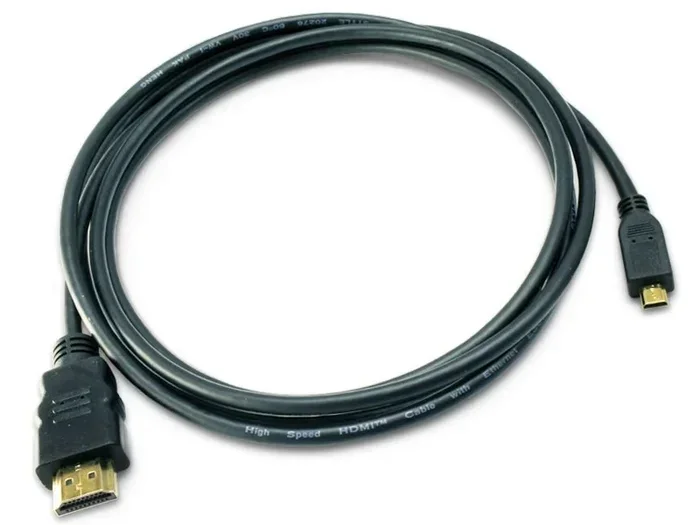
Micro HDMI is a small version of the standard HDMI port. It is also known as Type D connector. The design is about the size of a micro USB plug. Despite its small size, it supports high-definition video and multi-channel audio. You will find Micro HDMI on devices like the Samsung Galaxy S series, older smartphones, and some action cameras.
The Technology Behind Micro HDMI
The Micro HDMI standard follows the same HDMI protocol as larger versions. It uses digital signaling to transmit uncompressed video and audio. This means you get a clean signal without quality loss. The cable supports resolutions up to 4K in some versions. It also supports 3D content and Ethernet data transfer in certain configurations.
The connector has 19 pins arranged in a compact design. Each pin handles a specific function. Some pins carry video data. Others handle audio channels. A few pins manage control signals and power. This design allows a single cable to do the work of multiple older cables.
Micro HDMI vs Mini HDMI vs Standard HDMI
People often confuse Micro HDMI with Mini HDMI. They look similar but are different. Mini HDMI is also called Type C. It is slightly larger than Micro HDMI. Standard HDMI is the big one you see on TVs and desktop monitors. Here is a quick comparison of the three types:
| Feature | Micro HDMI (Type D) | Mini HDMI (Type C) | Standard HDMI (Type A) |
|---|---|---|---|
| Pin Count | 19 pins | 19 pins | 19 pins |
| Size | Smallest | Medium | Largest |
| Common Devices | Smartphones, action cameras | DSLR cameras, tablets | TVs, monitors, laptops |
| Max Resolution | 4K (with compatible cables) | 4K (with compatible cables) | 4K / 8K (latest versions) |
| Audio Support | Yes, multi-channel | Yes, multi-channel | Yes, multi-channel |
The key takeaway is that all three carry the same type of signal. The only real difference is the physical size of the connector. This matters when you choose an adapter or cable.
Can You Connect Micro HDMI Directly To A Monitor?
Some monitors have a Micro HDMI port built in. But this is rare. Most monitors use standard HDMI Type A ports. So you usually cannot plug a Micro HDMI cable directly into a monitor. You need an adapter to bridge the gap. The good news is that adapters are affordable and easy to find.
When Direct Connection Works
A direct connection works when your monitor has a Micro HDMI input. Some portable monitors designed for travel include Micro HDMI ports. These are great for photographers and videographers. They allow quick screen sharing without carrying extra gear. If you have a portable monitor with Micro HDMI, you are in luck. Just plug in the cable and you are ready to go.
Another scenario where direct connection works is with certain docking stations. Some USB docking stations include a Micro HDMI output. These docks connect to your phone or tablet and output to a monitor. They handle the signal conversion internally. You just need a standard HDMI cable from the dock to your monitor.
When You Need An Adapter
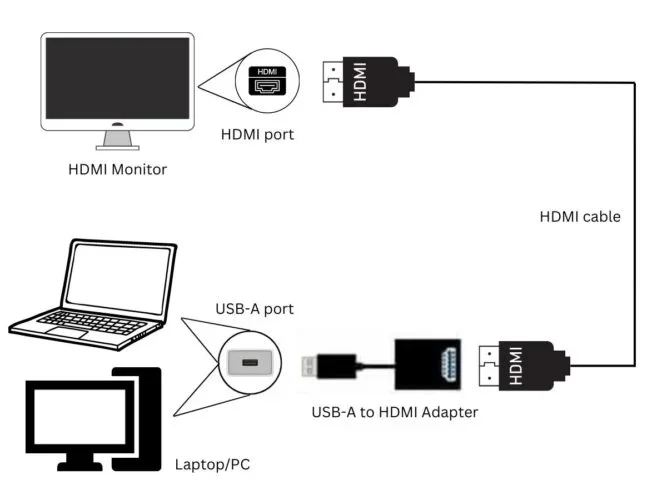
For most setups, you will need an adapter. The adapter converts the Micro HDMI signal to standard HDMI. This is the most common setup for connecting a phone to a monitor. The adapter plugs into your device first. Then a standard HDMI cable connects from the adapter to the monitor.
There are two main types of adapters you should know about:
- Passive adapters: These simply change the physical shape of the connector. They do not convert the signal. Passive adapters work when both devices support the same HDMI standard.
- Active adapters: These convert the signal from one format to another. For example, an active adapter might convert Micro HDMI to VGA or DVI. Active adapters often require external power or a USB connection.
For most Micro HDMI to monitor setups, a passive adapter is all you need. It is simple, reliable, and does not require any extra power source.
Types Of Micro HDMI Adapters For Monitor Connections
Not all adapters are the same. Choosing the right one makes a big difference in your setup. Let us look at the most common adapter types available on the market today.
Micro HDMI To Standard HDMI Adapter
This is the most popular adapter type. It has a Micro HDMI female end on one side and a standard HDMI male end on the other. You plug your Micro HDMI cable into the adapter. Then you connect a standard HDMI cable from the adapter to your monitor. This setup works great for most devices.
Look for adapters that are gold-plated. Gold plating reduces signal interference and corrosion. It also helps the connection last longer. A quality adapter costs between five and fifteen dollars. Do not cheap out here. A bad adapter can cause signal drops and flickering.
Micro HDMI To HDMI Cable (All-in-One)
Some cables come with a Micro HDMI plug on one end and a standard HDMI plug on the other. These are called hybrid or convertible cables. They eliminate the need for a separate adapter. This is a great option if you want a clean, simple setup. Just plug both ends in and you are done.
These cables are available in different lengths. Short cables work well for desk setups. Longer cables are better if your monitor is far away. Just remember that longer cables can sometimes reduce signal quality. Stick to cables under six feet for the best results.
Micro HDMI To USB-C Hub With HDMI Output
If you have a modern device with USB-C, you might not even need a Micro HDMI cable. Many USB-C hubs include an HDMI output port. You connect your device to the hub. Then use a standard HDMI cable from the hub to your monitor. This is a flexible solution that adds extra ports too.
USB-C hubs often include SD card readers, USB ports, and charging passthrough. They are great for people who need multiple connections at once. The downside is that they cost more than a simple adapter. But the extra functionality is worth it for many users.
Step-By-Step Guide To Connecting Micro HDMI To A Monitor
Setting up your Micro HDMI connection is easy. Follow these steps and you will be up and running in minutes. No technical skills are required.
Step 1: Check Your Device And Monitor Ports
First, look at your device. Does it have a Micro HDMI port? It is usually a very small slot labeled HDMI or Micro HDMI. Next, check your monitor. Most monitors have a standard HDMI port. Some monitors have multiple HDMI inputs. Note which port you plan to use.
Step 2: Choose The Right Adapter Or Cable
Based on your port check, pick the right adapter. If your device has Micro HDMI and your monitor has standard HDMI, get a Micro HDMI to standard HDMI adapter. Or buy a hybrid cable that has Micro HDMI on one end and standard HDMI on the other.
Quick tip: Always buy from reputable brands. Cheap no-name adapters can cause display problems. Look for cables that are HDMI 2.0 or higher certified. This ensures they support high resolutions and refresh rates.
Step 3: Plug In The Adapter And Cable
Connect the Micro HDMI end to your device. Push it in gently until it clicks. Then connect the standard HDMI end to your monitor. Make sure both connections are firm and secure. A loose connection is one of the most common reasons for no signal problems.
Step 4: Switch Your Monitor Input
Your monitor probably has multiple input options. Use the monitor’s buttons or remote to select the correct HDMI input. Most monitors show the input name on screen. Look for HDMI 1, HDMI 2, or whichever port you used. Once you select the right input, your device screen should appear on the monitor.
Step 5: Adjust Display Settings
If the image looks too big, too small, or cut off, adjust your display settings. On most devices, you can find these settings under Display or Screen settings. Choose the resolution that matches your monitor. A 1080p or 4K setting usually works best. You can also adjust the screen orientation and scaling to fit your preference.
Common Problems When Connecting Micro HDMI To A Monitor
Sometimes things do not go as planned. Connection issues are common but usually easy to fix. Here are the most frequent problems and how to solve them.
No Signal On The Monitor
This is the number one issue people face. If your monitor shows no signal, start by checking the cable connections. Make sure both ends are firmly plugged in. Try unplugging and replugging each connection. Also double-check that you selected the correct HDMI input on your monitor.
Another common cause is an incompatible adapter. Some adapters only support certain HDMI versions. If your device outputs 4K but your adapter only supports 1080p, you may get no signal. Check the adapter specifications before buying. Look for adapters that support the resolution your device uses.
Flickering Or Intermittent Display
A flickering screen usually points to a loose connection or a low-quality cable. Push the cable connections in firmly. If the flickering continues, try a different cable. Cheap cables often have poor shielding. This leads to signal interference and flickering. Investing in a better cable solves this problem quickly.
Also check the cable length. Very long cables without a signal booster can weaken the display signal. Keep your cable run under six feet for the most reliable connection. If you need a longer run, consider an active HDMI cable with built-in signal amplification.
Wrong Resolution Or Overscan Issues
If the image looks zoomed in or cut off at the edges, your resolution settings are likely wrong. Go into your device display settings and change the resolution. Match it to your monitor’s native resolution. For most monitors, this is 1920×1080 or 1080p. For 4K monitors, set it to 3840×2160.
Some devices also have an overscan setting. This setting can crop the edges of your display. Turn off overscan if you find it enabled. This usually fixes the cut-off image problem right away.
Expert Tips For Best Micro HDMI Performance
Getting the most out of your Micro HDMI connection comes down to a few smart choices. Here are expert tips that make a real difference.
Buy High-Speed Certified Cables
Not all HDMI cables are created equal. Look for cables labeled High Speed HDMI or Premium High Speed HDMI. These cables handle 4K video and high refresh rates without issues. Standard cables may work for basic 1080p content but struggle with higher resolutions. The certification label tells you the cable meets specific bandwidth requirements.
Keep Your Cables Away From Power Sources
HDMI cables carry digital signals. Power cables carry electrical current. When HDMI cables run parallel to power cables, electromagnetic interference can degrade the signal. Keep them separated by at least a few inches. If you must run them close together, use cables with good shielding. Braided HDMI cables typically offer better shielding than flat cables.
Update Your Device Display Drivers
Some devices need updated software to work properly with external monitors. Check for system updates on your phone or tablet before troubleshooting display issues. Updates often include fixes for display compatibility problems. This is a quick step that many people overlook.
Use A Powered Adapter For Long Cable Runs
If you need to run a cable longer than six feet, consider a powered adapter. A powered adapter boosts the signal strength over longer distances. This prevents signal loss and keeps your display crisp. Passive adapters work fine for short runs but may struggle with longer cable lengths.
Test With Multiple Devices
If you are having trouble, test your setup with a different device. This helps you isolate the problem. If another device works fine, the issue is with your original device. If no device works, the problem is likely the cable or adapter. This simple test saves a lot of guesswork.
Micro HDMI vs USB-C To HDMI: Which Should You Choose?
Many modern devices now use USB-C instead of Micro HDMI. USB-C is more versatile and increasingly common. But Micro HDMI still has its place. Here is how they compare for monitor connections.
Compatibility: USB-C to HDMI works with newer devices. Micro HDMI works with older smartphones and cameras. Check your device ports before buying either option.
Convenience: USB-C is reversible, meaning you can plug it in either direction. Micro HDMI has a specific orientation. This makes USB-C slightly more convenient for quick connections.
Video Quality: Both connections support high-definition video. USB-C with DisplayPort Alt Mode can carry 4K video. Micro HDMI also supports 4K with the right cable. The quality difference is minimal for most users.
Cost: Micro HDMI adapters are generally cheaper than USB-C hubs. If you are on a budget and your device has Micro HDMI, stick with that option. If your device has USB-C, a USB-C to HDMI adapter is the more future-proof choice.
Future-Proofing: USB-C is becoming the universal standard. More devices are adopting it every year. Micro HDMI is slowly being phased out of newer devices. If you buy adapters today, consider getting USB-C options for long-term use.
Which Devices Support Micro HDMI For Monitor Output?
Not every device uses Micro HDMI. Knowing which devices support it helps you plan your setup. Here are some common devices that include a Micro HDMI port.
- Samsung Galaxy smartphones: Many older Galaxy models include Micro HDMI. The Galaxy S5 and Note 3 are popular examples.
- Action cameras: Some action cameras from brands like GoPro use Micro HDMI for output. Check your specific model for compatibility.
- Portable media players: Certain handheld gaming devices and media players include Micro HDMI.
- Older tablets: Some Android tablets from a few years ago use Micro HDMI for external display output.
- Digital cameras: While most cameras use Mini HDMI, a few compact models use Micro HDMI.
If your device does not have Micro HDMI, do not worry. You have other options. USB-C to HDMI adapters work with most modern phones and tablets. Wireless screen mirroring is another alternative. Apps like Chromecast or Miracast let you cast your screen without any cables at all.
How To Get The Best Display Quality From Micro HDMI
You have your Micro HDMI connected to a monitor. Now you want the best possible picture. A few settings and habits make a big difference.
First, set your device resolution to match the monitor. If your monitor is 1080p, set your device to output 1080p. Mismatched resolutions cause blurry or stretched images. Most devices auto-detect the monitor resolution. But sometimes you need to adjust it manually.
Second, use the shortest cable that fits your setup. Shorter cables maintain stronger signal quality. If you need a longer cable, buy one with built-in signal boosting. This keeps your video crisp even over longer distances.
Third, close unnecessary apps on your device before connecting. This frees up processing power for smooth display output. Streaming videos or playing games on the external monitor runs smoother when your device is not overloaded.
Finally, keep your firmware updated. Device manufacturers release updates that improve external display compatibility. Check for updates regularly. A simple update can fix many display issues you did not even know existed.
Quick tip: If you notice color issues, check your monitor’s picture settings. Sometimes the monitor defaults to a color profile that does not match your content. Switching to a standard or natural color mode fixes most color problems. Adjust brightness and contrast to your comfort level for the best viewing experience.
Common mistake alert: Do not use a Micro HDMI to HDMI adapter with a damaged or bent pin. Even a slightly bent pin can cause intermittent connection problems. Inspect your adapter and cable connectors regularly. Replace any damaged parts immediately to avoid worsening the issue.
Final Thoughts On Micro HDMI Monitor Connections
Connecting a Micro HDMI device to a monitor is straightforward and totally doable. You just need the right adapter or cable. The process takes only a few minutes once you have the right gear. Whether you are presenting slides, watching videos, or extending your workspace, Micro HDMI gets the job done.
Remember to choose quality adapters and cables. They make a huge difference in signal reliability and display quality. Avoid the cheapest options if you want a dependable setup. A small investment in good gear saves you from headaches down the road.
Also keep in mind that USB-C is replacing Micro HDMI in many newer devices. If you are buying new accessories, consider USB-C options too. They offer more versatility and better long-term value. But if your device has Micro HDMI, you are in great shape. Just grab the right adapter and enjoy your bigger screen.
The bottom line is that Micro HDMI to monitor connections work really well when done right. Follow the steps in this guide. Avoid the common mistakes. And you will have a smooth, reliable display setup every time. Happy connecting.
Frequently Asked Questions
Can I plug a Micro HDMI cable directly into any monitor?
Most monitors only have standard HDMI ports. You will need a Micro HDMI to standard HDMI adapter or a hybrid cable to make the connection. Direct plug-in only works if your monitor specifically has a Micro HDMI input, which is rare.
Does Micro HDMI support 4K resolution on a monitor?
Yes, Micro HDMI can support 4K resolution. You need a High Speed or Premium High Speed HDMI cable and a compatible adapter. Check both your device and monitor specs to confirm 4K support through the Micro HDMI connection.
Why does my monitor show no signal when I connect Micro HDMI?
The most common reasons are loose cable connections, wrong HDMI input selected on the monitor, or an incompatible adapter. Try reseating the cables, switching the monitor input, and checking your adapter specifications to resolve the issue.
Can I use a Micro HDMI adapter with a laptop or tablet?
Yes, if your laptop or tablet has a Micro HDMI port. Many older Android tablets and some laptops include this port. Check your device specifications to confirm it has Micro HDMI before purchasing an adapter.
Is Micro HDMI the same as Mini HDMI?
No, they are different connectors. Micro HDMI is smaller than Mini HDMI. Micro HDMI is Type D and Mini HDMI is Type C. They are not interchangeable without the correct adapter. Always check which type your device uses before buying accessories.
What is the best Micro HDMI adapter for connecting to a monitor?
The best adapter depends on your needs. For simple setups, a passive Micro HDMI to standard HDMI adapter works great. For more features, consider a USB-C hub with HDMI output. Look for gold-plated, certified adapters from reputable brands for the best performance and reliability.
=== CONCLUSION ===
Micro HDMI connects to a monitor easily and reliably with the right adapter or cable. You have learned how the connection works, which adapters to choose, and how to set everything up step by step. The process is simple and does not require technical expertise. Just match your adapter to your device and monitor ports, plug everything in, and adjust your display settings.
Avoid common pitfalls like cheap adapters, loose connections, and mismatched resolution settings. Use high-quality cables and keep your connections clean. These small habits make a big difference in your daily experience. Whether you are working, watching content, or presenting, a solid Micro HDMI setup delivers a great big-screen experience.
Now that you know how Micro HDMI connects to monitors, you can set up your display with confidence. Pick the right adapter, follow the steps in this guide, and enjoy your expanded screen. Your setup will work smoothly and reliably every time.