Can You Connect Hdmi Through Usb Your Questions Answered
Yes, you can connect HDMI through USB using the right adapter or cable. This guide covers USB to HDMI options for laptops, monitors, TVs, and more. You will learn how video signals travel through USB ports, which adapters work best, and how to fix common display issues fast.
Have you ever plugged in a cable and thought, “Why is this not working?” You are not alone. Many people ask, Can You Connect HDMI Through USB, and the answer is simpler than you think. This guide breaks it all down in plain language. You will walk away knowing exactly what works, what does not, and how to set it up in minutes.
The world of cables and ports can feel confusing. There are USB-A, USB-C, Thunderbolt, HDMI, and more. But here is the good news. Connecting an HDMI display through a USB port is something you can do today. Whether you want to hook up a second monitor, cast video to a TV, or use a projector, the right USB to HDMI adapter makes it possible. Let us dive in and make it easy for you.
Key Takeaways
- USB to HDMI works: You can send video from a USB port to an HDMI display with the right adapter.
- USB Type-C and Thunderbolt support video output, making them ideal for external display connections.
- Not all USB ports carry video signals, so check your device specs before buying an adapter.
- USB HDMI adapters are plug-and-play in most cases and need no extra software.
- Resolution limits depend on the USB version and adapter quality you choose.
- Common issues like no signal or flickering are usually easy to fix with simple steps.
📑 Table of Contents
What Is HDMI Through USB and How Does It Work
HDMI stands for High-Definition Multimedia Interface. It carries both video and audio through a single cable. USB stands for Universal Serial Bus. It was first designed for data transfer and charging. So how do these two work together?
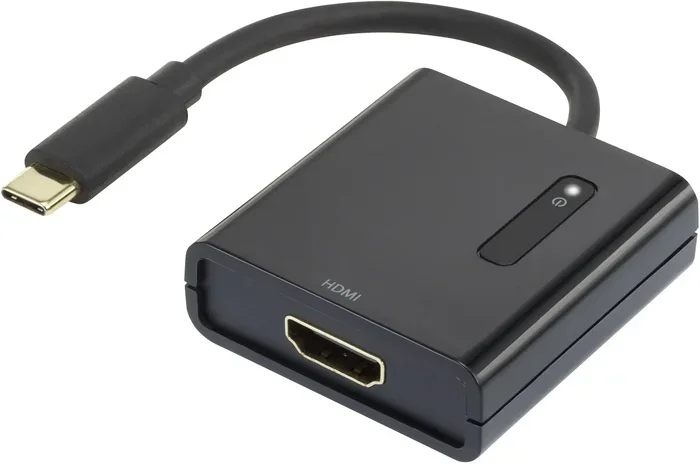
The secret is in the adapter. A USB to HDMI adapter acts as a translator. It takes the digital signal from a USB port and converts it into an HDMI signal. This lets you send video and sound from your device to a bigger screen. Think of it like a bridge between two different languages.
Not every USB port can do this. Older USB 2.0 ports often lack the bandwidth needed for video. USB 3.0 and newer versions handle video much better. USB Type-C ports are especially good at this because they support display output natively in many cases. Always check what kind of USB port your device has before buying an adapter.
How the Signal Conversion Happens
Inside the adapter, a small chip does the heavy lifting. It reads the data coming from the USB port and re-encodes it into an HDMI format. This process is called signal conversion. The adapter then sends the signal out through the HDMI cable to your TV or monitor.
Most modern adapters handle this automatically. You do not need to install extra software. Just plug in the adapter, connect the HDMI cable, and your screen should show up right away. This is what people mean by plug and play. It works with most laptops, tablets, and desktops that support video over USB.
Types of USB to HDMI Connections
Not all USB to HDMI setups are the same. The type of connection you need depends on your device. Let us look at the most common options.
USB-A to HDMI
USB-A is the classic rectangular port found on older laptops and desktops. A USB-A to HDMI adapter is a small dongle you plug into the USB-A port. Then you run an HDMI cable from the adapter to your TV or monitor. These adapters are affordable and widely available. They work well for basic tasks like extending your screen or watching a video on a larger display.
However, USB-A to HDMI adapters often need external power. Some draw power from the USB port itself. Others come with a small USB cable that you plug into a second port for extra power. If you see a flickering screen, this power issue might be the cause.
USB-C to HDMI
USB-C is the newer, smaller, reversible port found on most modern laptops and phones. A USB-C to HDMI cable or adapter is one of the easiest ways to connect to a display. Many laptops with USB-C ports support DisplayPort Alt Mode. This means the port can natively send video signals without needing extra software.
These adapters come in two forms. One is a small dongle that plugs into your USB-C port. The other is a cable that has a USB-C plug on one end and an HDMI plug on the other. Both work great. The cable style is often more convenient because you do not need a separate HDMI cable.
Thunderbolt to HDMI
Thunderbolt ports look the same as USB-C but offer much faster speeds. A Thunderbolt to HDMI adapter can handle high-resolution video with ease. Thunderbolt 3 and Thunderbolt 4 support video output up to 4K and even 8K in some cases. If you have a Thunderbolt port, you are in great shape for a smooth external display setup.
Thunderbolt adapters tend to cost a bit more. But they deliver top performance. They are ideal for video editors, designers, and anyone who needs a reliable, high-quality connection.
Can You Connect HDMI Through USB on Different Devices
The short answer is yes, in most cases. But the setup varies depending on what device you are using. Let us break it down by device type.
Laptops and Notebooks
Most modern laptops have at least one USB-C port. This makes connecting to an HDMI display very straightforward. You can use a USB-C to HDMI adapter or a direct cable. Your laptop should recognize the external screen within seconds.
If your laptop only has USB-A ports, you can still connect HDMI. Just grab a USB-A to HDMI adapter. Keep in mind that older laptops may not support video over USB. Check your laptop manual or the manufacturer website to confirm. Look for terms like “display output over USB” or “video capable.”
Desktop Computers
Desktop PCs often have dedicated HDMI ports already. But sometimes you need extra outputs. Maybe your GPU does not have enough ports. Or maybe you want to add a second monitor in a convenient spot. A USB to HDMI adapter solves this problem nicely.
Just plug the adapter into an available USB port. Connect your HDMI cable. Then set up your display in your operating system settings. On Windows, go to Display Settings. On macOS, go to Displays. You can choose to extend or mirror your screen. Both options work well with a USB HDMI adapter.
Tablets and Phones
Many tablets and phones now have USB-C ports. This opens up the possibility of connecting to an HDMI screen. Android tablets with USB-C often support MHL or DisplayLink technology. iPhones do not have USB-C yet (except the iPhone 15 lineup), so they need a Lightning to HDMI adapter instead.
For Android users, a simple USB-C to HDMI cable works in most cases. Just plug it in and your tablet screen should appear on the TV. iPhones require a special Apple-certified adapter. These are a bit pricier but they work reliably.
Streaming and Gaming Devices
Some streaming sticks and mini PCs use USB for power only. They do not output video through USB. But devices like the Raspberry Pi or certain mini PCs can use a USB to HDMI adapter for display output. If you are building a custom media setup, check the device specs carefully. Not every device supports video over USB.
Best USB to HDMI Adapters and Cables
Not all adapters are created equal. Some deliver great picture quality. Others struggle with resolution or flicker. Here are the types of USB HDMI adapters you should consider.
What to Look For in a Good Adapter
When shopping for a USB to HDMI adapter, keep these factors in mind:
- USB version: USB 3.0 or newer handles video better than USB 2.0.
- Resolution support: Look for adapters that support at least 1080p or 4K.
- Port type: Match the adapter to your device port. USB-C for modern devices, USB-A for older ones.
- Power delivery: Some adapters need a power source. Check if yours includes one.
- Brand reputation: Stick with trusted brands like Belkin, Cable Matters, or Anker.
- Driver support: Some adapters need drivers installed. Others are truly plug and play.
Quick Comparison of USB to HDMI Options
| Adapter Type | Best For | Max Resolution | Price Range |
|---|---|---|---|
| USB-A to HDMI | Older laptops and desktops | 1080p | $10 – $25 |
| USB-C to HDMI | Modern laptops and tablets | 4K | $12 – $30 |
| Thunderbolt to HDMI | High-resolution and pro use | 4K / 8K | $25 – $60 |
| USB-C Hub with HDMI | Multi-device setups | 4K | $30 – $80 |
As you can see, there is an option for every budget and need. A simple USB-C to HDMI cable costs under $20 and works great for most people. If you need more ports, a USB hub with HDMI gives you extra USB ports plus video output in one device.
Common Problems and How to Fix Them
Even with the right adapter, you might run into issues. Here are the most common problems and easy fixes.
No Signal on the HDMI Display
If your TV or monitor shows no signal, do not panic. Start with these steps:
- Check that the adapter is fully plugged in.
- Make sure the HDMI cable is secure on both ends.
- Try a different USB port on your device.
- Restart your device and the display.
- Check your display settings to see if the external screen is detected.
Sometimes the USB port itself does not support video output. Try a different port. If you are using a USB hub, plug the adapter directly into the device instead. Hubs can sometimes reduce the power or signal strength.
Flickering or Poor Image Quality
A flickering screen often points to a power issue. If your adapter has a power cable, make sure it is plugged in. A low-quality HDMI cable can also cause this. Try swapping in a better cable and see if the problem goes away.
Resolution mismatch is another common cause. Your device might be trying to output a resolution your TV cannot handle. Go to your display settings and lower the resolution. Start with 1080p and see if the flickering stops.
Audio Not Working Through HDMI
Video might work but the sound might not. This happens when your device is still sending audio through its own speakers instead of the HDMI output. On Windows, right-click the speaker icon and select your HDMI device as the default output. On macOS, go to Sound Preferences and choose the HDMI output.
Some USB to HDMI adapters do not support audio at all. Check the product specs before buying if audio matters to you. Most modern adapters handle both video and sound without any issues.
Adapter Not Recognized by the Device
If your device does not recognize the adapter, the driver might be the problem. Some adapters, especially those using DisplayLink technology, need a driver installed. Visit the adapter manufacturer’s website and download the latest driver for your operating system.
On the other hand, many adapters are truly plug and play. They use standard protocols like USB Display or Miracast. No drivers needed. If your adapter falls into this category, simply unplug it, plug it back in, and wait a few seconds.
Expert Tips for Getting the Best HDMI USB Connection
Want to get the most out of your USB HDMI setup? Here are some tips from people who know their stuff.
Use High-Quality Cables
The cable matters just as much as the adapter. A cheap HDMI cable can limit your resolution or cause signal drops. Look for cables rated for high speed and 4K support. Brands like Belkin, Amazon Basics, and Cable Matters make reliable options at fair prices.
Keep Your Adapter Cool
Adapters can get warm during use, especially during long gaming or video sessions. Do not block the vents. Place the adapter in an open area where air can flow around it. If it gets too hot, it may cause signal drops or display issues.
Update Your Display Drivers
Even with plug-and-play adapters, keeping your display drivers up to date helps. On Windows, go to Device Manager and check for display adapter updates. On macOS, system updates usually include the latest drivers. Fresh drivers can fix weird display quirks and improve performance.
Test Different Resolutions
Not every display supports every resolution. If your picture looks blurry or cut off, try changing the resolution. Right-click your desktop on Windows and select Display Settings. On macOS, go to Displays. Pick a resolution that matches your TV or monitor’s native resolution for the sharpest picture.
Consider a USB Hub for Extra Ports
If you need more USB ports and an HDMI output, a USB-C hub with HDMI is a great choice. These hubs give you extra USB ports, an HDMI output, and sometimes even an SD card reader or ethernet port. They keep your desk tidy and your connections organized.
Key Takeaways
- You can connect HDMI through USB: Use a USB to HDMI adapter or cable to send video from a USB port to an HDMI display.
- USB Type-C and Thunderbolt are the best ports for video output over USB. They support high resolutions and are widely compatible.
- USB-A to HDMI adapters work but may need extra power and might not support 4K resolution.
- Check your device specs before buying. Not every USB port supports video output.
- Most adapters are plug and play: No software or drivers needed for basic setups.
- Common issues like no signal or flickering are usually easy to fix with simple troubleshooting steps.
- Invest in quality cables and adapters for the best picture and sound quality.
Conclusion
So, can you connect HDMI through USB? Absolutely. With the right USB to HDMI adapter or cable, you can turn any USB port into a video output. Whether you are using a laptop, desktop, tablet, or phone, there is an option that fits your needs. The key is to match your device’s port type with the right adapter and to check that your USB port supports video output.
The process is simple. Plug in the adapter, connect the HDMI cable, and your external display comes to life. Most setups are truly plug and play. You do not need to be a tech expert to get it working. And if you run into trouble, the fixes are usually quick and easy.
Connecting HDMI through USB opens up new possibilities. You can work with a bigger screen, enjoy movies on the TV, or set up a dual-monitor workspace. It is a small investment that makes a big difference. Grab the right adapter, give it a try, and enjoy the bigger picture.
Frequently Asked Questions
Can any USB port output HDMI video?
No, not every USB port can output video. USB 3.0 and newer ports, especially USB-C and Thunderbolt, support video output. Older USB 2.0 ports often cannot carry a video signal. Always check your device specifications to confirm that your USB port supports display output before buying an adapter.
Do I need to install software for a USB to HDMI adapter?
Most modern adapters are plug and play and do not require any software. However, some adapters, particularly those using DisplayLink technology, need a driver installed. Check the product description before purchasing. If a driver is needed, it is usually free and easy to download from the manufacturer website.
What is the best USB to HDMI adapter for 4K video?
For 4K video, a USB-C to HDMI adapter or a Thunderbolt to HDMI adapter is your best bet. Look for adapters that explicitly state 4K support at 60Hz. Brands like Cable Matters, Anker, and Belkin offer reliable 4K-capable options at reasonable prices. Always pair your adapter with a high-speed HDMI cable for the best results.
Can I use a USB to HDMI adapter with a TV?
Yes, you can use a USB to HDMI adapter with most TVs that have an HDMI input. Simply connect the adapter to your laptop or tablet, run an HDMI cable to the TV, and switch the TV to the correct HDMI input. This works great for streaming content, presentations, or extending your screen to a bigger display.
Why does my USB to HDMI adapter keep disconnecting?
Frequent disconnections are usually caused by power issues or a loose connection. Try plugging the adapter directly into your device instead of through a USB hub. Make sure the USB port is clean and the adapter is firmly seated. If the problem continues, the adapter may need a firmware update or it might be defective.
Is USB to HDMI the same as screen mirroring?
Not exactly. A USB to HDMI adapter creates a wired connection that extends or mirrors your screen to an external display. Screen mirroring typically refers to wireless connections using technologies like Miracast or AirPlay. A wired USB to HDMI connection is generally more stable and reliable than wireless mirroring, especially for high-resolution content.