Can You Connect Hdmi To Type C Here Is How To Do It
Yes, you can connect HDMI to Type C using a USB-C to HDMI adapter or cable. This simple setup lets you mirror or extend your laptop, tablet, or phone screen to any HDMI display like a TV or monitor. Whether you need a USB-C HDMI adapter for presentations or 4K streaming on the go, this guide covers everything you need to know.
Have you ever been in a situation where you need to show something on a big screen but your laptop or phone only has a USB-C port? Maybe you are at a work meeting, giving a presentation, or just want to watch a movie on your TV from your tablet. The question that probably came to mind is simple: can you connect HDMI to Type C?
The short answer is yes. You absolutely can. And it is easier than most people think. Whether you are using a laptop, a smartphone, or a tablet, connecting your device to an HDMI display is straightforward once you know the right method. In this guide, we will walk you through everything you need to know about HDMI to Type C connections.
We will cover how the technology works, what adapters you need, step-by-step setup instructions, common problems, and the best products on the market. By the end of this article, you will feel confident making any USB-C to HDMI connection without a second thought.
Key Takeaways
- HDMI to Type C connections are fully supported: Most modern devices with USB-C ports can output HDMI signals using the right adapter or cable.
- You need a USB-C HDMI adapter or cable: These come in different types including active adapters, passive cables, and docking stations.
- HDMI Alt Mode is the key technology: It allows USB-C ports to carry video signals directly to HDMI displays.
- 4K and even 8K support is possible: The right adapter can deliver high-resolution video and audio through a single USB-C connection.
- Compatibility matters: Check your device specs to confirm it supports HDMI Alt Mode and the resolution you need.
- Troubleshooting is simple: Most issues like no signal or low resolution can be fixed with a firmware update or adapter replacement.
- You can charge while casting: Many USB-C docking stations allow you to charge your device and connect to an HDMI display simultaneously.
📑 Table of Contents
- Understanding HDMI and USB-C: The Basics
- How HDMI to Type C Connections Work
- Types of HDMI to USB-C Adapters and Cables
- Step-by-Step Setup Guide
- Common Issues and Troubleshooting
- Best Devices and Adapters for HDMI to Type C
- Expert Tips for the Best Experience
- Key Takeaways
- Frequently Asked Questions
- Final Thoughts
Understanding HDMI and USB-C: The Basics
What Is HDMI?
HDMI stands for High-Definition Multimedia Interface. It is the most common cable standard for sending both video and audio from a source device to a display. You will find HDMI ports on TVs, monitors, projectors, and even some older laptops. The standard HDMI cable carries uncompressed video and audio signals through a single cable. This makes it incredibly convenient for home theaters, office presentations, and gaming setups.
There are several versions of HDMI. The most common ones you will encounter are HDMI 1.4, HDMI 2.0, and HDMI 2.1. Each version supports different resolutions and refresh rates. For example, HDMI 2.0 can handle 4K at 60Hz, while HDMI 2.1 supports 4K at 120Hz and even 8K. When choosing a USB-C to HDMI adapter, make sure it supports the version you need for your display.
What Is USB-C?
USB-C is a universal connector that has become the standard port on modern laptops, tablets, and smartphones. It is small, reversible, and incredibly versatile. A single USB-C port can handle data transfer, power delivery, and video output all at the same time.
This versatility is what makes USB-C so popular. You can plug in a single cable and charge your device, transfer files, and output video to an external display. The USB-C port is not the same as a regular USB-A port. It is oval-shaped and symmetrical, so you never have to worry about which way to plug it in.
What Is HDMI Alt Mode?
Here is where the magic happens. HDMI Alt Mode is a feature built into the USB-C specification. It allows a USB-C port to directly output an HDMI signal without needing any extra hardware on the device side. When a device supports HDMI Alt Mode, it means the USB-C port can carry video and audio signals that are compatible with HDMI displays.
Not every USB-C device supports HDMI Alt Mode. Some budget devices or older models may only support USB-C for data and charging. This is why it is important to check your device specifications before buying an adapter. You can usually find this information in the user manual or on the manufacturer website.
How HDMI to Type C Connections Work
The Role of the Adapter
When you connect a USB-C device to an HDMI display, the USB-C HDMI adapter does the heavy lifting. The adapter takes the digital signal from the USB-C port and converts it into a format that an HDMI cable and display can understand. Think of the adapter as a translator between two different languages.
Most adapters are “active,” meaning they have a small chip inside that handles the signal conversion. Passive adapters exist too, but they are less common and usually only work with devices that have very specific hardware support. For most users, an active USB-C to HDMI adapter is the way to go.
Video and Audio Transmission
A good HDMI to Type C setup does not just send video. It also transmits audio through the same connection. This means you can connect your laptop to a TV and hear the sound through the TV speakers without needing a separate audio cable. The HDMI standard carries both video and audio signals simultaneously, which is one of its biggest advantages.
The quality of the video and audio depends on several factors. These include the adapter quality, the HDMI cable version, and the capabilities of your source device. A high-quality adapter will support resolutions up to 4K or even 8K with clear, crisp audio. A cheap adapter might only support 1080p or experience signal dropouts.
Resolution and Refresh Rate Support
The resolution and refresh rate you can achieve depend on your device and adapter. Most modern USB-C HDMI adapters support 4K at 30Hz or 60Hz. Some premium adapters can push 4K at 120Hz or even 8K at 60Hz. If you are a gamer or a video editor, you will want to invest in an adapter that supports higher refresh rates for smoother visuals.
Here is a quick comparison of common resolutions and what they mean for your setup:
- 1080p (Full HD): Great for everyday use, presentations, and casual movie watching.
- 4K at 30Hz: Good for photo editing and general productivity. Slight motion blur in fast-moving content.
- 4K at 60Hz: Ideal for video editing, streaming, and smooth desktop use.
- 4K at 120Hz: Best for gaming and high-frame-rate video content. Requires a premium adapter.
Types of HDMI to USB-C Adapters and Cables
USB-C to HDMI Adapters
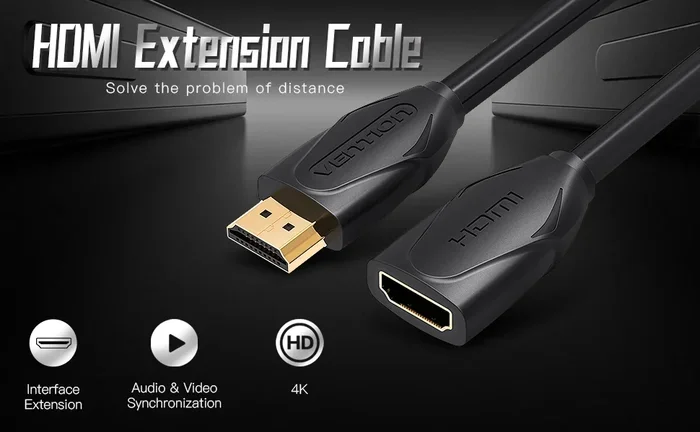
This is the most common type of HDMI to Type C accessory. It is a small dongle that plugs into your USB-C port and has an HDMI female port on the other end where you connect your HDMI cable. These adapters are compact, portable, and affordable. They are perfect for people who travel frequently and need a quick connection to a TV or projector.
When shopping for a USB-C HDMI adapter, look for these features:
- Support for 4K resolution at 60Hz
- HDCP 2.2 compliance for protected content
- Plug-and-play functionality (no drivers needed)
- Build quality and durability
- Compatibility with your specific device
USB-C to HDMI Cables
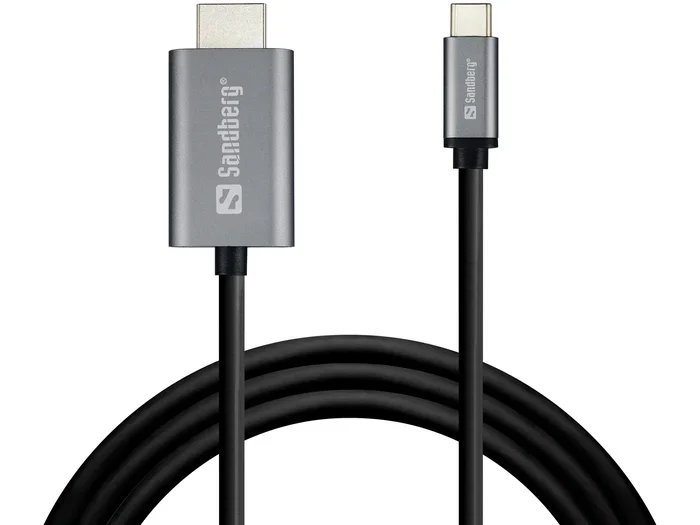
Instead of using a separate adapter and HDMI cable, you can use an all-in-one USB-C to HDMI cable. One end plugs into your device’s USB-C port, and the other end has a standard HDMI connector. These cables are convenient because they eliminate the need for a separate adapter. They are great for setups where you connect your device to a display frequently.
The downside is that they are less flexible than adapters. If you need to connect to a VGA monitor or a DisplayPort monitor, you will need a different cable. Adapters often come with multiple output options, giving you more versatility.
USB-C Docking Stations
If you need more than just an HDMI connection, a USB-C docking station is a great investment. These stations connect to your device through a single USB-C cable and offer multiple ports including HDMI, USB-A, Ethernet, SD card readers, and power delivery. You can connect to a display, charge your device, and access peripherals all at once.
Docking stations are especially useful for professionals who work from a desk setup regularly. They turn a lightweight laptop into a full workstation with minimal cable clutter. Popular brands like CalDigit, Anker, and Belkin make excellent docking stations that support HDMI Alt Mode and high-resolution output.
Wireless HDMI Options
If you do not want to deal with cables at all, there are wireless options available. Devices like the Microsoft Wireless Display Adapter or products from brands like IOGEAR allow you to stream your screen from a USB-C device to an HDMI display over Wi-Fi. These are great for casual use, but they may introduce slight latency. For gaming or real-time video editing, a wired USB-C to HDMI adapter is still the better choice.
Step-by-Step Setup Guide
Step 1: Check Your Device Compatibility
Before buying anything, check if your device supports HDMI Alt Mode. On most modern laptops and phones, this is listed in the specifications. Look for terms like “DisplayPort Alt Mode” or “HDMI Alt Mode” in the USB-C port description. If you are unsure, search your device model online along with “HDMI output” to confirm.
Step 2: Choose the Right Adapter or Cable
Once you confirm compatibility, choose the right HDMI to Type C accessory. For most users, a simple USB-C HDMI adapter will work perfectly. If you need more ports, consider a docking station. Make sure the adapter supports the resolution and refresh rate you need.
Step 3: Connect the Adapter
Plug the adapter into your device’s USB-C port. Make sure it clicks in securely. If your device has a USB-C port that supports power delivery, avoid using adapters that block the charging port. Instead, look for adapters with a passthrough charging port.
Step 4: Connect the HDMI Cable
Plug one end of your HDMI cable into the adapter and the other end into your TV or monitor. Make sure both connections are firm.
Step 5: Switch Your Display Input
On your TV or monitor, switch the input source to the correct HDMI port. Use the remote control or the monitor’s built-in menu to select the right HDMI input. Your device screen should now appear on the display.
Step 6: Adjust Display Settings
On your laptop or device, go to the display settings. You can choose to mirror your screen or extend it as a second display. Adjust the resolution and orientation to match your TV or monitor. On Windows, right-click the desktop and select Display Settings. On Mac, go to System Preferences and click Displays.
Common Issues and Troubleshooting
No Signal on the Display
If your screen is black and the display says “No Signal,” do not panic. This is the most common issue with USB-C to HDMI setups. First, check that the adapter is fully plugged in. Try unplugging and reinserting it. Next, make sure your HDMI cable is working by testing it with another device. If those steps do not help, try a different adapter.
Low Resolution or Flickering
If your display looks blurry or flickers, the adapter may not support the resolution your device is trying to output. Go to your display settings and lower the resolution to 1080p or 4K at 30Hz. If the problem persists, the adapter may be faulty or incompatible with your device.
No Audio Through HDMI
Sometimes video works but there is no sound. This usually happens when the audio output is set to the wrong device. On Windows, click the speaker icon in the taskbar and select your HDMI display as the audio output device. On Mac, go to Sound Preferences and choose the HDMI output.
Adapter Not Recognized
If your device does not recognize the adapter at all, try these steps. First, remove the adapter and wait a few seconds before plugging it back in. Update your device drivers. On Windows, go to Device Manager and check for any yellow warning icons. Restart your device and try again. If nothing works, the adapter may not be compatible with your specific USB-C implementation.
Best Devices and Adapters for HDMI to Type C
Top Adapter Picks
The market is flooded with USB-C HDMI adapters, but not all of them are created equal. Here are some of the best options based on performance, build quality, and value:
- Anker USB-C to HDMI Adapter: Compact and reliable. Supports 4K at 60Hz. Great for everyday use and travel.
- Belkin USB-C to HDMI Adapter: Premium build quality with solid compatibility across Windows, Mac, and Chrome OS devices.
- Cable Matters USB-C to HDMI Adapter: Excellent value for money. Supports 4K output and works with most USB-C devices.
- Satechi Aluminum USB-C Adapter: Stylish design with a robust build. Includes additional USB-A and USB-C ports for versatility.
Top Docking Station Picks
If you need a full-featured setup, these docking stations offer the best HDMI to Type C connectivity:
- CalDigit TS3 Plus: A powerhouse docking station with HDMI 2.0, multiple USB ports, and 87W power delivery.
- Anker PowerExpand Elite: Sleek design with 4K HDMI output, Gigabit Ethernet, and fast charging support.
- UGREEN USB-C Docking Station: Budget-friendly option with solid 4K support and multiple connectivity options.
What to Look for When Buying
When shopping for a USB-C to HDMI accessory, keep these factors in mind:
- Resolution support: Make sure it handles the resolution you need, whether that is 1080p, 4K, or higher.
- HDCP compliance: This is essential if you plan to stream protected content like Netflix or Disney Plus.
- Build quality: A well-built adapter will last longer and provide a more stable connection.
- Brand reputation: Stick with trusted brands like Anker, Belkin, Satechi, and Cable Matters.
- Price: You do not need to spend a fortune, but avoid the cheapest options as they often have compatibility issues.
Expert Tips for the Best Experience
Always Use a High-Quality HDMI Cable
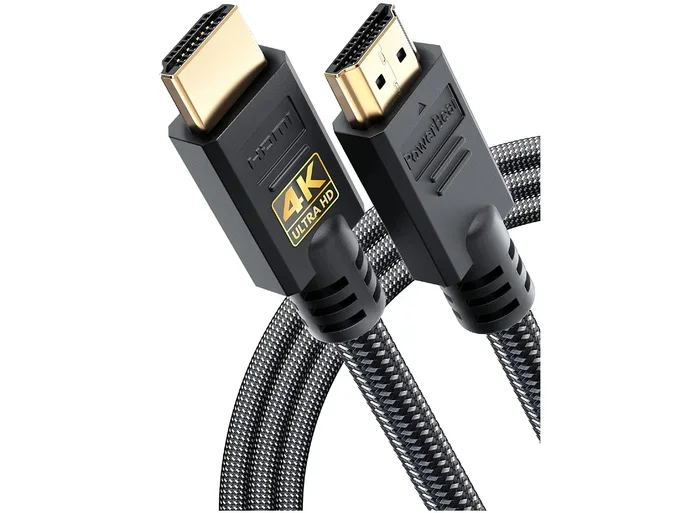
The adapter is only half of the equation. A cheap or damaged HDMI cable can cause all sorts of problems, from no signal to poor picture quality. Invest in a certified HDMI cable that supports the resolution you need. For 4K, look for a Premium High Speed HDMI cable.
Keep Your Device Updated
Sometimes display issues are caused by outdated firmware or drivers. Keep your operating system and device drivers up to date. Manufacturers regularly release updates that improve USB-C HDMI compatibility and performance.
Avoid Cheap No-Name Adapters
It is tempting to buy the cheapest adapter on Amazon, but this can lead to frustration. Cheap adapters often have poor chipsets that cause flickering, low resolution, or complete failure. Spending a little more on a reputable brand saves you time and headaches in the long run.
Test Before Important Presentations
If you are using a HDMI to Type C setup for an important presentation or event, test everything beforehand. Connect your device to the display, check the resolution, verify the audio, and make sure everything works smoothly. There is nothing worse than technical issues in front of an audience.
Key Takeaways
- HDMI to Type C connections are fully supported: Most modern devices with USB-C ports can output HDMI signals using the right adapter or cable.
- You need a USB-C HDMI adapter or cable: These come in different types including active adapters, passive cables, and docking stations.
- HDMI Alt Mode is the key technology: It allows USB-C ports to carry video signals directly to HDMI displays.
- 4K and even 8K support is possible: The right adapter can deliver high-resolution video and audio through a single USB-C connection.
- Compatibility matters: Check your device specs to confirm it supports HDMI Alt Mode and the resolution you need.
- Troubleshooting is simple: Most issues like no signal or low resolution can be fixed with a firmware update or adapter replacement.
- You can charge while casting: Many USB-C docking stations allow you to charge your device and connect to an HDMI display simultaneously.
Frequently Asked Questions
Can I connect HDMI to Type C without an adapter?
No, you cannot connect HDMI directly to a USB-C port without an adapter or cable. The USB-C and HDMI connectors are physically different, so you need a USB-C to HDMI adapter or a USB-C to HDMI cable to bridge the connection between your device and the display.
Does every USB-C device support HDMI output?
Not every USB-C device supports HDMI output. The device must have HDMI Alt Mode or DisplayPort Alt Mode built into its USB-C port to output video. Check your device specifications or the manufacturer website to confirm whether your specific model supports video output through USB-C.
Can I use a USB-C HDMI adapter for gaming?
Yes, you can use a USB-C to HDMI adapter for gaming, but the experience depends on the adapter quality and your device’s graphics capabilities. For the best gaming experience, choose an adapter that supports 4K at 60Hz or higher. Wireless HDMI options are not ideal for gaming due to input lag.
Will a USB-C HDMI adapter work with a Mac?
Most USB-C HDMI adapters work with MacBooks and iMacs that have USB-C or Thunderbolt 3 ports. Apple’s own USB-C Digital AV Multiport Adapter is a popular choice for Mac users. Make sure the adapter is compatible with macOS and supports the resolution you need.
Can I charge my device while using an HDMI adapter?
Yes, many USB-C HDMI adapters and docking stations support pass-through charging. This means you can connect your charger to the adapter’s power port while the HDMI adapter is connected to your display. This is especially useful for laptops that need to stay powered during presentations or extended use.
What is the difference between USB-C HDMI adapters and Thunderbolt adapters?
A standard USB-C HDMI adapter handles video output through HDMI Alt Mode. A Thunderbolt adapter uses the Thunderbolt protocol, which offers higher bandwidth and can support multiple displays. Thunderbolt 3 and Thunderbolt 4 adapters are backward compatible with USB-C devices but offer superior performance for demanding tasks like video editing and multi-monitor setups.
Final Thoughts
So, can you connect HDMI to Type C? Absolutely. With the right USB-C HDMI adapter or cable, you can turn any USB-C device into a powerful display output machine. Whether you are connecting your laptop to a TV for movie night, hooking up a projector for a work presentation, or extending your screen for productivity, the process is simple and reliable.
The key is choosing a quality adapter that matches your device and your needs. Look for 4K support, HDCP compliance, and a reputable brand. Avoid the temptation to buy the cheapest option, as a good adapter will save you from frustration and deliver a much better experience.
Once you set up your HDMI to Type C connection, you will wonder how you ever lived without it. It opens up a world of possibilities for how you use your devices. From casual streaming to professional presentations, this simple connection makes a huge difference. Now that you know how to do it, go ahead and give it a try. You will be glad you did.