Can You Pop Keys Off A Laptop And How To Replace Them
Yes, you can pop keys off a laptop in most cases, and replacing them is simpler than you think. Whether a key is stuck, broken, or missing, understanding how your laptop keyboard works helps you fix it yourself. This guide walks you through every step, from removing the keycap to snapping the new one back into place. You will learn what tools you need, what mistakes to avoid, and when to call a professional. By the end, you will feel confident tackling laptop key replacement on your own.
Have you ever stared at your laptop keyboard and thought, “Can you pop keys off a laptop?” Maybe one key started wobbling, or a keycap fell off entirely while you were typing. It is a frustrating moment, but here is the good news — in most cases, the answer is yes. You can pop keys off a laptop, and you can put them back on too.
Laptop keyboards are designed to be user-serviceable, which means manufacturers expect you might need to fix or replace a key at some point. Whether your laptop keys falling off is caused by spills, wear and tear, or just everyday use, you do not need to be a tech expert to handle it. This guide will show you exactly how to remove a key, replace it, and avoid the mistakes that cause damage.
By the time you finish reading, you will know everything about removing keys from a laptop, what tools to use, and how to tell when a problem is beyond a DIY fix. Let us dive in.
Key Takeaways
- Most laptop keys can be popped off without damaging the keyboard, but the method depends on your laptop model.
- You need a keycap puller or a flat tool to safely remove keys without breaking the retainer clip.
- Replacing a laptop key involves reattaching the retainer clip and snapping the keycap back on firmly.
- Common mistakes include using too much force, losing small clips, and not cleaning underneath first.
- Not all keyboards are the same — scissor-switch and membrane keyboards require different handling than mechanical ones.
- Replacement key kits are affordable and widely available online for most popular laptop brands.
- When in doubt, consult a professional to avoid costly damage to your laptop keyboard.
📑 Table of Contents
- Can You Pop Keys Off A Laptop?
- Tools You Need To Remove And Replace Laptop Keys
- Step-By-Step: How To Pop Keys Off And Replace Them
- Common Mistakes When Removing Laptop Keys
- When To Seek Professional Help Instead
- Prevention Tips To Keep Your Laptop Keys Secure
- Frequently Asked Questions
- Final Thoughts
Can You Pop Keys Off A Laptop?
The short answer is yes. Most laptop keyboards allow you to pop keys off without breaking anything. But the process is not always the same for every laptop. The method you use depends on the type of keyboard your laptop has.
Modern laptops typically use one of two keyboard designs. The first is called a scissor-switch keyboard. These keys have a thin, interlocking mechanism underneath that gives them a stable feel. The second type is a membrane keyboard, which is less common in newer laptops but still found in some budget models. Each type has a slightly different way of attaching the keycap to the base.
Older laptops sometimes used rubber dome keyboards. These are the simplest to work with. The keycap just sits on top of a rubber dome, and you can pop it off with gentle pressure. Newer laptops with scissor switches have a more complex retainer clip system. You need to be a bit more careful, but it is still very doable at home.
Before you start, check your laptop model. Some brands, like Apple MacBooks, use a different key mechanism entirely. MacBook keys are attached differently and require a specific approach. We will cover the general method here, which works for most Windows laptops and Chromebooks.
Why Do Laptop Keys Come Loose Or Fall Off?
Laptop keys do not just fall off on their own. There is always a reason behind it. Understanding the cause helps you prevent the problem from happening again after you fix it.
The most common reason is simple wear and tear. Over time, the keycap retainer clip — the small plastic piece that holds the key in place — can stretch or break. This happens naturally after months or years of daily typing. The more you type, the more stress you put on those tiny clips.
Spills are another major culprit. Liquid can weaken the plastic clips and corrode the electrical contacts underneath. Even a small splash of water or coffee can cause a key to stop working or become loose. If you spill something on your keyboard, turn off the laptop immediately and let it dry completely before using it again.
Dust and debris also play a role. Tiny particles can get trapped under a key and push it up slightly. Over time, this makes the key wobble and eventually pop off. Regular cleaning helps prevent this buildup.
Accidental damage is another factor. Bumping your laptop, pressing too hard on a key, or using your laptop on an uneven surface can all cause a key to pop off. Kids and pets are notorious for this too.
Tools You Need To Remove And Replace Laptop Keys
You do not need a lot of tools to pop keys off a laptop and replace them. Most of what you need, you probably already have at home. Here is a simple list of everything you will need for a successful laptop key replacement.
A keycap puller. This is the best tool for the job. It is a small, gentle device designed to hook under the keycap and lift it off without damaging the clip. You can buy a keycap puller for just a few dollars online, or you can use a small flat-head screwdriver wrapped in a cloth as a makeshift option.
A small flat tool. A plastic spudger or a thin plastic pick works great for prying off the retainer clip. Avoid using metal tools directly on the keyboard, as they can scratch or short-circuit the components underneath.
A replacement key. You can buy individual replacement keys or a full key replacement kit online. Make sure you get the right size and shape for your laptop model. Key sizes vary — a regular letter key is different from the spacebar or the Shift keys.
Cotton swabs and isopropyl alcohol. You will want to clean the area under the key before reattaching it. Isopropyl alcohol evaporates quickly and will not leave moisture behind. A cotton swab makes it easy to reach tight spaces.
A bright light and a magnifying glass. These help you see the small clips and components clearly. Working in a well-lit area prevents you from losing tiny parts.
Step-By-Step: How To Pop Keys Off And Replace Them
Now that you have your tools ready, let us walk through the actual process. Follow these steps carefully and you will have your laptop keyboard keys looking and working like new in no time.
Step 1: Turn Off Your Laptop
Before you touch anything, shut down your laptop completely. Do not just put it to sleep. Unplug it from the power source and remove the battery if your laptop has a removable one. This protects you from electrical damage and ensures the keyboard does not register accidental keypresses while you work.
Step 2: Remove The Loose Keycap
If the key is already loose or has fallen off, gently pull it straight up with your fingers or the keycap puller. Do not pull it at an angle. Pulling sideways can damage the retainer clip underneath. If the key is stuck, wiggle it gently from side to side while pulling upward. The key should pop off with minimal force.
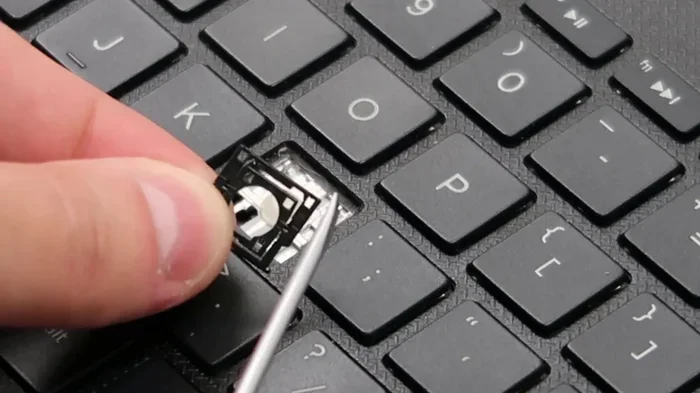
If you are removing a key that is still attached but needs replacement, use the keycap puller to hook under the keycap and pull it straight up. Go slowly. You should feel a slight click as the clip releases.
Step 3: Remove The Retainer Clip
Underneath the keycap, you will see a small plastic piece called the retainer clip. This is what holds the key in place and connects it to the keyboard membrane. Use your plastic spudger or flat tool to gently pry the retainer clip up from the corners. Work on all four corners evenly. The clip should lift off without much resistance.
If the clip feels stuck, do not force it. Take a closer look and check if something is holding it in place. Sometimes a small piece of debris or a broken clip piece is blocking it. Clear any obstruction and try again.
Step 4: Clean The Area
Now you have a clear view of the keyboard base. Use a cotton swab dipped in isopropyl alcohol to clean the area thoroughly. Remove any dust, crumbs, or sticky residue. Let it dry completely before moving to the next step. This is an important step that many people skip, and it makes a big difference in how well the new key sits.
Step 5: Install The New Retainer Clip
Place the new retainer clip onto the keyboard base. The clip should sit flat and align with the small plastic tabs on the base. Press down gently on all four corners to make sure it is seated properly. The clip should feel snug but not forced.
Step 6: Snap The New Keycap Into Place
Take your replacement keycap and align it over the retainer clip. The keycap has small hooks on the underside that fit into the clip. Press down gently on the keycap. You should feel it click into place as the hooks lock onto the clip. Give it a gentle tug to make sure it is secure. If it pops off easily, it is not seated correctly. Try again and press a little firmer.
Step 7: Test The Key
Turn your laptop back on and test the new key. Type on it a few times to make sure it registers properly. If the key does not work, turn the laptop off again and check that the retainer clip is seated correctly. Sometimes the clip shifts slightly during installation, which can cause the key to malfunction.
Common Mistakes When Removing Laptop Keys
Even though popping keys off a laptop is not rocket science, there are some common mistakes that can cause problems. Knowing what to avoid saves you time, money, and frustration.
Using too much force. This is the number one mistake. Laptop keys and clips are made of thin plastic. If you pull too hard, you can break the clip or crack the keycap. Always use gentle, steady pressure. If a key does not come off easily, stop and reassess your approach.
Pulling keys at an angle. Keys should always be pulled straight up. Pulling sideways puts uneven stress on the clip and can bend or break it. This is especially true for scissor-switch keyboards, where the mechanism is more delicate.
Losing the retainer clip. The retainer clip is tiny and easy to lose. Work on a clean, flat surface with good lighting. Keep a small bowl or tray nearby to place removed parts. Losing the clip means you cannot reattach the key properly.
Not buying the right replacement key. Laptop keys are not universal. A key from one brand or model may not fit another. Always check your laptop model number before purchasing a replacement key. The keycap shape, size, and clip design vary between manufacturers.
Skipping the cleaning step. Dirt and debris under a new keycap can prevent it from sitting flush. This leads to sticky keys or keys that do not register. Always clean the area before installing a new key.
Reassembling while the laptop is on. Never work on a live keyboard. Accidental keypresses can trigger commands, open programs, or even shut down your laptop. Always power off completely before starting.
When To Seek Professional Help Instead
While replacing a single key is a straightforward task, there are times when you should leave it to the professionals. Knowing the difference between a simple fix and a serious problem saves you from making things worse.
If multiple keys are missing or damaged, the problem might be more than just a loose clip. It could indicate a deeper issue with the keyboard membrane or the laptop’s internal wiring. In these cases, a full keyboard replacement might be necessary rather than replacing individual keys.
If your laptop is still under warranty, opening the keyboard or removing keys might void your coverage. Check with the manufacturer before attempting any DIY repairs. Many brands offer free or low-cost keyboard replacement services while the warranty is active.
If you feel uncomfortable at any point during the process, trust your instincts. You can always take your laptop to a repair shop. Professional technicians can replace keys quickly and safely, often for a reasonable laptop key replacement cost. It is better to pay a small fee than to risk breaking your entire keyboard.
Also, if you notice that keys keep falling off even after replacement, the retainer clips may be worn out across the board. This is a sign that you need a full keyboard replacement rather than individual key swaps.
Prevention Tips To Keep Your Laptop Keys Secure
Once you have fixed your keyboard, you probably want to avoid the same problem in the future. Here are some simple tips to keep your laptop keyboard keys secure and functioning well for years to come.
- Clean your keyboard regularly. Use compressed air or a soft brush to remove dust and crumbs once a week. This prevents buildup that can push keys loose.
- Avoid eating or drinking over your laptop. Crumbs and spills are the enemies of laptop keyboards. If you must eat at your desk, keep drinks far away and use a keyboard cover.
- Type with gentle pressure. Laptop keys are not designed to withstand heavy force. Press keys gently and let the mechanism do the work.
- Use a laptop stand or hard surface. Typing on a soft surface like a bed or couch puts uneven pressure on the keyboard and can loosen keys over time.
- Keep pets and children away from the laptop. Curious paws and small hands can accidentally pop keys off or damage the keyboard in other ways.
- Consider a keyboard cover. A thin silicone keyboard cover protects against dust, spills, and debris. It is a small investment that can extend the life of your keyboard significantly.
Frequently Asked Questions
Can you pop keys off a laptop without breaking them?
Yes, you can pop keys off a laptop without breaking them if you use the right technique. Use a keycap puller or your fingernails to pull straight up gently. Never pull at an angle or use excessive force. Most laptop keys are designed to be removable, so as long as you are careful, the key and the clip underneath will stay intact.
How much does it cost to replace a laptop key?
The cost of replacing a single laptop key is usually very low. Individual replacement keys cost between $1 and $5 online. Full key replacement kits for entire keyboards range from $10 to $30 depending on the brand. If you hire a professional, the cost might be higher, typically $50 to $100 for labor and parts combined.
Can you replace a laptop key yourself?
Absolutely. Replacing a laptop key yourself is straightforward and does not require technical expertise. You just need a keycap puller, a replacement key, and a little patience. Most people can complete the process in under 15 minutes. Just follow the steps carefully and avoid using too much force.
What happens if the retainer clip breaks?
If the retainer clip breaks, the key will not stay in place and may not work properly. You will need to replace the clip along with the keycap. Replacement retainer clips are often included in key replacement kits sold online. If the clip is not available separately, you may need to replace the entire keyboard.
Do all laptops have removable keys?
Most modern laptops have removable keys, but there are exceptions. Some slim laptops and certain Apple MacBook models use a different key mechanism that is not designed for user removal. Always check your laptop model and manufacturer guidelines before attempting to pop keys off. If you are unsure, consult the user manual or contact customer support.
Why does my laptop key keep falling off even after replacing it?
If a key keeps falling off after replacement, the retainer clip is likely worn out or damaged. The clip may not be snapping into place properly, or the plastic has stretched over time. In this case, replacing the clip along with the key should solve the problem. If multiple keys are affected, the entire keyboard may need to be replaced.
Final Thoughts
So, can you pop keys off a laptop? Yes, you absolutely can. And with the right tools and a little care, you can replace them too. Whether you are dealing with a single loose key or a missing keycap, the process is simpler than most people think. You do not need to be a technician or spend a fortune at a repair shop.
The key is to go slow, use the right tools, and avoid common mistakes like pulling at an angle or using too much force. Take your time, follow each step carefully, and you will have your laptop keyboard keys working perfectly again.
Remember to keep your keyboard clean and type gently to prevent future problems. A little regular maintenance goes a long way in extending the life of your laptop keyboard. If you ever feel unsure or run into a problem you cannot solve, there is no shame in seeking professional help.
Now that you know how to pop keys off a laptop and replace them, you have the power to fix one of the most common laptop issues on your own. Grab your tools, find the right replacement key, and get started. Your keyboard will thank you for it.