Can You Control RGB Through USB The Ultimate Guide
Yes, you can absolutely control RGB through USB, and it is easier than most people think. Whether you want to sync lights on your keyboard, mouse, headset, or motherboard, USB-powered RGB gives you full control over colors, effects, and patterns. This guide covers everything from software options to hardware setups so you can create the perfect lighting experience for your PC.
You have probably noticed those stunning RGB setups where every component lights up in perfect sync. The glowing keyboards, the colorful mouse mats, the fans with built-in LED rings. It all looks amazing, and you might be wondering how it all works. The short answer is yes, you can control RGB through USB, and it is one of the simplest ways to bring life to your PC.
USB control has become the standard for RGB lighting on almost every modern peripheral and component. Whether you are a casual user who just wants pretty colors or a hardcore enthusiast who wants every light perfectly synced, USB makes it possible. This guide will walk you through everything you need to know about controlling RGB devices using USB connections.
Key Takeaways
- USB Control is Universal: Most RGB devices connect and operate through USB, giving you direct access to lighting customization.
- Software Makes It Easy: Programs like Aura Sync, iCUE, and Razer Synapse let you manage RGB settings from one place.
- No Extra Hardware Needed: In most cases, your existing USB ports are enough to power and control RGB accessories.
- RGB Sync Across Devices: You can synchronize lighting effects across multiple RGB peripherals and components using USB-connected hubs or software.
- Power Through USB Matters: Understanding USB power limits helps you avoid issues with brightness and performance.
- Customization is Endless: From static colors to dynamic wave effects, USB-controlled RGB offers nearly limitless lighting options.
📑 Table of Contents
- What Is RGB and Why Does USB Control Matter?
- Software You Need to Control RGB Through USB
- Hardware Options for RGB USB Control
- Can You Sync RGB Across Multiple Devices Using USB?
- Common Problems and How to Fix Them
- Expert Tips for Getting the Most Out of USB RGB Control
- Quick Tips for RGB USB Control
- Is Controlling RGB Through USB Worth It?
What Is RGB and Why Does USB Control Matter?
RGB stands for Red, Green, and Blue. These are the three primary colors of light. By mixing them in different intensities, you can create virtually any color. That is the basic science behind every RGB light you see on your PC accessories.
USB control matters because it gives you a simple, standardized way to connect RGB devices to your computer. Unlike older methods that required separate controllers or proprietary connections, USB offers a plug-and-play experience. You connect the device, install the software, and start customizing your lighting in minutes.
How RGB Lighting Works Through USB
When you plug an RGB device into a USB port, two things happen. First, the device receives power. Second, it receives data signals that tell it what color to display, how bright to be, and what pattern to follow. This data travels through the USB connection at high speed, allowing real-time changes to your lighting effects.
Most RGB USB devices use one of two connection types. The first is a standard USB-A or USB-C plug that connects directly to your PC. The second is a USB connector that links to a motherboard RGB header or a dedicated RGB controller. Both methods rely on the USB protocol to send lighting commands from your software to the device.
USB passthrough is another important concept. Some devices, like USB hubs or certain keyboards, pass through a USB connection to another device. This means you can chain RGB devices together without using extra ports on your PC. It is a neat trick that keeps your setup clean and organized.
Software You Need to Control RGB Through USB
To get the most out of your RGB USB devices, you need the right software. Each major brand has its own ecosystem, and some third-party tools can unify everything under one roof. Let us break down the most popular options.
Motherboard Software Suites
If you have an RGB-capable motherboard, the built-in software is often your best starting point. These programs connect to your motherboard’s RGB headers and let you control internal lighting across your entire PC build.
- ASUS Aura Sync: One of the most popular RGB control platforms. It supports a huge range of compatible components and offers a sleek interface with pre-built lighting effects.
- MSI Mystic Light: MSI users love this tool for its simplicity. It controls motherboard RGB, fan RGB, and compatible MSI peripherals with ease.
- Gigabyte RGB Fusion: Offers detailed customization and supports both internal components and select external RGB devices.
- ASRock Polychrome Sync: A solid option for ASRock motherboard owners with a clean and intuitive design.
Peripheral Brand Software
Most RGB peripherals come with their own dedicated software. These programs are designed specifically for the devices they support, so you get deep customization options.
- Razer Synapse: Controls Razer keyboards, mice, headsets, and Chroma-enabled accessories. It offers advanced effects and integration with other Chroma devices.
- Logitech G HUB: Works with Logitech G series mice, keyboards, and headsets. It has a strong library of lighting presets and allows granular control over each zone.
- Corsair iCUE: A powerful tool for Corsair keyboards, mice, headsets, and cooling systems. iCUE supports complex lighting setups and can sync across many devices at once.
- SteelSeries Engine: Handles SteelSeries peripherals with a clean interface and good community-created lighting profiles.
Third-Party Universal RGB Controllers
If you use devices from multiple brands, third-party software can be a lifesaver. These tools aim to bridge the gap and let you control different RGB ecosystems from one application.
- OpenRGB: An open-source project that supports a wide range of RGB devices. It is free, community-driven, and constantly updated with new device support.
- SignalRGB: A polished alternative to OpenRGB with a user-friendly interface and broad device compatibility. It offers both free and premium features.
Hardware Options for RGB USB Control
While many RGB devices connect directly to your PC’s USB ports, sometimes you need additional hardware to get the most out of your setup. Let us explore the main hardware options available.
Direct USB Connection
The simplest approach is to plug your RGB device directly into a USB port. This works great for keyboards, mice, headsets, and USB-powered RGB strips. The device draws power from the USB port and receives lighting commands through the same connection.
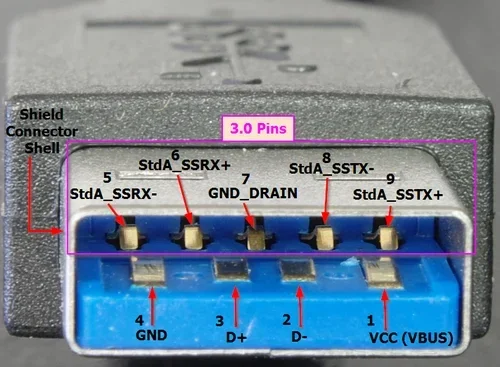
One thing to keep in mind is USB power limits. A standard USB 2.0 port provides up to 500 mA of current, while USB 3.0 provides up to 900 mA. USB-C ports can deliver even more. If you connect too many power-hungry RGB devices to a single port, you may experience brightness issues or disconnections.
RGB Headers and Controllers
Many motherboards come with dedicated 5V ARGB or 12V RGB headers. These connectors are designed specifically for internal RGB lighting like fan rings, LED strips, and case lighting. You can use a USB-to-RGB header cable to connect your RGB devices to these headers through a USB connection on the back of your PC.
For larger setups, standalone RGB controllers offer more power and more ports. These controllers connect to your PC via USB and then distribute power and data to multiple RGB devices. They are especially useful for builds with lots of RGB components that need centralized control.
USB Hubs for RGB Setups
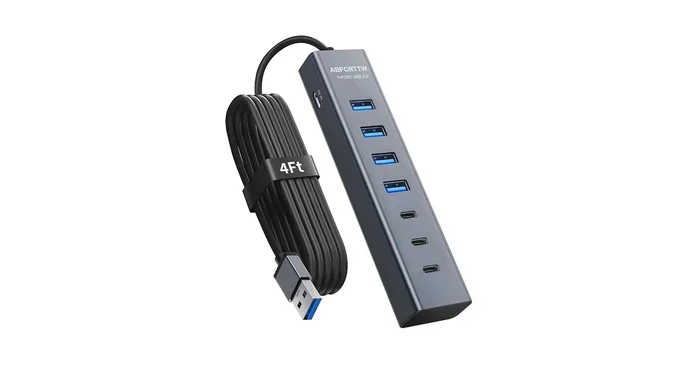
If you are running many RGB devices, a powered USB hub is a smart investment. It gives you extra ports and ensures each device gets enough power. A good USB hub keeps your RGB lighting bright and stable without overloading your PC’s built-in USB ports.
Look for a hub that supports USB 3.0 or higher for the best data speeds. This ensures your lighting changes are instant and responsive, even when you have many devices connected.
Can You Sync RGB Across Multiple Devices Using USB?
One of the most exciting features of USB-controlled RGB is synchronization. You can make your keyboard, mouse, headset, and even internal fans all light up in perfect harmony. This creates a cohesive look that takes your setup from ordinary to extraordinary.
How RGB Sync Works
RGB sync works by having all your devices connected to the same software ecosystem. When you change a lighting effect in the software, the command is sent via USB to each connected device. They all update at the same time, creating a seamless lighting experience.
Some ecosystems are more open than others. Razer Chroma, for example, has a wide integration list that includes many third-party devices. Corsair iCUE also supports components from other brands in certain cases. Meanwhile, motherboard software like Aura Sync focuses on internal PC components but may also support a few external peripherals.
Tips for Perfect RGB Sync
- Keep all your RGB software up to date. Updates often add new device support and fix sync issues.
- Use the same lighting profile across devices for a uniform look.
- Avoid overloading USB ports. Spread your devices across multiple ports or use a powered hub.
- Restart your RGB software if devices stop responding. A quick refresh often fixes connection problems.
- Experiment with different effects. Wave, cycling, breathing, and reactive lighting all look different depending on your setup.
Common Problems and How to Fix Them
Even though USB RGB control is generally straightforward, you might run into some issues. Here are the most common problems and how to solve them.
Device Not Recognized
If your RGB device does not show up in the software, try these steps. First, check your USB cable and try a different port. Sometimes a loose connection or a faulty cable is the culprit. Second, make sure you have the latest version of the control software installed. Third, restart your computer and plug the device back in. Most of the time, this simple fix does the trick.
Dim or Flickering Lights
Dim or flickering RGB lights usually point to a power issue. Your USB port may not be supplying enough current. Try plugging the device into a USB 3.0 port instead of a USB 2.0 port. If that does not work, use a powered USB hub or connect the device to a dedicated RGB controller with its own power supply.
Software Crashes or Freezes
RGB software can sometimes be resource-heavy, especially when you have many devices connected. Close unnecessary background programs to free up system resources. If the problem persists, reinstall the software or check for updates. You can also try running the software as an administrator to avoid permission-related crashes.
RGB Effects Not Syncing
If your lighting effects are out of sync across devices, make sure all devices are connected to the same software platform. Some devices only support specific ecosystems, so double-check compatibility before purchasing. Also, ensure your USB connections are stable and that no devices are using too much bandwidth on the same controller.
Expert Tips for Getting the Most Out of USB RGB Control
Now that you understand the basics, here are some expert-level tips to elevate your RGB setup.
Use Reactive Lighting for Gaming
Many RGB software platforms offer reactive lighting. This means your peripherals change color based on what is happening in your game. For example, your keyboard might flash red when your health is low or glow blue when you score a kill. It adds a layer of immersion that static lighting simply cannot match.
Create Custom Profiles
Do not settle for default lighting effects. Most RGB software lets you create custom profiles with specific colors, brightness levels, and transition speeds. You can save different profiles for different moods, times of day, or gaming sessions. It is a small detail that makes a big difference in how your setup feels.
Balance Aesthetics and Performance
While RGB looks incredible, remember that too many connected devices can slightly impact your USB bandwidth and power supply. Keep your setup balanced. If you notice performance issues or unstable lighting, reduce the number of active RGB devices or upgrade to a better power supply and USB hub.
Explore Community Profiles
Many RGB software platforms have active communities that share custom lighting profiles. You can download profiles created by other users and import them directly into your software. It is a great way to discover new effects and get inspiration for your own setup.
Quick Tips for RGB USB Control
- Always use quality USB cables to ensure stable data and power delivery.
- Label your USB ports if you have many RGB devices connected.
- Restart your RGB software once a week to clear minor glitches.
- Check device compatibility before buying new RGB accessories.
- Use a powered USB hub for setups with more than four RGB devices.
- Keep your PC’s firmware and drivers updated for the best RGB performance.
Is Controlling RGB Through USB Worth It?
Absolutely. USB RGB control gives you freedom, flexibility, and stunning visual results without the need for expensive or complicated hardware. Whether you are building a new PC or upgrading an existing one, adding USB-controlled RGB is one of the easiest and most impactful changes you can make.
The technology is mature, the software is mature, and the device compatibility is better than ever. You do not need to be a tech expert to create a beautiful RGB setup. With the right software and a few well-placed devices, you can transform your PC into a personalized light show that reflects your style and personality.
Start small if you are new to this. A single RGB keyboard or mouse with USB control is a great entry point. Once you see how easy and satisfying it is to customize your lighting, you will likely want to expand. Before long, you will have every RGB component in your setup working in perfect harmony, all controlled through simple USB connections.
The bottom line is clear. Can you control RGB through USB? Yes, you can, and the results can be truly impressive. The key is to understand your options, choose the right software and hardware, and have fun experimenting with different lighting setups. Your PC is not just a machine. It is your personal workspace, your gaming station, and your creative canvas. Let the RGB lighting make it shine.
Frequently Asked Questions
Do I need special software to control RGB through USB?
Most RGB devices come with their own dedicated software like Razer Synapse, Corsair iCUE, or Logitech G HUB. You can also use motherboard software like Aura Sync or third-party tools like OpenRGB for broader compatibility. In most cases, the software is free and easy to download from the manufacturer’s website.
Can I control RGB on multiple devices from one USB connection?
Yes, many RGB software platforms allow you to control multiple devices from a single application. You can sync lighting effects across keyboards, mice, headsets, and even internal PC components. Some ecosystems work better together than others, so check compatibility before mixing brands.
Does controlling RGB through USB affect PC performance?
RGB USB control uses minimal system resources. The impact on performance is negligible for most users. However, if you have dozens of RGB devices connected and running complex lighting effects simultaneously, you might notice a slight increase in USB bandwidth usage. In practice, this rarely causes any noticeable issues.
Can I use a USB hub for my RGB devices?
Yes, a USB hub works great for RGB devices. A powered USB hub is recommended if you have many devices because it ensures each device gets enough current. This prevents dim lighting, flickering, or disconnections that can happen when too many devices share a single USB port.
What is the difference between 12V RGB and 5V ARGB through USB?
12V RGB uses a four-pin connector and supports only static colors or simple effects. 5V ARGB uses a three-pin connector and supports individually addressable LEDs, which means each light can display a different color. Most modern RGB devices use 5V ARGB, and USB control software fully supports both types.
Do all RGB devices work with USB control?
The vast majority of modern RGB devices use USB for control and power. However, some older or budget devices may use different connection methods like SATA power or dedicated controllers. Always check the product specifications before purchasing to confirm USB compatibility.
=== CONCLUSION ===
Controlling RGB through USB is one of the simplest and most rewarding upgrades you can make to your PC setup. From choosing the right software to picking compatible hardware, the process is straightforward and accessible to users of all skill levels. You have the power to transform your workspace or gaming station into a vibrant, personalized environment with just a few USB connections.
Remember to start with a solid software platform, invest in quality USB connections, and do not be afraid to experiment with different lighting effects and sync configurations. The world of RGB is vast and full of creative possibilities. Whether you prefer subtle, elegant lighting or bold, eye-catching displays, USB control puts every option at your fingertips.
So go ahead, plug in your RGB devices, fire up your favorite software, and start creating the setup you have always wanted. With USB control, your imagination is the only limit.