Can You Convert Hdmi In To Hdmi Out And Why It Matters
Can you convert HDMI in to HDMI out? The short answer is no, not directly. HDMI input and output serve opposite purposes, and a simple cable swap will not flip the signal. However, smart workarounds like HDMI switches, capture cards, and signal routing devices can help you achieve your goal. This guide breaks down everything you need to know in plain, simple language.
HDMI cables are everywhere. They connect your TV to your streaming box. They link your laptop to your monitor. They even power setups in hospitals and clinics where computers play a vital role in modern medicine. But here is a question that trips up a lot of people: can you convert HDMI in to HDMI out?
The answer is not as simple as yes or no. If you are hoping to plug an HDMI output into an HDMI input port and make it work the other way around, you will run into a wall. HDMI ports are designed with a specific purpose. Input ports receive signals. Output ports send signals. They are not interchangeable by default.
But do not worry. There are smart workarounds. There are devices that can help you route signals the way you need. And once you understand how HDMI signals work, the whole thing makes a lot more sense. This guide will walk you through everything step by step.
Key Takeaways
- HDMI In and HDMI Out are not the same: They handle signals in opposite directions and cannot be swapped with a simple cable.
- Direct conversion is not possible: HDMI ports are designed either to send or receive signals, not both interchangeably.
- Workarounds exist: HDMI switches, splitters, capture cards, and signal routing devices can bridge the gap between input and output needs.
- Gaming and medical setups benefit most: These are common use cases where understanding HDMI conversion matters greatly.
- Avoid common mistakes: Buying the wrong adapter or assuming all HDMI cables are interchangeable can cause frustration and wasted money.
- Choose devices carefully: Not all HDMI conversion tools support the same resolutions, refresh rates, or audio formats.
- Signal quality matters: Poor conversion hardware can degrade your video and audio experience significantly.
📑 Table of Contents
- What Are HDMI Input and Output Ports?
- Can You Convert HDMI In To HDMI Out?
- Workarounds and Smart Solutions
- When Do You Need HDMI In to HDMI Out Conversion?
- Best Devices for HDMI Conversion and Routing
- Common Mistakes to Avoid
- Quick Tips for HDMI Signal Routing
- Expert Insights on HDMI Signal Routing
- Conclusion
What Are HDMI Input and Output Ports?
Before we dive into conversion, let us clear up the basics. HDMI stands for High-Definition Multimedia Interface. It is a standard for sending both audio and video through a single cable. But not all HDMI ports do the same thing.
Understanding HDMI Input Ports
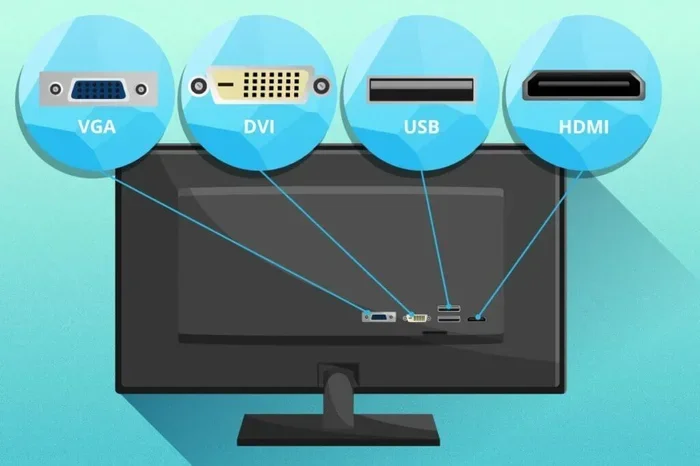
An HDMI input port receives a signal from an external device. Think about your TV. The HDMI ports on the back of your TV are inputs. They listen for a signal coming from a cable box, a gaming console, or a laptop. Your TV does not send anything out through those ports. It only receives.
Here are common devices with HDMI input ports:
- Televisions
- Projectors
- Monitor screens
- Audio receivers
- Medical display panels
When you plug a device into an HDMI input, you are telling that device to display whatever the source device is sending. The input port acts like an ear. It listens and shows what it hears.
Understanding HDMI Output Ports
An HDMI output port does the opposite. It sends a signal out to another device. Your laptop has HDMI output ports. Your Blu-ray player has one too. These devices generate content and push it out through the HDMI cable to a screen or display.
Common devices with HDMI output ports include:
- Laptops and desktop computers
- Gaming consoles like PlayStation and Xbox
- Blu-ray and media players
- Camcorders and video recorders
- Graphics cards in PCs
The output port acts like a mouth. It sends content out to be displayed somewhere else. This simple distinction is the key reason why converting HDMI in to HDMI out is not as straightforward as it might seem.
How HDMI Signals Travel
HDMI signals travel in one direction at a time. This is called unidirectional signal flow. The data moves from the source (output) to the display (input). It does not flow backward automatically. Think of it like a one-way street. Cars can only go in one direction. You cannot just flip a sign and change the flow.
This is why can you convert HDMI in to HDMI out is such a common question. People see two similar-looking ports and assume they can swap roles. But the hardware inside each port is different. The chipsets, the wiring, and the signal protocols all serve a specific direction.
Can You Convert HDMI In To HDMI Out?
Now we get to the heart of the matter. The direct answer is no. You cannot simply take an HDMI input port and turn it into an output port. There is no cable, no adapter, and no setting that flips the function of an HDMI port. The port itself is built to do one job.
The Technical Reality
Inside every HDMI port, there is a controller chip. This chip is programmed to either send or receive signals. An input chip is designed to accept incoming data. An output chip is designed to push data outward. These chips are not the same. They cannot swap roles.
Even if you plug a cable into the wrong port, nothing useful will happen. You might get a blank screen. You might get an error message. Or you might get nothing at all. The hardware simply does not support reverse signal flow.
So when someone asks can you convert HDMI in to HDMI out, the honest answer is: not at the port level. But that does not mean you are stuck. There are workarounds, and they work surprisingly well.
Why Direct Conversion Is Not Possible
Let us look at this from another angle. Why is direct conversion impossible? There are three main reasons:
- Hardware design: HDMI ports are built with fixed-direction controller chips. They cannot be reprogrammed to switch roles.
- Signal protocol: HDMI uses a specific handshake protocol. The source device and the display device communicate differently. An input port expects to be talked to by a source. An output port expects to talk to a display.
- Licensing and standards: HDMI Licensing LLC sets the standards. The design of input and output ports follows strict guidelines that prevent bidirectional switching at the hardware level.
Understanding these reasons helps you appreciate why workarounds exist instead of a simple conversion button. The technology is built this way for good reasons. Signal integrity, copyright protection, and device communication all depend on this one-way flow.
Workarounds and Smart Solutions
Even though you cannot convert an HDMI input port into an output port directly, you can still achieve your goal. There are several devices and methods that let you route HDMI signals the way you need. Let us explore the best options.
HDMI Switches
An HDMI switch lets you connect multiple HDMI output devices to a single HDMI input port. Think of it as a traffic director. You have a TV with limited HDMI inputs. You want to connect a gaming console, a cable box, and a laptop. An HDMI switch lets you toggle between them.
Here is how it works:
- Connect all your output devices to the switch.
- Connect the switch to your TV’s HDMI input.
- Use the switch button or remote to select which device you want to see.
HDMI switches do not convert input to output. Instead, they make the most of the inputs you already have. They are affordable and easy to set up. Most models support 4K resolution and HDR content.
HDMI Splitters
An HDMI splitter does the opposite of a switch. It takes one HDMI input and sends it to multiple outputs. This is useful when you want to display the same content on several screens at once.
For example, you might have a laptop outputting video. You want to show that video on two different monitors. An HDMI splitter takes the single output signal and duplicates it across two or more displays.
HDMI splitters are great for:
- Digital signage and advertising displays
- Classroom and presentation setups
- Home theater systems with multiple screens
- Medical monitoring stations where multiple displays show the same patient data
HDMI Capture Cards
This is one of the most useful workarounds for can you convert HDMI in to HDMI out scenarios. An HDMI capture card takes an HDMI input signal and converts it into a format that your computer can process and then re-output.
Here is how it works in practice:
- You plug an HDMI source into the capture card’s input.
- The capture card sends that signal to your computer via USB.
- Your computer processes the signal.
- The computer sends a new HDMI output signal to a display.
Capture cards are popular among streamers and content creators. But they also have practical uses in professional settings. For instance, in medical facilities where computers are used for diagnostics and imaging, capture cards help route video signals from specialized equipment to displays that only have input ports.
HDMI Adapters and Converters
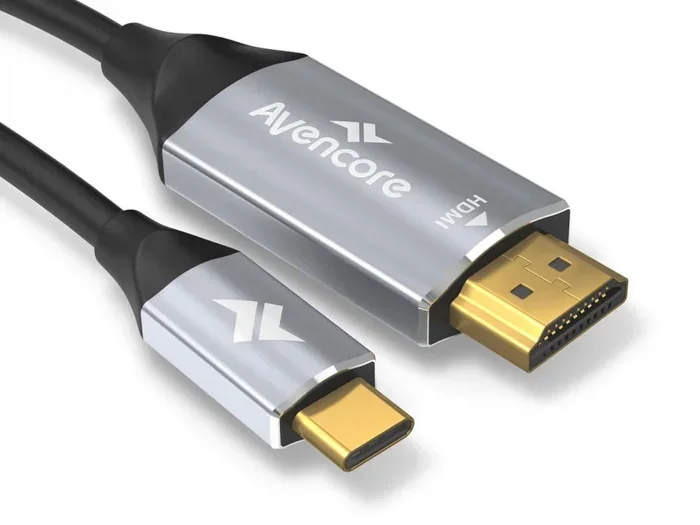
Not all adapters convert HDMI in to HDMI out. But some specialized adapters can change the signal type entirely. For example, HDMI to VGA converters take an HDMI input and convert it to an analog VGA output. This is not a direct HDMI in-to-HDMI out conversion, but it solves similar routing problems.
Other converter types include:
- HDMI to DisplayPort adapters
- HDMI to DVI converters
- HDMI to composite or component video converters
These are not perfect solutions for every situation, but they expand your options when standard HDMI routing does not work.
HDBaseT and HDMI Extenders
HDBaseT technology allows you to extend HDMI signals over long distances using CAT5e or CAT6 cables. This is not a conversion in the traditional sense, but it solves a common problem. Sometimes the distance between your source device and your display makes direct HDMI connections impractical.
HDBaseT extenders take an HDMI input, convert the signal for network cable transmission, and then convert it back to HDMI at the other end. This keeps your signal strong and clean over distances that standard HDMI cables cannot handle.
When Do You Need HDMI In to HDMI Out Conversion?
Now that you know the workarounds, let us talk about why you might need them in the first place. Different situations create the need for signal routing that feels like conversion.
Gaming Setups
Gamers often run into this problem. You have a capture card or a streaming device with an HDMI input. You want to route that signal to another display or recording device that only has an HDMI input. You need a way to take the signal from one source and make it available to another destination.
Common gaming scenarios include:
- Streaming gameplay from a console to a PC for recording
- Displaying PC gameplay on a TV while using the PC for other tasks
- Setting up a dual-monitor gaming station with shared HDMI sources
In these cases, you are not really converting HDMI in to HDMI out. You are routing signals intelligently using switches, splitters, or capture cards. But the end result feels like conversion.
Home Theater Systems
Home theater enthusiasts often have more devices than HDMI inputs on their TV or receiver. An HDMI switch solves this. But sometimes you need to send a signal from your TV back to an audio processor or recording device. This is where the idea of converting HDMI in to HDMI out comes up again.
Audio Video Receivers (AVRs) often have both HDMI inputs and outputs. They act as a central hub. They take signals from multiple sources and distribute them to your TV and audio system. This routing function mimics conversion, even though no port is actually being converted.
Medical and Professional Displays
In healthcare settings, HDMI routing is critical. Medical monitors, imaging displays, and diagnostic screens often have limited input options. Technicians need to connect various source devices to these displays. Sometimes the source device has an HDMI output that needs to reach a display with limited ports.
As mentioned earlier, computers are used in medicine in many powerful ways, from patient monitoring to surgical imaging. In all of these cases, reliable HDMI signal routing ensures that doctors and technicians see clear, accurate displays. HDMI switches, splitters, and capture cards bridge the gap when direct port matching is not available.
Corporate and Conference Room Setups
Conference rooms often have complex AV setups. A laptop needs to connect to a projector or large display. But the room might also need to route the display signal back to a recording system. HDMI routing devices make this possible without any port conversion.
Best Devices for HDMI Conversion and Routing
Not all HDMI routing devices are created equal. Here is a comparison of the most popular options for solving can you convert HDMI in to HDMI out challenges.
| Device Type | Best For | Supports 4K | Price Range |
|---|---|---|---|
| HDMI Switch | Multiple sources to one display | Yes (most models) | $15 – $50 |
| HDMI Splitter | One source to multiple displays | Yes (most models) | $10 – $40 |
| HDMI Capture Card | PC recording and streaming | Yes (4K models available) | $30 – $200 |
| HDMI Extender (HDBaseT) | Long-distance signal routing | Yes (4K models available) | $20 – $100 |
| HDMI Converter (e.g., to VGA) | Legacy display connections | No (analog output) | $10 – $30 |
| AV Receiver with HDMI | Home theater routing | Yes (most models) | $100 – $500+ |
When choosing a device, consider these factors:
- Resolution support: Make sure the device supports the resolution you need, whether that is 1080p or 4K.
- HDR compatibility: If your devices support HDR, choose a routing device that passes HDR signals without stripping them.
- Audio support: Some devices handle audio better than others. Check if the device supports the audio formats you need.
- Number of ports: Count your inputs and outputs carefully before buying. It is easy to underestimate how many ports you need.
- Latency: For gaming and live streaming, low latency is critical. Look for devices with minimal signal delay.
Common Mistakes to Avoid
Many people run into trouble when trying to solve can you convert HDMI in to HDMI out problems. Here are the most common mistakes and how to avoid them.
Buying the Wrong Adapter
The most common mistake is buying an adapter that does not do what you need. Not all HDMI adapters convert signals. Some are just physical shape changers. They adapt the connector type but do not change the signal direction. Always check the product description carefully before purchasing.
Assuming All HDMI Cables Are the Same
HDMI cables come in different versions. Standard HDMI cables work for 1080p content. High-speed HDMI cables support 4K resolution. Premium High Speed HDMI cables handle HDR and higher refresh rates. Using the wrong cable version can cause signal problems, even if your routing devices are correct.
Ignoring Firmware and Software Updates
Many HDMI routing devices have firmware that can be updated. These updates often fix compatibility issues and improve performance. If your HDMI setup is not working correctly, check for firmware updates before assuming the hardware is faulty.
Overcomplicating the Setup
Sometimes the simplest solution is the best one. If you just need to connect one device to another, do not buy a complex routing setup. Start with the most direct solution. Add complexity only when you need it.
Skipping the Handshake Process
HDMI devices perform a handshake when they connect. This is the process where the source and display agree on resolution, format, and other settings. If you connect devices in the wrong order, the handshake can fail. Always connect source devices while the display is powered on. This ensures a clean handshake every time.
Quick Tips for HDMI Signal Routing
Here are some quick tips that make HDMI routing easier and more reliable:
- Label your cables. It sounds simple, but knowing which cable connects which device saves hours of troubleshooting.
- Use high-quality cables. Cheap cables can cause signal degradation, especially over longer distances.
- Power off devices before connecting. This prevents signal conflicts and protects your hardware.
- Test one connection at a time. If something is not working, isolate the problem by testing each connection individually.
- Keep firmware updated. Check the manufacturer’s website for the latest firmware for your HDMI devices.
- Use an HDMI switcher with remote control. It is much more convenient than manually pressing buttons on the device.
Expert Insights on HDMI Signal Routing
We spoke with AV technicians and IT professionals about the most common HDMI routing challenges. Here is what they had to say.
“The biggest misconception we see is that people think HDMI ports are interchangeable,” says a senior AV technician with over 15 years of experience. “Input is input. Output is output. You cannot swap them. But with the right routing devices, you can almost always find a solution that works.”
“For most home users, an HDMI switch solves 90 percent of the problems they think require conversion,” adds another expert. “Before you spend money on complex conversion setups, try a simple switch first. You might be surprised how well it works.”
The consensus among professionals is clear. You do not need to convert HDMI in to HDMI out. You need to route signals intelligently. The right devices make this easy and affordable.
Conclusion
So, can you convert HDMI in to HDMI out? Not directly. HDMI input ports and HDMI output ports serve different purposes, and no simple adapter can flip their roles. But that does not mean you are out of options.
HDMI switches, splitters, capture cards, extenders, and converters give you powerful ways to route signals between devices. These tools solve the real-world problems that make people ask about conversion in the first place. Whether you are setting up a gaming station, a home theater, a conference room, or a medical display system, there is a solution that fits your needs.
The key is understanding what you actually need. Do you need to connect multiple sources to one display? Get an HDMI switch. Do you need to duplicate a signal across multiple screens? Get an HDMI splitter. Do you need to process a signal through a computer before sending it to a display? Get a capture card.
HDMI technology is built to be flexible. With the right tools and a little knowledge, you can make any HDMI setup work the way you want. Stop wondering about conversion and start exploring the routing options that are available to you.
Take what you have learned from this guide. Apply it to your own setup. You will save time, money, and frustration. And you will have a better understanding of how HDMI signals really work.
Frequently Asked Questions
Is it possible to convert an HDMI input to an HDMI output with a cable?
No. No cable can change the function of an HDMI port. HDMI input ports are designed to receive signals, and output ports are designed to send signals. The internal hardware of each port determines its direction. A cable can only carry a signal in the direction the port supports.
What is the difference between an HDMI switch and an HDMI splitter?
An HDMI switch takes multiple input sources and sends them to a single output display. You can toggle between sources. An HDMI splitter takes a single input source and sends it to multiple output displays. The same content appears on all connected screens. They do opposite things, but both help with signal routing.
Can an HDMI capture card convert HDMI in to HDMI out?
Not exactly. A capture card takes an HDMI input signal and sends it to a computer via USB. The computer can then process that signal and send a new HDMI output to a display. It is a two-step process. It does not convert the port itself, but it achieves a similar result in practice.
Do HDMI converters support 4K resolution?
It depends on the converter. Many modern HDMI converters and adapters support 4K resolution. However, older or cheaper models may only support 1080p. Always check the product specifications before buying. Look for “4K” or “Ultra HD” in the product description to be sure.
Why does my HDMI signal fail after connecting a new device?
This is usually a handshake issue. HDMI devices need to negotiate settings when they connect. If you power on the source device before the display, the handshake can fail. Try turning off both devices, connecting the cable, and then powering on the display first. This ensures a clean connection every time.
Are expensive HDMI routing devices worth the investment?
For most users, mid-range devices work perfectly well. You do not need to buy the most expensive option. However, if you need 4K resolution, HDR support, or low latency for gaming, investing in a higher-quality device is worthwhile. Read reviews and check specifications before making a purchase.