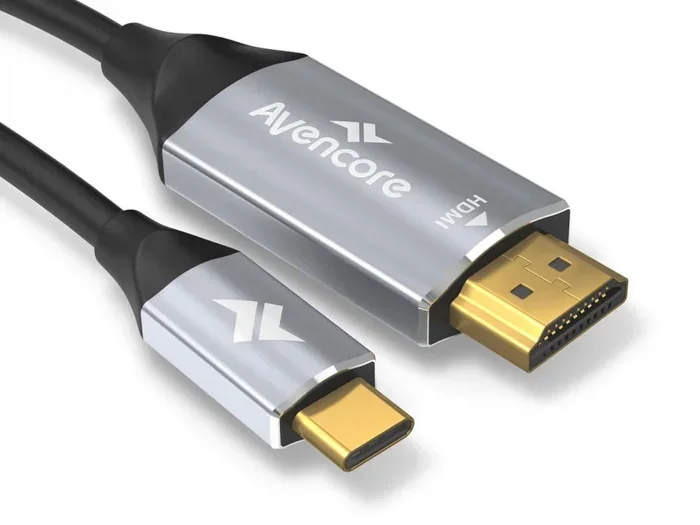
Can Usb C Act As Hdmi Input The Full Definitive Guide
Can USB C act as HDMI input? Yes, it can, but only through specific methods like capture cards, specialized adapters, and Thunderbolt 3 docking stations. This guide breaks down every way you can receive HDMI signals through a USB-C port. You will learn the technical differences, the best products to buy, and the common mistakes to avoid.
So you want to know can USB C act as HDMI input. It is a great question, and the answer is not as simple as yes or no. The truth is, your USB-C port can work as an HDMI input, but only with the right tools and setup. Most people use USB-C ports to send video out to a monitor. That is called HDMI output. But what if you want the opposite? What if you need to feed an HDMI signal into your laptop or tablet through the same USB-C port? That changes everything.
This guide covers everything you need to know. We will walk through the technical details, the different methods available, the best products on the market, and the mistakes most people make. By the end, you will have a clear picture of how USB C HDMI input works and whether it is right for your setup.
Whether you are a content creator, a gamer, a presenter, or just someone trying to connect a console to a laptop, this guide has you covered. Let us dive in.
Key Takeaways
- USB C can act as HDMI input: but only with the right hardware like capture cards or input-capable adapters.
- HDMI Alt Mode is for output, not input: most USB-C ports send video out, not receive it.
- Capture cards are the most reliable method: they convert HDMI input to USB-C for PCs and laptops.
- Thunderbolt 3 expands your options: it supports more input devices and docking stations.
- Not all USB-C ports support video input: always check your device specs before buying accessories.
- Avoid cheap generic adapters: they often fail to deliver HDMI input functionality.
📑 Table of Contents
What Is USB C HDMI Input?
Understanding the USB C Port
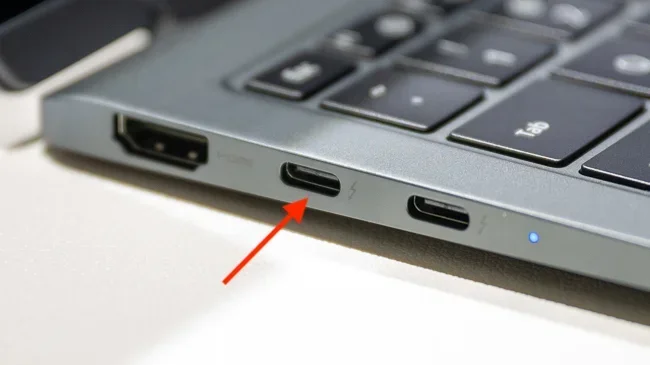
The USB Type-C connector is a small, reversible plug that has become the standard on modern laptops, tablets, and phones. It can do a lot of things. It charges your device, transfers data, and can even carry video signals. But here is the key thing most people miss: USB C is not just one thing. It is a shape, not a specific technology. What a USB-C port can do depends on the hardware inside your device.
Some USB-C ports support Thunderbolt 3 or Thunderbolt 4. These are powerful and can handle high-bandwidth tasks like external GPUs and multiple displays. Other USB-C ports only support basic USB 3.0 or USB 2.0 speeds. And some ports support HDMI Alt Mode, which lets them output video to an HDMI display.
When we talk about USB C HDMI input, we are asking whether a USB-C port can receive an HDMI signal from an external source. This is different from the standard use case. It requires specific hardware support.
Input vs Output: Know the Difference
This is where most confusion happens. Let us clear it up right away.
HDMI output means your device sends a video signal to an external display. Your laptop has a USB-C port that outputs video to a monitor. That is HDMI output. This is the most common use case and it works on most modern laptops.
HDMI input means your device receives a video signal from an external source. Think of a gaming console sending video to your laptop through USB-C. Or a camera feeding live video to a editing laptop. That is HDMI input.
By default, USB-C ports are designed for output. They send video out. To make them receive video, you need extra hardware. That is what this guide is all about.
How USB C Handles HDMI Signals
HDMI Alt Mode Explained
HDMI Alt Mode is a protocol that lets USB-C ports carry HDMI signals. When your phone or laptop supports HDMI Alt Mode, you can plug in a USB-C to HDMI adapter and send video to an external display. This is output, not input. It is one-way traffic.
HDMI Alt Mode was designed to simplify connections. Instead of carrying a bulky HDMI cable, you use a slim USB-C cable or adapter. It supports resolutions up to 4K and even 8K on newer implementations. But it only works in one direction: from your device to the display.
If you want to use USB C HDMI input, HDMI Alt Mode alone will not help you. You need a different approach.
When Can USB C Receive HDMI Input
There are a few scenarios where a USB-C port can receive HDMI input. Let us break them down.
Scenario 1: USB-C Capture Cards. These are small devices that plug into your USB-C port. They have an HDMI input on one side and a USB-C connection on the other. They capture the HDMI signal and send it to your computer as a video input. This is the most common and reliable method.
Scenario 2: USB-C Docking Stations with HDMI Input. Some premium docking stations have HDMI input ports built in. They connect to your laptop via USB-C and allow you to feed an HDMI signal into the laptop. These are less common but very useful for specific workflows.
Scenario 3: Thunderbolt 3 and Thunderbolt 4 Docks. Thunderbolt technology supports more advanced connectivity. Some Thunderbolt docks can handle HDMI input and route it to your device. This is especially useful for professionals who need multiple input sources.
Scenario 4: Specialized USB-C Adapters. A few adapters on the market are specifically designed to convert HDMI input to USB-C. These are niche products but they exist and work well for the right use case.
Can USB C Act As HDMI Input? The Real Answer
The direct answer to can USB C act as HDMI input is yes, but with caveats. Your USB-C port by itself cannot receive HDMI signals. It needs a bridge device to convert the HDMI input into a format your computer can understand. That bridge is usually a capture card or a specialized adapter.
Think of it this way. Your USB-C port is like a door. By default, it is designed for the room to send things out. To bring things in, you need a different kind of door or a converter that changes the direction of traffic. USB C HDMI input works the same way. You need the right converter to reverse the flow.
Now let us look at the three main methods that make this work.
Method 1: USB-C HDMI Capture Cards
Capture cards are the most popular and reliable way to get USB C HDMI input. These small devices plug into your USB-C port and have an HDMI input jack on the side. You connect your HDMI source (like a console, camera, or DVD player) to the capture card, and the capture card sends the video to your computer through USB-C.
Capture cards are used by streamers, video editors, and presenters. They work with Windows, Mac, and even some Linux systems. Popular brands like Elgato, AVerMedia, and Magewell make high-quality options.
Pros of capture cards:
- Reliable and widely compatible
- Support for 1080p and 4K resolution
- Low latency on most models
- Work with multiple devices (consoles, cameras, PCs)
- Affordable options available
Cons of capture cards:
- Adds an extra device to your setup
- Some models require software installation
- Quality varies between budget and premium models
Method 2: Adapters and Converters with HDMI Input
A few specialized adapters are designed to convert HDMI input to USB-C. These are less common than capture cards but they can be more compact and convenient. They plug directly into your USB-C port and have an HDMI female port where you connect your HDMI source.
These adapters typically use internal chipsets to decode the HDMI signal and present it as a video input to your computer. They work best with devices that have native support for USB-C video input. Not all computers recognize these adapters, so compatibility is key.
When shopping for these adapters, look for products that specifically mention “HDMI input” or “video capture” in the description. Avoid generic “USB-C to HDMI” cables and adapters because those are almost always output-only.
Method 3: Thunderbolt 3 and USB-C Docking Stations
If you have a laptop with a Thunderbolt 3 or Thunderbolt 4 port, you have more options. These ports support higher bandwidth and can work with advanced docking stations that include HDMI input capabilities.
Some Thunderbolt docking stations from brands like CalDigit, OWC, and Dell come with HDMI input ports. You connect your HDMI source to the dock, and the dock routes the video to your laptop through the Thunderbolt connection. These docks also charge your laptop and provide additional USB ports and display outputs.
This is the most elegant solution for professionals who need a permanent setup. However, Thunderbolt docks with HDMI input tend to be expensive. They are worth it if you already use Thunderbolt technology in your workflow.
Best Solutions for USB C HDMI Input
Not all solutions are created equal. Some are better for gaming, others for video production, and some are best for simple presentations. Here is a comparison of the main options available.
| Solution | Best For | Max Resolution | Price Range | Ease of Use |
|---|---|---|---|---|
| USB-C Capture Card | Streaming, recording, gaming | 4K at 30Hz / 1080p at 60Hz | $20 – $150 | Very Easy |
| Specialized USB-C HDMI Adapter | Simple input needs, presentations | 1080p at 60Hz | $30 – $80 | Easy |
| Thunderbolt Docking Station | Professional setups, multi-device | 4K at 60Hz | $200 – $500 | Moderate |
| External HDMI Capture Device | High-end video production | 4K at 60Hz | $100 – $300 | Easy |
As you can see, the best choice depends on your needs and budget. For most people, a USB-C capture card is the way to go. It is affordable, easy to set up, and works reliably. If you are a professional who needs the best quality and already have a Thunderbolt setup, a docking station makes more sense.
When choosing a USB C HDMI input solution, consider these factors:
- What resolution do you need? 1080p or 4K?
- What is your budget?
- Do you need additional ports (USB, Ethernet, audio)?
- Will you use this setup daily or occasionally?
- Does your device support the hardware you are buying?
Common Mistakes and Expert Tips
Mistakes to Avoid
Setting up USB C HDMI input is straightforward, but people make a few common mistakes. Here is what to watch out for.
Mistake 1: Buying the wrong adapter. Most USB-C to HDMI cables and adapters are output-only. They send video from your device to a monitor. If you buy one of these expecting to receive HDMI input, it will not work. Always look for products labeled as “capture” or “input.”
Mistake 2: Ignoring bandwidth requirements. HDMI input at 4K resolution needs a lot of data transfer. If your USB-C port only supports USB 2.0 or USB 3.0, it may not have enough bandwidth for smooth 4K video. Look for USB 3.1 Gen 2 or Thunderbolt 3 ports for the best results.
Mistake 3: Skipping driver installation. Some capture cards and adapters need specific drivers to work. Plugging them in and expecting them to work instantly can lead to frustration. Always install the manufacturer software first.
Mistake 4: Using low-quality cables. A cheap HDMI cable can cause signal loss, flickering, or no signal at all. Invest in a good quality HDMI cable rated for the resolution you need. A $5 cable from a reputable brand is better than a $2 cable from an unknown seller.
Mistake 5: Not checking device compatibility. Not every laptop or tablet can accept HDMI input through USB-C. Some devices have hardware-level restrictions that prevent them from receiving video signals. Check your device manual or manufacturer website before investing in hardware.
Expert Tips for a Smooth Setup
Here are some pro tips that will save you time and headaches.
- Test your setup before a live event. If you are using USB-C HDMI input for a presentation or stream, test everything the day before. Do not wait until you are on stage to discover a compatibility issue.
- Use a powered USB-C hub if needed. Some capture cards draw power from the USB-C port. If your laptop has a limited power budget, a powered hub can provide stable performance.
- Keep your drivers updated. Manufacturers regularly release updates that fix bugs and improve compatibility. Check for updates monthly.
- Close unnecessary applications. Video capture uses significant system resources. Close background apps to ensure smooth performance and low latency.
- Consider an external GPU for demanding setups. If you are doing heavy video processing alongside HDMI input, an external GPU connected via Thunderbolt can make a big difference.
Conclusion
So, can USB C act as HDMI input? The answer is a clear yes, but it requires the right hardware and setup. Your standard USB-C port cannot receive HDMI signals on its own. You need a capture card, a specialized adapter, or a Thunderbolt docking station to make it work.
The good news is that getting USB C HDMI input up and running is easier than most people think. A basic capture card costs under $50 and takes minutes to set up. Whether you are streaming gameplay, connecting a camera for live video, or setting up a presentation station, the right USB C HDMI input solution will get the job done.
Remember to check your device compatibility, avoid cheap generic adapters, and invest in quality hardware. The difference between a smooth setup and a frustrating one often comes down to the equipment you choose. Start simple, test your setup, and upgrade as your needs grow.
Now that you have all the information you need, you are ready to set up your own USB C HDMI input configuration. Pick the method that fits your workflow, grab the right gear, and enjoy the flexibility of receiving HDMI signals through your USB-C port.
Frequently Asked Questions
Do all USB-C ports support HDMI input?
No, most USB-C ports are designed for HDMI output only. To receive HDMI input, you need either a capture card, a specialized adapter, or a Thunderbolt docking station with input support. Always check your device specifications before purchasing any hardware.
Can I connect a PlayStation or Xbox to my laptop via USB-C for HDMI input?
Yes, you can. Use a USB-C capture card that has an HDMI input port. Connect your console’s HDMI cable to the capture card, then plug the capture card into your laptop’s USB-C port. Install the capture card software and you will see your console’s display on your laptop screen.
What is the difference between HDMI Alt Mode and USB-C HDMI input?
HDMI Alt Mode lets a USB-C port send video to an external display. It is an output feature. USB-C HDMI input means receiving a video signal from an external source into your device. These are opposite directions. HDMI Alt Mode is common; USB-C HDMI input requires additional hardware like a capture card.
Is a USB-C capture card the same as a USB-C to HDMI adapter?
No, they are very different. A USB-C to HDMI adapter sends video from your laptop to a monitor. It is output-only. A USB-C capture card receives HDMI video from an external device and sends it to your laptop. It supports input. Make sure you buy the right one for your needs.
Can I use USB-C HDMI input on a Mac?
Yes, but it depends on your Mac model. Most modern MacBooks with USB-C or Thunderbolt ports can work with capture cards for HDMI input. You will need to install the capture card software and ensure your Mac recognizes the device. Check compatibility with your specific Mac model before buying.
What resolution can I expect from USB-C HDMI input?
Most USB-C capture cards support 1080p at 60Hz. Some premium models support 4K at 30Hz or 4K at 60Hz with Thunderbolt connections. Your actual resolution depends on the capture card quality, your USB-C port version, and the HDMI source device. Always check the product specifications for exact resolution support.