Can I Turn Usb C Into Thunderbolt And Get Faster Speeds
You can use a USB-C port with Thunderbolt technology, but you cannot simply “convert” a standard USB-C cable into a Thunderbolt cable. Thunderbolt uses the same connector shape as USB-C, but it requires special hardware and certification inside both the cable and the port. If your laptop or device has a Thunderbolt-enabled USB-C port, you can enjoy blazing fast data transfer speeds, but a regular USB-C cable alone will not unlock those speeds.
Let us get straight to the point. You have a USB-C cable in your hand. You want faster data transfer. You have heard about Thunderbolt and its incredible speeds. So you wonder, can I turn USB C into Thunderbolt?
The short answer is no, not directly. But the full story is more interesting than that. Thunderbolt and USB-C share the same connector shape. They look identical when you plug them in. However, what happens inside the cable and the port is completely different. Understanding this difference is the key to getting the speeds you want.
In this guide, we will break everything down in simple terms. We will cover what Thunderbolt actually is, how it differs from regular USB-C, and what you can do to get faster speeds. Whether you are trying to connect an external drive, a docking station, or a second monitor, this article has you covered.
Key Takeaways
- USB-C and Thunderbolt are not the same thing: Thunderbolt 3 and Thunderbolt 4 use the USB-C connector shape but offer much faster speeds and more features.
- A standard USB-C cable cannot deliver Thunderbolt speeds: You need a certified Thunderbolt cable to access the full bandwidth.
- Not all USB-C ports support Thunderbolt: Check your device specifications carefully before assuming compatibility.
- Thunderbolt adapters exist: You can use Thunderbolt docks and adapters to expand your connectivity options.
- Cable quality matters a lot: A cheap or damaged cable can limit your speeds dramatically.
- Thunderbolt 4 is the latest standard: It offers the best speeds, display support, and security features available today.
📑 Table of Contents
- What Is Thunderbolt and How Does It Work?
- Can I Turn Usb C Into Thunderbolt? The Real Answer
- USB-C vs Thunderbolt: Key Differences Explained
- What You Need to Get Thunderbolt Speeds
- Common Mistakes People Make With USB-C and Thunderbolt
- How to Maximize Your Thunderbolt Speeds in Real-World Use
- Expert Insights: What Professionals Say About Thunderbolt
- Key Takeaways
- Conclusion
What Is Thunderbolt and How Does It Work?
Thunderbolt is a hardware protocol developed by Intel in collaboration with Apple. It combines data, video, and power into a single cable connection. The technology first appeared in 2011 and has gone through several major updates since then.
The Evolution of Thunderbolt
Thunderbolt 1 and 2 used the Mini DisplayPort connector. They were fast for their time but limited in adoption. Then came Thunderbolt 3, which switched to the USB-C connector. This was a game changer. Thunderbolt 3 offered speeds of up to 40 Gbps. It could also support external displays and charge devices at the same time.
Thunderbolt 4 arrived in 2020. It maintains the 40 Gbps speed of Thunderbolt 3 but adds stricter requirements for certification. Thunderbolt 4 guarantees support for two 4K displays or one 8K display. It also improves security features and wake-from-sleep capabilities.
Both Thunderbolt 3 and Thunderbolt 4 use the USB-C connector. This is where the confusion begins. Many people see a USB-C port and assume it supports Thunderbolt. That is not always true.
Can I Turn Usb C Into Thunderbolt? The Real Answer
Here is the truth. You cannot turn a standard USB-C port or cable into a Thunderbolt port or cable through software or a simple adapter. Thunderbolt requires specific hardware inside the device. This includes the controller chip, the port design, and the cable itself.
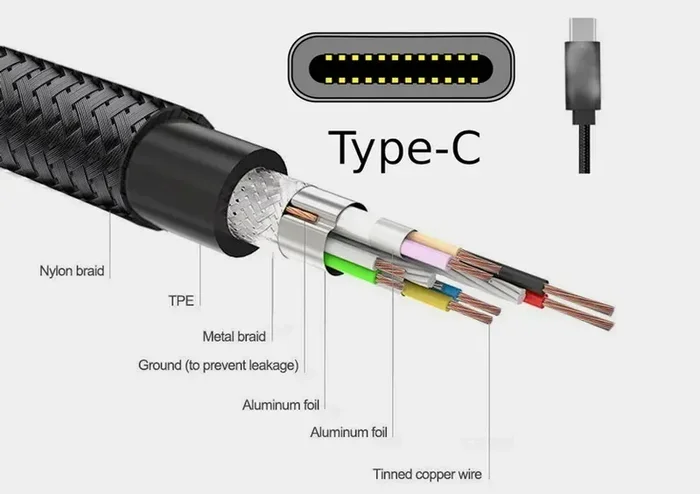
A regular USB-C cable follows the USB protocol. It can handle data transfer speeds up to 10 Gbps (with USB 3.2 Gen 2) or even 20 Gbps (with USB4). But it cannot deliver the full 40 Gbps bandwidth that Thunderbolt provides. The cable simply does not have the internal wiring to support it.
However, if your device has a Thunderbolt-enabled USB-C port, you can use Thunderbolt cables and Thunderbolt devices with it. The key is knowing whether your port actually supports Thunderbolt. This is not always obvious from the outside.
How to Check If Your USB-C Port Supports Thunderbolt
Checking for Thunderbolt support is easier than you think. Here are the steps you should follow:
- Look for the Thunderbolt icon: It looks like a lightning bolt next to the port. On MacBooks, this icon is always present next to Thunderbolt ports.
- Check your device specifications: Visit the manufacturer’s website and look up the exact model number. The specs will clearly state whether the USB-C port supports Thunderbolt.
- Check your system information: On Windows, go to Device Manager and look under “System Devices” for a Thunderbolt controller. On macOS, click the Apple menu, then About This Mac, and look for Thunderbolt in the system report.
- Use third-party tools: Apps like Thunderbolt Control Center on macOS can confirm Thunderbolt compatibility.
If your port does not have Thunderbolt support, no cable or adapter will make it Thunderbolt capable. The hardware simply is not there.
USB-C vs Thunderbolt: Key Differences Explained
It is easy to confuse USB-C with Thunderbolt because they share the same connector. But they are fundamentally different technologies. Let us look at the main differences.
Speed Comparison
Data transfer speed is the most obvious difference. Here is a quick comparison of what each technology can do:
- USB 3.2 Gen 1: 5 Gbps
- USB 3.2 Gen 2: 10 Gbps
- USB4: 20 Gbps or 40 Gbps
- Thunderbolt 3: 40 Gbps
- Thunderbolt 4: 40 Gbps (with stricter guarantees)
As you can see, Thunderbolt offers the highest speeds in the USB-C ecosystem. But remember, USB4 can also reach 40 Gbps. The difference lies in certification and feature support.
Feature Differences
Thunderbolt goes beyond just data transfer. It can carry video signals, power delivery, and data all at the same time. A single Thunderbolt cable can connect your laptop to an external monitor, a hard drive, and a charging brick simultaneously. This is called daisy chaining, and it is a huge convenience.
USB-C on its own can do some of these things, but not as reliably or as fast. For example, a standard USB-C cable might support video output or charging, but not both at the highest quality alongside fast data transfer.
What You Need to Get Thunderbolt Speeds
So if you cannot simply “turn” USB-C into Thunderbolt, what can you actually do? The good news is that getting Thunderbolt speeds is straightforward if your device supports it. Here is what you need.
A Thunderbolt-Enabled Device
First and foremost, your laptop, desktop, or tablet needs a Thunderbolt port. Most modern Apple MacBooks have Thunderbolt ports. Many Windows laptops from Dell, HP, Lenovo, and ASUS also include Thunderbolt support, especially in higher-end models.
If your device does not have Thunderbolt, you are limited to whatever speeds USB-C can provide. There is no workaround for this. The hardware must be there from the factory.
A Certified Thunderbolt Cable
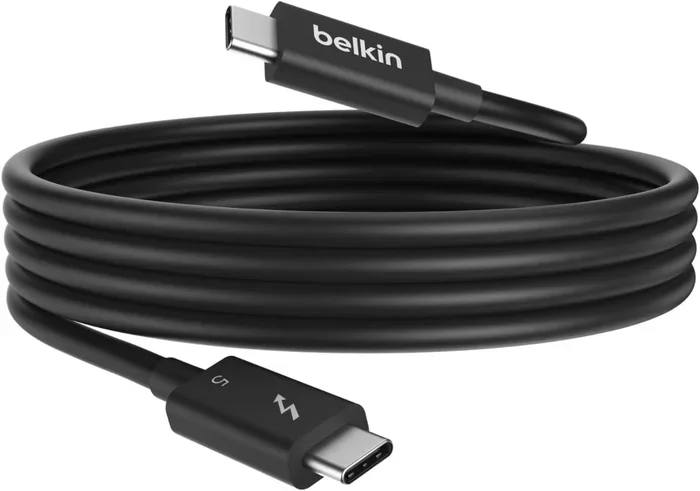
Even with a Thunderbolt port, you need the right cable. Not all USB-C cables are created equal. A Thunderbolt cable has special wiring inside that supports the full 40 Gbps bandwidth. Using a cheap USB-C cable with a Thunderbolt port will cap your speeds at whatever the cable supports, which is usually much lower.
Look for cables that are officially Thunderbolt certified. These cables are clearly marked with the Thunderbolt symbol. They are more expensive than standard USB-C cables, but they are worth every penny if you want those faster speeds.
Thunderbolt-Compatible Devices and Accessories
To take full advantage of Thunderbolt speeds, you need Thunderbolt-compatible peripherals. This includes external SSDs, docking stations, eGPUs, and displays that support Thunderbolt input. A regular external hard drive connected via USB-C will work, but it will not reach Thunderbolt speeds because the drive itself does not support the Thunderbolt protocol.
Common Mistakes People Make With USB-C and Thunderbolt
There are several mistakes that people make when trying to get faster speeds from their USB-C connections. Avoiding these pitfalls will save you time, money, and frustration.
Assuming All USB-C Is Thunderbolt
This is the number one mistake. Just because a port or cable has a USB-C connector does not mean it supports Thunderbolt. Many laptops have USB-C ports that only support USB 3.2 or even USB 2.0. These ports look identical to Thunderbolt ports but perform much slower.
Always verify your port specifications before buying Thunderbolt cables or accessories. If you are unsure, check the manufacturer’s website or contact their support team.
Using the Wrong Cable
Even if you have a Thunderbolt port, using a non-Thunderbolt cable will limit your speeds. A USB 3.2 cable typically maxes out at 10 Gbps, which is half the speed of Thunderbolt. If you are paying for Thunderbolt speeds, make sure your cable matches.
Cable length also matters. Thunderbolt cables longer than 0.5 meters (about 1.6 feet) may not sustain full 40 Gbps speeds unless they are active cables with built-in signal boosters. For most desk setups, a short passive Thunderbolt cable works perfectly.
Buying Cheap Thunderbolt Adapters
The market is full of cheap adapters that claim to add Thunderbolt functionality. Most of these are scams or simply do not work as advertised. Thunderbolt cannot be added to a non-Thunderbolt port through an adapter. If the port does not support Thunderbolt natively, no adapter will change that.
However, Thunderbolt docking stations and hubs are perfectly legitimate. They connect to a Thunderbolt port and expand your connectivity options. Just make sure you are buying from a reputable brand and that the dock itself is Thunderbolt certified.
How to Maximize Your Thunderbolt Speeds in Real-World Use
Getting Thunderbolt speeds on paper is one thing. Actually achieving them in everyday use is another story. Here are some practical tips to help you get the most out of your Thunderbolt connection.
Use Thunderbolt-Compatible External Drives
If you want to transfer large files quickly, use an external SSD that supports Thunderbolt. Brands like Samsung, LaCie, and OWC make Thunderbolt-compatible drives that can sustain read and write speeds of over 2,000 MB/s. A standard USB-C external drive might only reach 500 MB/s, which is still fast but not the full Thunderbolt potential.
Keep Your Cables Short and Undamaged
Signal degradation is real. A long or damaged Thunderbolt cable will slow down your connection. Keep your cables as short as practical for your setup. Inspect them regularly for fraying or bent connectors. A damaged cable not only slows you down but can also cause connection drops.
Update Your Drivers and Firmware
Thunderbolt performance can improve with software updates. Intel regularly releases Thunderbolt firmware updates that fix bugs and improve compatibility. On Windows, make sure your Thunderbolt drivers are up to date through Device Manager. On macOS, system updates usually include Thunderbolt firmware patches automatically.
Use Thunderbolt for Your Most Demanding Tasks
Not every connection needs to be Thunderbolt. If you are just charging your phone or syncing a small document, a regular USB-C connection is perfectly fine. Reserve Thunderbolt for tasks that truly benefit from the speed boost. These include editing large video files, connecting to an eGPU for gaming, or running multiple high-resolution external monitors.
Expert Insights: What Professionals Say About Thunderbolt
Professional video editors, musicians, and developers rely heavily on Thunderbolt for their daily workflows. The ability to connect an external SSD, a display, and a charging cable through a single port is incredibly valuable for people who work on the go.
Many professionals say that Thunderbolt has replaced the need for multiple ports on their laptops. A single Thunderbolt dock can connect to everything they need at their desk. When they unplug the dock, they are ready to go. This level of convenience is something that standard USB-C simply cannot match.
For creative professionals working with large files, Thunderbolt speeds make a noticeable difference. Transferring a 100GB video project that might take several minutes on a USB 3.2 connection can be done in seconds on a Thunderbolt connection. This efficiency adds up over time, especially for teams that move large files between devices constantly.
Key Takeaways
- Thunderbolt and USB-C share the same connector: But they are different technologies with different capabilities.
- You cannot turn standard USB-C into Thunderbolt: Thunderbolt requires specific hardware support in both the port and the cable.
- Check your device specs carefully: Not all USB-C ports support Thunderbolt, even if they look identical.
- Use certified Thunderbolt cables: A regular USB-C cable will not unlock Thunderbolt speeds, no matter what you do.
- Thunderbolt 4 is the current best standard: It offers 40 Gbps speeds, multi-display support, and enhanced security features.
- Avoid cheap adapters that promise Thunderbolt: They do not work and will waste your money.
- Thunderbolt is worth it for demanding tasks: If you regularly transfer large files or connect multiple peripherals, Thunderbolt delivers real, noticeable value.
Conclusion
So, can I turn USB C into Thunderbolt? The honest answer is no, not without the right hardware. Thunderbolt is a protocol that requires specific support built into your device’s port and controller. A standard USB-C cable or port cannot be upgraded to Thunderbolt through any software trick or simple adapter.
But here is the good news. If your device already has a Thunderbolt-enabled USB-C port, you are in great shape. You just need the right Thunderbolt cable and Thunderbolt-compatible accessories to unlock those blazing fast speeds. The investment is well worth it for anyone who regularly works with large files, connects multiple displays, or wants a cleaner, simpler setup with fewer cables.
Take the time to check your device specifications. Verify your port supports Thunderbolt. Invest in certified cables and accessories. Once you have everything set up correctly, you will experience the difference that Thunderbolt makes. Faster transfers, smoother video output, and a cleaner workspace are all within reach. The key is knowing what your device supports and using the right equipment to match.
Thunderbolt is not a magic trick you can add to any USB-C connection. It is a powerful technology built into specific hardware. And once you have it working, it truly transforms how you connect and work with your devices.
Frequently Asked Questions
Can I use a Thunderbolt cable with a regular USB-C port?
Yes, you can physically plug a Thunderbolt cable into a regular USB-C port. It will work, but it will operate at standard USB-C speeds, not Thunderbolt speeds. The cable is backward compatible, so it will not damage your device. However, you will not get the 40 Gbps bandwidth that Thunderbolt is known for.
How can I tell if my USB-C cable is Thunderbolt certified?
Thunderbolt-certified cables have the Thunderbolt lightning bolt icon printed on the connector or the cable itself. They also usually come in distinctive packaging that mentions Thunderbolt support. If there is no Thunderbolt symbol on the cable, it is likely a standard USB-C cable and will not deliver Thunderbolt speeds.
Do I need a Thunderbolt dock if I have a Thunderbolt port?
You do not need a Thunderbolt dock, but it can be very helpful. A Thunderbolt dock lets you connect multiple peripherals through a single cable. It supports data transfer, video output, and charging all at once. If you use your laptop at a desk regularly, a Thunderbolt dock simplifies your setup significantly.
Can I get Thunderbolt speeds with a USB4 device?
USB4 can reach speeds of up to 40 Gbps, which matches Thunderbolt 3 and Thunderbolt 4. However, USB4 does not guarantee all the features that Thunderbolt 4 offers, such as mandatory display support and security protocols. If you need guaranteed performance and features, Thunderbolt 4 is the better choice.
Is it worth buying Thunderbolt accessories if I only use my laptop for light tasks?
Probably not. If you mainly browse the web, write documents, and do light photo editing, standard USB-C speeds are more than enough. Thunderbolt accessories shine when you work with large files, edit video, connect multiple monitors, or need the fastest possible data transfer. For light users, the extra cost of Thunderbolt gear may not be justified.
Are all Thunderbolt 3 cables compatible with Thunderbolt 4 ports?
Yes, Thunderbolt 3 cables are fully compatible with Thunderbolt 4 ports. Thunderbolt 4 is backward compatible with Thunderbolt 3 devices and cables. However, if you use a Thunderbolt 3 cable with a Thunderbolt 4 device, you will be limited to Thunderbolt 3 speeds and features. For the best experience, use Thunderbolt 4 cables with Thunderbolt 4 devices.