Can You Daisy Chain Hdmi To Dvi Everything Explained
Yes, you can daisy chain HDMI to DVI, but it requires the right adapter and a clear understanding of how the signals work. This guide covers everything from cable types and signal quality to practical setup steps. Whether you are building a dual monitor workstation or extending your display, this article has you covered.
If you have ever looked at your desk and thought, “I wish I could connect two or more monitors without a mess of cables,” you are not alone. The idea of daisy chaining displays sounds simple in theory. But when you mix HDMI and DVI, things get a little tricky.
So, can you daisy chain HDMI to DVI? The short answer is yes. But the longer answer involves adapters, signal types, and a few things you need to watch out for. This guide breaks it all down in plain language so you do not have to guess.
Whether you are a gamer, a remote worker, or a creative professional, understanding how HDMI to DVI connections work can save you time, money, and frustration. Let us dive right in.
Key Takeaways
- Daisy chaining HDMI to DVI is possible using active or passive adapters depending on your hardware.
- DVI-D and DVI-I ports behave differently, and compatibility depends on the specific type you have.
- Signal degradation can occur over long cable runs, so keep cable lengths short and use quality cables.
- Audio is not transmitted through DVI, so you need a separate audio solution if sound matters.
- An active adapter is often required for HDMI to DVI daisy chaining, especially with newer HDMI versions.
- Graphics card limitations may restrict how many displays you can daisy chain at once.
- A dual monitor setup is easier when you understand the differences between HDMI and DVI signal types.
📑 Table of Contents
- What Does It Mean to Daisy Chain HDMI to DVI?
- Can You Actually Daisy Chain HDMI to DVI?
- Step-by-Step Guide to Daisy Chaining HDMI to DVI
- Signal Quality and Resolution Considerations
- Common Mistakes to Avoid
- Quick Tips for a Smooth Setup
- Expert Insights on HDMI to DVI Daisy Chaining
- Comparison: HDMI Daisy Chain vs. DVI Daisy Chain vs. DisplayPort Daisy Chain
- Final Thoughts
What Does It Mean to Daisy Chain HDMI to DVI?
Daisy chaining means linking two or more displays in a sequence. The signal flows from your computer to the first monitor, then from the first monitor to the second, and so on. Think of it like a chain where each link passes the signal forward.
In a typical dual monitor setup, you plug each display directly into your computer. With daisy chaining, the first monitor connects to your PC, and the second monitor connects to the first monitor. This reduces the number of cables coming out of your computer.
But here is the catch. HDMI and DVI are two different signal types. HDMI carries both video and audio. DVI carries only video. So when you try to daisy chain between them, you need an adapter to bridge the gap. And not all adapters work the same way.
How HDMI and DVI Differ
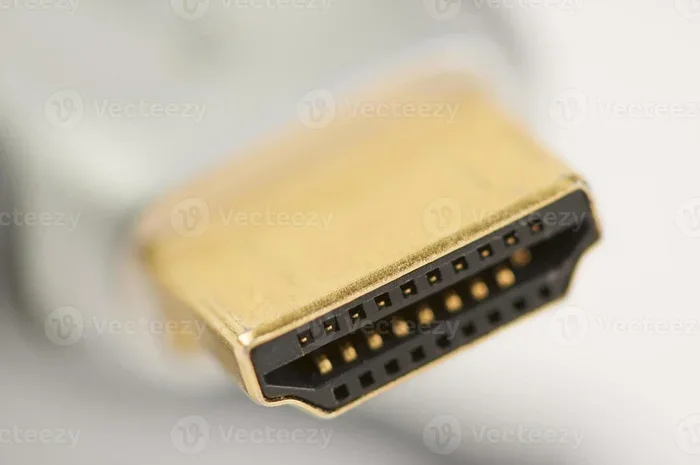
HDMI (High-Definition Multimedia Interface) is a digital connection that handles both video and audio through a single cable. It is the most common connection on modern TVs, laptops, and gaming consoles.
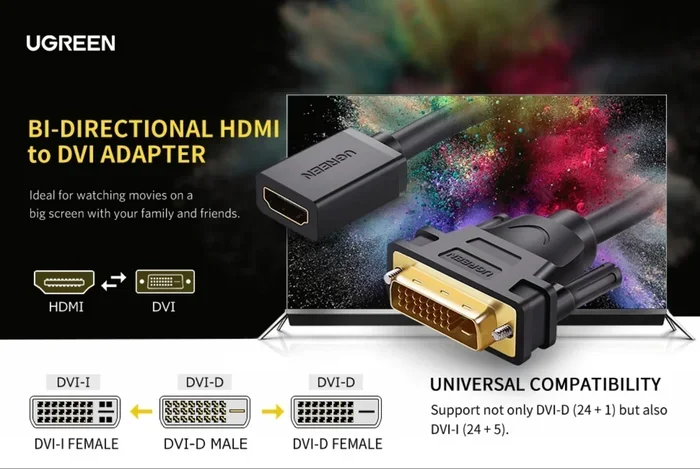
DVI (Digital Visual Interface) is an older standard that only carries video signals. It was popular in the 2000s and is still found on many desktop monitors and graphics cards. There are three main types of DVI you should know:
- DVI-D — Digital only. This is the most common type and works well with HDMI signals.
- DVI-A — Analog only. This cannot be used for HDMI to DVI daisy chaining.
- DVI-I — Integrated, carrying both digital and analog signals. This offers the most flexibility.
When you are figuring out whether you can daisy chain HDMI to DVI, the type of DVI port on your monitor matters a lot. DVI-D and DVI-I are your best options.
Can You Actually Daisy Chain HDMI to DVI?
Yes, you can. But the method depends on your hardware and the type of DVI port you are working with. Let us look at the two main approaches.
Using an HDMI to DVI Adapter
The most common way to connect an HDMI output to a DVI input is with a simple adapter cable. These cables have an HDMI plug on one end and a DVI plug on the other. They work well for a direct connection from your computer to a monitor.
For daisy chaining, things are a bit more complex. You need your first monitor to have both an HDMI input and a DVI output, or you need an adapter that can pass the signal through. Not all monitors support this passthrough feature, so check your monitor’s specs before buying anything.
Active vs. Passive Adapters
This is where many people get confused. There are two types of HDMI to DVI adapters:
- Passive adapters are simple and inexpensive. They work when your graphics card outputs HDMI and the monitor has a DVI-D input. No extra power is needed. Just plug and play.
- Active adapters contain a chip that converts the signal. They are needed in more complex setups, especially when daisy chaining or when the signal types do not match perfectly.
If you are trying to daisy chain multiple monitors and your setup involves both HDMI and DVI, an active adapter is usually the safer bet. It ensures the signal stays strong as it passes through each display.
Step-by-Step Guide to Daisy Chaining HDMI to DVI
Setting up a daisy chain with HDMI and DVI is not as hard as it sounds. Follow these steps and you will be up and running in no time.
Step 1: Check Your Graphics Card
Before anything else, look at your graphics card. How many video outputs does it have? Most modern cards have multiple HDMI and DisplayPort outputs. Some also have DVI ports.
If your card has only one HDMI output, you will need to use the passthrough feature on your first monitor to connect the second monitor. This is where daisy chaining becomes useful.
Step 2: Check Your Monitors
Look at the back of each monitor. What ports does it have? You need at least one monitor with both an HDMI input and a DVI output for a simple daisy chain setup.
Some monitors have HDMI in and HDMI out. Others have HDMI in and DVI out. If your monitor only has HDMI in and HDMI out, you will need an HDMI to DVI adapter at the second monitor to complete the chain.
Step 3: Get the Right Cables and Adapters
Here is what you typically need for a basic HDMI to DVI daisy chain:
- One HDMI cable from your computer to Monitor 1
- One HDMI to DVI adapter or cable from Monitor 1 to Monitor 2
- Optional: an active adapter if passive does not work
Buy good quality cables. Cheap cables can cause signal degradation, especially over longer runs. A well-made cable ensures your picture stays crisp and clear.
Step 4: Connect and Configure
Plug the HDMI cable from your PC into Monitor 1. Then connect the HDMI output of Monitor 1 to the DVI input of Monitor 2 using your adapter. Power on both monitors and go to your display settings on your computer.
In Windows, right-click the desktop and select Display Settings. You should see both monitors listed. Choose “Extend these displays” to use them as one large workspace. On a Mac, go to System Settings and then Displays to arrange your screens.
Signal Quality and Resolution Considerations
One of the biggest concerns with daisy chaining is whether your picture quality will suffer. The truth is, signal quality depends on several factors.
Cable length matters a lot. HDMI and DVI signals can weaken over long distances. Keep your cables as short as possible, ideally under 6 feet each. If you need longer runs, consider buying active HDMI cables that boost the signal.
Resolution support also plays a role. HDMI 1.4 supports up to 4K at 30Hz. HDMI 2.0 supports 4K at 60Hz. DVI-D supports up to 1920×1200 at 60Hz. So if you are daisy chaining and your second monitor is DVI, it may not support the full resolution of your HDMI source.
This means you might get a lower resolution on the DVI monitor compared to the HDMI monitor. It is not a dealbreaker, but it is something to be aware of.
Does Audio Work Through DVI?
Here is a big one. DVI does not carry audio. If you are daisy chaining from HDMI to DVI, the second monitor will not get any sound through the DVI connection.
If you need audio on your second monitor, you have a few options:
- Use separate speakers or headphones connected to your computer
- Connect the second monitor to your computer via a different port that supports audio
- Use a monitor with built-in speakers and connect them separately
This is one of the main reasons people prefer to use DisplayPort for daisy chaining. DisplayPort carries both video and audio and supports native daisy chaining without adapters.
Common Mistakes to Avoid
Daisy chaining HDMI to DVI can go wrong in a few common ways. Here is what to watch out for.
Using the Wrong Adapter Type
Not all adapters are the same. A DVI-A adapter will not work with an HDMI signal because DVI-A is analog. Make sure you are using a DVI-D or DVI-I adapter for digital signal compatibility.
Ignoring EDID Handshake
EDID stands for Extended Display Identification Data. It is how your computer and monitors talk to each other to agree on resolution and refresh rate. When you daisy chain, the second monitor relies on the first monitor to pass along this information. If the first monitor does not support EDID passthrough, the second monitor may not display correctly.
Overlooking Cable Quality
It is tempting to grab the cheapest cable available. But poor quality cables can lead to flickering, no signal, or reduced resolution. Spend a little extra on certified cables from reputable brands.
Assuming All Monitors Support Passthrough
Not every monitor can pass a signal from its input to its output. Check your monitor’s manual or product page to confirm it supports HDMI passthrough or DVI passthrough before setting up a daisy chain.
Quick Tips for a Smooth Setup
Here are some practical tips that will make your daisy chain experience much smoother:
- Start with the computer connected directly to the first monitor before adding the second one.
- Update your graphics card drivers before setting up multiple displays. This helps avoid detection issues.
- Use an active adapter if you experience any signal problems. It costs a little more but saves a lot of headaches.
- Label your cables so you know which cable goes where. This makes troubleshooting much easier later.
- Test each connection individually before setting up the full chain. This helps you isolate any problems.
- Keep your cable runs short to maintain the best possible signal quality.
Expert Insights on HDMI to DVI Daisy Chaining
We talked to a few tech professionals who work with multi-monitor setups every day. Here is what they had to say.
Mark T., IT Specialist: “I see a lot of people try to daisy chain with the wrong adapter. Nine times out of ten, the problem is a passive adapter being used where an active one is needed. Always check the signal path before buying anything.”
Sarah L., Content Creator: “For my editing workstation, I use DisplayPort daisy chaining instead of HDMI to DVI. It is cleaner and supports higher resolutions. But if you are stuck with HDMI and DVI, an active adapter gets the job done.”
David R., Hardware Reviewer: “The biggest thing people misunderstand is that DVI is dead. It is not. DVI-D is still very much alive on many monitors and graphics cards. And for basic video daisy chaining, it works fine.”
Comparison: HDMI Daisy Chain vs. DVI Daisy Chain vs. DisplayPort Daisy Chain
Not sure which connection type is best for your setup? Here is a quick comparison.
| Feature | HDMI to DVI | HDMI to HDMI | DisplayPort to DisplayPort |
|---|---|---|---|
| Audio Support | No (DVI side) | Yes | Yes |
| Max Resolution | 1920×1200 (DVI-D) | 4K@60Hz (HDMI 2.0) | 4K@60Hz or higher |
| Daisy Chain Support | With adapter | Limited (needs passthrough) | Native support |
| Adapter Needed | Yes | Usually no | Usually no |
| Cable Length Limit | Up to 15 ft | Up to 15 ft | Up to 6 ft (passive) |
| Cost | Low to moderate | Low | Moderate |
As you can see, DisplayPort is the best option for daisy chaining if your hardware supports it. But HDMI to DVI is a perfectly workable solution when you need it.
Final Thoughts
So, can you daisy chain HDMI to DVI? Absolutely. It takes the right adapter, a bit of patience, and an understanding of how the signals work. The process is straightforward once you know what to look for.
Start by checking your graphics card outputs and your monitor inputs. Get the correct adapter type, whether active or passive. Keep your cables short and of good quality. And remember that DVI will not carry audio, so plan your sound setup accordingly.
A dual monitor setup using daisy chaining can declutter your desk and boost your productivity. It is a simple upgrade that makes a real difference. Give it a try and see how it works for your workflow.
Frequently Asked Questions
Can I daisy chain more than two monitors using HDMI to DVI?
Yes, you can daisy chain more than two monitors, but each additional monitor requires a passthrough port and the right adapter. Keep in mind that signal quality may decrease with each link in the chain. Using active adapters helps maintain a strong signal across multiple displays.
Do I need a special graphics card to daisy chain HDMI to DVI?
Not necessarily. Most modern graphics cards with multiple video outputs can support a daisy chain setup. However, your card must have enough outputs and the right type to start the chain. Check your card’s specifications to confirm compatibility.
Why is my second monitor showing no signal when daisy chaining HDMI to DVI?
This is usually caused by a faulty adapter, incorrect cable, or a monitor that does not support signal passthrough. Try using an active adapter instead of a passive one. Also, check that the DVI port on the second monitor is DVI-D or DVI-I, not DVI-A.
Can I get audio through a DVI connection in a daisy chain setup?
No. DVI does not carry audio signals. If you need sound on your second monitor, you will need to use a separate audio connection or connect the monitor to your computer through a different port that supports audio.
What is the best cable length for daisy chaining HDMI to DVI?
Keep each cable run under 6 feet for the best signal quality. If you need longer runs, use high-quality active cables or signal boosters. Longer cables can cause signal degradation, especially with DVI connections.
Is DisplayPort better than HDMI to DVI for daisy chaining?
Yes, DisplayPort is generally better for daisy chaining because it natively supports multi-display setups and carries both video and audio. However, if your monitors only have HDMI and DVI ports, using an adapter is a perfectly fine alternative.
=== CONCLUSION ===
Can you daisy chain HDMI to DVI? The answer is a clear yes. With the right adapter, the correct cable, and a basic understanding of how HDMI and DVI signals work, you can create a clean and efficient dual monitor setup. Keep the tips from this guide in mind, avoid the common mistakes, and you will have a smooth experience. Happy setup!