Can I Use Thunderbolt As A Usb C Everything You Need
Yes, you can use Thunderbolt as USB C. Thunderbolt 3 and Thunderbolt 4 both use the USB C connector, so they share the same physical port. However, not every USB C port supports Thunderbolt, and the speeds and features differ significantly. This guide breaks down everything you need to know about Thunderbolt and USB C compatibility, including which devices work together, what you gain, and where you might run into issues.
This is a comprehensive guide about Can I Use Thunderbolt As A Usb C.
Key Takeaways
- Thunderbolt uses USB C connectors: Both Thunderbolt 3 and 4 share the same physical USB C shape, making them compatible at the cable level.
- Not all USB C is Thunderbolt: Many devices have USB C ports that do not support Thunderbolt speeds or features.
- Thunderbolt offers much faster speeds: Thunderbolt 3 delivers up to 40 Gbps, while standard USB C may only reach 10 Gbps or less.
- Backward compatibility is built in: Thunderbolt devices work with USB C ports, and USB C devices work with Thunderbolt ports.
- Check your device carefully: Look for the Thunderbolt logo next to the port to confirm full support.
- Docking stations and eGPUs benefit most: Thunderbolt shines when you need high-bandwidth connections for multiple peripherals.
[FEATURED_IMAGE_PLACEHOLDER]
Can I Use Thunderbolt As A Usb C The Complete Breakdown
The short answer is yes. Thunderbolt uses the USB C connector, which means a Thunderbolt cable can plug into any USB C port. But that is only half the story. The real question is whether your devices will work at full speed and with all the features you expect. Understanding this difference matters a lot, especially if you are buying cables, docks, or new laptops.
Thunderbolt was developed by Intel in partnership with Apple. It was designed to be a single cable that could do everything. Data transfer, video output, and charging all through one USB C connector. That vision has made Thunderbolt incredibly popular among professionals, creatives, and everyday users who want a clean, simple setup.
But here is where it gets tricky. USB C is just a shape. It is a connector type. Thunderbolt is a protocol that runs through that connector. Think of USB C as a highway and Thunderbolt as a high-speed express lane built on top of that same road. Not every USB C port has the express lane, even though they all look the same.
In this article, we will walk through everything you need to know. We will cover how Thunderbolt and USB C relate, what the differences are, and how to make sure your setup works the way you want it to.
What Is USB C
USB C is a connector standard. It is the small, reversible oval-shaped port you see on most modern laptops, phones, and tablets. It replaced the older USB A and USB B connectors because it is smaller, reversible, and supports much faster data transfer.
USB C is not a speed standard. It is just a shape. The speed depends on what protocol the device supports. A basic USB C port might support USB 2.0, which is very slow at 480 Mbps. A better USB C port might support USB 3.2 Gen 2, which hits 10 Gbps. And the best USB C ports support Thunderbolt 3 or Thunderbolt 4, which reach 40 Gbps.
Why USB C Became So Popular
USB C won because it is universal. One cable can charge your phone, connect your laptop to a monitor, and transfer files to an external hard drive. USB Power Delivery lets the port supply up to 100 watts of power, which is enough to charge most laptops.
Here are some key things to know about USB C:
- Reversible design: You can plug it in either way. No more flipping the cable three times.
- Small form factor: It is compact enough for thin laptops and phones.
- Supports multiple protocols: USB C can carry USB data, DisplayPort video, and Thunderbolt signals.
- Not all ports are equal: The port shape does not tell you what it can do. You have to check the specs.
What Is Thunderbolt
Thunderbolt is a hardware interface developed by Intel. It combines several protocols into one connection. Thunderbolt 3 and Thunderbolt 4 both use the USB C connector, which is why they can plug into any USB C port.
Thunderbolt was first introduced in 2011. It used a different connector called Mini DisplayPort. Then in 2015, Thunderbolt 3 switched to the USB C form factor. This switch made Thunderbolt much more accessible and widely adopted.
Thunderbolt 3 vs Thunderbolt 4
Both Thunderbolt 3 and Thunderbolt 4 use the USB C connector. But Thunderbolt 4 has stricter requirements and some added features:
- Thunderbolt 3: 40 Gbps data transfer, supports one 4K display or two 1080p displays, and 100W charging.
- Thunderbolt 4: 40 Gbps data transfer, supports two 4K displays or one 8K display, 100W charging, and mandatory wake-from-sleep support.
Thunderbolt 4 also requires PCIe support for external GPUs and must support a minimum data security standard. These requirements make Thunderbolt 4 more reliable for professional use.
How Thunderbolt Works With USB C
Thunderbolt and USB C work together because they share the same physical connector. A Thunderbolt cable can function as a regular USB C cable. And a USB C cable can plug into a Thunderbolt port. This is called backward compatibility, and it is one of the biggest strengths of the Thunderbolt design.
However, when you plug a Thunderbolt device into a plain USB C port, it will only work at USB C speeds. You will not get the full 40 Gbps Thunderbolt bandwidth. The connection will fall back to whatever the USB C port supports, which is usually 10 Gbps or less.
The Role of the Controller Chip
Inside every Thunderbolt port is a special controller chip made by Intel. This chip manages the Thunderbolt protocol. When you plug a Thunderbolt cable into a port with this chip, the chip negotiates the connection and enables Thunderbolt speeds. When you plug into a port without this chip, the connection defaults to standard USB C behavior.
This is why two ports that look identical can behave very differently. The physical connector is the same, but the internal hardware determines what the port can do.
Thunderbolt vs USB C Speed Comparison
Speed is where Thunderbolt really shines. Here is a detailed comparison of the different USB C and Thunderbolt configurations:
| Connection Type | Max Data Speed | Max Power | Video Support |
|---|---|---|---|
| USB 2.0 over USB C | 480 Mbps | 2.5W | None |
| USB 3.2 Gen 1 over USB C | 5 Gbps | 15W | 1x 4K@30Hz |
| USB 3.2 Gen 2 over USB C | 10 Gbps | 15W | 1x 4K@60Hz |
| USB4 over USB C | 20-40 Gbps | 100W | 2x 4K or 1x 8K |
| Thunderbolt 3 over USB C | 40 Gbps | 100W | 2x 4K or 1x 8K |
| Thunderbolt 4 over USB C | 40 Gbps | 100W | 2x 4K or 1x 8K |
As you can see, Thunderbolt 3 and Thunderbolt 4 offer the fastest speeds available over a USB C connection. They also provide the best video support and the most power delivery. This makes them ideal for docking stations, external GPUs, and high-speed storage devices.
Real-World Speed Differences
In real-world use, the difference is noticeable. Transferring a 100GB video file over USB 3.2 Gen 2 takes about 80 seconds. The same transfer over Thunderbolt 3 takes less than 25 seconds. For video editors, designers, and anyone working with large files, this speed difference saves hours every week.
Thunderbolt also supports daisy-chaining. You can connect up to six Thunderbolt devices in a chain from a single port. This is not possible with standard USB C. Daisy-chaining means you can connect your external hard drive, monitor, and docking station all through one Thunderbolt port on your laptop.
When to Use Thunderbolt Over USB C
Thunderbolt is not for everyone. Most casual users will be perfectly fine with standard USB C. But if you fall into any of these categories, Thunderbolt is worth the investment.
You Work with Large Files
If you edit video, work with raw photos, or handle large datasets, Thunderbolt will dramatically speed up your workflow. External SSDs designed for Thunderbolt can sustain read and write speeds above 2000 MB/s. Standard USB C drives typically top out around 1000 MB/s.
You Need Multiple Displays
Thunderbolt 3 and 4 can drive two 4K monitors or one 8K display from a single port. If you are a multitasker who needs screen real estate, Thunderbolt makes it easy. You can connect a docking station and run your laptop closed while using external monitors, a keyboard, and a mouse.
You Use External GPUs
If you game or do GPU-heavy work on a laptop, Thunderbolt is the way to go. It provides enough bandwidth to connect an external GPU enclosure and get near-native performance. Standard USB C simply does not have the bandwidth for this use case.
You Run a Business or Creative Studio
For professionals who need reliable, high-speed connectivity, Thunderbolt is a game changer. If your business relies on fast data transfers between workstations, storage arrays, and networking equipment, Thunderbolt provides the bandwidth and reliability you need. For companies that use electronic commerce communication systems and value-added networks to manage transactions and data flows, Thunderbolt can significantly improve the speed and efficiency of your internal data pipelines. You can learn more about how different connectivity solutions impact electronic commerce communication by exploring the advantages and disadvantages of using a value added network for electronic commerce communication on our site.
Common Mistakes People Make With Thunderbolt and USB C
Even experienced users make mistakes when it comes to Thunderbolt and USB C. Here are the most common ones to avoid.
Assuming All USB C Ports Are Thunderbolt
This is the number one mistake. Many people buy a Thunderbolt dock or cable assuming any USB C port will unlock full Thunderbolt speeds. It will not. You must check if your device has a Thunderbolt port, not just a USB C port.
Using Cheap Cables
Not all USB C cables are created equal. A cheap cable might only support USB 2.0 speeds, which is painfully slow. Always buy cables that are rated for the speeds you need. Look for cables that explicitly mention Thunderbolt certification or support 40 Gbps.
Ignoring the Thunderbolt Logo
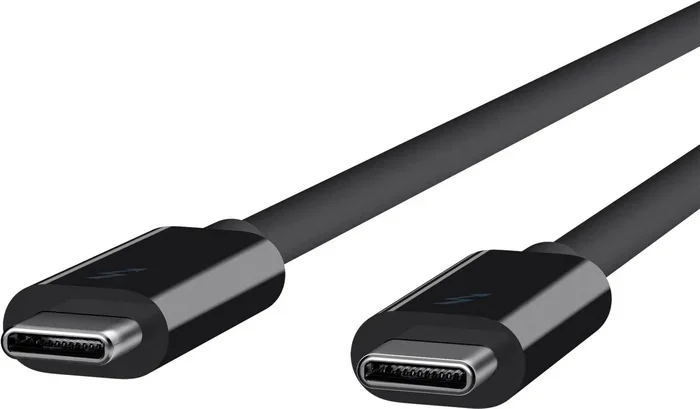
Thunderbolt ports have a small lightning bolt icon next to them. If you do not see this logo, the port is likely just a standard USB C port. Do not assume based on the port shape alone.
Mixing Up Thunderbolt Generations
Thunderbolt 3 and Thunderbolt 4 are backward compatible, but you will only get the speed of the slower device. If you plug a Thunderbolt 4 drive into a Thunderbolt 3 port, it will work, but it will run at Thunderbolt 3 speeds.
Quick Tips for Thunderbolt and USB C Users
- Always check for the lightning bolt icon next to the port to confirm Thunderbolt support.
- Buy certified cables from reputable brands to ensure you get the speeds you pay for.
- Read your device manual carefully. The port type is usually listed in the technical specifications.
- Use Thunderbolt for docking stations if you want the best performance and reliability.
- Test your speeds after setup using a tool like Blackmagic Disk Speed Test to confirm you are getting the expected performance.
Expert Insights on Thunderbolt and USB C Compatibility
Industry experts agree that Thunderbolt and USB C are complementary, not competing technologies. Thunderbolt builds on top of the USB C connector and adds its own protocol layer for higher performance.
According to Intel, Thunderbolt 4 is designed to be the universal docking standard. It supports any display, any speed, and any power requirement that a modern laptop might need. This makes it the best choice for users who want a single cable solution for their entire workspace.
The adoption of USB4 has also helped bridge the gap. USB4 uses the same USB C connector and supports Thunderbolt 3 and Thunderbolt 4 protocols. This means more devices are becoming Thunderbolt-compatible without needing the Thunderbolt branding.
However, experts also warn that the market is still confusing for consumers. The same connector shape supports multiple protocols, and manufacturers do not always make it clear which protocol a port supports. This is why checking the specs before buying is so important.
One thing is certain: Thunderbolt and USB C are here to stay. The USB Implementers Forum has committed to keeping USB C as the universal connector standard for years to come. And Thunderbolt continues to push the boundaries of what that connector can do.
Key Takeaways
- Thunderbolt uses USB C connectors: Both Thunderbolt 3 and Thunderbolt 4 share the same physical USB C shape, making them compatible at the cable and port level.
- Not all USB C is Thunderbolt: Many devices have USB C ports that do not support Thunderbolt speeds or features. Always look for the lightning bolt icon.
- Thunderbolt offers much faster speeds: Thunderbolt 3 and 4 deliver up to 40 Gbps, while standard USB C may only reach 10 Gbps or less.
- Backward compatibility is built in: Thunderbolt devices work with USB C ports, and USB C devices work with Thunderbolt ports, though at reduced speeds.
- Check your device carefully: Look for the Thunderbolt logo next to the port to confirm full support before purchasing docks or cables.
- Docking stations and eGPUs benefit most: Thunderbolt shines when you need high-bandwidth connections for multiple peripherals and external GPUs.
- USB4 is closing the gap: USB4 supports Thunderbolt protocols over USB C, making high-speed connectivity more accessible than ever.
Conclusion
So, can you use Thunderbolt as USB C? The answer is a clear yes. Thunderbolt 3 and Thunderbolt 4 both use the USB C connector, which means they are physically compatible with any USB C port and device. You can plug a Thunderbolt cable into a USB C port, and it will work. You can plug a USB C device into a Thunderbolt port, and it will work too.
But the real power of Thunderbolt comes when both the cable and the port support the Thunderbolt protocol. That is when you unlock the full 40 Gbps speeds, dual 4K display support, and 100W power delivery. That is when Thunderbolt truly shines.
For most users, standard USB C is perfectly fine. You do not need Thunderbolt for everyday tasks like browsing, email, and charging. But if you are a professional who needs speed, reliability, and flexibility, Thunderbolt is the best connector available today.
The key takeaway is simple: always check your ports and cables before buying. A quick look for the lightning bolt logo can save you from disappointment and wasted money. With the right setup, Thunderbolt and USB C work together seamlessly to give you a fast, clean, and versatile connectivity experience.
Frequently Asked Questions
Can I plug a Thunderbolt cable into a regular USB C port?
Yes, you can. Thunderbolt cables are backward compatible with standard USB C ports. The connection will work, but it will only operate at the speed of the USB C port, not at Thunderbolt speeds. The cable will function as a regular USB C cable in this scenario.
How do I know if my laptop has a Thunderbolt port?
Look for the small lightning bolt icon next to the port. You can also check your laptop’s specifications in the user manual or on the manufacturer’s website. The port type will be clearly listed in the technical details.
Is Thunderbolt faster than USB C?
Thunderbolt is faster than standard USB C, but only when both the port and the cable support Thunderbolt. Thunderbolt 3 and 4 can reach 40 Gbps, while standard USB C typically maxes out at 10 Gbps. The actual speed depends on your specific hardware.
Can I use a Thunderbolt dock with a USB C laptop?
Yes, you can. A Thunderbolt dock will work with a USB C laptop, but it will operate at USB C speeds rather than Thunderbolt speeds. You will still get a good connection, but you will not experience the full bandwidth benefits of Thunderbolt.
Do I need a special cable for Thunderbolt?
For best results, yes. Thunderbolt-certified cables are designed to handle the full 40 Gbps speeds and provide the best reliability. You can use a standard USB C cable, but it may limit your speeds depending on the cable’s rating and quality.
Will Thunderbolt replace USB C in the future?
Thunderbolt will not replace USB C because Thunderbolt uses USB C as its connector. Instead, Thunderbolt will continue to build on top of the USB C standard. USB4, which is now widely adopted, also uses USB C and supports Thunderbolt protocols, making the ecosystem more unified than ever.