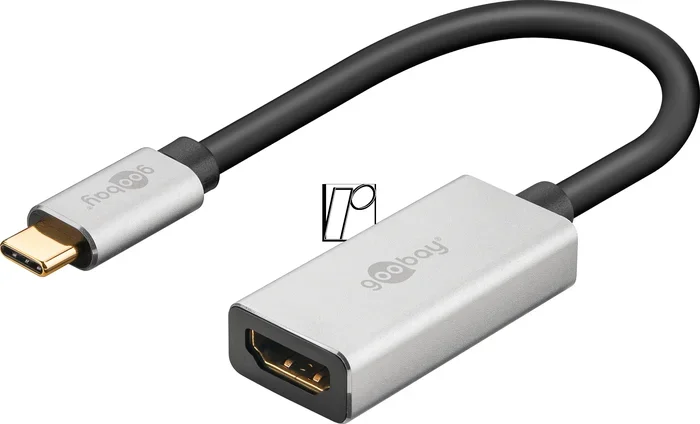
Can You Input Hdmi To Usb C Yes Here Is How To Do It
Can you input hdmi to usb c? Absolutely yes! This guide shows you exactly how to connect your HDMI devices to a USB C port using simple adapters. You will learn the difference between active and passive adapters, how Alt Mode works, and the step-by-step setup process to get your external monitor running.
Do you have an HDMI cable but only a USB C port on your laptop? Maybe you want to connect a gaming console or a Blu-ray player to your computer. You might be asking yourself, can you input hdmi to usb c? The answer is a definite yes. Can you input hdmi to usb c is a question many tech users ask every day. Whether you are a student, a professional, or a gamer, knowing how to do this saves you a lot of hassle. You do not need expensive equipment to make it work. With the right adapter, you can turn your USB C port into an HDMI input station. Let us walk you through the whole process. By the end of this guide, you will know exactly what to buy and how to set it up. This article covers everything from basic definitions to advanced troubleshooting tips. You will feel confident setting up your display in just a few minutes.
Connecting an HDMI device to a USB C laptop sounds tricky, but it is actually quite simple. The technology has come a long way in recent years. Modern laptops and tablets use the USB C type c connector for almost everything. This includes charging, data transfer, and video output. But did you know you can also use it for video input? Yes, you can bring an HDMI signal into your machine. This is perfect for people who want to use their laptop as an external display. It is also great for creators who need to capture video from cameras. Gamers also do this. They might want to play console games on their laptop screen. Whatever the reason, the setup is possible and very useful. We will show you exactly how to make this connection happen right now. You will be surprised at how easy it is to get started.
Key Takeaways
- USB C Supports HDMI Input: You can definitely send an HDMI signal into a USB C port with the right adapter.
- Alt Mode is Key: USB C Alt Mode allows video signals to pass through the port for input.
- Active vs Passive Matters: Active adapters are needed for HDMI input, while passive ones usually only output.
- Thunderbolt 3/4 Works Great: These ports handle high resolutions like 4K and 8K easily for input.
- Check Your Device First: Not all USB C ports support video input, so always verify your specs.
- USB C Hubs Are Versatile: A good hub gives you HDMI input and multiple other ports at once.
- Setup Takes Minutes: Once you have the right cable, connecting an external display is quick and simple.
📑 Table of Contents
- What Does It Mean to Input HDMI to USB C?
- Can You Input Hdmi To Usb C? The Short Answer
- How to Input HDMI to USB C Step-by-Step
- Active vs Passive Adapters: What You Must Know
- Common Mistakes to Avoid
- Expert Tips for the Best Setup
- Comparison Table: Input HDMI to USB C Adapters
- Quick Tips for a Smooth Connection
- Conclusion
What Does It Mean to Input HDMI to USB C?
Before we dive into the steps, let us understand what we are actually doing. When we talk about input hdmi to usb c, we mean sending a video and audio signal from an HDMI source into a USB C device. Usually, USB C ports send video out to monitors. This is called video output. But with the right gear, you can reverse this. You can make the USB C port receive a video signal. This is called video input. It is like plugging a TV into your computer instead of plugging your computer into a TV. Understanding this difference is crucial for buying the right gear. Many people buy the wrong adapter because they do not know the direction of the signal. Once you grasp this concept, the rest of the process becomes much easier.
Understanding the Basics of USB C and HDMI
The USB C connector is a small, reversible port. It is found on almost all modern laptops. It is also on many tablets and smartphones. The HDMI port is the classic, flat connector you see on TVs and monitors. HDMI carries both high-definition video and surround sound audio. When you want to connect these two different technologies, you need a bridge. That bridge is an adapter or a converter. The adapter takes the HDMI signal and translates it so your USB C port can understand it. The USB C type c connector has 24 pins inside. These pins handle power, data, and video all at once. This makes it a very versatile port for modern computing. HDMI has been around for a long time and remains the standard for home theater. Knowing how these two standards interact helps you choose the right setup. The reversible design of USB C means you never have to flip the cable to get it right. This small detail makes your daily routine so much easier. You can plug it in quickly, even in the dark.
Why Do People Need HDMI Input on USB C?
There are many reasons someone needs to input hdmi to usb c. One big reason is using a laptop as a second monitor. If you have a desktop PC with HDMI output, you can send that signal to your USB C laptop. This turns your laptop into a big, portable screen. Another reason is video capture. Content creators often use HDMI cameras. They need to plug those cameras into their laptop to record live streams. Gamers also do this. They might want to play console games on their laptop screen. Whatever the reason, the setup is possible and very useful. It saves money because you do not need to buy a separate monitor. It also saves space on your desk. A single cable connection keeps your workspace clean and organized. Students benefit from this too. They can plug in their school projectors or TVs for presentations. Professionals can use it for dual-screen work setups. The flexibility is truly amazing. You are not tied to one single screen anymore.
Can You Input Hdmi To Usb C? The Short Answer
The short answer to can you input hdmi to usb c is absolutely yes. However, the long answer depends on your specific hardware. Not every USB C port is created equal. Some ports can handle video input, while others cannot. You must look for a feature called DisplayPort Alt Mode. This feature allows the USB C port to carry different types of video signals. When your port supports Alt Mode, you have a much better chance of getting HDMI input to work. Let us break down exactly how this video signal travels through your device. It is not magic, it is just smart engineering.
How USB C Handles Video Signals
Inside a USB C cable, there are many tiny wires. These wires handle data, power, and video. When a USB C port supports Alt Mode, it can dedicate some of these wires specifically to video. This is crucial for input hdmi to usb c setups. Without Alt Mode, the port can only do data and power. It cannot process video signals at all. So, the first step is checking if your laptop has a video-capable USB C port. Most modern laptops from Apple, Dell, HP, and Lenovo do support this. You can usually find this information in your laptop manual or on the manufacturer website. Look for terms like DisplayPort Alt Mode or Thunderbolt. If your laptop has these features, you are in great shape. If not, you might need a different solution altogether.
The Role of Alt Mode and Thunderbolt
DisplayPort Alt Mode is the standard for most USB C video support. But there is an even better option: Thunderbolt 3 and Thunderbolt 4. These ports are super fast. They support video input and output with ease. If you have a Thunderbolt USB C port, you will have no problem connecting an HDMI source. Thunderbolt is a great choice for people who need high bandwidth. It supports 4K and even 8K resolutions smoothly. Even if your port is just standard USB C with Alt Mode, it will still work for most basic input needs. Always check your device specs to be sure. Thunderbolt adds extra capabilities like fast data transfer and charging. It is the ultimate type c connector for professionals and creatives.
How to Input HDMI to USB C Step-by-Step
Now that you know it is possible, let us get into the actual setup. Setting up your HDMI input through USB C is easy. You just need the right pieces. Here is a simple way to think about it. You have your HDMI source, like a PlayStation or a camera. You have your USB C laptop. You need something in the middle to connect them. That something is an active USB C adapter with HDMI input.
What You Need: The Right Adapter
You cannot just plug an HDMI cable into a USB C port and expect it to work for input. You need a special usb c adapter. Look for an adapter that specifically lists HDMI input. Many adapters only have HDMI output. They take a USB C signal and send it to a TV. You need the opposite. You need an adapter that takes an HDMI signal and sends it into your laptop. These adapters are often called HDMI capture adapters or USB C HDMI input docks. They usually have an HDMI female port on one side and a USB C male plug on the other. Make sure the adapter supports the resolution you need. A 4K adapter costs a bit more but is worth it for sharp images.
Step-by-Step Connection Guide
Follow these steps to get your HDMI input working:
- Check your laptop specifications to confirm it supports video input.
- Purchase a high-quality active USB C adapter with HDMI input.
- Plug the HDMI cable from your source device into the adapter.
- Connect the USB C end of the adapter into your laptop.
- Wait for your laptop to recognize the new device.
- Go to your display settings and select the HDMI input source.
That is it! Your laptop screen should now show what is connected to the HDMI source. If you do not see anything, make sure the adapter is fully seated. You might also need to update your display drivers. Sometimes a simple restart fixes recognition issues. Do not panic if it does not work immediately. Try unplugging and plugging the adapter back in. Check that your source device is set to output the correct resolution. You should also check your laptop display settings. On Windows, go to Settings, then System, then Display. On Mac, go to System Preferences, then Displays. Make sure the external display is detected. If it is not, try a different USB C port on your laptop. Some ports might not support video input even if they look the same. This is a common trap for many users. Patience is key when setting up new hardware.
Active vs Passive Adapters: What You Must Know
One of the biggest mistakes people make is buying the wrong type of adapter. When you are trying to input hdmi to usb c, you must understand the difference between active and passive adapters. This difference is huge. Choosing the wrong one will waste your money and time.
Why Passive Adapters Fail for Input
A passive adapter does not have any chips inside. It just passes the signal through the wires. Passive adapters are great for taking a USB C video signal and sending it out to an HDMI monitor. This is called output. But they do not work for input. If you plug an HDMI source into a passive adapter, nothing will happen. The USB C port cannot process the incoming HDMI signal without help. The signal needs to be converted and processed by a chip. That is where active adapters come in. Always remember this rule for your setup.
When to Choose an Active Adapter
An active adapter has built-in chips that do the signal conversion. When you want to input hdmi to usb c, you absolutely need an active adapter. The chip inside takes the HDMI signal and translates it into a format your laptop can read. Look for adapters that mention HDMI capture or HDMI input support. A good usb c hub with an HDMI input port is also a great choice. These hubs often include multiple ports like USB A, SD card readers, and Ethernet. They give you a lot of connectivity in one small package. Always buy from a reputable brand to ensure the chip quality is good. Cheap knockoff adapters often overheat and fail quickly.
Common Mistakes to Avoid
Even with the right adapter, things can go wrong. Many users run into problems because of simple oversights. Here are some common mistakes to avoid when setting up your HDMI input to USB C connection. Always double check the product name before you click buy. A small typo in the search bar can lead you to the wrong product. Read the reviews from other buyers to see if they had any issues. A good adapter should last for years without problems. Cheap plastic housings tend to crack after a few months. Metal housings are much more durable and feel premium. Also, pay attention to the heat dissipation. Some adapters get very hot during long 4K video capture sessions. If your adapter feels too hot to touch, unplug it and let it cool down. Overheating can damage your laptop port over time.
Buying the Wrong Adapter Type
The most common mistake is buying an HDMI output adapter instead of an input adapter. The ports might look the same, but the internal wiring is totally different. Always read the product description carefully. If it says HDMI out or display output, do not buy it for your needs. You need an HDMI in or capture adapter. Also, make sure the adapter supports the resolution you need. A cheap adapter might only support 1080p, while you need 4K. Reading the fine print saves you from a lot of frustration later on.
Ignoring Your Device Specifications
Another big mistake is assuming all USB C ports can do this. As we mentioned earlier, your port needs to support video input. Some USB C ports are designed only for charging and data. They have no video capability at all. Before you buy an adapter, check your laptop manual. Look for terms like DisplayPort Alt Mode or Thunderbolt. If your port does not support video, an adapter will not magically make it work. You might need a different type of docking station or a different laptop altogether. Do not guess, always verify your hardware capabilities first.
Using Low-Quality Cables
Do not cheap out on your cables either. A poor quality HDMI cable can cause signal loss, flickering, or no signal at all. Use certified HDMI cables that match your resolution needs. For 4K input, you need a Premium High Speed HDMI cable. For 1080p, a standard High Speed cable is fine. The cable is just as important as the adapter. A bad cable will ruin a good setup. Keep a few spare cables on hand so you are always ready.
Expert Tips for the Best Setup
Want to get the most out of your HDMI input setup? Follow these expert tips to ensure a smooth and reliable experience. These little tweaks make a big difference in your daily workflow.
Maximizing 4K Resolution
If you want to enjoy 4K resolution, you need the right gear. Standard USB C 3.0 ports do not have enough bandwidth for 4K video input. You need a USB C 3.1 Gen 2 port or a Thunderbolt 3 port. These ports have the speed to handle 4K at 60Hz. When shopping for an adapter, look for 4K support on the box. Also, make sure your laptop graphics card can handle 4K input. Most modern laptops can, but it is always good to double check. A 4K display makes your work look incredibly sharp and professional.
Power Delivery While Using HDMI Input
One concern people have is battery life. When you use an adapter, does it drain your laptop battery faster? Yes, it can. Processing an incoming video signal takes power. To fix this, use a USB C charger that supports power delivery. Plug your laptop into the wall while you are using HDMI input. This keeps your battery healthy and ensures the adapter has enough power to work properly. Some USB C hubs even charge your laptop while you use the HDMI port. This is the best of both worlds. You never have to worry about your laptop dying mid-project.
Audio Syncing and Display Drivers
If your laptop does not recognize the HDMI input right away, do not panic. Go to your device manager and update your display drivers. Sometimes Windows or Mac needs a little nudge to recognize new display hardware. Visit your laptop manufacturer website and download the latest graphics drivers. This solves most connectivity issues instantly. It is a simple step that many people forget. Also, if you have audio issues, check your sound settings. Make sure the HDMI input is selected as the audio device. A quick settings tweak usually fixes any sound lag or silence problems. You want the audio to match the video perfectly. A slight delay can be very distracting when watching movies or gaming. Adjust the audio sync settings in your playback software if needed.
Comparison Table: Input HDMI to USB C Adapters
Not sure which adapter to buy? Here is a quick comparison of the two main types of adapters you will encounter.
| Feature | Active HDMI Input Adapter | Passive HDMI Output Adapter |
|---|---|---|
| Signal Direction | HDMI In to USB C In | USB C Out to HDMI Out |
| Built-in Chip | Yes | No |
| Works for Input? | Yes | No |
| Price Range | $30 – $150 | $10 – $30 |
| Best For | Capturing video, external monitor | Extending laptop screen to TV |
Quick Tips for a Smooth Connection
- Always check for Alt Mode: Make sure your USB C port supports video before buying an adapter.
- Use a powered hub: If you are using multiple devices, a powered hub prevents power issues.
- Keep cables short: Shorter HDMI cables provide a stronger, more stable signal.
- Update your OS: Always run the latest version of Windows or macOS for the best compatibility.
Conclusion
So, can you input hdmi to usb c? The answer is a resounding yes. You just need the right active adapter and a compatible USB C port. Whether you want to use your laptop as a monitor, capture video from a camera, or play console games on the go, this setup works great. Remember to avoid passive adapters for input, and always check your device specifications first. With the right usb c to hdmi input solution, you can connect almost any HDMI device to your modern laptop. Do not let cable confusion stop you. Grab the right adapter, follow the steps above, and enjoy your new setup today. You will be surprised how easy and useful this connection can be. Start your setup now and experience the convenience of a fully connected workspace.
Frequently Asked Questions
Can any USB C port accept HDMI input?
No, not every USB C port can accept HDMI input. Your port must support DisplayPort Alt Mode or Thunderbolt to process video signals. Check your laptop specifications to confirm it has video input capabilities before buying an adapter.
What is the difference between an active and passive adapter for HDMI input?
An active adapter has a built-in chip that converts the HDMI signal for your laptop to read. A passive adapter just passes signals through and only works for outputting video from your laptop. You must buy an active adapter to input hdmi to usb c successfully.
Do I need a special cable to input HDMI to USB C?
You need a standard HDMI cable to connect your source device to the adapter. The adapter itself uses a USB C cable to connect to your laptop. No special HDMI cables are required, but a high-speed cable ensures the best picture quality.
Can I use a USB C hub for HDMI input?
Yes, you can use a USB C hub that features an HDMI input port. These hubs are great because they give you multiple ports while still allowing HDMI input. Just make sure the hub specs clearly state it supports HDMI input, not just output.
Why is my laptop not recognizing the HDMI input?
This usually happens if your adapter is passive instead of active, or if your USB C port lacks video support. Try updating your display drivers and ensure the adapter is firmly plugged in. Restarting your laptop can also help the system recognize the new device.
Is inputting HDMI to USB C good for gaming?
Yes, it is a great way to play console games on your laptop screen. However, you may experience slight input lag depending on the adapter quality. For the best gaming experience, choose an adapter that supports high refresh rates and low latency.