Can You Make Wii 1080p The Simple Step By Step Guide
Many gamers wonder can you make Wii 1080p, and the answer is yes with the right tools and settings. The Nintendo Wii outputs at 480p natively, but you can upscale and improve the picture quality significantly using component cables, HDMI adapters, and console settings. This guide walks you through every method in a simple, step-by-step format.
If you have been asking yourself can you make Wii 1080p, you are not alone. The Nintendo Wii is a beloved console that has brought joy to millions. But its video output has always been limited to standard definition. That means the original Wii resolution sits at 480p, which looks fuzzy on today’s big flat-screen TVs.
The good news is that you can improve how the Wii looks on a modern display. You cannot truly force the Wii to render games at 1080p natively. But with the right cables, settings, and accessories, you can get a much sharper and cleaner picture. This guide breaks down every method in simple steps you can follow right now.
Whether you are a casual player or a retro gaming fan, improving your Wii’s video output is totally worth it. Let us dive into how you can make this happen without spending a fortune or needing tech expertise.
Key Takeaways
- Wii’s native resolution is 480p: The console was designed for standard definition, but you can improve its output on modern TVs.
- Component cables make a big difference: Swapping to quality AV cables is the easiest way to sharpen your Wii picture.
- HDMI adapters enable upscaling: A Wii to HDMI converter can help your Wii look better on 1080p displays.
- TV upscaling settings matter: Your modern TV plays a huge role in how the Wii image appears on screen.
- Progressive scan unlocks smoother visuals: Enabling this feature in Wii settings improves motion clarity.
- Multiple methods exist: From cable swaps to software tweaks, there are several ways to boost Wii video quality.
- You do not need expensive gear: Most improvements are affordable and easy to set up at home.
📑 Table of Contents
- Understanding Wii Resolution and Video Output
- Can You Make Wii 1080p? The Truth About Upscaling
- Best Methods to Improve Wii Picture Quality
- Step-by-Step Guide to Getting the Best Wii Picture on 1080p
- Common Mistakes People Make When Trying to Improve Wii Picture
- Expert Tips for the Best Wii Upscaling Experience
- Comparison: Different Methods for Improving Wii Picture Quality
- Final Thoughts on Making Wii 1080p Work for You
Understanding Wii Resolution and Video Output
Before we explore the methods, it helps to understand what the Wii can actually do. The Nintendo Wii was released in 2006. At that time, most TVs were standard definition. The Wii was built to match that era of displays.
The Wii’s native resolution is 480p for progressive scan and 480i for interlaced. This is far below the 1080p standard that modern TVs support. When you play a Wii game on a 1080p TV without any changes, the TV has to stretch and guess how to fill the screen. This process is called upscaling.
What Does 480p Mean for Wii Graphics?
A 480p image has about 640 by 480 pixels. Compare that to 1080p, which has 1920 by 1080 pixels. That is a huge difference in pixel count. The Wii simply does not have the hardware to render games at higher resolutions. The GPU and CPU were designed for a different time.
However, the Wii’s picture quality can still be improved through better cables and settings. The console’s video output can be enhanced even if the internal resolution stays the same. Think of it like putting a nicer frame around a painting. The painting stays the same, but it looks better in the frame.
Why Does the Wii Look Blurry on Modern TVs?
When you connect a Wii to a modern HDTV using the stock composite cables, the image looks soft and blurry. This happens for a few reasons. First, the composite cables carry a low-quality signal. Second, the TV has to stretch a 480p image to fill a 1080p screen. Third, the TV’s built-in processing can sometimes make things worse.
The good thing is that you can fix most of these issues. Better cables alone can make a dramatic difference. And with the right setup, your Wii games will look much cleaner and more enjoyable.
Can You Make Wii 1080p? The Truth About Upscaling
Here is the honest answer to can you make Wii 1080p. You cannot make the Wii output a true 1080p signal. The console hardware simply does not support it. No setting or hack will change the fact that the Wii renders games at 480p maximum.
But you can get a much better picture that takes advantage of your 1080p TV. The key is upscaling. Upscaling means your TV or an external device takes the 480p signal and stretches it to fit a 1080p screen. A good upscaler can make the image look much sharper and cleaner.
How TV Upscaling Works
Modern TVs have built-in upscaling chips. These chips analyze the incoming signal and add pixels to fill the screen. Better TVs do this more effectively. A high-end 1080p or 4K TV will upscale the Wii signal much better than a cheap monitor.
Some people use external upscaling devices to get even better results. These devices sit between the Wii and the TV. They process the signal before it reaches the screen. This can lead to a noticeably cleaner and sharper image.
What You Can and Cannot Change
You can change the cables you use. You can adjust the Wii’s video settings. You can use an HDMI adapter or upscaler. You can tweak your TV’s picture settings. All of these things improve the final image on screen.
You cannot change the Wii’s internal rendering resolution. You cannot make Wii games render at 1080p natively. And you cannot add detail that was never there. But the improvements you can make are still very worthwhile.
Best Methods to Improve Wii Picture Quality
Now let us look at the practical steps you can take. There are several methods to get a better picture from your Wii. Some are free and easy. Others require buying a small accessory. Each method has its own benefits.
Method 1: Upgrade Your Cables
The easiest and cheapest way to improve Wii picture quality is to swap out the cables. The stock composite cables that come with the Wii are basic and low quality. They use a single yellow RCA connector for video. This limits the signal and makes the image look washed out.
Component cables are the best option for the Wii. They use three RCA connectors for video. This splits the signal into better quality channels. The result is a sharper, more colorful picture. You can find Wii component cables for around 15 to 25 dollars online.
Here is why component cables are a great choice:
- Better color accuracy: The image looks more vibrant and true to life.
- Sharper edges: Text and object outlines look cleaner.
- Reduced blurriness: The picture appears crisper on larger screens.
- Easy setup: Just plug in the red, green, and blue connectors.
Make sure you buy official Nintendo component cables or a high-quality third-party option. Cheap knockoff cables can cause signal issues and do not help much.
Method 2: Use a Wii to HDMI Adapter
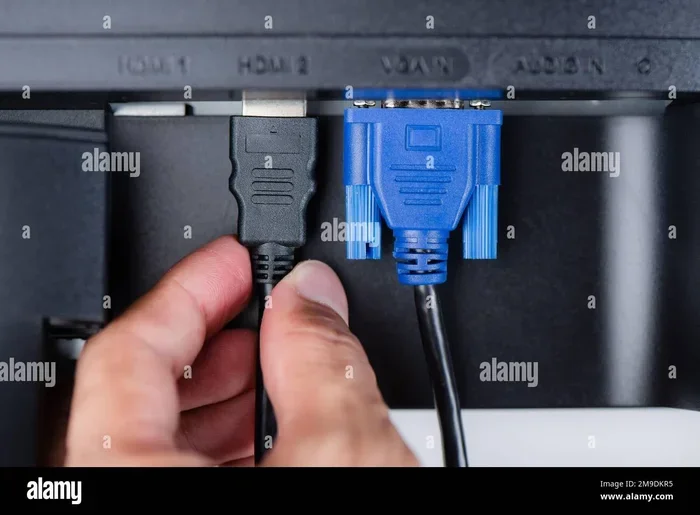
A Wii to HDMI adapter is another popular option. This small device plugs into the back of the Wii and outputs an HDMI signal. You then connect the adapter to your TV using an HDMI cable.
These adapters do a few helpful things. They convert the Wii’s analog signal to a digital one. They also upscale the image closer to 1080p. The result is a cleaner picture with less interference and noise.
Some popular Wii to HDMI adapters include the RetroTINK series and the XRGB-Mini. These devices are designed specifically for retro consoles. They provide excellent upscaling and can really transform how your Wii looks on a modern TV.
Here are the pros and cons of using an HDMI adapter:
- Pros: Cleaner signal, digital output, better upscaling, easy connection.
- Cons: Costs more than basic cables, may add a small amount of input lag.
Method 3: Adjust Wii System Settings
You can also improve the picture by changing settings on the Wii itself. The console has several video options that can make a difference. Here is how to access them.
Go to the Wii Settings menu. Select “Wii Settings.” Scroll to “Screen.” You will see options for TV resolution and screen format. Set the resolution to 480p if your TV supports progressive scan. This gives you a smoother image than 480i.
You can also adjust the screen format. Choose “Wide” if your TV is a widescreen display. This fills the screen better and reduces black bars on the sides.
Another useful setting is the progressive scan option. Go to Screen settings and look for “Progressive Scan.” Turn it on if available. This helps reduce flickering and makes the image look smoother during fast-moving games.
Method 4: Tweak Your TV’s Picture Settings
Do not forget about your TV’s own settings. Most modern TVs have picture modes that affect how they display content. The default settings are often optimized for live TV or streaming. They may not be ideal for retro gaming.
Try switching your TV to a “Game Mode” or “PC Mode.” These modes reduce processing delays and can make the image look sharper. You can also adjust the sharpness, contrast, and color settings to your liking.
Some TVs have features like noise reduction or motion smoothing. Turn these off when playing Wii games. They can add artificial effects that make the image look weird. A clean, unprocessed signal always looks better for retro consoles.
Step-by-Step Guide to Getting the Best Wii Picture on 1080p
Let us put it all together. Here is a simple step-by-step process to get the best possible picture from your Wii on a 1080p TV.
- Step 1: Turn off your Wii and TV. Unplug the current composite cables from the back of the Wii.
- Step 2: Plug in component cables or a Wii to HDMI adapter. Connect them to the corresponding ports on the Wii.
- Step 3: Run the cables to your TV. Plug them into the matching inputs on the back or side of your television.
- Step 4: Turn on the Wii and TV. Go to Wii Settings and select “Screen.”
- Step 5: Set the TV resolution to 480p. Enable progressive scan if available. Set the screen format to “Wide.”
- Step 6: Go to your TV settings. Switch to Game Mode or a similar low-processing mode. Adjust sharpness and contrast to taste.
- Step 7: Play a game and enjoy the improved picture. Make further adjustments as needed.
Following these steps will give you a much better Wii experience. The image will look sharper, cleaner, and more vibrant. It is amazing what a few cable changes and setting adjustments can do.
Common Mistakes People Make When Trying to Improve Wii Picture
There are some common mistakes that people make when trying to get a better Wii picture. Avoiding these will save you time and money.
Buying Cheap, Low-Quality Cables
The cheapest cables on the market often have poor shielding and weak signal quality. They can introduce interference and make the image worse. Stick with reputable brands or official Nintendo accessories.
Ignoring TV Settings
Many people buy great cables but never touch their TV settings. The TV’s processing can undo all the improvements from better cables. Always check your TV’s picture mode and processing options.
Expecting True 1080p Native Output
Remember that the Wii cannot output a true 1080p signal. If you expect pixel-perfect 1080p gaming, you will be disappointed. The improvements are real but they are about making the 480p signal look as good as possible on a 1080p display.
Skipping the Progressive Scan Setting
Some people never enable progressive scan on their Wii. This is a free improvement that makes a real difference. Always turn it on if your TV supports it.
Expert Tips for the Best Wii Upscaling Experience
Here are some expert-level tips that can take your Wii setup to the next level. These come from years of experience with retro console setups.
First, consider using a dedicated retro upscaler like the RetroTINK 5X. These devices are purpose-built for consoles like the Wii and GameCube. They provide the cleanest possible output and can handle advanced features like line doubling and scanline simulation.
Second, use high-quality HDMI cables for the final connection to your TV. Even though the Wii’s signal is low resolution, a good HDMI cable ensures no additional signal degradation occurs during the digital transfer.
Third, calibrate your TV’s picture settings for gaming. Most TVs have a warm color temperature by default, which can make retro games look too orange. Switch to a neutral or cool setting for more accurate colors.
Fourth, keep your Wii’s firmware updated. Nintendo occasionally releases updates that improve video output compatibility with modern TVs. Check for system updates through the Wii settings menu.
Finally, be patient. Finding the perfect setup takes some trial and error. Adjust one thing at a time and see how it affects the picture. You will find the sweet spot for your specific TV and Wii combination.
Comparison: Different Methods for Improving Wii Picture Quality
Here is a quick comparison of the main methods we discussed. This table shows what each method offers and what it costs.
| Method | Cost | Difficulty | Improvement Level |
|---|---|---|---|
| Component Cables | Low ($15-$25) | Easy | Moderate |
| HDMI Adapter | Medium ($30-$80) | Easy | High |
| Wii System Settings | Free | Very Easy | Low to Moderate |
| TV Picture Settings | Free | Easy | Moderate |
| Dedicated Upscaler (e.g., RetroTINK) | High ($150-$300) | Moderate | Very High |
As you can see, the best results come from combining multiple methods. Start with the free options like system settings and TV adjustments. Then add component cables or an HDMI adapter for even better results. The more you combine, the better your Wii will look on a 1080p screen.
Final Thoughts on Making Wii 1080p Work for You
So can you make Wii 1080p? The short answer is no, you cannot make the Wii output a native 1080p signal. But the longer answer is yes, you can make the Wii look fantastic on a 1080p TV with the right setup.
Upgrading your cables is the simplest and most affordable first step. A set of component cables or an HDMI adapter can transform your Wii’s picture quality. Adjusting the Wii’s system settings and your TV’s picture mode adds even more improvement.
The goal is not to turn the Wii into a modern console. The goal is to get the best possible picture from a classic system. And that is absolutely achievable with the methods described in this guide.
Your Wii is a fun and nostalgic piece of gaming history. It deserves to look its best on your modern TV. With a little effort and some affordable accessories, you can enjoy your favorite Wii games with a much sharper and cleaner picture. Start with one method today and see the difference for yourself.
Remember, every small improvement adds up. Better cables, better settings, and better upscaling all work together to create a much more enjoyable gaming experience. Your eyes will thank you the next time you pick up a Wii remote and dive into your favorite classic games.
Frequently Asked Questions
Can the Wii actually output 1080p natively?
No, the Nintendo Wii cannot output 1080p natively. The console’s maximum resolution is 480p. However, you can use upscaling methods and better cables to make the image look much sharper on a 1080p TV.
What is the best cable upgrade for the Wii?
Component cables are the best affordable upgrade for the Wii. They offer significantly better picture quality than the stock composite cables. For even better results, consider a dedicated Wii to HDMI adapter or upscaler.
Do I need an expensive upscaler to get a good picture?
No, you do not need an expensive upscaler. Simple changes like upgrading to component cables and adjusting your TV settings can make a big difference. Upscalers are optional and provide even better results for those who want the absolute best picture.
Will improving the Wii picture make games look like modern 1080p games?
No, improving the Wii picture will not make games look like modern 1080p titles. The Wii’s internal resolution is still 480p. But the improvements will make the image much cleaner, sharper, and more enjoyable on a modern display.
Is progressive scan important for the Wii?
Yes, enabling progressive scan on the Wii is important. It reduces flickering and makes the image look smoother during fast-moving scenes. You can turn it on in the Wii Screen settings if your TV supports it.
Can I use a Wii U adapter to improve Wii picture quality?
The Wii U is a different console and does not have a special adapter for the original Wii. Stick with component cables, HDMI adapters, or dedicated upscalers designed for the Wii to improve your picture quality.
=== CONCLUSION ===
Improving your Wii’s picture quality is easier than you might think. The question can you make Wii 1080p has a nuanced answer. You cannot force the Wii to render at 1080p natively. But you can absolutely make it look great on a 1080p TV with the right approach.
Start by upgrading your cables to component or HDMI options. Adjust your Wii’s system settings for the best possible output. Fine-tune your TV’s picture mode and processing settings. Combine these methods for the best results.
Every step you take brings you closer to a much better gaming experience. Your classic Wii games deserve to look their best. And now you have all the tools and knowledge to make that happen. Get started today and enjoy your Wii like never before.