Can You Plug A USB Into A Surface Go And What Happens Next
Yes, you can plug a USB into a Surface Go. The Surface Go features USB-C and microSD card slots, but it lacks full-size USB-A ports out of the box. You will need an adapter or a docking station to connect standard USB drives, keyboards, and other peripherals. This guide covers everything you need to know about Surface Go USB connectivity and what to expect when you plug in.
You just got your Surface Go and you want to plug in a USB drive. Maybe you need to transfer files, connect a keyboard, or hook up an external hard drive. But then you look at the ports and wonder, “Wait, where do I plug this in?”
You are not alone. Many people buy the Surface Go expecting full-size USB ports. But Microsoft made a different choice. The Surface Go uses USB-C ports instead of the traditional USB-A ports you find on most laptops. This design decision makes the device thinner and lighter. But it also means you need a little extra know-how to connect your favorite USB gear.
In this guide, we will walk you through everything you need to know about plugging a USB into a Surface Go. We will cover which ports you have, what adapters you need, and what happens when you plug things in. Whether you are a student, a professional, or just someone who likes to stay connected, this article has you covered.
Key Takeaways
- The Surface Go has USB-C ports, not full-size USB-A ports: You need an adapter for most standard USB devices.
- A USB hub or docking station solves the port problem: These accessories expand your Surface Go connectivity options easily.
- Plugging in USB devices works for storage, keyboards, and more: Most peripherals function normally once connected properly.
- Charging and data transfer share the same USB-C port: Use a powered hub to avoid battery drain while using USB devices.
- Check your Surface Go model for port differences: The Surface Go 3 and newer models offer improved connectivity.
- Always use quality adapters: Cheap adapters can cause connectivity issues or damage your device.
📑 Table of Contents
- Understanding Surface Go Ports and USB Connectivity
- Can You Plug a USB Into a Surface Go?
- What Happens When You Plug in USB Devices
- Best Adapters and Hubs for Surface Go USB Connectivity
- Common Mistakes When Connecting USB to Surface Go
- Expert Tips for Maximizing Surface Go USB Performance
- Surface Go Model Comparison for USB Connectivity
- How USB Connectivity Fits into Your Surface Go Workflow
- Final Thoughts
Understanding Surface Go Ports and USB Connectivity
Before you grab any cable, let us talk about what ports your Surface Go actually has. Knowing your hardware is the first step to making everything work smoothly.
What Ports Does the Surface Go Have?
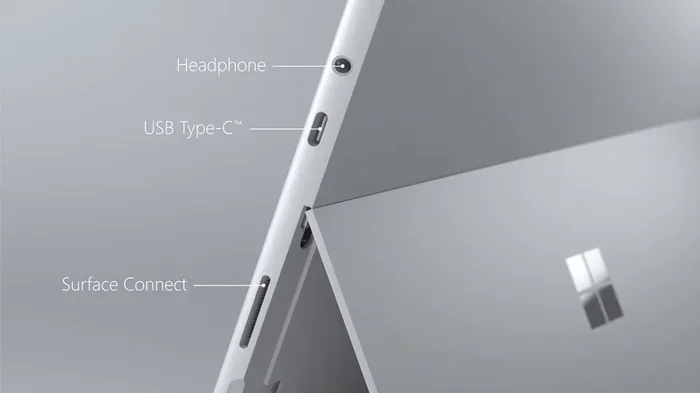
The Surface Go comes with a limited but useful set of ports. Here is what you will find on most models:
- USB-C port: This is the main port on the Surface Go. It handles data transfer, video output, and charging all in one.
- microSD card slot: Great for expanding storage or quickly moving files from cameras and other devices.
- Surface Connect port: This is the charging port specific to Surface devices. It also supports the Surface Dock.
- 3.5mm headphone jack: For headphones and basic audio output.
Notice anything missing? There is no standard USB-A port. No full-size HDMI. No Ethernet jack. Microsoft stripped these down to keep the Surface Go compact and affordable. But this also means you need Surface Go accessories to connect many common devices.
Microsoft has always taken a different approach with its port selection. The Surface Go runs a proprietary operating system (Windows 10 or 11 in S mode), and similarly, it uses a proprietary port strategy. While this keeps things streamlined, it can frustrate users who want simple plug-and-play compatibility.
USB-C vs USB-A: What Is the Difference?
You have probably seen both types before. USB-A is the classic rectangular port. You plug it in one way (or try to, and then flip it). USB-C is the smaller, oval-shaped port. It is reversible, meaning you can plug it in either way.
USB-C offers several advantages. It supports faster data transfer speeds. It can carry more power. And it is becoming the new standard across phones, tablets, and laptops. But many of your existing USB devices use USB-A. That is where adapters come in.
The Surface Go USB-C port supports USB 3.0 and USB 3.1 standards depending on the model. This means you get solid data transfer speeds. For most everyday tasks like moving documents or photos, you will not notice any lag.
Can You Plug a USB Into a Surface Go?
The short answer is yes. The longer answer depends on what kind of USB device you are trying to connect and which Surface Go model you own.
Plugging in a Standard USB-A Device
If you have a regular USB flash drive or a USB mouse, you cannot plug it directly into the Surface Go. The port shapes do not match. You need a USB-C to USB-A adapter or a USB-C hub. These small adapters are inexpensive and widely available.
Here is how it works. You plug the adapter into the Surface Go’s USB-C port. Then you plug your USB-A device into the adapter. It is simple and it works well for most situations.
Plugging in a USB-C Device Directly
If your USB device has a USB-C connector, you are in luck. You can plug it directly into the Surface Go without any adapter. Many modern phones, tablets, and external drives now use USB-C. This makes direct connection easy and convenient.
Some examples of USB-C devices that work well with the Surface Go include:
- USB-C flash drives
- External SSDs with USB-C connectors
- USB-C docking stations
- USB-C hubs with multiple ports
Using a Surface Go Docking Station
A docking station is one of the best ways to expand your Surface Go’s connectivity. You plug the dock into the Surface Connect port or USB-C port. Then the dock gives you multiple ports to connect all your gear.
Most Surface Go users benefit from a docking station if they work at a desk regularly. You get extra USB ports, HDMI output for monitors, and sometimes even Ethernet for wired internet. The Surface Go docking station turns your portable tablet into a full desktop setup in seconds.
When choosing a dock, make sure it is compatible with the Surface Go. Not all docks work perfectly with every model. Look for docks that specifically mention Surface Go or Surface compatibility.
What Happens When You Plug in USB Devices
Now for the fun part. What actually happens when you plug a USB device into your Surface Go? Let us walk through the different scenarios.
Connecting a USB Flash Drive
Plugging in a USB flash drive is straightforward. With the right adapter, Windows recognizes the drive almost instantly. You can open File Explorer and see your drive listed alongside your internal storage.
You can drag and drop files to and from the drive. You can also run programs directly from the flash drive if they are portable apps. Just keep in mind that the Surface Go has limited internal storage to begin with. A USB drive is a great way to expand your available space for files.
Connecting a USB Keyboard or Mouse
Using a USB keyboard or mouse with the Surface Go works great. You simply plug the device in through an adapter or USB-C hub. Windows installs the drivers automatically in most cases.
For the best experience, consider a Bluetooth keyboard and mouse instead. This frees up your USB ports for other devices. But if you prefer wired peripherals for lower latency, USB works perfectly fine.
Connecting an External Hard Drive
External hard drives are popular for backup and extra storage. The Surface Go can handle most external drives without issues. However, there is one thing to watch out for.
Some larger external hard drives require more power than a single USB-C port can provide. If your drive has its own power supply, you are good to go. If not, you may need a powered USB hub to keep the drive running reliably.
What About Charging While Using USB Devices?
This is a common question. Since the Surface Go uses USB-C for charging, you might worry about sharing the port. The good news is that you can charge and use USB devices at the same time, but only if you use the right setup.
If you are using a USB-C hub, make sure it supports pass-through charging. This feature lets you plug your charger into the hub, and the hub sends power to both the Surface Go and your connected USB devices. Without pass-through charging, you might drain your battery while using peripherals.
Best Adapters and Hubs for Surface Go USB Connectivity
Not all adapters are created equal. Some are cheap and unreliable. Others are built to last and deliver solid performance. Here are some tips for choosing the right one.
What to Look for in a USB Adapter
When shopping for a Surface Go USB adapter, keep these factors in mind:
- Compatibility: Make sure the adapter works with your specific Surface Go model.
- Build quality: Metal adapters tend to last longer than plastic ones.
- Number of ports: Choose an adapter or hub with the ports you actually need.
- Pass-through charging: This is essential if you want to charge and use USB devices simultaneously.
- Data transfer speed: Look for USB 3.0 or higher for fast file transfers.
Recommended USB Hubs for Surface Go
Here are some popular options that work well with the Surface Go:
- Anker USB-C Hub: Compact and reliable with multiple port options.
- HyperDrive USB-C Hub: Sleek design with HDMI, USB-A, and USB-C ports.
- Microsoft Surface Dock: The official docking solution from Microsoft. It offers the best integration with Surface devices.
- Satechi USB-C Multiport Adapter: Great for travel with a slim profile.
Investing in a quality hub or adapter saves you from frustration later. Cheap adapters can cause disconnections, slow speeds, or even damage your ports over time.
Common Mistakes When Connecting USB to Surface Go
Even with the right gear, people make mistakes. Here are some common pitfalls to avoid.
Using the Wrong Adapter
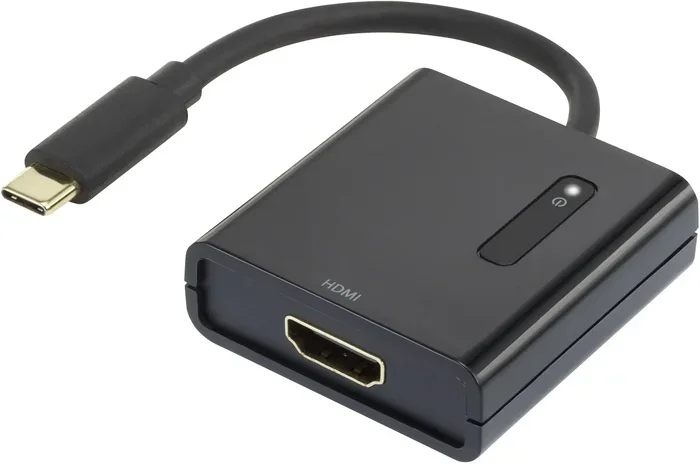
Not all USB-C adapters are the same. Some only support data transfer. Others support video output too. Make sure your adapter supports the type of connection you need. For example, if you want to connect a monitor, you need an adapter that supports HDMI or DisplayPort output.
Overloading the USB-C Port
The Surface Go’s USB-C port has power limits. If you connect too many power-hungry devices through a single hub, things may not work properly. Spread your devices across multiple ports or use a powered hub when needed.
Ignoring Firmware and Driver Updates
Sometimes USB devices do not work because your Surface Go needs a software update. Keep your device updated through Windows Update. This ensures you have the latest drivers and firmware for smooth USB connectivity.
Plugging in Devices While the Surface Go is Off
Some devices work fine when plugged in while the device is off. Others do not. To avoid potential issues, always plug in USB devices while the Surface Go is powered on and running.
Expert Tips for Maximizing Surface Go USB Performance
Want to get the most out of your Surface Go’s USB connectivity? Here are some expert tips that make a real difference.
Use a Powered Hub for External Drives
If you regularly use external hard drives or SSDs, a powered USB hub is your best friend. It provides stable power to your drives and prevents data corruption or disconnections. This is especially important for large file transfers or backup routines.
Keep Your Adapters Plugged In Securely
The Surface Go’s ports are snug by design. But cheap adapters can wobble and lose connection. If your adapter feels loose, try a different brand or look for adapters with a secure fit. A stable connection means fewer headaches.
Organize Your Connectivity Setup
If you use your Surface Go at a desk most of the time, set up a permanent docking station. This way, you never have to fumble with adapters. You just dock and go. It is a small change that saves a lot of time and frustration over the long run.
Consider Wireless Options When Possible
Not everything needs a USB cable. Bluetooth keyboards, wireless mice, and cloud storage can reduce your reliance on physical connections. Use USB ports for devices that truly need wired connections, like external drives or printers.
Surface Go Model Comparison for USB Connectivity
Different Surface Go models have slightly different port configurations. Here is a quick comparison to help you understand what you are working with.
| Feature | Surface Go 1 | Surface Go 2 | Surface Go 3 | Surface Go 4 |
|---|---|---|---|---|
| USB-C Ports | 1 | 1 | 1 | 1 (or 2 on some models) |
| USB-A Ports | 0 | 0 | 0 | 0 |
| Surface Connect Port | Yes | Yes | Yes | Yes |
| microSD Slot | Yes | Yes | Yes | Yes |
| USB-C Speed | USB 3.0 | USB 3.1 | USB 3.1 | USB 3.2 |
| Pass-through Charging | No | No | Yes (with compatible hub) | Yes |
As you can see, newer Surface Go models offer better USB connectivity. The Surface Go 3 and 4 support faster data transfer speeds and better pass-through charging. If USB connectivity is important to you, consider the newer models when purchasing.
The Surface Go connectivity options have improved with each generation. Microsoft listens to user feedback and refines the design. This is good news for anyone who relies on USB devices regularly.
How USB Connectivity Fits into Your Surface Go Workflow
Understanding how to use USB with your Surface Go changes the way you work. You are no longer limited by the number of ports. With the right setup, you can connect printers, external drives, monitors, and more.
For professionals who present in meetings, a USB-C hub with HDMI output is essential. For students who need to transfer lecture notes and assignments, a simple USB-C adapter with a USB-A port does the job. For creatives who work with large media files, a powered USB hub with fast data transfer speeds is a must.
The key is to match your accessories to your workflow. Think about what devices you use most often. Then choose your adapters and hubs accordingly. A little planning goes a long way toward a smooth, frustration-free experience.
Connectivity is not just about ports. It is about how seamlessly you can integrate your Surface Go into your daily routine. The Surface Go USB port setup, combined with the right accessories, gives you more flexibility than you might expect from such a compact device.
Final Thoughts
So, can you plug a USB into a Surface Go? Absolutely. You just need the right adapter or hub to make it work. The Surface Go’s USB-C port is versatile and fast. With a quality USB-C hub or adapter, you can connect all your favorite peripherals with ease.
The Surface Go USB connectivity experience is smooth once you understand how the ports work. Invest in good accessories, avoid common mistakes, and keep your device updated. You will be transferring files, connecting peripherals, and expanding your setup in no time.
Remember, the Surface Go is designed to be flexible. It works for students, professionals, and casual users alike. With the right connectivity setup, this compact device punches well above its weight. Embrace the USB-C future, and your Surface Go will serve you well for years to come.
Frequently Asked Questions
Can I plug a regular USB flash drive directly into a Surface Go?
No, you cannot plug a standard USB-A flash drive directly into the Surface Go. The Surface Go only has USB-C ports. You need a USB-C to USB-A adapter or a USB-C hub to connect regular flash drives.
Does the Surface Go support USB 3.0 and USB 3.1 devices?
Yes, the Surface Go supports USB 3.0 and USB 3.1 devices through its USB-C port. This means you get fast data transfer speeds for compatible flash drives, external hard drives, and other peripherals.
Can I charge my Surface Go and use USB devices at the same time?
Yes, but you need a USB-C hub that supports pass-through charging. Without pass-through charging, you may not be able to charge your Surface Go while using multiple USB devices. Look for hubs that specifically advertise this feature.
What is the best USB hub for Surface Go?
The best USB hub depends on your needs. For most users, a compact USB-C hub with a few USB-A ports and an HDMI output works great. Popular brands like Anker, Satechi, and the Microsoft Surface Dock offer reliable options for Surface Go users.
Can I connect an external monitor to my Surface Go via USB?
Yes, you can connect an external monitor using a USB-C hub or adapter that supports video output. Make sure your hub or adapter supports HDMI, DisplayPort, or VGA output depending on your monitor’s inputs.
Why does my USB device not show up when I plug it into my Surface Go?
This can happen for several reasons. Your adapter may be faulty, the USB device may need its own driver, or your Surface Go may need a software update. Try a different adapter first, then check for Windows updates, and finally test the device on another computer to rule out hardware issues.