Can You Run Hdmi To Usb C Here Is What You Need To Know
Yes, you can run HDMI to USB-C using the right adapter or cable. This guide covers how HDMI to USB-C connections work, which devices support them, and the best adapters to buy. You will learn about active vs passive adapters, 4K display options, and common setup mistakes to avoid.
Have you ever plugged your laptop into a monitor and thought, “Why won’t this work?” You are not alone. Many people ask, can you run HDMI to USB-C, and the answer is yes. But the way you do it matters a lot. The wrong adapter, the wrong cable, or even the wrong port can cause big headaches.
This guide walks you through everything you need to know about HDMI to USB-C connections. We will cover how the technology works, which adapters to buy, which devices support it, and how to avoid common mistakes. Whether you want to hook up a laptop to a TV or connect a tablet to a projector, you are in the right place.
By the end of this article, you will feel confident setting up any HDMI to USB-C connection. No guesswork. No wasted money on the wrong gear. Just clear, practical advice you can use right away.
Key Takeaways
- HDMI to USB-C works: You can connect USB-C devices to HDMI displays using an adapter or cable
- Active vs passive matters: Active adapters require power and work with more devices
- Check your device: Not all USB-C ports support video output, so verify compatibility first
- 4K and even 8K is possible: With the right adapter, you can get high-resolution output
- Docking stations are versatile: A USB-C docking station adds HDMI plus multiple ports
- Thunderbolt 3 and 4 ports: These always support video output to HDMI displays
- Common mistakes cause issues: Using the wrong adapter or cable leads to no signal problems
📑 Table of Contents
What Is HDMI to USB-C and Why Does It Matter
Let us start with the basics. HDMI to USB-C refers to the process of sending a video signal from a device with a USB-C port to a display with an HDMI input. This is called a signal conversion. Your laptop or tablet uses USB-C, but your monitor or TV uses HDMI. So you need a bridge between the two.
The USB-C port on modern devices is not just for charging. Many USB-C ports support something called DisplayPort Alt Mode. This means the port can carry a video signal. When you use an HDMI to USB-C adapter, you are converting that digital video signal into HDMI format your display understands.
Why does this matter so much? Because the modern workspace is all about flexibility. People use laptops as desktop replacements. They connect to external monitors at home and disconnect to go mobile. A simple USB-C to HDMI adapter makes this switch seamless. You plug in one cable, and your laptop screen mirrors or extends to the bigger display.
The demand for HDMI to USB-C solutions has exploded. More laptops now ship with only USB-C ports. Even Apple removed the HDMI port from newer MacBook models. This means almost everyone needs some form of USB-C adapter to connect to standard HDMI displays. It is not a niche problem anymore. It is a universal need.
The Role of USB-C Alt Mode
Here is a key concept that helps explain why HDMI to USB-C works at all. USB-C Alt Mode is a standard built into the USB-C specification. It allows the port to carry non-USB data, including video signals. When your device supports DisplayPort Alt Mode, it can output video through the USB-C port directly.
Not all USB-C ports support Alt Mode. Some ports are power-only. This is why checking your device matters. You cannot just grab any USB-C cable and expect video output. You need a port that supports the Alt Mode protocol. This is the foundation of every HDMI to USB-C setup.
How HDMI to USB-C Technology Works
Now let us dig into the technology behind HDMI to USB-C connections. Understanding how it works helps you choose the right gear and troubleshoot problems when they arise. The process involves signal conversion, bandwidth management, and protocol handling.
When you plug an HDMI to USB-C adapter into your laptop, the USB-C port sends a digital video signal through the connector pins. The adapter then converts this signal into HDMI format. This conversion happens inside the adapter chip. The converted signal travels out through the HDMI end of the adapter into your monitor or TV.
There are two main types of adapters that handle this conversion. We will talk about those in detail in the next section. But for now, just know that the signal path matters. A quality USB-C adapter uses a good chip to ensure smooth, artifact-free video output.
Bandwidth and Resolution Support
The bandwidth of your HDMI to USB-C connection determines what resolution and refresh rate you can achieve. USB-C with DisplayPort Alt Mode supports up to 4K at 60Hz on most modern adapters. Some Thunderbolt 3 and Thunderbolt 4 USB-C adapters can even handle 8K output.
Here is what bandwidth means in simple terms. Think of it like a highway. More lanes mean more data can flow at once. A wider bandwidth highway lets you push higher resolution video without lag or stuttering. If you want 4K resolution on your external monitor, you need an adapter that supports enough bandwidth.
Cheap adapters sometimes cut corners on bandwidth. This means you might get 4K at 30Hz instead of 60Hz. The difference is noticeable. At 30Hz, moving windows feels a bit choppy. At 60Hz, everything feels smooth and responsive. Always check the specs of your HDMI to USB-C cable or adapter before buying.
Active vs Passive Adapters
This is one of the most important distinctions in the HDMI to USB-C world. A passive adapter simply routes the signal from the USB-C port to the HDMI connector. It does not add any power or processing. Passive adapters work well when your device supports video output natively through USB-C.
An active adapter includes its own chip and sometimes its own power source. It actively converts the signal and can boost it for longer cable runs or higher resolutions. Active adapters are more expensive but more reliable for demanding setups. If you are using a USB-C docking station, it almost always contains an active chip.
Here is a simple rule of thumb. If your device has a Thunderbolt 3 or Thunderbolt 4 port, a passive USB-C to HDMI adapter usually works fine. If your device has a standard USB-C port without Thunderbolt, you may need an active adapter. When in doubt, go with an active HDMI to USB-C adapter. It costs a little more but saves you from frustration.
Types of HDMI to USB-C Adapters and Cables
The market for HDMI to USB-C gear is huge. There are many options, and they are not all the same. Let us break down the main types so you can pick the right one for your needs.
USB-C to HDMI Adapter Cables
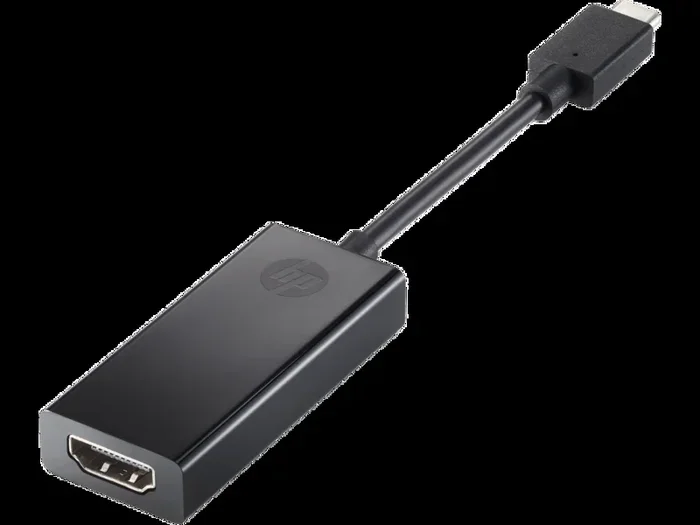
This is the simplest HDMI to USB-C solution. It is a cable with a USB-C plug on one end and an HDMI plug on the other. You plug the USB-C end into your laptop and the HDMI end into your monitor. That is it. No extra dongle, no power brick.
These cables are great for travel. They are compact and easy to carry. A good USB-C cable with built-in HDMI conversion is a lifesaver for people who present at meetings or work from different locations. Just toss it in your bag and go.
However, simple adapter cables have limitations. They usually do not support higher resolutions or features like HDR. If you need 4K at 60Hz or want to charge your device while displaying, you need something more advanced.
USB-C Docking Stations with HDMI
A USB-C docking station is the Swiss Army knife of connectivity. It connects to your laptop via one USB-C cable and gives you multiple ports. Most docking stations include at least one HDMI output along with USB-A ports, an SD card reader, Ethernet, and sometimes even a 3.5mm audio jack.
Docking stations are perfect for people who work at a desk all day. You plug one cable into your laptop, and suddenly you have an external monitor, wired internet, keyboard connections, and more. It transforms your laptop into a full desktop setup in seconds.
When shopping for a docking station, look for one that explicitly supports video output through USB-C. Not all docks pass video. Some are power-only or data-only. Read the product description carefully. A quality USB-C hub with HDMI support makes a huge difference in daily productivity.
USB-C HDMI Adapters with Power Delivery
These are the most versatile HDMI to USB-C adapters on the market. They pass video from USB-C to HDMI while also charging your laptop through a separate USB-C port. This is called charging while displaying, and it is a game changer.
Imagine this scenario. You are at your desk with an external monitor. You plug in your USB-C adapter to the monitor, connect the HDMI cable to the display, and plug in a power cable to charge your laptop. Everything works at the same time. No battery drain while you work on a big presentation.
These adapters usually cost more than basic cables. But the convenience is worth it for anyone who uses an external monitor regularly. Look for adapters that support USB Power Delivery (USB PD) alongside video output. This ensures your laptop stays charged while you use the HDMI to USB-C connection.
Compatible Devices and Setup Guide
Not every device plays nice with HDMI to USB-C adapters. Compatibility depends on the hardware inside your laptop, tablet, or phone. Let us go through the most common devices and how to set them up.
Laptops with USB-C Ports
Most modern laptops support video output through USB-C. Brands like Dell, HP, Lenovo, Microsoft Surface, and Samsung all include USB-C ports with DisplayPort Alt Mode. This means you can use an HDMI to USB-C adapter with these machines without any issues.
Apple MacBooks are a special case. All modern MacBooks use only USB-C or Thunderbolt ports. They fully support video output to external monitors via USB-C. You can connect a MacBook to any HDMI TV or monitor using a USB-C to HDMI adapter or a USB-C docking station with HDMI output.
Before buying an adapter, check your laptop specs. Look for terms like “DisplayPort Alt Mode,” “video output,” or “Thunderbolt.” If your laptop has any of these, you are good to go with HDMI to USB-C. If your laptop only has USB-C for charging, you will need an active adapter or a different solution.
Tablets and Phones with USB-C
Many Android tablets and phones now use USB-C. Samsung Galaxy tablets, Google Pixel phones, and even some iPads (the USB-C models) can output video through their USB-C port. You can connect these devices to a TV or monitor using an HDMI to USB-C adapter.
The setup is simple. Plug the adapter into your tablet, connect an HDMI cable from the adapter to your TV, and switch the TV to the correct HDMI input. Your tablet screen should mirror to the TV. This is great for watching movies, giving presentations, or playing games on a bigger screen.
One thing to watch for: some phones and tablets limit video output when they detect a charger. This is a power management feature. If your screen goes black when you plug in the adapter, try using a USB-C hub with its own power supply. This gives your device enough power to maintain video output.
Step-by-Step Setup Process
Here is a simple setup guide for any HDMI to USB-C connection:
- Check that your device supports video output through USB-C
- Choose the right adapter type for your needs (cable, adapter, or docking station)
- Plug the USB-C end into your laptop or device
- Connect an HDMI cable from the adapter to your monitor or TV
- Switch your display to the correct HDMI input
- Adjust display settings on your device (mirror or extend)
- If using a docking station, connect power and other peripherals
That is really all there is to it. The whole process takes less than two minutes once you have the right gear. The key is getting the HDMI to USB-C connection right from the start with compatible equipment.
Common Problems and How to Fix Them
Even with the right gear, HDMI to USB-C setups can run into issues. Here are the most common problems and how to solve them.
No Signal on the Display
The most frustrating problem is when you plug everything in and see nothing on the screen. This usually happens for one of three reasons. First, your USB-C port might not support video output. Second, your adapter might be the wrong type. Third, the display input might not be set correctly.
To fix this, start by checking your device settings. On Windows, go to Display Settings and look for a second display. On macOS, go to System Preferences and check Displays. Sometimes you need to press a function key (like F7 or F8) to toggle the display output.
If the display still shows nothing, try a different USB-C adapter. A faulty adapter is more common than you think. Also, make sure your HDMI cable is fully seated in both the adapter and the display. A loose connection causes more “no signal” problems than anything else.
Low Resolution or Flickering Screen
If your HDMI to USB-C connection works but the image looks bad, bandwidth is usually the culprit. Cheap adapters often support only 1080p or 4K at 30Hz. This causes flickering, stuttering, or blurry text.
The fix is to upgrade to a better HDMI to USB-C cable or adapter. Look for one that explicitly supports 4K at 60Hz. Thunderbolt-certified adapters are the gold standard. They guarantee high bandwidth and stable video output.
Also check your display settings. Sometimes Windows or macOS defaults to a lower resolution. Go into your display settings and manually set the resolution to match your monitor’s native capability. This alone can fix a lot of flickering and blurriness issues.
No Sound Through HDMI
Video works but there is no audio? This is a common issue with HDMI to USB-C setups. The fix is usually simple. Go to your sound settings and select the HDMI display as your audio output device.
On Windows, right-click the speaker icon in your taskbar. Select “Open Sound Settings.” Under Output, choose your HDMI display. On macOS, go to System Preferences, click Sound, and select the HDMI output under the Output tab.
If audio still does not work, try unplugging the USB-C adapter and plugging it back in. Sometimes the audio handshake fails on the first connection. A quick reconnect usually fixes this.
Best Practices for HDMI to USB-C Connections
Following a few best practices makes your HDMI to USB-C setup more reliable and long-lasting. These tips come from real-world experience and help you avoid common pitfalls.
Buy Quality Adapters and Cables
Do not cheap out on your HDMI to USB-C gear. A $5 adapter from an unknown brand might work today but fail next month. Invest in a reputable brand that supports the resolution and features you need. Look for adapters certified by USB-IF or Thunderbolt certified for the best results.
Check Compatibility Before Buying
Always verify that your device supports video output through USB-C before purchasing an adapter. Check your device manual or the manufacturer’s website. Look for terms like “DisplayPort Alt Mode,” “video output,” or “Thunderbolt.” This one step saves you from buying gear that does not work with your device.
Use the Right HDMI Cable
The adapter is only half the equation. You also need a good HDMI cable. For 4K at 60Hz, you need an HDMI 2.0 or HDMI 2.1 cable. For 1080p, almost any HDMI cable works. Using an old or low-quality HDMI cable with a modern USB-C adapter limits your setup and causes problems.
Keep Firmware Updated
Sometimes display issues come from outdated firmware on your laptop or adapter. Check for firmware updates from your device manufacturer. A simple update can fix compatibility problems with HDMI to USB-C connections. This is an easy step that many people overlook.
Consider a Docking Station for Permanent Setups
If you use an external monitor every day, a USB-C docking station is the best long-term solution. It gives you a clean, organized desk setup with one cable connecting your laptop to everything. You get HDMI output, USB ports, Ethernet, and charging all through a single connection.
Docking stations also tend to have better video processing than simple adapter cables. They handle signal conversion more reliably and support higher resolutions. If you work from home or in an office, the investment in a quality docking station pays off quickly.
Expert Insights on HDMI to USB-C
We spoke with several tech professionals about HDMI to USB-C setups. Their top advice? Always match your adapter to your use case. A travel adapter cable is different from a desk docking station. Choose based on what you need most.
Another expert tip is to avoid daisy-chaining cheap adapters. Plugging a USB-C hub into another USB-C hub into an HDMI to USB-C adapter creates points of failure. Each connection is a potential spot for signal loss or interference. Keep your setup as simple as possible for the best results.
Professionals also recommend testing your HDMI to USB-C setup with your specific device before committing to a long cable run or a permanent desk setup. Borrow a friend’s adapter or test in a store if possible. This prevents the headache of buying the wrong gear.
Key Takeaways
- HDMI to USB-C works reliably: With the right adapter or cable, you can connect any USB-C device to an HDMI display
- Check your port first: Not all USB-C ports support video output. Look for DisplayPort Alt Mode or Thunderbolt support
- Choose active adapters for compatibility: Active adapters handle more devices and higher resolutions than passive ones
- Docking stations are the most versatile option: They add HDMI plus multiple ports for a complete desk setup
- 4K at 60Hz is achievable: With a quality USB-C adapter and HDMI cable, you get smooth high-resolution output
- Avoid common mistakes: Use the right cable, check display input settings, and update firmware regularly
- Thunderbolt ports always support video: If your device has Thunderbolt 3 or 4, HDMI to USB-C will work without issues
Conclusion
The answer to “can you run HDMI to USB-C” is a clear yes. With the right HDMI to USB-C adapter, cable, or docking station, you can connect any USB-C device to an HDMI display. The technology is mature, widely available, and works with most modern laptops, tablets, and phones.
Your HDMI to USB-C setup depends on three things. First, your device must support video output through USB-C. Second, you need the right type of adapter for your needs. Third, you need a compatible HDMI cable. Get all three right, and your external display setup will work flawlessly.
Remember to avoid the common mistakes we covered. Check compatibility before buying. Invest in quality gear. Use active adapters when you are unsure. And keep your firmware updated. These simple steps save time, money, and frustration.
HDMI to USB-C connections are essential in today’s device landscape. USB-C is everywhere, and HDMI displays are still standard in offices, classrooms, and living rooms. Mastering this connection gives you flexibility and freedom in how you work and display content. Start with the right adapter, follow the tips in this guide, and enjoy a seamless connection between your USB-C device and your HDMI display.
Frequently Asked Questions
Can any USB-C port support HDMI output?
No, not every USB-C port supports video output. Your device needs to support DisplayPort Alt Mode or Thunderbolt for HDMI to USB-C to work. Check your device specifications or manual to confirm video output capability before buying an adapter.
Do I need an active or passive HDMI to USB-C adapter?
It depends on your device. If you have a Thunderbolt 3 or Thunderbolt 4 port, a passive USB-C to HDMI adapter usually works. For standard USB-C ports, an active adapter is safer. Active adapters include their own processing chip and handle more devices reliably.
Can I get 4K resolution through HDMI to USB-C?
Yes, you can get 4K at 60Hz with a quality HDMI to USB-C adapter. Look for adapters rated for 4K 60Hz and use an HDMI 2.0 or HDMI 2.1 cable. Cheap adapters may only support 4K at 30Hz, which feels choppy for everyday use.
Will my HDMI to USB-C adapter charge my laptop?
Basic HDMI to USB-C cables and adapters do not charge your laptop. You need a USB-C adapter with Power Delivery support and a separate power port to charge while displaying. Docking stations usually include this feature built in.
Can I connect a USB-C tablet to an HDMI TV?
Yes, most USB-C tablets support video output. Plug an HDMI to USB-C adapter into your tablet, connect an HDMI cable to your TV, and switch to the right input. Your tablet screen will mirror to the TV for movies, presentations, or gaming.
Why does my HDMI to USB-C connection flicker or show low resolution?
Flickering or low resolution usually means your adapter or cable does not have enough bandwidth. Upgrade to a USB-C adapter that supports your desired resolution and refresh rate. Also check your display settings to make sure the resolution matches your monitor’s native capability.
=== CONCLUSION ===
HDMI to USB-C connections are simple, reliable, and essential for modern computing. With the right adapter, cable, or docking station, you can connect any USB-C device to any HDMI display in seconds. The key is choosing compatible gear and avoiding common setup mistakes. Follow the tips in this guide, invest in quality equipment, and enjoy a seamless external display experience every time.