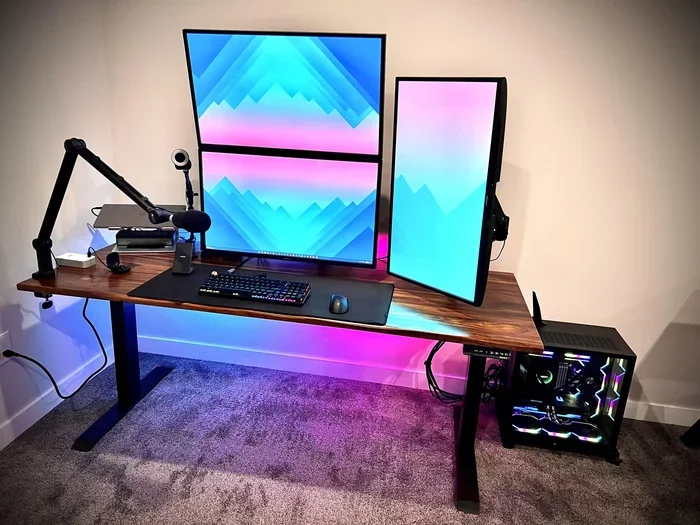
Can You Split HDMI To 3 Monitors With This Setup Guide
Yes, you can split HDMI to 3 monitors using the right equipment and a simple setup process. This guide walks you through every step, from choosing the best HDMI splitter to configuring your display settings. Whether you are a gamer, remote worker, or multitasker, you will find the solution that fits your needs.
Have you ever looked at your desk and thought, “I need more screen space”? You are not alone. Many people want to expand their workspace by connecting three monitors to one computer. The question everyone asks is, can you split HDMI to 3 monitors? The short answer is yes. But the full answer involves a few important steps and the right equipment.
This guide gives you everything you need to know. We will cover what an HDMI splitter is, what gear you need, and how to set up a triple monitor display without any headaches. By the end, you will feel confident about building your own multi-monitor setup at home or in the office.
Whether you are a gamer who wants a wider field of view, a programmer who needs multiple code windows, or a content creator juggling editing timelines, splitting your HDMI signal to three screens is totally doable. Let us dive in.
Key Takeaways
- You can split HDMI to 3 monitors using an HDMI splitter or a USB-C hub with multiple outputs.
- Choose a splitter that supports your desired resolution, like 1080p or 4K, for the best picture quality.
- Display settings on your computer play a big role in making a triple monitor setup work smoothly.
- Common problems like no signal or low resolution are usually easy to fix with cable checks and driver updates.
- A USB-C hub can be a better option than a basic HDMI splitter for laptops and modern devices.
- Always check your graphics card capabilities before buying any equipment for a multi-monitor setup.
📑 Table of Contents
- What Is an HDMI Splitter and How Does It Work?
- Can You Split HDMI To 3 Monitors — Yes, Here Is How
- What You Need for a Triple Monitor HDMI Setup
- Step-by-Step Setup Guide for Splitting HDMI to 3 Monitors
- Common Problems and How to Fix Them
- Quick Tips for the Best Triple Monitor Experience
- HDMI Splitter vs. USB-C Hub vs. Docking Station
- Expert Insights on Multi-Monitor HDMI Setups
- Key Takeaways
- Conclusion
What Is an HDMI Splitter and How Does It Work?
An HDMI splitter is a small device that takes one HDMI input and sends the same signal to multiple outputs. Think of it like a water pipe splitter. Water flows in one end and comes out of several ends at the same time. An HDMI splitter does the same thing with video and audio signals.
Most basic HDMI splitters take one input and split it into two, four, or even eight outputs. When you use a 3-output HDMI splitter, the same image appears on all three screens. This is called screen mirroring. But if you want each monitor to show something different, you need a different approach.
Mirroring vs. Extended Display
There are two main ways to use multiple monitors. The first is mirroring, where every screen shows the exact same content. This is great for presentations or digital signage. The second is an extended display, where each monitor shows a different part of your desktop. Most people who want three monitors want the extended display mode.
Here is the thing. A basic HDMI splitter usually only supports mirroring. To get an extended display across three monitors, your computer’s graphics card needs to support multiple outputs. This is a key point many people miss when they first start planning their setup.
Can You Split HDMI To 3 Monitors — Yes, Here Is How
So, can you split HDMI to 3 monitors and get an extended display? Yes, but it depends on your computer and the method you choose. There are three main ways to do this. Each method has its pros and cons. Let us look at them all.
Method 1: Using an HDMI Splitter with Multiple Ports
This is the most straightforward approach. You buy an HDMI splitter with three output ports. You plug one cable from your computer into the splitter, and then connect three separate HDMI cables from the splitter to each monitor.
This method works well for mirroring. If you want an extended display, you may need to use a splitter that supports display extension, or combine it with other methods. Some advanced splitters do support extended mode, but they cost more.
Method 2: Using Your Graphics Card’s Multiple Outputs
Most desktop computers come with a graphics card that has more than one video output. You might see a mix of HDMI, DisplayPort, and DVI ports on the back of your PC. If your graphics card has at least three outputs, you can connect three monitors directly without any splitter at all.
This is the best method for an extended display. Each monitor gets its own signal, so you can run them all at different resolutions and refresh rates. You just need to go into your display settings and arrange the monitors the way you want them.
Method 3: Using a USB-C Hub or Docking Station
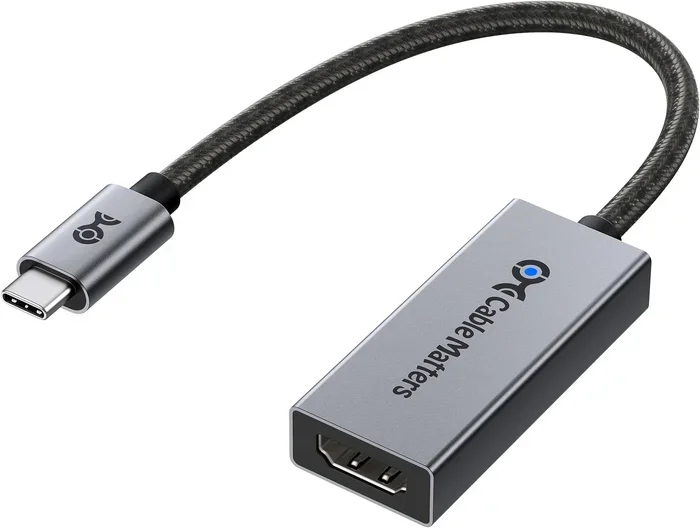
If you use a laptop with limited ports, a USB-C docking station is a great option. Many modern docking stations offer multiple HDMI or DisplayPort outputs. You plug the dock into your laptop, and then connect up to three monitors through the dock.
These hubs often include extra USB ports, Ethernet connections, and even charging ports. They are a convenient all-in-one solution. Just make sure the dock you choose supports the number of outputs you need for your triple monitor setup.
What You Need for a Triple Monitor HDMI Setup
Before you start buying gear, it helps to know exactly what you need. Here is a list of the essential components for a triple monitor setup using HDMI connections.
1. A Computer With a Compatible Graphics Card
Your computer needs to be able to handle three displays at once. Most modern graphics cards from NVIDIA and AMD support multi-monitor setups. Check your graphics card specifications to see how many displays it can support. Some budget cards only support two outputs, so this is an important check before you buy anything.
2. HDMI Cables
You will need at least three high-quality HDMI cables. Make sure they are long enough to reach from your computer or splitter to each monitor. For best results, use cables that support the resolution you want. If you plan to run 4K, get cables rated for 4K at 60Hz.
3. An HDMI Splitter (If Needed)
If your computer does not have enough video outputs, an HDMI splitter is your best friend. Look for a splitter that supports your target resolution. A good 1×3 HDMI splitter will cost anywhere from 20 to 80 dollars depending on the features and quality.
4. Monitors With HDMI Inputs
Make sure all three of your monitors have HDMI inputs. Most modern monitors do, but older models might only have VGA or DVI ports. If you need adapters, budget for those too. A DVI to HDMI adapter or a DisplayPort to HDMI adapter can bridge the gap if your monitors have different port types.
5. Optional: A Docking Station
For laptop users, a docking station adds flexibility. It gives you multiple ports without cluttering your USB ports. A good docking station can also charge your laptop while you work with three external screens.
Step-by-Step Setup Guide for Splitting HDMI to 3 Monitors
Now that you have your gear, let us walk through the actual setup process. Follow these steps carefully and you will have your triple monitor display running in no time.
Step 1: Connect the HDMI Splitter to Your Computer
Plug one end of an HDMI cable into your computer’s video output port. Connect the other end into the input port on your HDMI splitter. If you are using a graphics card with multiple outputs, you can skip the splitter and connect directly to your monitors.
Step 2: Connect Each Monitor to the Splitter
Take three HDMI cables and connect one end to each output port on the splitter. Plug the other ends into the HDMI input on each of your three monitors. Make sure each connection is firm and secure.
Step 3: Power On All Devices
Turn on all three monitors and your computer. Wait for everything to boot up completely. Most computers will automatically detect the new displays and show something on all screens.
Step 4: Configure Display Settings
On Windows, right-click your desktop and select Display Settings. On macOS, go to System Settings and click Displays. You will see a layout of your connected screens. Arrange them to match the physical positions of your monitors on your desk.
Choose the display mode. Select “Extend these displays” for an extended desktop across all three screens. If you want mirroring, choose “Duplicate these displays.”
Step 5: Adjust Resolution and Orientation
Click on each display in the settings menu and set the resolution. For the best picture quality, use the monitor’s native resolution. You can also rotate monitors vertically if you prefer a portrait orientation for coding or reading documents.
Step 6: Test Everything
Open a few windows and drag them across your screens to make sure everything works. Play a video or open a game to test performance. If something looks off, check your cable connections and display settings again.
Common Problems and How to Fix Them
Setting up three monitors is not always perfect on the first try. Here are the most common issues people run into and how to solve them.
No Signal on One or More Monitors
This is the most common problem. Usually, it means a cable is loose or not plugged in properly. Check all connections between the splitter, cables, and monitors. Try unplugging and replugging each HDMI cable. If that does not work, test each cable individually to rule out a bad cable.
Low Resolution or Blurry Image
If your picture looks fuzzy, your resolution settings might be too low. Go back to your display settings and bump up the resolution on each monitor. Also, make sure your HDMI cables support the resolution you are trying to use. Older HDMI 1.4 cables may not handle 4K well.
Flickering or Intermittent Signal
Flickering screens can be annoying. This issue often comes from cheap or damaged cables. Replace your HDMI cables with high-quality ones. Also, check if your splitter is receiving enough power. Some splitters need an external power adapter. Make sure it is plugged in and working.
Computer Does Not Detect All Three Monitors
If your computer only sees two monitors, your graphics card might be the bottleneck. Update your graphics card drivers to the latest version. In Windows, go to Device Manager and check your display adapter. If your card only supports two outputs, you may need to upgrade your graphics card or use a different method like a USB-C hub.
Audio Not Working on All Screens
Some HDMI splitters pass audio only through one output. If you need sound on all three monitors, check your splitter specifications. Look for a splitter that explicitly supports audio extraction on all ports. You can also route audio through your computer speakers as a workaround.
Quick Tips for the Best Triple Monitor Experience
Here are some quick tips that will make your multi-monitor setup better from day one.
- Use a monitor mount or stand to keep all three screens at eye level and close together. This reduces neck strain and gives you a seamless viewing experience.
- Invest in a good HDMI splitter that supports the resolution you need. Cheap splitters often cause signal loss and display problems.
- Keep your cables organized with cable ties or a cable management tray. A clean setup looks better and prevents accidental disconnections.
- Update your graphics drivers regularly. New drivers often improve multi-monitor performance and fix bugs.
- Match your monitors if possible. Using three identical monitors gives you a consistent look, color accuracy, and brightness across all screens.
- Use a docking station if you are on a laptop. It simplifies your setup and gives you more ports for peripherals like keyboards, mice, and external drives.
HDMI Splitter vs. USB-C Hub vs. Docking Station
Not sure which option is right for you? Here is a quick comparison of the three main methods for connecting three monitors to your computer.
HDMI Splitter
An HDMI splitter is simple and affordable. It works well for mirroring content across three screens. However, it may not support extended display mode on all computers. It is a good choice if you just need the same image on all three monitors.
USB-C Hub
A USB-C hub with multiple HDMI outputs is very versatile. It works with laptops and modern desktops that have USB-C or Thunderbolt ports. Most USB-C hubs support extended display mode, making them a great option for a true triple monitor setup. They also add extra ports for USB devices and charging.
Docking Station
A docking station is the most powerful option. It connects to your computer through a single cable and provides multiple video outputs, USB ports, Ethernet, and more. Docking stations are ideal for professionals who need a clean, organized workspace. They cost more than basic splitters and hubs, but they offer the best overall experience.
Expert Insights on Multi-Monitor HDMI Setups
We spoke with tech professionals who set up multi-monitor workspaces every day. Their top advice? Always match your equipment to your use case. If you are just mirroring a presentation, a basic HDMI splitter is fine. If you are doing complex work like video editing or programming, invest in a quality graphics card with multiple native outputs and a good docking station.
Another expert tip is to pay attention to bandwidth. HDMI cables and splitters have bandwidth limits. If you try to push 4K resolution through an older splitter, you may run into refresh rate drops or signal issues. Always check the specifications and make sure everything in your chain supports your target resolution and refresh rate.
One more thing. Do not underestimate the power of a clean desktop setup. Use monitor arms or stands to position your screens properly. Keep your cables hidden and organized. A tidy workspace helps you focus and be more productive throughout the day.
Key Takeaways
- You can split HDMI to 3 monitors using an HDMI splitter, your graphics card’s native outputs, or a USB-C docking station.
- Screen mirroring is easy with any HDMI splitter, but an extended display requires more setup and compatible hardware.
- Your graphics card capabilities are the biggest factor in how many monitors you can run at once.
- High-quality HDMI cables that support your target resolution are essential for a reliable setup.
- Common issues like no signal or low resolution are usually fixed by checking cables and updating drivers.
- A USB-C hub or docking station is often the best choice for laptop users who want a clean, multi-monitor workspace.
- Always plan your setup before buying gear. Know your resolution needs, port availability, and budget.
Conclusion
So, can you split HDMI to 3 monitors? Absolutely. With the right equipment and a little patience, you can turn any desk into a powerful triple-monitor workspace. Whether you choose an HDMI splitter, a USB-C hub, or rely on your graphics card’s built-in outputs, the key is to match your setup to your needs.
Start by checking your computer’s capabilities. Then pick the right splitter or hub. Follow the setup steps we outlined, and troubleshoot any issues using the tips above. You will be up and running with three screens in no time.
A multi-monitor setup can seriously boost your productivity and make your computing experience much more enjoyable. Do not let the setup process scare you. With this guide, you have everything you need to succeed. Go ahead and build your dream workspace today.
Frequently Asked Questions
Do I need a special HDMI splitter to connect 3 monitors?
Yes, you need an HDMI splitter with at least three output ports if you want to mirror the same content across all three screens. For an extended display, your graphics card should have multiple native outputs or you should use a USB-C docking station with multiple HDMI outputs.
Can I run 3 monitors at 4K resolution using an HDMI splitter?
It depends on the splitter and your graphics card. Many HDMI splitters support 4K, but some only handle 1080p. Check the splitter specifications carefully and make sure your graphics card can output 4K on all connected displays simultaneously.
Will an HDMI splitter reduce image quality?
A good quality HDMI splitter will not noticeably reduce image quality. However, cheap or low-quality splitters may cause signal loss, lower resolution, or flickering. Always invest in a reputable brand that matches your resolution and bandwidth needs.
Can I use a laptop to run 3 external monitors via HDMI?
Most laptops have limited video outputs, usually just one HDMI port. To run three monitors, you will likely need a USB-C docking station or a USB-C hub with multiple HDMI outputs. Some gaming laptops with advanced graphics cards may support three monitors natively.
What is the difference between HDMI mirroring and extended display?
Mirroring shows the same image on all connected screens, which is useful for presentations. Extended display spreads your desktop across all monitors, giving you more screen real estate to work with. You choose between these modes in your computer’s display settings.
How much does it cost to set up 3 monitors with HDMI?
The cost varies based on your setup. A basic HDMI splitter costs 20 to 80 dollars. High-quality HDMI cables run 10 to 25 dollars each. USB-C docking stations range from 50 to 200 dollars. A complete triple monitor setup can cost anywhere from 100 to 500 dollars or more depending on your gear choices.