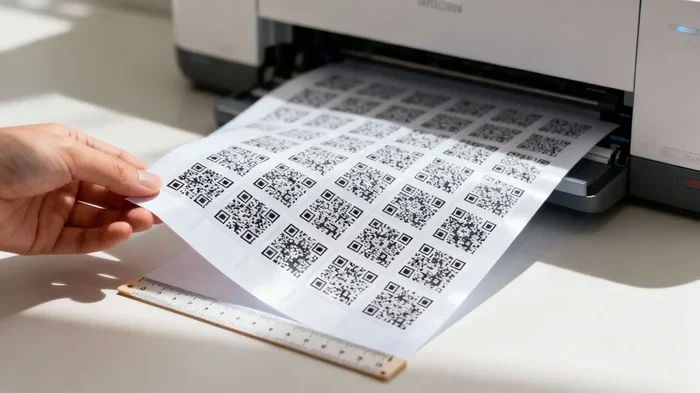
Can You Print A QR Code On A Printer Here Is The Answer
Yes, you can print a QR code on a printer. Whether you use an inkjet, laser, or thermal printer, generating and printing QR codes is simple and straightforward. All you need is a QR code generator, the right printer settings, and suitable paper to get a scannable result every time.
Have you ever needed to print a QR code and wondered if your printer could handle it? The good news is that printing a QR code on a printer is something almost anyone can do. You do not need fancy equipment or expensive software. Whether you are printing QR codes for business cards, product labels, event tickets, or personal projects, your home or office printer can get the job done.
In this guide, we will walk you through everything you need to know. We will cover which printers work best, what settings to use, and how to make sure your QR codes scan correctly every single time. By the end, you will feel confident about creating and printing your own QR codes at home.
Key Takeaways
- Any standard printer works: inkjet, laser, and thermal printers can all print QR codes effectively.
- Use a free QR code generator: online tools make creating QR codes fast and easy.
- Print settings matter: adjust resolution, contrast, and paper type for best scan results.
- Size and placement are key: make the QR code large enough and place it on a clean surface.
- Test before mass printing: always scan a test print to confirm readability.
- Error correction levels help: higher error correction allows damaged codes to still work.
- Paper quality affects scans: glossy or coated paper can sometimes cause scanning issues.
📑 Table of Contents
What Is a QR Code and Why Print It?
A QR code is a two-dimensional barcode that stores information. It can hold links to websites, contact details, Wi-Fi passwords, and much more. People use QR codes every day. You see them on restaurant menus, product packaging, event tickets, and advertisements. The reason they are so popular is simple. A quick scan with a phone camera opens a link or shares information instantly.
Printing a QR code makes it physical and accessible. Instead of someone typing a URL into their phone, they just point their camera at the printed code. This saves time and reduces errors. Businesses use printed QR codes to connect with customers in stores, at events, and on marketing materials.
Types of Printers That Can Print QR Codes
Most printers can handle QR code printing without any problems. Here is a quick look at the most common types:
- Inkjet Printers: These are the most common home printers. They use liquid ink and produce colorful prints. Inkjet printers work great for QR codes on regular paper and glossy photo paper.
- Laser Printers: Laser printers use toner instead of ink. They produce sharp, crisp text and graphics. For high-volume QR code printing, laser printers are an excellent choice.
- Thermal Printers: These printers use heat to print on special paper. They are popular for label printing and receipt printing. Thermal printers are often used in retail and shipping.
- Dot Matrix Printers: These older printers use pins to impact ink onto paper. They can print QR codes but the quality may not be as clean as modern options.
When choosing a printer for QR code printing, consider the print resolution. A higher dots-per-inch (DPI) setting produces sharper codes. Most modern printers offer at least 300 DPI, which is more than enough for QR codes.
How to Create a QR Code for Printing
Creating a QR code is easier than you might think. You do not need any special skills or expensive tools. Follow these simple steps to get started.
Step 1: Choose a QR Code Generator
Many websites offer free QR code generators. You type in the information you want, and the tool creates a QR code image. Some popular options include QR Code Generator, Beaconstac, and Canva. These tools let you customize colors, add a logo, and choose the size of your code.
When selecting a generator, look for one that lets you download the code as a PNG or SVG file. PNG files work well for most printing needs. SVG files are vector-based and scale without losing quality, which is perfect for large prints.
Step 2: Design Your QR Code
Customization can make your QR code more attractive and on-brand. You can change the colors, add a center logo, or adjust the shape of the dots. But be careful. Too much design changes can make the code hard to scan. Keep the contrast high between the code and the background. Dark codes on light backgrounds work best.
Here are some quick design tips:
- Use dark colors like black or navy for the code.
- Keep the background white or very light.
- Do not make the dots too round or too square.
- Add a quiet zone around the code (blank space).
- Place a logo in the center only if you use high error correction.
Step 3: Download the QR Code File
Once you are happy with the design, download the file. Save it as a PNG for standard printing or as an SVG for larger formats. Make sure the file size is large enough for printing. A small image will look blurry when you stretch it to fill a page.
Printer Settings for the Best QR Code Prints
Getting the right settings on your printer makes a big difference. A poorly printed QR code might not scan, and that defeats the whole purpose. Here are the settings to check before you hit print.
Resolution Settings
Set your print quality to the highest available option. For most printers, this means selecting “Best” or “High Quality” in the print dialog. A resolution of at least 300 DPI ensures the QR code squares are sharp and clear. If you are using a laser printer, the default quality setting usually works well for QR codes.
Color vs. Black and White
QR codes do not need to be printed in color. A black code on a white background is the most reliable for scanning. If your brand requires color, you can use colored codes, but make sure there is enough contrast. Avoid light colors like yellow or light gray for the code itself.
Paper Type and Quality
The paper you use matters more than you might think. Standard copy paper works fine for most QR codes. However, if you are printing labels or stickers, choose paper that is compatible with your printer type.
Here is a quick comparison of paper types for QR code printing:
- Plain Copy Paper: Works well for everyday use. Affordable and widely available.
- Glossy Photo Paper: Produces vibrant prints but can cause glare under certain lights, making scanning harder.
- Matte Paper: Reduces glare and provides a clean surface for scanning. Great choice for professional prints.
- Label Stock: Use labels designed for your printer type (inkjet or laser). Make sure the adhesive does not interfere with scanning.
If you are using specialty paper, always run a test print first. Some coated papers can cause ink to sit on the surface rather than absorbing, which affects scan quality.
Print Contrast and Darkness
Check your printer’s contrast or darkness settings. A QR code needs to be dark enough to read clearly. If the print is too light, a scanner may not detect the pattern. Most printers have a “Darkness” or “Tone” slider in the print settings. Bump it up slightly if your test scans are failing.
Common Problems When Printing QR Codes
Even with the right printer, you might run into some issues. Here are the most common problems and how to fix them.
QR Code Not Scanning
If your printed QR code does not scan, the first thing to check is the print quality. Smudges, light prints, or blurry codes can all cause scanning failures. Try reprinting at a higher quality setting. Also, make sure the QR code is large enough. A code printed too small can be hard for a phone camera to read.
Another common issue is placing the code on a reflective surface. Glossy paper or laminated finishes can create glare that confuses the scanner. Switch to matte paper or reduce the lighting when scanning.
Distorted or Pixelated Codes
A pixelated QR code usually means the image file was too small when printed. Always use a high-resolution file for printing. If you downloaded a small PNG, try generating a new one at a larger size. SVG files are the best choice for large prints because they scale without losing quality.
Printer Not Recognizing the File
Sometimes the printer software struggles with certain image formats. If this happens, try converting your file to a different format. PNG and JPEG are the most widely supported. You can also try opening the image in an image editor, resizing it, and saving it again before printing.
Tips for Professional-Quality QR Code Printing
Want your printed QR codes to look sharp and work flawlessly? Follow these practical tips.
- Always do a test print first. Scan the test copy with multiple phones before printing a large batch.
- Use the right error correction level. QR codes have four error correction levels: L, M, Q, and H. Level H allows up to 30% of the code to be damaged and still work. This is great for printed materials that might get worn or torn.
- Keep the quiet zone intact. The blank space around the QR code is essential for scanners to read it properly. Do not place text or images too close to the code.
- Match your printer to your paper. Using inkjet paper in a laser printer (or vice versa) can cause smearing and poor adhesion. Always check the paper packaging for compatibility.
- Consider the scanning environment. If the printed QR code will be used outdoors or in bright light, use matte paper and high contrast to reduce glare.
- Update your printer drivers. Outdated drivers can cause print quality issues. Visit your printer manufacturer’s website to download the latest drivers. This is especially important if you are using a proprietary operating system that may have specific driver requirements.
For businesses that print QR codes in bulk, investing in a dedicated label printer can save time and improve consistency. Thermal label printers are particularly popular for retail and logistics because they produce clean, sharp codes quickly.
When you are printing QR codes for marketing materials, think about the entire customer journey. The QR code should lead to a mobile-friendly page. If someone scans it on their phone and lands on a site that is hard to navigate on a small screen, the experience falls flat. Make sure your destination is optimized for mobile devices.
Also, consider how the QR code will be distributed. If it is on a flyer that people carry in their wallets, make sure the code is large enough to scan easily. A code that is too small or too far from the edge of the paper can be cut off and become unscannable.
Advanced QR Code Printing Techniques
Once you have the basics down, you can explore more advanced techniques to make your printed QR codes even better.
Dynamic QR Codes
Unlike static QR codes, dynamic QR codes can be updated after printing. This means you can change the destination URL without reprinting the code. This is incredibly useful for marketing campaigns where you want to track scans or update the linked content frequently. You will need a QR code generator that supports dynamic codes, and most of these services charge a small fee.
Printing QR Codes on Different Materials
QR codes are not limited to paper. You can print them on fabric, plastic, metal, and wood. Each material requires a different printing approach. For fabric, use a sublimation printer. For plastic and metal, specialized industrial printers are needed. For wood, laser engraving works beautifully and creates a rustic, professional look.
Batch Printing QR Codes
If you need to print many QR codes at once, look into batch printing tools. These tools let you generate and print multiple codes in one go. Some QR code generators include built-in batch printing features. This saves a lot of time if you are printing product labels or event tickets in bulk.
How QR Codes Work Behind the Scenes
Understanding how QR codes work can help you print better ones. A QR code uses a grid of black and white squares to store data. The three large squares in the corners help scanners orient the code. The smaller squares inside hold the actual information. The more data stored, the denser the code becomes, and the more careful you need to be with print quality.
QR codes also have built-in error correction. This means even if part of the code is damaged or obscured, the scanner can still read it. The error correction level you choose affects how much of the code can be missing and still work. Higher error correction makes the code more resilient but also makes it more complex and larger in size.
When you print a QR code, you are essentially creating a physical version of digital data. The printer translates the digital image into ink or toner on paper. The scanner or camera reads this physical pattern and converts it back into digital information. This entire process happens in seconds, which is part of why QR codes are so convenient and popular.
The technology behind QR codes continues to evolve. New versions of the QR code standard support more data and work better at smaller sizes. However, the basic principles of printing remain the same. Use a high-quality image, print at the right resolution, and test before you commit to a large print run.
Final Thoughts
Printing a QR code on a printer is simple, affordable, and incredibly useful. Whether you are a small business owner, a marketer, or someone working on a personal project, you can create professional-quality printed QR codes with any standard printer. The key is to use the right settings, choose good paper, and always test your prints before going to scale.
Remember that the goal of a printed QR code is to make life easier for the person scanning it. Keep the code clean, large enough, and placed where it is easy to reach. With the tips in this guide, you are well equipped to produce QR codes that look great and work every time.
So go ahead. Create your QR code, adjust your printer settings, and start printing. Once you see how easy and effective it is, you will wonder why you did not try it sooner.
Frequently Asked Questions
Do I need a special printer to print a QR code?
No, you do not need a special printer. Almost any printer, including inkjet, laser, and thermal models, can print QR codes. The key is to use the right settings and good quality paper for the best results.
What is the best file format for printing QR codes?
PNG files work well for most printing needs. SVG files are the best choice for large prints because they are vector-based and do not lose quality when scaled up. Avoid using very small image files as they can appear pixelated when printed.
Can I print QR codes on colored paper?
Yes, you can print QR codes on colored paper, but make sure there is enough contrast. Dark codes on light backgrounds scan the best. Avoid using light-colored codes on dark backgrounds as they can be difficult for scanners to read.
Why is my printed QR code not scanning?
This is usually caused by low print quality, insufficient contrast, or the code being too small. Try printing at a higher resolution, using darker ink, and making the code larger. Also, check that the paper is not too glossy, as glare can interfere with scanning.
How big should a printed QR code be?
A printed QR code should be at least 2 inches by 2 inches for easy scanning. If the code will be scanned from a distance or on a moving object, make it even larger. The general rule is that the code should be large enough to fill a good portion of the scanning camera frame.
Can I print QR codes in bulk at home?
Yes, you can print QR codes in bulk at home. Use a batch printing tool or create a template in a word processor or design software. For large volumes, a laser printer is faster and more cost-effective than an inkjet printer.
=== CONCLUSION ===
Printing a QR code on a printer is something anyone can do with the right approach. You have learned about the best printer types, the right settings to use, and common problems to avoid. The most important takeaway is to always test your print before committing to a large batch. A quick scan test saves time and frustration.
With a free QR code generator, a standard printer, and the tips from this guide, you are ready to create professional-quality printed QR codes. Start simple, experiment with different settings, and soon you will be printing QR codes like a pro. The process is straightforward, the results are rewarding, and the possibilities are endless.