Can You Connect Micro HDMI to HDMI Without Any Hassle
Yes, you can connect Micro HDMI to HDMI easily with the right adapter or cable. This guide walks you through every step, from choosing the correct adapter to troubleshooting common issues. You will learn about different adapter types, device compatibility, and practical tips to get your Micro HDMI to HDMI setup running smoothly in minutes.
Have you ever wanted to show something on your phone or camera on a bigger screen? Maybe you are traveling and want to share photos with friends on a TV. Or perhaps you need to present a slideshow at work. The question can you connect Micro HDMI to HDMI comes up a lot. And the answer is a simple yes.
Connecting a Micro HDMI device to a standard HDMI display is easier than most people think. You just need the right adapter or cable. In this guide, I will walk you through everything you need to know. We will cover adapter types, setup steps, common problems, and much more. By the end, you will feel confident making your own Micro HDMI to HDMI connection.
Whether you are using a compact camera, a tablet, or any other small device, this guide has you covered. Let us dive in and make this simple and fun.
Key Takeaways
- Simple Connection: A Micro HDMI to HDMI adapter or cable is all you need to link compact devices to large screens.
- Adapter Types Matter: Choose between adapter cables, active adapters, and passive adapters based on your device and needs.
- Wide Device Support: Many cameras, tablets, and smartphones use Micro HDMI ports for direct output.
- 4K and HD Ready: Modern adapters support high-resolution output including 4K and Full HD.
- Common Issues Are Fixable: Most signal problems stem from loose connections or incompatible adapters.
- Quick Setup: The entire process takes only a few minutes with no technical expertise required.
📑 Table of Contents
What Is Micro HDMI and How Does It Work
Before we get into the connection process, let us understand what Micro HDMI actually is. Many people confuse it with Mini HDMI or standard HDMI. But they are different connectors serving different devices.
Understanding the Micro HDMI Port
A Micro HDMI port is a tiny connector found on compact devices. Think of small cameras, action cameras, and some older smartphones. The official name for this connector is HDMI Type D. It is much smaller than a standard HDMI Type A plug. Despite its size, it carries the same high-quality audio and video signals.
The Micro HDMI port has 19 pins, just like a regular HDMI connector. These pins handle digital video and audio data. So the signal quality is the same. The only difference is the size of the connector. This makes it perfect for devices where space is limited.
How HDMI Signals Travel
HDMI stands for High-Definition Multimedia Interface. It sends both audio and video through a single cable. This is one of the biggest advantages of HDMI technology. You do not need separate cables for sound and picture.
When you use a Micro HDMI to HDMI connection, the signal stays digital from start to finish. There is no conversion to analog. This means you get crisp picture quality and clear sound. The digital signal transfer keeps everything clean and interference-free.
Can You Connect Micro HDMI to HDMI Directly
Here is the straightforward answer. You cannot plug a Micro HDMI cable directly into a standard HDMI port. The sizes do not match. A Micro HDMI plug is much too small for a full-size HDMI input. So you need a bridge between the two.
Why You Need an Adapter
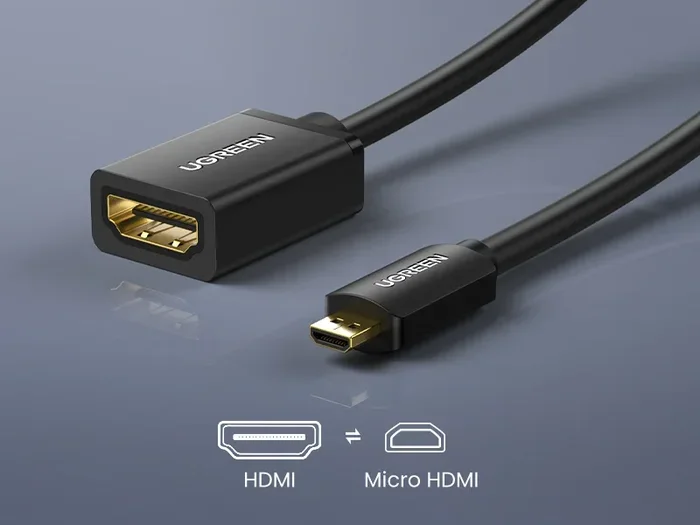
An adapter acts as the bridge between the tiny Micro HDMI plug and the standard HDMI port. It has a Micro HDMI connector on one end and a regular HDMI connector on the other. Some adapters are just a simple passive piece. Others include extra electronics to boost the signal.
The type of adapter you choose depends on your device and what you want to do. For most basic setups, a simple Micro HDMI to HDMI adapter cable works perfectly. You plug the Micro HDMI end into your device and the HDMI end into your TV or monitor.
The Role of Adapter Cables
An adapter cable is a two-in-one solution. It combines the adapter and the cable into one piece. This makes setup even simpler. You do not need to buy a separate HDMI cable. Just plug it in and go.
These cables come in different lengths. You can find them from 3 inches to 10 feet or more. Short cables are great for travel. Longer cables give you more flexibility in your setup. Pick the length that fits your situation best.
Types of HDMI Adapters and Cables
Not all adapters are the same. There are a few different types you should know about. Each one serves a specific purpose. Let us break them down so you can choose the right one for your Micro HDMI to HDMI setup.
Micro HDMI to HDMI Adapter Cables
This is the most popular option. An adapter cable has a Micro HDMI plug on one side and a standard HDMI plug on the other. It is compact and easy to carry. You can toss one in your bag or pocket.
These cables work well for most devices. They are plug-and-play. There is no software to install. Just connect and enjoy your content on a bigger screen.
Active vs Passive Adapters
This is an important distinction. A passive adapter simply changes the shape of the connector. It does not boost or alter the signal. Passive adapters work great for most devices that already have a strong output signal.
An active adapter includes built-in electronics. It can convert the signal or boost it. Active adapters are useful when your device has a weak output. They are also needed for certain digital display setups that require signal conversion.
For most people, a passive adapter cable is all you need. But if you run into issues, an active adapter might solve the problem.
Mini HDMI vs Micro HDMI vs Standard HDMI
It helps to know the differences between these three connector types. Mini HDMI (Type C) is slightly larger than Micro HDMI (Type D). Standard HDMI (Type A) is the big one you see on TVs and monitors.
Make sure you do not mix up Mini and Micro. They look similar but are different sizes. Using the wrong one will not work. Always check your device manual to confirm which port type you have.
| Connector Type | Official Name | Common Devices | Size |
|---|---|---|---|
| Standard HDMI | Type A | TVs, monitors, projectors | Large |
| Mini HDMI | Type C | Some DSLRs, camcorders | Medium |
| Micro HDMI | Type D | Action cameras, small phones, tablets | Small |
Step-by-Step Setup Guide for Micro HDMI to HDMI
Setting up a Micro HDMI to HDMI connection is quick and painless. Follow these simple steps and you will be watching your content on the big screen in no time.
What You Need Before You Start
Before you begin, gather these items:
- A device with a Micro HDMI port (your source device)
- A Micro HDMI to HDMI adapter cable or adapter plus a standard HDMI cable
- A display with an HDMI input (TV, monitor, or projector)
- Power source for your device if needed
That is it. You do not need any special tools or technical knowledge. Everything plugs in with a simple click.
Connecting Your Devices
Here is the process step by step:
- Plug the Micro HDMI end into your device. Make sure it clicks into place.
- Connect the standard HDMI end to your TV or monitor.
- Switch your display to the correct HDMI input channel.
- Turn on your source device.
- Your screen should appear on the display immediately.
That is all there is to it. No software. No drivers. No complicated settings. Just a direct plug-and-play connection.
Quick Tips for a Smooth Setup
Follow these tips to avoid common headaches:
- Always check that both ends are fully seated. A loose connection causes the most problems.
- Use a high-quality cable to ensure the best picture and sound.
- If your TV has multiple HDMI ports, note which port you are using.
- Restart both devices if you do not see a signal right away.
- Keep your adapter cable away from sharp bends to prevent damage.
Common Issues and How to Fix Them
Even though this setup is simple, you might run into a few hiccups along the way. Here are the most common problems and their solutions.
No Signal on the Display
This is the number one issue people face. If your screen is blank, do not panic. Start by checking both connections. Make sure the Micro HDMI to HDMI cable is firmly plugged into both devices.
Next, check your TV input. Use your remote to switch to the right HDMI channel. Sometimes the display stays on the wrong input by default.
If those steps do not work, try a different HDMI port on your TV. The port you are using might be faulty. Also, test your cable with another device if possible.
Audio and Video Sync Problems
Sometimes the picture and sound do not match up. The video plays but the audio is delayed. This usually happens with longer cables or lower-quality adapters.
The fix is simple. Use a shorter, high-quality Micro HDMI to HDMI adapter cable. Look for cables labeled “High Speed HDMI” or “Premium High Speed.” These cables support better signal integrity.
If the problem persists, check your device audio settings. Make sure the HDMI output is set as the primary audio device.
Flickering or Poor Picture Quality
A flickering screen is annoying but usually easy to fix. Start with the basics. A loose connection causes flickering more than anything else.
Also consider your cable length. Very long cables can weaken the signal. If you need a longer run, use an active HDMI adapter with a built-in signal booster. This keeps the picture sharp and stable.
Best Devices That Use Micro HDMI
Micro HDMI is not as common today as it once was. But many devices still use it. Here are some popular ones that benefit from a Micro HDMI to HDMI connection.
- Action Cameras: GoPro-style cameras often use Micro HDMI for direct playback on a TV.
- Compact Cameras: Many small digital cameras include a Micro HDMI port for sharing photos and videos.
- Tablets: Some Android tablets use Micro HDMI for screen mirroring to a monitor.
- Portable Media Players: Handheld gaming devices and media players sometimes include this port.
- Drones: Certain drone models use Micro HDMI for live video output.
If your device has a Micro HDMI port, you can easily connect it to any HDMI display. This opens up a world of possibilities for sharing content and presentations.
Expert Insights on HDMI Connectivity
Understanding HDMI connectivity helps you make smarter buying decisions. Here are some expert tips to keep in mind.
Look for High-Speed Certification
Not all HDMI cables and adapters are created equal. Look for products certified as “High Speed HDMI.” This certification guarantees the cable can handle high-resolution content including 4K video and surround sound audio.
A cheap, uncertified cable might work for basic use. But for reliable Micro HDMI to HDMI performance, invest in a quality product. It saves you frustration in the long run.
Consider Your Resolution Needs
Think about what resolution you need. Most modern adapters support Full HD (1080p) and many support 4K Ultra HD. If you are connecting a camera to a TV for photo slideshows, Full HD is more than enough.
If you are doing professional video work, look for adapters that support 4K at 60Hz. This ensures smooth, high-quality output for demanding applications.
Future-Proof Your Setup
HDMI technology keeps evolving. Newer versions support higher bandwidth and advanced features like eARC (enhanced Audio Return Channel). While your current Micro HDMI to HDMI setup might not need these features now, choosing adapters that support the latest HDMI standards gives you more flexibility for future devices.
Key Takeaways
- Simple Connection: A Micro HDMI to HDMI adapter or cable is all you need to link compact devices to large screens.
- Adapter Types Matter: Choose between adapter cables, active adapters, and passive adapters based on your device and needs.
- Wide Device Support: Many cameras, tablets, and smartphones use Micro HDMI ports for direct output.
- 4K and HD Ready: Modern adapters support high-resolution output including 4K and Full HD.
- Common Issues Are Fixable: Most signal problems stem from loose connections or incompatible adapters.
- Quick Setup: The entire process takes only a few minutes with no technical expertise required.
Conclusion
The answer to can you connect Micro HDMI to HDMI is a clear and definite yes. With the right Micro HDMI to HDMI adapter or cable, you can connect almost any compact device to a TV, monitor, or projector. The process is simple, fast, and requires no technical skills.
We covered the different adapter types, setup steps, common problems, and the devices that use Micro HDMI. You now have everything you need to make this connection work perfectly. Whether you are at home, in the office, or on the go, a Micro HDMI to HDMI setup gives you the freedom to share your content on any screen.
So go ahead. Grab the right adapter, plug it in, and enjoy your content on a bigger display. Once you try it, you will wonder why you did not do it sooner.
Frequently Asked Questions
Can I use a Micro HDMI to HDMI adapter with any TV?
Yes, as long as your TV has a standard HDMI input port. Nearly all modern TVs, monitors, and projectors have HDMI inputs. The adapter works with any display that accepts HDMI. Just plug it in and switch to the correct input channel.
Do I need to install any software for a Micro HDMI to HDMI connection?
No, you do not need any software. This is a hardware connection that works instantly. Plug the adapter in and your device should automatically send the signal to the display. No drivers or downloads are required.
Will a Micro HDMI to HDMI adapter support 4K resolution?
It depends on the adapter you buy. Many modern adapters support 4K output. Look for cables and adapters labeled “High Speed HDMI” or “Premium High Speed” to ensure 4K support. Cheaper or older adapters may only support Full HD.
Can I connect a Micro HDMI device to a computer monitor?
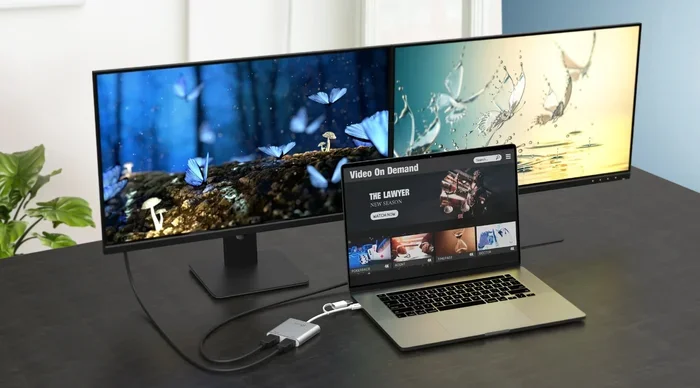
Absolutely. If your computer monitor has an HDMI input, you can connect your Micro HDMI device directly. This works great for extending your screen or mirroring your device display. It is a simple and effective way to use a monitor as a secondary screen.
Why does my Micro HDMI to HDMI connection keep losing signal?
The most common cause is a loose connection. Make sure both ends of the cable are fully plugged in. Also check for damaged pins or dirt in the port. Using a shorter, higher-quality cable often fixes intermittent signal loss.
Is a Micro HDMI to HDMI cable the same as a Mini HDMI cable?
No, they are different. Micro HDMI (Type D) is smaller than Mini HDMI (Type C). They are not interchangeable. Always check your device specifications to confirm which port type you have before buying an adapter or cable.