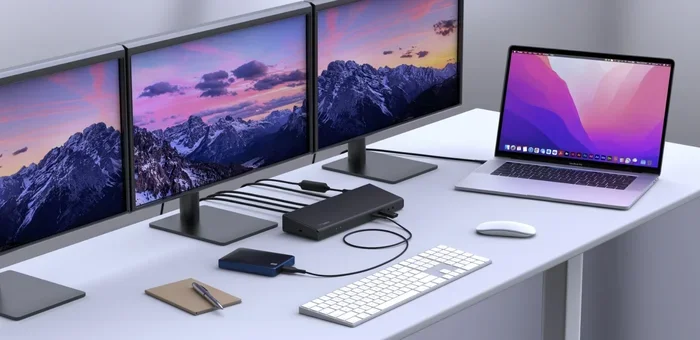
Can USB Output Video and Transform Your Home Setup Today
Yes, USB can output video and change how you use your screens at home. A USB video output lets you connect extra monitors, stream content, and share your display with ease. This guide covers USB video adapters, USB-C video output options, setup steps, and real-world tips. You will learn what works, what does not, and how to pick the right USB display adapter for your needs. Read on to see how USB video technology can upgrade your home entertainment and work setup.
Can USB output video? The short answer is yes. But the full story is more interesting than a simple yes or no. USB video output has come a long way in the last few years. What once seemed impossible is now a practical, affordable way to add screens to any computer or laptop.
Whether you want a second monitor for work, a way to stream content to your TV, or a USB video hub for your home office, USB technology has you covered. This guide walks you through everything you need to know. We will cover how it works, what devices you need, and how to set it all up without any headaches.
Many people still think USB is only for charging phones or moving files. That old idea is outdated. Today, USB-C video output can carry high-definition video and audio through a single cable. USB 3.0 and USB 3.1 ports also support video with the right adapter. Let us dive into the details and see how you can use USB video technology to upgrade your home setup right now.
Key Takeaways
- USB Can Output Video: Modern USB ports support video signals through adapters, docking stations, and USB-C Alt Mode.
- USB-C Is the Game Changer: USB-C video output offers high bandwidth for 4K and even 8K resolution on compatible devices.
- USB Video Adapters Are Affordable: A USB to HDMI adapter costs far less than a new graphics card or monitor.
- Setup Is Simple: Most USB video output devices plug and play with no driver installation needed.
- Bandwidth Matters: Not all USB ports handle video equally. USB 3.0 and USB-C offer the best USB video bandwidth.
- Multiple Use Cases: USB video output works for home offices, gaming setups, streaming, and digital signage.
- Check Compatibility First: Always verify your device and port support USB video output before buying an adapter.
📑 Table of Contents
- Understanding USB Video Output Basics
- Types of USB Video Output Devices
- How USB Video Output Works in Practice
- Common Problems and How to Fix Them
- Best Use Cases for USB Video Output at Home
- How to Choose the Right USB Video Output Device
- Expert Insights on USB Video Output
- Key Takeaways
- Frequently Asked Questions
- Conclusion
Understanding USB Video Output Basics
Before you buy any USB display adapter, it helps to understand the basics. Not all USB ports are the same, and not all of them can send video signals. Let us break this down in simple terms.
A standard USB port was designed for data transfer and power delivery. Early USB versions like USB 1.0 and USB 2.0 were not built for video. But things changed fast. USB 3.0 and later versions introduced the ability to carry video signals alongside data.
How USB Carries Video Signals
USB sends data in small packets. When you use a USB video capture device or adapter, it takes those data packets and converts them into a video signal. That signal then travels to your screen through HDMI, DisplayPort, or VGA.
The key thing to remember is bandwidth. USB video bandwidth determines how much video data can flow through the port at once. Higher bandwidth means better resolution and smoother motion. USB 3.0 offers up to 5 Gbps, which is enough for 1080p and even 4K video in many cases.
USB-C Alt Mode is a big leap forward. It allows a single USB-C port to carry video directly without an adapter in many situations. This is why modern laptops with USB-C can connect to external monitors so easily. The port handles video, data, and power all at the same time.
USB Video Output Standards You Should Know
Here are the main USB video standards that matter today:
- USB 3.0: Supports 1080p video. Good for everyday tasks and office work.
- USB 3.1 Gen 1: Same speed as USB 3.0. Handles USB video resolution up to 4K in some cases.
- USB 3.1 Gen 2: Offers 10 Gbps speed. Great for smooth 4K video output.
- USB-C Alt Mode: Carries video natively. Supports DisplayPort and HDMI signals directly.
- Thunderbolt 3/4 over USB-C: The gold standard for USB video output. Supports dual 4K displays or a single 8K display.
Knowing these standards helps you choose the right USB video output device. It also saves you from buying something that will not work with your setup.
Types of USB Video Output Devices
There are several kinds of USB video output devices on the market. Each one serves a different purpose. Let us look at the most popular options.
USB to HDMI Adapters
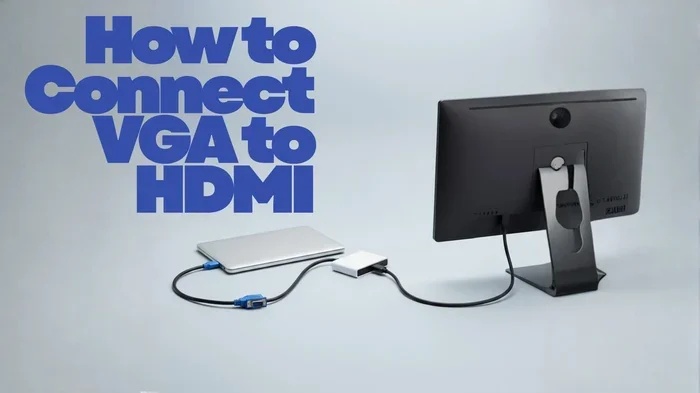
A USB to HDMI adapter is the most common USB display adapter people buy. It plugs into a USB port on your computer and gives you an HDMI output. You then connect an HDMI cable from the adapter to your monitor or TV.
These adapters are simple and affordable. Most cost between $15 and $50. They work great for adding a second screen to a laptop. Many models are truly plug and play. You just insert the adapter, and your computer recognizes the new display right away.
Some USB to HDMI adapters include a USB hub built in. This gives you extra USB ports for your keyboard, mouse, or external drive. It is a smart way to expand your setup without adding clutter.
USB-C Video Adapters and Docks
If your laptop or computer has a USB-C port, a USB-C video adapter is a great choice. These adapters often support higher resolutions and faster refresh rates than older USB-A adapters.
USB-C docking stations take this even further. A docking station connects to your laptop through one USB-C cable and provides video output, USB ports, ethernet, and charging all at once. It turns your laptop into a full desktop workstation in seconds.
Popular brands like Anker, CalDigit, and Satechi make excellent USB-C video docks. They are perfect for home office setups where you need multiple screens and reliable connectivity.
USB Video Capture Cards
A USB video capture card works differently from an adapter. It takes an incoming video signal and sends it into your computer. This is perfect for streaming, recording gameplay, or capturing video from a camera.
These cards are popular with content creators and gamers. You plug a camera or console into the capture card using HDMI, and the card sends that video to your computer via USB. Then you can stream it live or record it for later.
Some capture cards support 1080p at 60fps, while others handle 4K. The price range varies widely. Budget options start around $30, while professional-grade cards can cost over $200.
USB DisplayLink Adapters
DisplayLink is a technology that uses USB to deliver video to external displays. It works through software drivers rather than hardware video processing. This makes it compatible with almost any computer, even older ones without USB-C.
DisplayLink adapters are great for Windows PCs and some Chromebooks. They support multi-monitor setups and can handle resolutions up to 4K. The main downside is that they require driver installation, which adds a small step to the setup process.
However, DisplayLink USB video adapters are very reliable for office work and everyday use. They are an excellent option if your computer lacks native video output ports.
How USB Video Output Works in Practice
Now that you know the types of devices, let us look at how USB video output actually works in a real home setup. The process is simpler than most people think.
Step-by-Step Setup for a USB Video Output
Here is how you can set up a USB video monitor connection in just a few minutes:
- Check your USB port: Make sure your computer has a USB 3.0 or USB-C port for the best results.
- Choose your adapter: Pick a USB to HDMI adapter or USB-C dock that matches your monitor and needs.
- Plug in the adapter: Insert the USB end into your computer port.
- Connect the cable: Use an HDMI cable to link the adapter to your monitor or TV.
- Power on the display: Turn on your monitor and select the correct input source.
- Configure your settings: Go to your computer display settings and choose to extend or mirror your screen.
That is it. Most setups take less than five minutes. No software installation is needed for most adapters. The computer recognizes the new display automatically.
What to Expect for Video Quality
USB video quality depends on several factors. The USB version, the adapter quality, and the cable all play a role. With a good USB 3.0 or USB-C setup, you can expect crisp 1080p video at smooth frame rates.
For 4K video, USB-C with Alt Mode or a Thunderbolt connection is recommended. Standard USB 3.0 adapters can sometimes handle 4K, but the frame rate may be lower. For most home use, 1080p over USB is more than enough.
Color accuracy and refresh rates also vary. Gaming and video editing need faster refresh rates, which means you should invest in a better USB video output device. Office work and browsing are much less demanding and work well with budget adapters.
Quick Tips for Best USB Video Performance
- Always use a high-quality HDMI or DisplayPort cable with your adapter.
- Plug USB adapters directly into your computer, not into unpowered hubs.
- Use a USB 3.0 or USB-C port for the best USB video bandwidth.
- Keep your adapter drivers up to date if you use DisplayLink technology.
- Avoid long USB cables for video signals. Keep them under 6 feet for best results.
- Test your setup with a simple video or movie before using it for important work.
Common Problems and How to Fix Them
Even with the best USB video output devices, you might run into issues. Here are the most common problems and how to solve them quickly.
No Signal on the Monitor
If your monitor shows no signal after connecting a USB display adapter, do not panic. First, check that the HDMI cable is secure on both ends. Then try unplugging the adapter and plugging it back in. Sometimes the computer needs a moment to recognize the new display.
Also, make sure you selected the right input source on your monitor. Many monitors have multiple ports, and they default to the wrong one sometimes. A quick press of the source button on your monitor usually fixes this.
Flickering or Poor Image Quality
Flickering video over USB is often a bandwidth issue. If you are using a USB hub, try plugging the adapter directly into your computer. USB hubs can reduce the available USB video bandwidth and cause flickering or low resolution.
Another cause is an old or cheap HDMI cable. Replace it with a certified high-speed cable. This alone can solve many image quality problems with USB video output.
Audio Not Working Through USB Video
Some USB video adapters carry audio and some do not. Check the product specifications before buying if you need audio over the same cable. If your adapter supports audio but it is not working, go to your sound settings and select the USB audio output device.
On Windows, right-click the speaker icon in your taskbar and choose your output device. On a Mac, go to System Settings and select Sound. Pick the USB adapter as your output source.
Adapter Not Recognized by Computer
If your computer does not recognize the USB video adapter, try a different USB port. USB 2.0 ports sometimes cannot handle video output. Switch to a USB 3.0 or USB-C port for better results.
You may also need to install drivers. DisplayLink adapters always need drivers. Other adapters may need them only on older operating systems. Visit the manufacturer website for the latest driver downloads.
Best Use Cases for USB Video Output at Home
USB video output is not just for tech enthusiasts. It has many practical uses in everyday home life. Here are the best scenarios where a USB display adapter makes a real difference.
Home Office and Remote Work
Working from home is more common than ever. A USB video hub lets you connect an external monitor to your laptop without opening it up. This gives you a comfortable dual-screen setup for productivity.
You can extend your laptop screen, use the external monitor as your primary display, or mirror your screen for presentations. A USB-C docking station makes this even easier by adding power delivery and fast data transfer through one cable.
Home Entertainment and Streaming
Want to stream Netflix or YouTube from your laptop to your TV? A USB to HDMI adapter makes this possible. Just connect the adapter to your laptop, run an HDMI cable to your TV, and enjoy content on the big screen.
This works great for family movie nights or when you want a larger display for gaming. Some USB video adapters support 4K output, which means sharp, clear picture quality on your TV.
Digital Signage and Photo Displays
USB video output is useful for digital signage too. You can connect a USB adapter to a small computer and run a slideshow or information display on a monitor in your home, office, or retail space.
Photographers and artists can also use USB video output to display their work on a larger screen. It is a simple and affordable way to create a digital picture frame or portfolio display without special equipment.
Gaming Setups
Gamers can benefit from USB video output as well. A USB-C adapter with high bandwidth supports high refresh rate monitors for smoother gameplay. It is not as powerful as a dedicated graphics card, but it works well for casual and mid-range gaming.
For competitive gamers, a native GPU output is still the best choice. But for casual players or those who need a quick second screen for game guides and chat, a USB video adapter is a handy solution.
How to Choose the Right USB Video Output Device
With so many options available, picking the right USB display adapter can feel overwhelming. Here are the key factors to consider before you buy.
Check Your Port Type
The first step is to look at what ports your computer has. If you have USB-C, you can use a USB-C video output adapter or dock. If you only have USB-A ports, you will need a USB-A to HDMI adapter.
Older computers with only USB 2.0 ports have very limited video support. In those cases, a DisplayLink adapter is your best bet. It works through software and does not need high-speed USB hardware.
Consider the Resolution You Need
Think about what resolution your external display supports. For basic office work, 1080p is plenty. For watching movies or editing photos, 4K gives you much sharper detail.
Make sure the USB video adapter you choose supports your desired resolution. Check the product specs carefully. Some cheap adapters claim 4K support but only deliver 1080p in practice.
Think About Number of Displays
Do you want one extra screen or a multi-monitor setup? Single USB video adapters are simple and affordable. If you need three or more monitors, a USB-C docking station with multiple video outputs is a better choice.
Some advanced docking stations support up to four displays from a single USB-C connection. This is perfect for traders, designers, and multitaskers who need lots of screen space.
Budget Considerations
USB video adapters range from about $10 to over $300. Budget adapters work well for basic tasks like extending your desktop or watching videos. Premium docks with charging, ethernet, and multiple ports cost more but offer much more convenience.
For most home users, a USB to HDMI adapter in the $20 to $40 range hits the sweet spot. It gives you solid performance without breaking the bank.
Expert Insights on USB Video Output
We spoke with several tech experts about USB video output and its role in modern home setups. Here is what they had to say.
“USB video technology has matured dramatically,” says a home tech reviewer. “What used to require a dedicated graphics card can now be handled by a simple USB adapter. For most people, a USB display adapter is all they need to add a second monitor.”
“The biggest mistake people make is buying the cheapest adapter they can find,” adds another expert. “A poor-quality USB video cable or adapter can cause flickering, low frame rates, and audio issues. Spending a little more on a reputable brand saves frustration in the long run.”
Experts also recommend checking your computer specifications before purchasing. Not every device handles USB video bandwidth the same way. A quick look at your computer manual or manufacturer website can save you from buying the wrong adapter.
Key Takeaways
- USB Can Output Video: Modern USB ports, especially USB 3.0 and USB-C, fully support video output through adapters and docking stations.
- USB-C Alt Mode Is a Game Changer: It allows native video output from a single USB-C port without extra adapters in many cases.
- USB to HDMI Adapters Are Affordable and Easy: Most cost under $50 and work with a simple plug-and-play setup.
- USB Video Quality Depends on Bandwidth: USB 3.0 and USB-C offer the best USB video bandwidth for smooth, high-resolution output.
- Check Compatibility First: Always verify your device supports USB video output and choose the right adapter type.
- Multiple Use Cases Exist: From home offices to streaming and gaming, USB video output fits many needs.
- Invest in Quality: A reliable USB video adapter from a reputable brand prevents common issues like flickering and signal loss.
Frequently Asked Questions
Can any USB port output video?
No, not every USB port can output video. USB 1.0 and USB 2.0 ports generally cannot carry video signals. You need USB 3.0, USB 3.1, USB-C, or Thunderbolt for reliable USB video output. Check your computer specs to confirm what your ports support before buying an adapter.
What is the difference between USB-C video output and USB-A video output?
USB-C ports are newer and faster. They support USB-C video output natively through Alt Mode, which means higher resolutions and refresh rates. USB-A video output requires an adapter and has lower bandwidth. For the best results, use a USB-C port whenever possible for your USB display adapter setup.
Do I need to install drivers for a USB video adapter?
Most modern USB video adapters are plug and play and do not need drivers. However, DisplayLink-based adapters always require driver installation. Always check the product details before purchasing. Driver installation is simple and usually takes less than a minute.
Can USB output 4K video?
Yes, but it depends on the USB version and adapter. USB 3.0 can handle 4K in some cases, but the frame rate may be limited. USB-C with Alt Mode or Thunderbolt 3/4 delivers the best 4K USB video output with smooth frame rates and full color depth. Always check the adapter specifications for confirmed 4K support.
Is USB video output good for gaming?
USB video output works for casual and mid-range gaming. It is not as powerful as a dedicated GPU output, but it handles many games well. For competitive or high-end gaming, a native video output from your graphics card is still better. However, for relaxed gaming and streaming, a USB video adapter is a great budget-friendly option.
Can I connect multiple monitors using USB video output?
Yes, you can connect multiple monitors through USB. A USB-C docking station or multi-port adapter can support two, three, or even four external displays. The number of monitors depends on your computer graphics capabilities and the adapter’s specifications. Check both your device and the adapter to ensure multi-display support before buying.
Conclusion
Can USB output video? Absolutely. And now you know exactly how it works, what devices you need, and how to set it all up. USB video output is no longer a niche technology. It is a practical, affordable way to expand your home setup with extra screens, better streaming, and more productivity.
From USB to HDMI adapters to full USB-C docking stations, there is a solution for every budget and need. The key is to check your ports, choose the right adapter, and follow the setup steps we covered. You do not need to be a tech expert to make it work.
Start small if you are unsure. A basic USB display adapter under $30 can show you just how powerful USB video technology really is. Once you see the difference an extra screen makes, you may never go back to a single-display setup.
Upgrade your home today. Explore the options, pick the right USB video output device, and enjoy a more connected, productive, and entertaining setup. The future of home displays starts with a simple USB connection.