Can I Use A Usb A Port As An Usb C Port Here Is Why
Can I Use A Usb A Port As An Usb C Port? The short answer is no, not directly. USB Type-A and USB Type-C are different connector types with different shapes and pin configurations. However, you can use adapters and cables to bridge the gap. This guide covers everything you need to know about compatibility, speed limits, and when it makes sense to use a USB A port with USB C devices.
Key Takeaways
- USB A and USB C are not the same: They have different shapes, pin layouts, and capabilities that affect how they work together.
- You cannot plug USB C directly into USB A: The physical connectors are incompatible without an adapter or special cable.
- Adapters and cables can bridge the gap: A USB A to USB C adapter lets you connect modern devices to older ports easily.
- Speed and power may be limited: Using a USB A port with USB C devices may not give you full USB-C speeds or power delivery.
- Adapters work best for basic tasks: Charging and file transfers work well, but you may lose features like video output.
- Choose the right adapter: Not all adapters are equal. Look for quality options that support your specific needs.
- USB-C is the future: More devices are moving to USB-C for its speed, power, and reversible connector design.
📑 Table of Contents
- Can I Use A Usb A Port As An Usb C Port Here Is Why
- What Is The Difference Between USB A And USB C
- Can You Directly Use A USB A Port As A USB C Port
- How Adapters And Cables Bridge The Gap
- Speed And Power Delivery Differences
- When Using USB A As USB C Makes Sense
- Common Mistakes And Expert Tips
- Conclusion
Can I Use A Usb A Port As An Usb C Port Here Is Why
Have you ever looked at your laptop or phone and wondered, “Can I Use A Usb A Port As An Usb C Port?” It is a really common question these days. The truth is, USB-A and USB-C look very different. They are not the same connector. But does that mean you cannot use them together at all? Not exactly. With the right adapter or cable, you can connect USB-C devices to USB-A ports in many situations.
The world of USB connectors can be confusing. There are USB-A ports on older computers and desks. There are USB-C ports on newer phones, tablets, and laptops. The shapes are different. The speeds are different. The power delivery is different too. But here is the good news. You can still make them work together in most cases. You just need to know what to expect.
Let us break down exactly what happens when you try to use a USB-A port as a USB-C port. We will look at adapters, speed limits, power delivery, and practical tips. By the end, you will know exactly what to do and what to watch out for. This guide covers everything from basic compatibility to real-world use cases.
Whether you are at home, at the office, or on the go, understanding how these two connector types work together is essential. Modern devices are moving fast toward USB-C. But millions of USB-A ports still exist in the world. Knowing how to bridge that gap saves time, money, and frustration. Let us dive in.
What Is The Difference Between USB A And USB C
Before we answer the main question, let us understand what makes these two ports different. USB Type-A and USB Type-C are not just different shapes. They are different connector standards with different designs and purposes built into them.
Understanding USB Type-A Connectors
USB Type-A is the classic rectangular connector. You have probably seen it on desktop computers, TVs, and game consoles for years. It has been around since the late 1990s. The connector is not reversible. That means you have to flip it to get the right orientation every time. It has a specific pin layout inside that handles data and power delivery.
The USB-A connector is larger than USB-C. It measures about 13.8 millimeters wide. This size made sense when USB peripheral devices like mice and keyboards were the main use. But today, with slim phones and laptops, the bigger size feels outdated. Still, USB-A remains one of the most widely used port types in the world.
Understanding USB Type-C Connectors
USB Type-C is the newer, smaller, oval-shaped connector. It is reversible, which means you can plug it in either way. No more flipping it three times to get it right. It has more pins inside, which allows for faster data transfer and more power delivery. USB-C also supports newer standards like USB 3.1, USB 3.2, USB 4, and even Thunderbolt connections.
The USB-C connector is about 8.4 millimeters wide. Much smaller than USB-A. This compact size makes it perfect for thin laptops and phones. It also supports USB power delivery protocols that can send much more energy through the cable. That is why most modern devices use USB-C now.
So the basic answer to “Can I Use A Usb A Port As An Usb C Port” is that they are physically different. But the story does not end there. Let us dig deeper into what happens when you try to use them together.
Can You Directly Use A USB A Port As A USB C Port
The direct answer is no. You cannot plug a USB-C plug into a USB-A port without an adapter. The shapes are completely different. The USB-A port is flat and rectangular. The USB-C plug is small and oval with rounded edges. They simply do not match physically.
Physical Compatibility Issues
The USB-A connector has a specific size and shape. It is designed to fit into a USB-A port only. The USB-C connector is much smaller and has a different shape entirely. If you try to force a USB-C plug into a USB-A port, it will not fit. It is physically impossible. Do not try to force it. You could damage your device or the port, which would be expensive to fix.
The USB standard defines the physical shape of each connector type. USB-A and USB-C were designed with different purposes in mind. USB-A was built for durability and backward compatibility over many years. USB-C was built for speed, power, and versatility in a small form factor.
What Happens When You Try
Some people wonder if they can just squeeze a USB-C cable into a USB-A port. The answer is no. The connector sizes are too different. A USB-C plug is about 8.4 millimeters wide. A USB-A plug is about 13.8 millimeters wide. They are designed for different port sizes. Trying to make them fit can cause serious damage to the port or the cable.
This is why adapters exist. They bridge the physical gap between the two connector types. But even with an adapter, there are limits to what you can do. Let us talk about those next.
How Adapters And Cables Bridge The Gap
If you cannot plug USB-C directly into USB-A, how can you make them work together? The answer is adapters and cables with different ends on them. A USB A to USB C adapter lets you connect a USB-C device to a USB-A port. Similarly, a USB C to USB A cable has a USB-C plug on one end and a USB-A plug on the other end.
These adapters and cables are widely available. You can find them online or at most electronics stores. They come in different shapes and sizes to fit different needs. Some are simple passive adapters with no extra electronics. Others are active adapters with extra chips inside that help with data and power handling.
USB A To USB C Adapter Options
There are several types of adapters you can use to connect USB-C devices to USB-A ports:
- USB A to USB C adapter: A small dongle that plugs into the USB-A port and gives you a USB-C port to use. Great for quick connections.
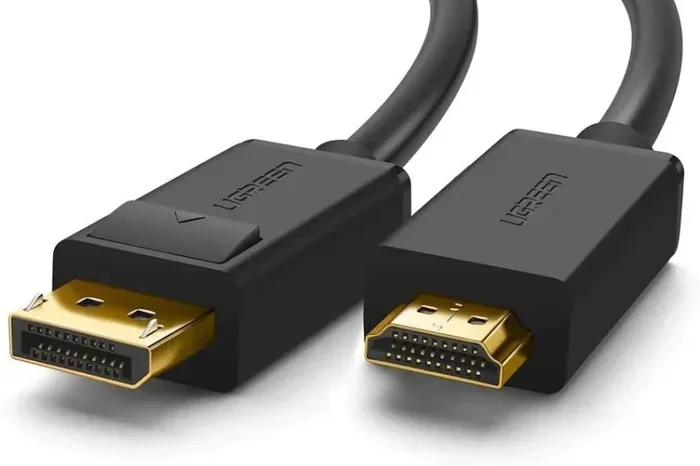
- USB C to USB A cable: A cable with different connectors on each end. Very handy for quick connections without carrying extra dongles.
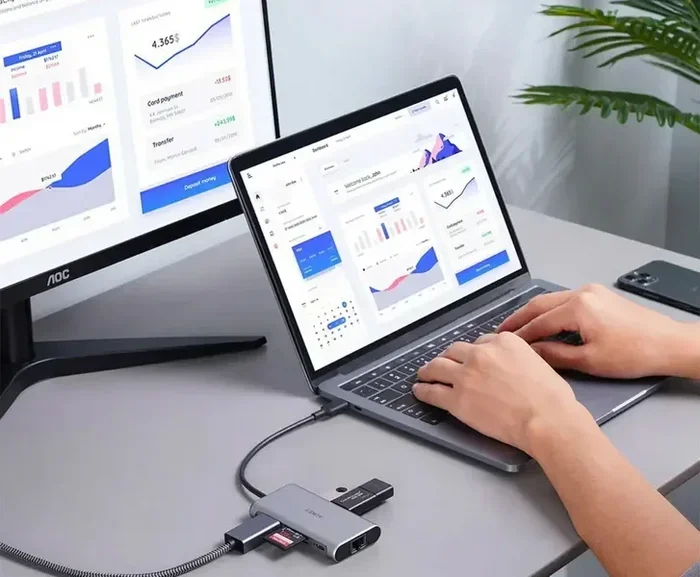
- USB A to USB C hub: A hub that adds multiple ports including USB-C to a single USB-A connection. Perfect for office setups.
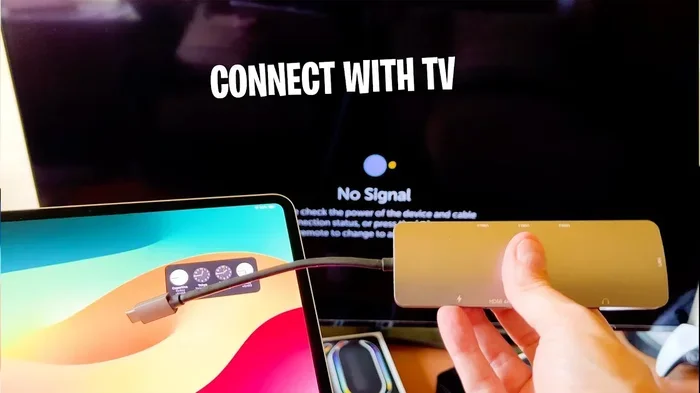
- Multiport adapter: A more complex adapter that adds USB-C, HDMI, SD card slots, and more in one device.
Each option serves a different purpose. A simple USB adapter works great for basic charging or file transfers. A hub is better if you need multiple connections at once while traveling or working at a desk.
Choosing The Right Cable
When picking a USB-C cable for use with a USB-A port, quality matters a lot. Not all cables are the same. Cheap cables may not support fast data transfer or proper power delivery. Look for cables that are certified by the USB-IF (USB Implementers Forum). Check the speed rating on the package carefully. A good cable will tell you if it supports USB 3.0, USB 3.1, or USB 3.2 speeds.
Also, pay attention to the wire gauge inside the cable. Thicker wires handle more power better. If you are charging a device, a thicker USB cable will charge faster and stay cooler during use. For data transfer, a cable rated for USB 3.0 or higher is the best choice for good speeds.
Quick Tips:
- Always buy adapters and cables from trusted brands with good reviews.
- Check the speed rating on the package before purchasing any adapter.
- Thicker cables handle more power and stay cooler during use.
- Avoid cheap no-name adapters that may overheat or damage your devices.
Speed And Power Delivery Differences
Even with an adapter, you may not get the full performance of a native USB-C connection. This is one of the most important things to understand about using a USB A port with USB C devices. The port is only as fast as its USB standard allows. The adapter cannot make a slow port fast.
Data Transfer Speeds Compared
USB Type-A ports have speed limits based on their USB standard. A USB 3.0 USB-A port can transfer data at up to 5 Gbps. A USB 3.1 USB-A port can reach 10 Gbps. But most USB-A ports on older computers are still USB 2.0, which maxes out at only 480 Mbps. That is very slow compared to modern standards and will cause frustration with large files.
USB Type-C ports can support much faster speeds. USB 3.1 USB-C can do 10 Gbps. USB 3.2 USB-C can do 20 Gbps. USB 4 USB-C can reach 40 Gbps. So when you use an adapter to connect a USB-C device to a USB-A port, your USB speed is limited by the USB-A port’s standard. You will never get the full speed of the USB-C device through a USB-A port.
Here is a simple comparison to help you understand the differences:
| Standard | USB A Max Speed | USB C Max Speed |
|---|---|---|
| USB 2.0 | 480 Mbps | 480 Mbps (if USB 2.0) |
| USB 3.0 | 5 Gbps | 5 Gbps (if USB 3.0) |
| USB 3.1 | 10 Gbps | 10 Gbps |
| USB 3.2 | 10 Gbps | 20 Gbps |
| USB 4 | N/A | 40 Gbps |
As you can see from the table, USB-A ports are much slower than USB-C ports in most real-world cases. If you need fast data transfer for large files or backups, using a USB-A port as a USB-C port will slow you down significantly.
Power Delivery Capabilities
Power delivery is another big difference between the two port types. USB-C supports USB Power Delivery or USB PD. This can deliver up to 100 watts or more of power. That is enough to charge laptops and tablets quickly and efficiently while you use them.
USB-A ports have much lower power limits. Standard USB-A ports deliver about 2.5 watts to 15 watts depending on the port. USB 3.0 ports can deliver up to about 4.5 watts of power. Some specialized USB-A ports may deliver up to 100 watts, but those are rare and use proprietary standards from specific manufacturers.
So if you are using a USB-A port to charge a USB-C device, it may charge very slowly. Or it may not charge at all if the device needs more power than the port can provide. This is especially true for laptops and tablets that need fast charging to be useful throughout the day.
Expert Insights: According to the USB-IF (USB Implementers Forum), the USB-A standard was not designed for the power demands of modern devices. USB-C was specifically created to handle higher power delivery and faster data speeds. If you need fast charging or high-speed transfers, a native USB-C connection is always better than using an adapter with a USB-A port.
When Using USB A As USB C Makes Sense
Even with all these limitations, there are times when using a USB-A port with a USB-C device makes sense. Let us look at when it works well and when you should avoid it altogether.
Practical Use Cases
Here are situations where using USB-A as USB-C works just fine:
- Charging phones and small devices: Most phones charge fine even on a USB 2.0 USB-A port. It may be slower than using a wall charger, but it will still work and get the job done.
- Basic file transfers: If you are moving documents, photos, or small files, the slower speed of USB-A is usually perfectly fine and not noticeable.
- Using older accessories: If you have an older USB-A flash drive or external hard drive, you can use an adapter to connect it to a USB-C laptop easily.
- Temporary connections: If you need a quick connection and do not have a USB-C port available at the moment, an adapter is a great workaround to have in your bag.
- Office or workplace setups: Many offices still have USB-A ports on their desks and conference tables. An adapter lets you connect modern USB-C devices to those existing ports.
Limitations To Keep In Mind
There are also times when you should avoid using USB-A as USB-C altogether:
- Video output: USB-C can carry video signals through DisplayPort Alt Mode. Most USB-A ports cannot do this at all. You will need a different adapter or a dedicated video cable for screen output.
- Fast charging: If your device needs fast charging to be practical, a USB-A port will likely be too slow and not meet your power needs.
- Large file transfers: If you need to move huge files like video projects or backups, the slower USB-A speed will be frustrating and waste your time.
- Thunderbolt devices: Thunderbolt requires a USB-C or Thunderbolt port directly. It will not work through a USB-A adapter at all. Period.
Common Mistakes to avoid in this area include assuming all USB-A ports support fast speeds (many are still USB 2.0), using cheap adapters that overheat or fail, expecting USB-A ports to deliver the same power as USB-C ports, and forcing connectors that do not fit together physically.
Common Mistakes And Expert Tips
There are some common mistakes people make when trying to use USB-A ports as USB-C ports. Avoiding these can save you time, money, and a lot of frustration down the road.
Mistakes To Avoid
Here are the most common mistakes people make when bridging USB-A and USB-C:
- Using low-quality adapters: Cheap adapters may not support the speeds or power your device needs. They can also be unsafe and damage your equipment. Stick with reputable brands that have good reviews and certifications.
- Ignoring the USB standard: Not all USB-A ports are the same. A USB 2.0 port is much slower than a USB 3.0 port. Check what standard your port supports before you expect fast speeds from your USB data transfer.
- Expecting full USB-C features: An adapter cannot add features that the USB-A port does not support. If the port cannot do video output or fast charging, no adapter will make it do so. Manage your expectations.
- Overheating devices: Some adapters and cables get warm during use. This is normal and expected. But if an adapter is too hot to touch, unplug it immediately. It may be faulty and could be a safety risk.
- Forgetting about cable length: Longer USB cables can reduce both speed and power delivery over distance. Keep your cables as short as practical for the best results and performance.
Expert Advice For Best Results
Here are some tips from tech experts to get the best experience when using USB-A with USB-C devices:
- Always check the specifications of your adapter and cable before buying them. Look for speed and power ratings.
- Use USB 3.0 or higher USB-A ports whenever possible for better USB speed and data transfer performance.
- Label your adapters so you know which one supports which features and speed ratings.
- Keep your adapters and cables in a dedicated pouch so they do not get damaged or bent during travel.
- If you use your USB-C device a lot every day, consider getting a USB-C hub or dock instead of relying on adapters every single time.
Expert Insights: Tech experts agree that while adapters are useful, they are a temporary solution. If you have the option, upgrade to a USB-C setup for the best experience. USB-C offers faster speeds, more power, and a reversible connector that is much easier to use every day. As more devices move to USB-C, having USB-A-only ports will become less and less common.
Conclusion
So, can I use a USB A port as a USB C port? The answer is yes, but with clear limits. You cannot plug USB-C directly into USB-A. The shapes are different and they are not compatible without an adapter. But with the right USB A to USB C adapter or cable, you can connect USB-C devices to USB-A ports for basic tasks like charging and file transfers.
However, you need to understand the trade-offs involved. You will likely get slower data speeds and less power delivery than you would with a native USB-C connection. You will also miss out on features like video output and Thunderbolt support through the adapter. For quick and simple tasks, adapters work great and are very convenient. For demanding tasks like video editing or fast charging, a native USB-C connection is always the better choice.
The USB C port is the future of connectivity. It is faster, more powerful, and more versatile than USB-A ever was. It supports the latest USB standard versions and can handle everything from data to video to power through a single cable. As more devices adopt USB-C, the need for adapters will decrease over time. But for now, adapters are a handy tool to have in your tech kit.
Remember to buy quality adapters and cables from trusted brands. Check the speed and power ratings before you buy. And most importantly, do not force any connector that does not fit. With the right approach and the right adapter, you can make USB-A and USB-C work together when you need them to. Just know what you are getting into and plan accordingly.
Frequently Asked Questions
Can I plug a USB-C cable into a USB-A port directly?
No, you cannot. The physical shapes of the connectors are different. USB-A is rectangular and large, while USB-C is small and oval. You need an adapter or a cable with different ends to connect them.
Will a USB A to USB C adapter give me full USB-C speeds?
No, it will not. The speed is limited by the USB-A port’s standard. If your USB-A port is USB 3.0, you will get USB 3.0 speeds even with the best adapter. The adapter cannot make the port faster than its standard allows.
Can I charge my USB-C laptop using a USB-A port?
You can, but it will charge slowly. USB-A ports deliver much less power than USB-C ports. A standard USB-A port gives about 2.5 to 15 watts, while USB-C with Power Delivery can give up to 100 watts. Your laptop may charge very slowly or not charge at all if it needs more power.
Do I need a special adapter for Thunderbolt devices?
Yes, Thunderbolt requires a USB-C or Thunderbolt port directly. It does not work through a USB-A adapter. If you need Thunderbolt speeds, you must connect to a native USB-C or Thunderbolt port without any USB-A in between.
Are all USB A to USB C adapters the same?
No, they are not. Some adapters are simple and passive, while others are active with extra chips. Active adapters may support higher speeds or more power. Always check the specifications and buy from trusted brands for the best results.
Is USB-C better than USB-A overall?
Yes, USB-C is better in almost every way. It is faster, supports more power delivery, is reversible for easy plugging, and is smaller for modern devices. USB-A is still widely used but is considered an older standard that is gradually being replaced by USB-C.