Can I Use A Hdmi To Dp For Gaming And Get Better Performance
Using an HDMI to DP adapter for gaming is possible, but it depends on your setup, adapter type, and what you want to achieve. Many gamers wonder whether converting HDMI to DisplayPort will unlock better frame rates or smoother visuals. The short answer is that active adapters can work well for most gaming scenarios, but they may limit your refresh rate or resolution depending on your gear. This guide breaks down everything you need to know about HDMI to DP for gaming, including which adapter to pick, how signal conversion affects performance, and common mistakes to avoid.
Key Takeaways
- Signal conversion matters: HDMI to DP requires an active adapter, which converts the signal from one protocol to another. This process can affect your gaming performance.
- Active adapters are essential for gaming: Passive adapters only work in specific scenarios and are not reliable for gaming setups that demand high refresh rates and resolutions.
- You may lose some features: Adaptive sync technologies like G-Sync and FreeSync may not work properly through HDMI to DP adapters, and your refresh rate could be limited.
- Your graphics card and monitor matter: The best results come when your GPU and display both support the resolution and refresh rate you want, regardless of the adapter.
- Cable quality makes a difference: A high-quality adapter with proper bandwidth support ensures a stable and responsive gaming experience.
- Match your adapter to your needs: For 4K gaming or high refresh rates, invest in a premium active HDMI to DP adapter with the right bandwidth rating.
- Test your setup: Always test your adapter with your specific hardware to confirm compatibility and performance before committing.
📑 Table of Contents
- What Is an HDMI to DP Adapter and How Does It Work?
- Can You Use HDMI to DP for Gaming and Get Good Performance?
- Active vs Passive Adapters: Which One Should You Choose?
- How HDMI to DP Adapters Affect Gaming Performance
- Choosing the Right HDMI to DP Adapter for Your Setup
- Common Mistakes and How to Avoid Them
- Expert Tips to Get the Best Gaming Experience with HDMI to DP
- Conclusion
What Is an HDMI to DP Adapter and How Does It Work?
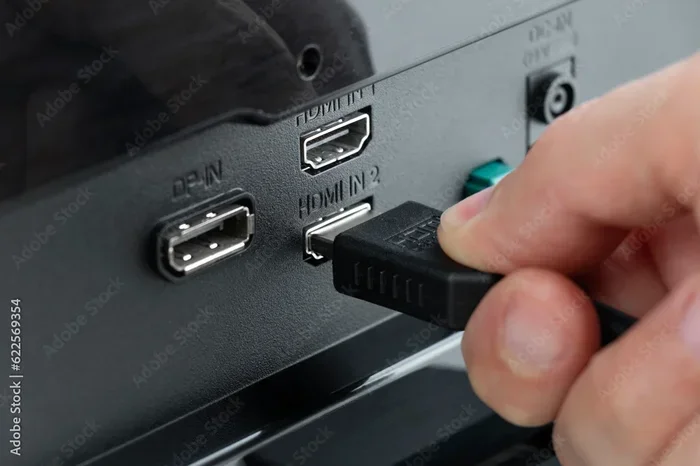
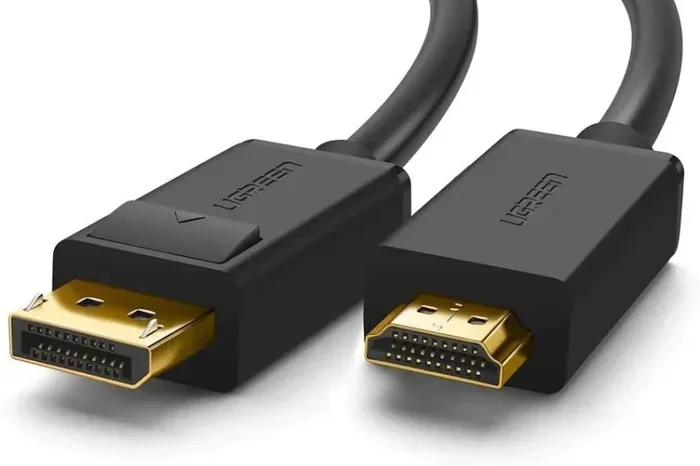
If you have ever looked at the back of your PC or TV, you have probably noticed two different video ports. One is HDMI. The other is DisplayPort, often called DP. These two connectors carry video signals, but they do it differently. An HDMI to DP adapter bridges that gap. It takes the signal coming out of one port and converts it so it can work with the other.
Here is the simple version. Your graphics card sends a video signal. That signal travels through a cable to your monitor. HDMI and DisplayPort use different protocols. Think of them like two different languages. An adapter acts as a translator. It converts the HDMI signal into something your DisplayPort monitor can understand, or vice versa.
There are two main types of adapters you will come across. Active adapters have built-in chips that do the conversion work. They need power, usually from a USB port. Passive adapters do not convert anything. They just change the shape of the connector. Passive adapters only work when both devices already speak the same language but use different cables.
For gaming, you almost always need an active adapter. That is because your graphics card likely outputs HDMI, and your gaming monitor likely uses DisplayPort. The active adapter handles the signal conversion so your game can display properly.
Can You Use HDMI to DP for Gaming and Get Good Performance?
The short answer is yes. You can use HDMI to DP for gaming. But the longer answer is more nuanced. Whether you get good performance depends on several factors. These include your adapter quality, your graphics card, your monitor, and the resolution and refresh rate you want to use.
Many gamers ask this question because they want to connect a PC with an HDMI output to a DisplayPort monitor. Maybe you bought a great gaming monitor that only has DP inputs. But your graphics card only has HDMI ports. Or perhaps your laptop has HDMI but your desktop monitor uses DP. An adapter solves this problem.
However, not all adapters are created equal. A cheap, low-quality adapter can cause issues. You might see flickering, low refresh rates, or even no signal at all. A good active adapter will handle the conversion smoothly and let you game without noticeable problems.
Here is what you should know before buying. Check the bandwidth support of the adapter. Higher bandwidth means it can carry more data. More data means higher resolutions and smoother frame rates. For 1080p gaming at 144Hz, most adapters work fine. For 4K gaming at 120Hz or higher, you need an adapter that supports the latest bandwidth standards.
Does HDMI to DP Limit Your Resolution?
Your resolution is the number of pixels on your screen. Common resolutions are 1080p, 1440p, and 4K. The adapter you choose can affect which resolutions you can use. A basic adapter might only support 1080p. A high-quality one can handle 4K and beyond.
If you want to game at 4K resolution, make sure your adapter supports it. Look for adapters that mention 4K support or HDMI 2.0 and above. The adapter needs enough bandwidth to push all those pixels at once. Without enough bandwidth, your monitor might drop to a lower resolution automatically.
Does HDMI to DP Limit Your Refresh Rate?
Your refresh rate is how many times your screen updates per second. It is measured in Hertz, or Hz. A 60Hz monitor updates 60 times per second. A 144Hz monitor updates 144 times per second. Higher refresh rates feel smoother, especially in fast-paced games.
Some HDMI to DP adapters can limit your refresh rate. If your adapter only supports HDMI 1.4, it may cap you at 60Hz even if your monitor can do 144Hz. For competitive gaming, this is a big deal. You want the highest refresh rate your setup can handle.
To get the best results, look for adapters that support HDMI 2.0 or HDMI 2.1. These versions carry more bandwidth. They can support 144Hz at 1080p or 1440p, and even 4K at high refresh rates. Always check the specs before you buy.
Active vs Passive Adapters: Which One Should You Choose?
This is one of the most important decisions you will make. Choosing the wrong type can lead to frustration and poor gaming performance. Let us break down the difference clearly.
What Is an Active Adapter?
An active adapter has a chip inside it that converts the signal. It takes HDMI and translates it into DisplayPort. It needs power to do this, usually drawn from a USB port on your PC. Active adapters work in both directions, meaning you can go from HDMI to DP or DP to HDMI.
For gaming, active adapters are the way to go. They handle the conversion properly and support a wide range of resolutions and refresh rates. They also tend to be more expensive, but the price difference is worth it for a stable gaming experience.
What Is a Passive Adapter?
A passive adapter does not convert anything. It simply changes the physical shape of the connector. It works only when both the source device and the display already use the same signaling protocol. For example, if your graphics card has DP output and your monitor has DP input, a passive HDMI-to-DP cable will not work because the protocols are different.
Passive adapters are fine for simple tasks like connecting a DVD player to a TV. But for gaming, they are not reliable. They can cause signal loss, low resolution, or no signal at all. Avoid passive adapters for any serious gaming setup.
Comparison Table: Active vs Passive Adapters
| Feature | Active Adapter | Passive Adapter |
|---|---|---|
| Signal Conversion | Yes, converts HDMI to DP | No, only changes connector shape |
| Power Required | Yes, usually via USB | No |
| Gaming Support | Yes, works well for gaming | Not reliable for gaming |
| Resolution Support | Up to 4K depending on model | Limited, often capped at 1080p |
| Refresh Rate Support | Can support 144Hz or higher | Usually limited to 60Hz |
| Price | Higher | Lower |
| Best For | Gaming, high-res setups | Basic video output tasks |
How HDMI to DP Adapters Affect Gaming Performance
Now let us talk about the thing that really matters to gamers: performance. Does using an adapter hurt your frames per second? Does it add input lag? Does it affect your visual quality? These are all valid questions.
Does an Adapter Cause Input Lag?
Input lag is the delay between your mouse click or keypress and the action appearing on screen. Gamers hate input lag. It makes games feel unresponsive and can cost you matches.
A good quality active adapter adds very little input lag. We are talking about fractions of a millisecond. You will not notice it in most games. However, a cheap or poorly designed adapter can add noticeable lag. This is why adapter quality matters so much for gaming.
To minimize input lag, buy from reputable brands. Look for adapters that specifically mention low latency or gaming support. Avoid the cheapest options on the market. They often use inferior chips that slow down the signal.
Does an Adapter Reduce Frame Rates?
The adapter itself does not reduce your frame rate. Your graphics card renders the frames. The adapter just carries the signal. However, if your adapter cannot handle the bandwidth needed for your desired resolution and refresh rate, your monitor may display a lower refresh rate than your card is capable of.
For example, if your GPU can push 144 frames per second at 1080p, but your adapter only supports 60Hz, your monitor will show 60 frames per second. The frames are still being rendered, but your monitor cannot display them all. This is not a problem with your GPU. It is a problem with the adapter’s bandwidth limit.
Does an Adapter Affect Visual Quality?
In most cases, no. A good adapter will deliver crisp, clear visuals without any noticeable quality loss. The signal conversion process is digital, so there is no analog conversion that could degrade the image. Your colors, sharpness, and contrast should remain the same.
That said, a bad adapter can cause issues like screen flickering, artifacts, or color distortion. If you notice any of these problems, your adapter may be faulty or incompatible. Try a different adapter or check your cable connections.
Will Adaptive Sync Work Through HDMI to DP?
Adaptive sync technologies like G-Sync and FreeSync help reduce screen tearing and stuttering. They sync your monitor’s refresh rate with your GPU’s frame rate. This makes games look much smoother.
Here is the tricky part. Adaptive sync typically works over DisplayPort natively. When you use an HDMI to DP adapter, adaptive sync may not work. The adapter converts the signal, and the adaptive sync feature may not pass through correctly.
Some high-end adapters do support adaptive sync pass-through. But this is not guaranteed. Before buying, check the product specifications for adaptive sync support. If you rely heavily on G-Sync or FreeSync, you may want to consider a GPU with native DP output or a monitor with HDMI input.
Choosing the Right HDMI to DP Adapter for Your Setup
Not all adapters are the same. Choosing the right one depends on your gaming setup and what you want to achieve. Here are the key factors to consider.
Check Your Graphics Card Output
First, look at what video outputs your graphics card has. Most modern GPUs from NVIDIA and AMD have both HDMI and DP ports. But some laptops and compact PCs only have HDMI. If your GPU has DP output and your monitor has DP input, you do not need an adapter at all. Just use a DP cable directly.
You only need an HDMI to DP adapter when your GPU has HDMI output and your monitor has DP input, or vice versa. Make sure you know which direction you need to convert.
Check Your Monitor Input
Next, check your monitor. Most modern gaming monitors have DP inputs. Some also have HDMI inputs. If your monitor has both, you can skip the adapter entirely and just use an HDMI cable from your GPU to the monitor’s HDMI port.
But if your monitor only has DP, and your GPU only has HDMI, then you need that adapter. Knowing your gear ahead of time saves you money and headaches.
Match the Adapter to Your Resolution and Refresh Rate Needs
Think about what you want from your gaming setup. Are you gaming at 1080p? 1440p? 4K? Do you want 60Hz, 144Hz, or 240Hz?
For 1080p at 144Hz, most active adapters will work. For 1440p at 144Hz or 4K at 60Hz, you need an adapter with HDMI 2.0 support or higher. For 4K at 120Hz or 144Hz, look for adapters with HDMI 2.1 support and high bandwidth.
The bandwidth of the adapter determines how much data it can carry per second. Higher bandwidth equals higher resolution and refresh rate. Always check the specs and make sure the adapter matches or exceeds your target resolution and refresh rate.
Buy from Reputable Brands
When it comes to adapters, brand reputation matters. Stick with well-known brands that have good reviews and solid warranty policies. Cheap no-name adapters might seem like a bargain, but they often cause more problems than they solve.
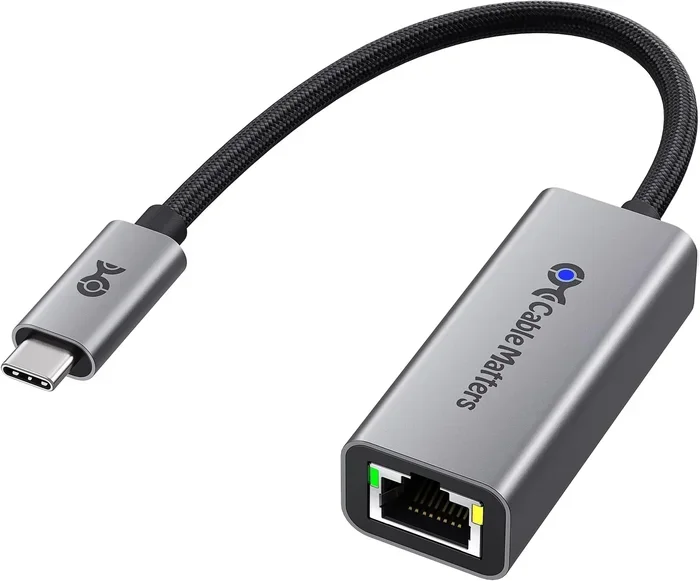
Some trusted brands in this space include Cable Matters, UGREEN, StarTech, and Club 3D. These brands offer reliable adapters with proper signal conversion and good build quality.
Quick Tips for Buying the Right Adapter
- Always choose an active adapter for gaming setups
- Check that the adapter supports your target resolution and refresh rate
- Look for HDMI 2.0 or HDMI 2.1 support for the best performance
- Make sure the adapter has adequate bandwidth for your needs
- Buy from reputable brands with good customer reviews
- Check if adaptive sync (G-Sync or FreeSync) is supported if you need it
- Ensure the adapter has a USB power cable for stable operation
Common Mistakes and How to Avoid Them
Even with the right adapter, mistakes can happen. Here are the most common problems gamers face and how to avoid them.
Using a Passive Adapter for Gaming
This is the number one mistake. Passive adapters do not convert signals. They just change the connector shape. Using one for gaming will almost always lead to problems. You may get no signal at all, or your monitor may display a very low resolution. Always use an active adapter for gaming setups.
Ignoring Bandwidth Requirements
Not all adapters support the same bandwidth. If you want to game at 4K with high refresh rates, your adapter must support enough bandwidth to carry that much data. Ignoring this leads to frustrating performance issues. Always check the adapter’s bandwidth specifications before purchasing.
Using a Low-Quality Cable Alongside the Adapter
Your adapter is only as good as the cable connected to it. A cheap or damaged cable can cause signal loss, flickering, or intermittent disconnects. Use high-quality cables that match your adapter’s specifications. For high-resolution gaming, invest in certified cables with proper shielding.
Not Checking Compatibility with Your GPU
Some graphics cards have specific requirements for adapters. Older GPUs may not work well with newer adapters, or vice versa. Always check your GPU’s specifications and the adapter’s compatibility list before buying. If you are unsure, look up user reviews that mention your specific GPU model.
Forgetting to Power the Adapter
Active adapters need power to work. Most come with a USB cable that plugs into your PC or a power adapter. If you skip this step, the adapter may not work at all, or it may work poorly. Always connect the power cable and make sure it is plugged in properly.
Expert Tips to Get the Best Gaming Experience with HDMI to DP
Want to squeeze every bit of performance out of your setup? Here are some expert tips that can help.
First, update your graphics card drivers regularly. GPU manufacturers often release driver updates that improve compatibility with adapters and monitors. A simple driver update can fix display issues and boost performance.
Second, adjust your in-game settings to match your adapter’s capabilities. If your adapter only supports 1080p at 144Hz, do not try to push 4K in-game. You will get poor performance and a choppy experience. Match your game settings to what your setup can handle.
Third, keep your adapter in a well-ventilated area. Active adapters generate heat during use. If they overheat, performance can drop or the adapter may disconnect. Give it some space and avoid stacking other electronics on top of it.
Fourth, test your setup with different games. Some games are more demanding than others. If you notice issues in one game but not another, it may be a game-specific problem rather than an adapter problem. Try adjusting the game’s display settings or updating the game itself.
Fifth, consider using a docking station if you need multiple connections. Many docking stations include HDMI to DP conversion built in, along with USB ports, Ethernet, and audio jacks. This can simplify your setup and reduce cable clutter.
Finally, do not be afraid to experiment. Every setup is different. What works perfectly for one gamer may not work the same way for another. Try different adapters, cables, and settings until you find the combination that gives you the best experience.
Conclusion
So, can you use HDMI to DP for gaming and get better performance? Yes, you can. But the results depend on your adapter quality, your hardware, and your expectations. An active HDMI to DP adapter is essential for any serious gaming setup. It handles the signal conversion properly and supports the resolutions and refresh rates you need.
Avoid passive adapters for gaming. They are not designed for this purpose and will likely cause problems. Invest in a quality active adapter that matches your resolution and refresh rate goals. Check the bandwidth, compatibility, and power requirements before you buy.
Remember that the adapter is just one piece of the puzzle. Your graphics card, your monitor, your cables, and your game settings all play a role in your overall gaming experience. When everything works together, HDMI to DP for gaming can deliver smooth, responsive, and visually stunning gameplay.
Take the time to research your setup, choose the right adapter, and test everything thoroughly. With the right approach, you will be gaming in no time with confidence in your connection.
Frequently Asked Questions
Is HDMI to DP good for gaming?
Yes, using an HDMI to DP adapter for gaming works well as long as you use a quality active adapter. Active adapters handle signal conversion properly and support the resolutions and refresh rates most gamers need. Just make sure the adapter matches your target resolution and refresh rate for the best experience.
Does HDMI to DP cause input lag?
A good quality active adapter adds almost no input lag. The signal conversion process is fast and digital. However, cheap or poorly designed adapters can introduce noticeable lag. To avoid this, buy from reputable brands and check reviews specifically mentioning input lag or responsiveness.
Can I get 4K 144Hz with HDMI to DP?
It is possible, but it depends on your adapter. You need an active adapter that supports HDMI 2.1 or at least HDMI 2.0 with high bandwidth. Not all adapters can handle 4K at 144Hz. Check the adapter specifications carefully to make sure it supports your desired resolution and refresh rate before purchasing.
Do I need an active or passive adapter for gaming?
You need an active adapter for gaming. Passive adapters do not convert signals and are not reliable for gaming setups. Active adapters have built-in chips that convert HDMI to DisplayPort properly, ensuring stable performance and support for higher resolutions and refresh rates.
Will HDMI to DP work with G-Sync or FreeSync?
Adaptive sync may not work reliably through HDMI to DP adapters. G-Sync and FreeSync typically work best with native DisplayPort connections. Some high-end adapters support adaptive sync pass-through, but this is not guaranteed. Check the adapter specifications for adaptive sync support if this feature is important to you.
Can I go from DisplayPort to HDMI as well?
Yes, most active HDMI to DP adapters work in both directions. You can use them to convert DP output to HDMI input as well. This is useful if you have a device with DP output but want to connect it to an HDMI monitor or TV. Just make sure the adapter supports bidirectional conversion before buying.