Hdmi Usb Cables the Difference Between Them Explained
HDMI cables carry high-definition audio and video signals, while USB cables handle data transfer and device charging. Understanding the difference between these two cable types helps you choose the right one for your setup. Whether you are connecting a TV, gaming console, or laptop, this guide breaks it all down clearly.
Have you ever stood in front of a shelf of cables and felt completely confused? You are not alone. The world of connectors and ports can feel overwhelming. Two of the most common cables people buy every day are HDMI cables and USB cables. But they do very different jobs. Many people wonder whether they need one or the other. Sometimes they need both. And sometimes there is a single cable that does both.
This guide explains the difference between HDMI and USB cables in simple terms. We will cover what each cable does, when to use which one, and how hybrid options like USB-C to HDMI cables fit into the picture. By the end, you will never second-guess your cable choice again.
Whether you are setting up a home theater, connecting a laptop to a monitor, or just trying to charge your phone correctly, this article has you covered. Let us dive in.
Key Takeaways
- HDMI cables are built for audio and video: They transmit uncompressed HD and 4K signals to TVs, monitors, and projectors.
- USB cables focus on data and power: They connect peripherals, charge devices, and transfer files between gadgets.
- USB-C to HDMI cables combine both functions: These hybrid cables let you send video from a laptop or phone to a display.
- Cable choice affects performance: Using the wrong cable can cause poor picture quality, slow transfers, or no connection at all.
- Compatibility matters: Always check port types and version numbers before buying a new cable.
- Thunderbolt 3 and 4 use USB-C connectors: These support high-bandwidth video output and fast data speeds in one cable.
📑 Table of Contents
What Are HDMI Cables?
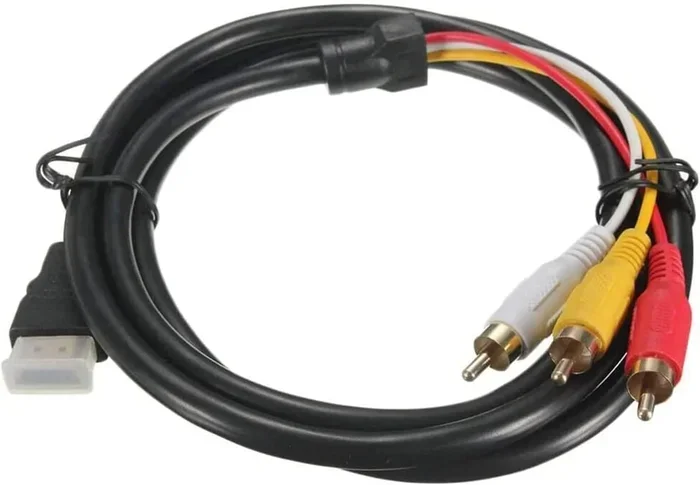
HDMI stands for High-Definition Multimedia Interface. It is a cable standard designed to carry both audio and video signals through a single wire. This is a big deal. Before HDMI became popular, you often needed multiple cables to connect a device to a screen. Now, one HDMI cable handles everything.
HDMI cables are the go-to choice for connecting devices to displays. Think about your television, your Blu-ray player, your gaming console, or your streaming stick. All of these devices typically use an HDMI connection to send picture and sound to your screen.
How HDMI Cables Work
HDMI cables transmit digital signals. This means the picture and sound you get are clean and uncompressed. There is no quality loss during transmission. The cable carries multiple channels of audio alongside a high-resolution video signal. All of this happens in real time.
Different versions of HDMI support different features. Here is a quick look at the main versions you will encounter:
- Standard HDMI: Supports up to 1080p resolution. Great for basic HD setups.
- High-Speed HDMI: Supports 4K resolution at 60Hz. Ideal for modern TVs and monitors.
- Ultra High-Speed HDMI: Supports 4K at 120Hz and even 8K. Perfect for gaming and professional use.
- HDMI with Ethernet: Includes a data channel for network connectivity.
Common Uses for HDMI Cables
You will find HDMI cables in almost every entertainment setup. Here are the most common ways people use them:
- Connecting a cable box or satellite receiver to a television.
- Hooking up a gaming console like PlayStation or Xbox to a display.
- Linking a laptop to a TV for movie nights or presentations.
- Connecting a soundbar or AV receiver to a TV for better audio.
- Setting up a home projector for outdoor movie nights.
The key takeaway is simple. HDMI is all about sending high-quality audio and video from one device to another. It does not charge devices or transfer files. It is purely a display and sound connection.
What Are USB Cables?
USB stands for Universal Serial Bus. USB cables are among the most versatile cables in the world. They serve two main purposes: data transfer and device charging. You probably use USB cables every single day without even thinking about it.
USB cables connect your phone to a computer for file sharing. They charge your tablet, your wireless earbuds, and your portable speakers. They connect keyboards, mice, external hard drives, and webcams to laptops and desktops. The list goes on and on.
Types of USB Connectors
USB connectors have evolved over the years. Each type looks different and serves specific purposes. Here are the main ones you should know:
- USB Type-A: The classic rectangular plug. Found on computers, wall chargers, and game consoles. It is the most widely recognized USB connector.
- USB Type-B: A square-shaped plug often used for printers and older devices.
- USB Mini and Micro: Smaller connectors used in older phones and portable devices. These are becoming less common.
- USB Type-C: The modern, reversible connector. It is small, fast, and supports high power delivery and video output.
USB Versions and Speed
USB technology also comes in different versions. Each version brings faster speeds and better capabilities:
- USB 2.0: Basic speed for charging and simple data transfer. Max speed is 480 Mbps.
- USB 3.0 (USB 3.2 Gen 1): SuperSpeed at 5 Gbps. Great for external drives and flash drives.
- USB 3.1 (USB 3.2 Gen 2): 10 Gbps speeds. Handles large file transfers with ease.
- USB 3.2 Gen 2×2: 20 Gbps. Found on newer devices and premium cables.
- USB4: Up to 40 Gbps. Uses the USB-C connector and supports Thunderbolt 3 and 4 protocols.
As you can see, USB cables are incredibly capable. They handle data, power, and in some cases, even video signals. But they are not a replacement for HDMI when it comes to pure display quality.
Key Differences Between HDMI and USB Cables
Now that you understand what each cable type does, let us compare them side by side. This makes it much easier to see where they differ and why you might need both in your setup.
| Feature | HDMI Cable | USB Cable |
|---|---|---|
| Primary Function | Audio and video transmission | Data transfer and device charging |
| Carries Audio | Yes, multi-channel surround sound | No (except some USB-C display protocols) |
| Carries Video | Yes, HD and 4K and beyond | Only through USB-C Alt Mode or Thunderbolt |
| Charges Devices | No | Yes, depending on the cable and port |
| Data Transfer | No | Yes, high-speed file transfers |
| Common Connectors | Type A (standard), Mini, Micro | Type A, Type B, Type-C |
| Typical Length | 3 to 50 feet | 1 to 10 feet (charging); up to 15 feet (data) |
| Best For | TVs, monitors, projectors, consoles | Phones, laptops, peripherals, storage |
The table makes one thing clear. HDMI and USB cables serve different core purposes. HDMI is your go-to for connecting devices to screens. USB is your go-to for connecting devices to each other for power and data.
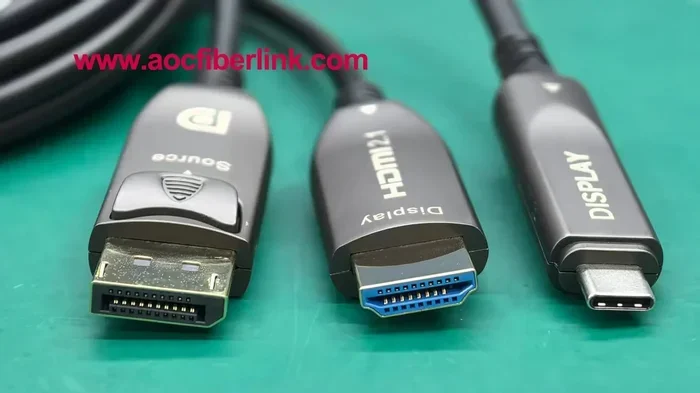
However, the line between these two has blurred in recent years. USB Type-C can now carry video signals using Alt Mode or through protocols like DisplayPort over USB-C. Thunderbolt 3 and Thunderbolt 4 cables use the USB-C connector and can deliver video, data, and power all at once. This is where things get interesting.
USB-C to HDMI: The Best of Both Worlds
If you have a modern laptop or phone with a USB-C port, you might wonder how to connect it to a TV or monitor. The answer is often a USB-C to HDMI cable or adapter. This clever little cable bridges the gap between USB data/power and HDMI display output.
How Does a USB-C to HDMI Cable Work?
A USB-C to HDMI cable contains an adapter built into one end. The USB-C plug connects to your laptop or phone. The HDMI plug connects to your TV or monitor. Inside the cable, a chip converts the USB-C signal into an HDMI signal. This lets you mirror or extend your screen to a larger display with just one cable.
Some USB-C to HDMI cables also pass through USB power. This means you can charge your laptop while it is connected to an external display. That is a huge convenience for people who work from home or travel frequently.
When Do You Need a USB-C to HDMI Cable?
Here are some situations where a USB-C to HDMI cable comes in very handy:
- You have a MacBook or Chromebook with only USB-C ports and want to connect to a TV.
- You want to present slides or videos from your phone on a big screen.
- You are a gamer who wants to play mobile games on a larger monitor.
- You work from home and need a second display for productivity.
- You are traveling and want a lightweight setup without carrying multiple cables.
One important thing to check is whether your device supports video output over USB-C. Not all USB-C ports can send video signals. Look for terms like DisplayPort Alt Mode or Thunderbolt on your device specifications. If your port supports these, a USB-C to HDMI cable will work perfectly.
Choosing the Right USB-C to HDMI Cable
Not all USB-C to HDMI cables are created equal. Here are some tips to help you pick the right one:
- Check the HDMI version: Go for a cable that supports at least HDMI 2.0 for 4K at 60Hz. If you want 120Hz for gaming, look for HDMI 2.1 support.
- Look for certified cables: Certified cables have been tested for reliability and performance.
- Consider cable length: Longer cables offer more flexibility but can sometimes reduce signal quality. Keep it under 6 feet for best results.
- Check power delivery: If you want to charge while using the display, make sure the cable supports USB Power Delivery.
Common Mistakes When Choosing HDMI and USB Cables
Shopping for cables seems simple, but many people make mistakes that cost them time and money. Here are the most common ones to avoid.
Buying the Wrong HDMI Version
One of the biggest mistakes is buying a standard HDMI cable when you need a high-speed one. If your TV supports 4K and you buy a basic HDMI cable, you might not get the best picture quality. Always match your cable to the resolution of your display. For 4K TVs, choose a High-Speed HDMI or Ultra High-Speed HDMI cable.
Assuming All USB-C Cables Are the Same
USB-C cables look identical on the outside, but they are very different on the inside. Some USB-C cables only carry power. Others support data transfer and video output. Before buying a USB-C cable, check what it is rated for. If you need video output, make sure the cable supports Alt Mode or Thunderbolt.
Ignoring Cable Length and Quality
Longer cables are not always better. After a certain length, signal quality can degrade, especially with high-resolution HDMI signals. Cheap, unbranded cables are also a risk. They may not meet the specifications they claim. Stick with reputable brands and certified products for reliable performance.
Forcing a Cable Into the Wrong Port
This sounds obvious, but it happens more than you think. HDMI and USB ports look different and have different shapes. Forcing a cable can damage the port on your device. Always match the connector type to the correct port. If it does not fit, do not push harder.
How to Choose the Right Cable for Your Setup
Choosing the right cable does not have to be complicated. Start by identifying what you want to accomplish. Then match your needs to the right cable type.
Step 1: Define Your Purpose
Ask yourself what you want the cable to do. Do you want to connect a device to a TV or monitor? That is an HDMI need. Do you want to charge a phone or transfer files? That is a USB need. Do you want to do both with a single connection? That is a USB-C to HDMI need.
Step 2: Check Your Device Ports
Look at the ports on your devices. What types do they have? Most modern TVs have multiple HDMI inputs. Most modern laptops have at least one USB-C port. Some older devices still use USB Type-A or even Micro-USB. Knowing your ports helps you buy the right cable.
Step 3: Consider Your Resolution and Speed Needs
If you are connecting a 4K TV or a gaming monitor, you need a cable that supports high bandwidth. For HDMI, go with High-Speed or Ultra High-Speed. For USB, choose USB 3.0 or higher for fast data transfers. For video over USB-C, make sure the cable supports the resolution and refresh rate you need.
Step 4: Buy from Trusted Brands
Cable quality matters more than most people realize. A well-made cable delivers better signal quality, lasts longer, and is safer for your devices. Look for cables from brands that are known for quality and offer warranties or certifications.
Final Thoughts
Understanding the difference between HDMI and USB cables is easier than it looks. HDMI cables are your go-to for connecting devices to screens. They deliver crisp audio and high-definition video through a single connection. USB cables are your go-to for charging devices and transferring data between gadgets. They are versatile and essential for everyday use.
And when you need both in one go, USB-C to HDMI cables fill the gap beautifully. They let you connect modern laptops and phones to external displays without carrying a pile of adapters.
The next time you set up a new device or replace an old cable, you will know exactly which one to pick. Take a moment to check your ports, confirm your needs, and choose a quality cable. Your devices will perform better, and you will avoid the frustration of wrong connections.
Getting the right cable is a small decision that makes a big difference. Use this guide as your reference, and you will always make the right choice.
Frequently Asked Questions
Can I use a USB cable to connect my laptop to a TV?
In most cases, a standard USB cable cannot carry video signals to a TV. You need either an HDMI cable or a USB-C to HDMI adapter or cable. Check your laptop ports to determine which option works best for your setup.
Is USB-C the same as HDMI?
No, USB-C and HDMI are different connector types. USB-C is a universal connector used for data, charging, and sometimes video. HDMI is designed specifically for audio and video output. However, USB-C can carry HDMI signals when used with the right adapter or cable.
Do I need an Ultra High-Speed HDMI cable for 4K?
If you want 4K at 60Hz or higher, an Ultra High-Speed HDMI cable is recommended. Standard HDMI cables may not support these higher resolutions and refresh rates reliably.
Can a USB-C cable charge my device and send video at the same time?
Yes, many USB-C cables support both power delivery and video output simultaneously. Look for cables that support USB Power Delivery and DisplayPort Alt Mode or Thunderbolt for this dual functionality.
What is the difference between USB 2.0 and USB 3.0 cables?
USB 2.0 has a maximum data transfer speed of 480 Mbps, while USB 3.0 supports speeds up to 5 Gbps. USB 3.0 cables are also backward compatible with USB 2.0 devices, so you can use them interchangeably without issues.
Are expensive HDMI cables worth the money?
For most home setups, a mid-range certified HDMI cable works perfectly fine. You only need premium cables if you are running very long cable runs or using advanced features like 8K or 120Hz gaming. Expensive cables do not always mean better performance.