Do All Usb Drives Support Fat32 And Exfat Formatting
Not all USB drives support FAT32 out of the box. The FAT32 file system has a strict 4GB file size limit, which makes it unsuitable for large files. Most modern USB drives work with FAT32, exFAT, and NTFS, but compatibility depends on your device, operating system, and drive size. This guide covers everything you need to know about USB drive formatting and which file system is best for your needs.
This is a comprehensive guide about Do All Usb Drives Support Fat32.
Key Takeaways
- FAT32 has a 4GB file size limit: You cannot store files larger than 4GB on a FAT32-formatted drive.
- exFAT is the best all-around choice: It works on Windows, Mac, and Linux without the FAT32 size restriction.
- NTFS is Windows-only for write support: Macs can read NTFS but cannot write to it without extra software.
- Formatting erases all data: Always back up your files before reformatting a USB drive.
- Drive size matters: Windows may not offer FAT32 as an option for drives larger than 32GB during standard formatting.
- Third-party tools can help: Programs like Rufus and Diskpart allow FAT32 formatting on larger drives.
[FEATURED_IMAGE_PLACEHOLDER]
Do All USB Drives Support FAT32?
The short answer is no. While most USB drives can be formatted to FAT32, not all of them come pre-formatted that way. And more importantly, FAT32 has limitations that might make it a poor choice depending on what you plan to do with your drive.
When you buy a new USB flash drive, it usually comes formatted in one of three file systems: FAT32, exFAT, or NTFS. The file system determines how data is stored and organized on the drive. Think of it like the language your drive “speaks” to your computer. If the language doesn’t match what your device needs, things won’t work properly.
So why does this matter? Whether you are trying to transfer a movie to a smart TV, share files with a colleague, or back up photos from your camera, the file system you choose affects everything. A wrong choice can lead to errors, unreadable files, or wasted time.
In this article, we will break down everything you need to know about USB drive formatting. We will look at what FAT32 is, where it falls short, and which file system you should actually use. We will also cover how to format your drive and fix common problems. By the end, you will know exactly which format works best for your situation.
Let us start with the basics. Understanding file systems is simpler than it sounds, and it will save you a lot of frustration down the road.
Understanding File Systems: FAT32, exFAT, and NTFS
Before we dive deeper, let us quickly compare the three main file systems you will encounter with USB drives. Each one has its strengths and weaknesses.
What Is FAT32?
FAT32 stands for File Allocation Table 32. It is one of the oldest and most widely supported file systems in the world. It was introduced in 1996 with Windows 95 OSR2 and has been around for nearly three decades.
Because it is so old, almost every device that can connect to a USB drive supports FAT32. This includes Windows PCs, Macs, Linux machines, smart TVs, gaming consoles, car stereos, and even some cameras. That broad compatibility is FAT32’s biggest advantage.
However, FAT32 comes with serious limitations:
- Maximum file size of 4GB: You cannot store a single file larger than 4GB on a FAT32 drive.
- Maximum partition size of 2TB: Drives larger than 2TB cannot be fully formatted as FAT32.
- No built-in security features: FAT32 does not support file permissions or encryption.
- No journaling: This means data corruption is more likely if the drive is removed unexpectedly.
So if you are trying to copy a 5GB video file or a 10GB game ISO, FAT32 simply will not work. This is where exFAT and NTFS come in.
What Is exFAT?
exFAT, which stands for Extended File Allocation Table, was designed by Microsoft specifically for flash drives and removable storage. It was introduced in 2006 and has quickly become the go-to format for USB drives.
exFAT solves the biggest problem with FAT32: the 4GB file size limit. With exFAT, you can store files up to 16 exabytes in size. For practical purposes, that means there is no real file size limit you will ever hit.
Here is what makes exFAT a great choice:
- Works on Windows and Mac: Both operating systems support exFAT natively.
- No 4GB file size limit: You can transfer huge files without any issues.
- Optimized for flash storage: It handles the read/write patterns of USB drives better than NTFS.
- Lightweight: It does not carry the overhead of older file systems.
The only minor downside is that some older devices (like certain car stereos or older smart TVs) may not recognize exFAT. But for most modern devices, it works perfectly.
What Is NTFS?
NTFS is the New Technology File System used by Windows. It is the default file system for Windows internal hard drives and has been the standard since Windows NT in 1993.
NTFS supports very large files, has built-in security features, journaling for data protection, and file-level permissions. It is a robust and powerful file system.
However, NTFS has one major drawback for USB drive users: Mac computers can read NTFS drives but cannot write to them without third-party software. This makes NTFS a poor choice if you need to use the same drive on both Windows and Mac machines.
Do All USB Drives Come Formatted as FAT32?
Not necessarily. The default format depends on several factors, including the drive’s capacity, the manufacturer, and the operating system used during formatting.
Here is a general breakdown:
- Drives 32GB and smaller: These often come formatted as FAT32, especially if sold as multi-platform drives.
- Drives 64GB and larger: These are more likely to come pre-formatted as exFAT or NTFS.
- Windows-formatted drives: Often use NTFS, especially for larger capacities.
- Mac-formatted drives: Use APFS or Mac OS Extended (HFS+), which are not compatible with Windows.
If you are unsure what format your drive uses, you can easily check. On Windows, right-click the drive in File Explorer, select Properties, and look for the file system. On Mac, open Disk Utility, select the drive, and check the format information.
One interesting thing to note is that the hardware inside the drive, such as the USB controller chip and flash memory, does not determine the file system. The file system is purely a software layer applied during formatting. This means you can always reformat a drive to a different file system, regardless of what it came with.
When Should You Use FAT32?
Despite its limitations, FAT32 still has its place. Here are the situations where FAT32 is the right choice:
1. Compatibility with Older Devices
If you need to use your USB drive with older hardware, FAT32 is your safest bet. Many car audio systems, older smart TVs, gaming consoles like the PS3 and Xbox 360, and legacy devices only recognize FAT32. If you are setting up a drive for a device that was made before 2010, FAT32 is almost certainly the way to go.
2. Sharing Small Files Across Platforms
If you are transferring documents, photos, or small videos (under 4GB each) between different computers and devices, FAT32 works great. Its universal compatibility means you will rarely run into issues.
3. Creating Bootable USB Drives
Many bootable USB tools, like Rufus or the Windows USB/DVD Download Tool, use FAT32 by default. If you are creating a bootable drive for installing an operating system or running diagnostics, FAT32 is often required.
4. Audio and Media Devices
Car stereos, dashcams, and portable media players often require FAT32. These devices simply will not recognize exFAT or NTFS drives. If your device manual specifies FAT32, you have no choice.
When Should You Avoid FAT32?
There are clear situations where FAT32 is not the right choice. Avoid it when:
- You need to transfer files larger than 4GB: This includes HD movies, large game files, disk images, and database backups.
- You are using the drive for long-term storage: FAT32 lacks journaling, which increases the risk of data corruption if the drive is unplugged during a write.
- You need security features: FAT32 does not support encryption or file permissions.
- Your drive is over 2TB: FAT32 cannot handle partitions larger than 2TB.
In these cases, exFAT is almost always the better option. It gives you the broad compatibility of FAT32 without the file size restrictions.
How to Format a USB Drive to FAT32
If you decide FAT32 is right for you, formatting your drive is straightforward. But there is a catch: Windows does not offer FAT32 as a formatting option for drives larger than 32GB through the standard right-click menu.
Here are three ways to format a USB drive to FAT32:
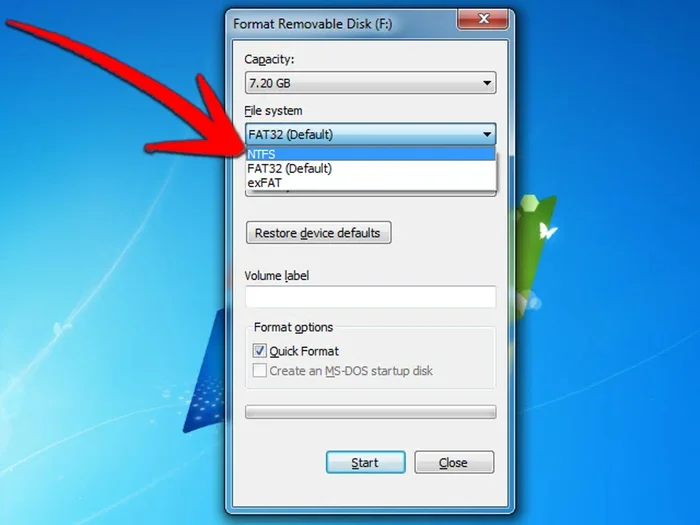
Method 1: Using Windows File Explorer (For Drives 32GB or Smaller)
This is the easiest method for smaller drives:
- Plug in your USB drive.
- Open File Explorer and right-click the drive.
- Select Format.
- In the File System dropdown, choose FAT32.
- Click Start and wait for the process to finish.
That is it. Your drive is now FAT32. Remember, this will erase all data on the drive, so back up your files first.
Method 2: Using Diskpart (For Larger Drives)
For drives larger than 32GB, you can use the built-in Diskpart tool in Windows:
- Open Command Prompt as Administrator.
- Type diskpart and press Enter.
- Type list disk and press Enter.
- Type select disk X (replace X with your drive number).
- Type clean and press Enter.
- Type create partition primary and press Enter.
- Type format fs=fat32 quick and press Enter.
- Type assign and press Enter.
Warning: Diskpart will completely erase the drive. Make sure you select the correct disk number. Using the wrong number can wipe your main hard drive.
Method 3: Using Third-Party Tools
Several free tools make FAT32 formatting easy, even for large drives:
- Rufus: A popular free tool primarily used for creating bootable USB drives. It supports FAT32 formatting for any drive size.
- Guiformat (Swiss Army Knife): A simple tool designed specifically for formatting large drives to FAT32.
- AOMEI Partition Assistant: A free partition manager that supports FAT32 formatting without data loss in some cases.
How to Format on Mac
If you are using a Mac, you can format a USB drive to FAT32 using Disk Utility:
- Open Disk Utility (press Cmd + Space and type Disk Utility).
- Select your USB drive from the sidebar.
- Click Erase.
- In the Format dropdown, choose MS-DOS (FAT).
- Click Erase and confirm.
Macs handle FAT32 formatting for all drive sizes, so you do not need any third-party tools.
FAT32 vs exFAT vs NTFS: Which Should You Choose?
Choosing the right file system can be confusing. Here is a simple comparison to help you decide:
| Feature | FAT32 | exFAT | NTFS |
|---|---|---|---|
| Max File Size | 4GB | 16 EB | 16 EB |
| Max Partition Size | 2TB | 128 PB | 256 TB |
| Windows Support | Full | Full | Full |
| Mac Support | Full | Full | Read Only |
| Linux Support | Full | Full | Read Only (by default) |
| Journaling | No | No | Yes |
| Best For | Old devices, small files | Flash drives, cross-platform | Windows internal drives |
For most USB drive users, exFAT is the best choice. It combines the broad compatibility of FAT32 with the large file support of NTFS. If you are not sure which to pick, go with exFAT.
Use FAT32 only when you need to support older devices or when your files are all under 4GB. Use NTFS only when the drive will stay on a Windows machine and you need advanced features like encryption and permissions.
Common Mistakes People Make with USB Drive Formatting
Avoid these common pitfalls that can cause data loss or compatibility issues:
- Forgetting to back up data: Formatting erases everything. Always copy your files to another location first.
- Choosing the wrong file system: Formatting a drive as NTFS for use on a Mac will cause problems. Always check what your target devices support.
- Removing the drive during formatting: This can corrupt the drive permanently. Wait for the process to complete fully.
- Assuming all USB drives are the same: Different drives have different controller chips and flash memory types. A drive that works well as FAT32 on one computer might behave differently on another.
- Using the wrong formatting tool: Some tools only support certain file systems or drive sizes. Choose a tool that matches your needs.
Quick Tips for USB Drive Formatting
Here are some quick tips to keep in mind:
- Label your drive: Give your drive a name so you can easily identify it among multiple drives.
- Check your device manual: Some devices specifically require FAT32. Do not guess.
- Reformat periodically: Over time, USB drives can accumulate errors. A fresh format can improve performance.
- Use exFAT for cameras: Many modern cameras and drones use exFAT. If you are using a USB drive to transfer photos, match the format your camera uses.
- Safely eject your drive: Always use the eject option before unplugging your drive to prevent data corruption.
Expert Insights on USB Drive Compatibility
According to storage industry experts, the shift from FAT32 to exFAT has been one of the most significant changes in removable storage over the past decade. As file sizes continue to grow with 4K video and large game installations, the 4GB FAT32 limit has become increasingly impractical.
Many manufacturers now ship USB drives pre-formatted as exFAT. This ensures compatibility with both Windows and Mac without the size limitations of FAT32. However, for specialized uses like automotive systems and embedded devices, FAT32 remains the standard due to its universal support.
If you work in a mixed environment with Windows, Mac, and Linux machines, exFAT is your safest bet. It eliminates the guesswork and gives you the flexibility to move large files between systems without any special software.
Conclusion
So, do all USB drives support FAT32? The answer is nuanced. Most USB drives can be formatted to FAT32, but not all come that way. And FAT32 itself has a 4GB file size limit that makes it impractical for many modern uses.
The good news is that you have options. For universal compatibility and large file support, exFAT is the best all-around choice. For older devices and small files, FAT32 still works well. For Windows-only setups that need advanced features, NTFS is the way to go.
The key is understanding your needs. Think about what devices you will use the drive with, how large your files are, and whether you need security features. Once you know that, choosing the right file system is simple.
Format your drive correctly, back up your data, and you will have a smooth experience every time. Happy storing.
Frequently Asked Questions
Can I convert a USB drive from NTFS to FAT32 without losing data?
No, converting from NTFS to FAT32 requires formatting the drive, which erases all data. You must back up your files to another location first, format the drive to FAT32, and then copy your files back.
Why does Windows not let me format a drive larger than 32GB as FAT32?
Microsoft removed the FAT32 option for drives larger than 32GB in the standard Format tool. This is a software limitation, not a hardware one. You can still format large drives as FAT32 using third-party tools like Rufus or the Diskpart command-line utility.
Is exFAT better than FAT32 for USB drives?
For most users, yes. exFAT offers the same cross-platform compatibility as FAT32 but without the 4GB file size limit. It is the recommended format for modern USB flash drives used across Windows and Mac computers.
Can I use a FAT32 USB drive on a smart TV?
Most smart TVs support FAT32 USB drives. However, some newer TVs may also support exFAT. Check your TV’s manual to confirm. If your TV only supports FAT32, make sure any files you transfer are under 4GB in size.
Does formatting a USB drive as FAT32 make it faster?
Not necessarily. FAT32 does not inherently make a drive faster or slower. The speed depends on the USB version (USB 2.0 vs USB 3.0), the flash memory quality, and the controller chip. However, FAT32 has less overhead than NTFS, which can result in slightly faster read/write speeds for small files.
Can Mac computers write to FAT32 drives?
Yes. Macs can both read from and write to FAT32 drives without any additional software. This makes FAT32 a great choice for users who need to share files between Mac and Windows computers.
Frequently Asked Questions
What is Do All Usb Drives Support Fat32?
Do All Usb Drives Support Fat32 is an important topic with many practical applications.