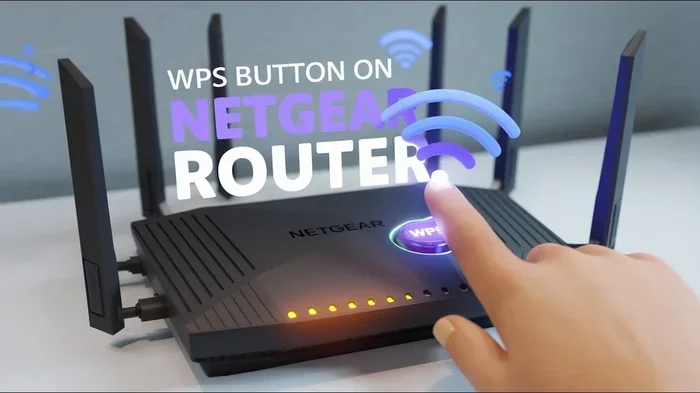
Does the Netgear Ac1900 Wireless Router Have a WPS Button
The Netgear AC1900 wireless router does include a WPS button, making it easy to connect devices without typing a password. This router supports both the push button method and the PIN method for Wi-Fi Protected Setup. In this guide, we walk you through where the button is located, how to use it, and what to do if WPS is not working.
Setting up a new router can feel overwhelming. There are cables to plug in, passwords to create, and settings to configure. One feature that makes this process much easier is Wi-Fi Protected Setup, commonly known as WPS. If you own or are considering the Netgear AC1900 wireless router, you might be wondering whether this device has a WPS button. The short answer is yes. But there is more to know about how it works, how to use it, and when you should avoid it.
This guide covers everything you need to know about the Netgear AC1900 WPS button. We will walk you through the physical location of the button, explain both pairing methods, and share troubleshooting tips when things do not go as planned. Whether you are a complete beginner or someone who just needs a quick refresher, this article has you covered.
The Netgear AC1900 is a popular dual band router that delivers solid wireless speeds for homes and small offices. It supports both 2.4 GHz and 5 GHz frequency bands, which means you can connect multiple devices without slowing down your network. Along with its strong performance, the router includes several user-friendly features, and WPS is one of the most convenient ones. Instead of typing a long Wi-Fi password, you can simply press a button or enter a short PIN to connect.
Key Takeaways
- The Netgear AC1900 has a physical WPS button located on the back or side panel of the router.
- WPS offers two connection methods: the push button method and the PIN method for pairing devices.
- The WPS light on the router blinks during pairing and stays solid when a device is connected.
- WPS can be disabled through the router admin panel for improved network security.
- Common WPS issues include the button not responding, connection timeouts, and interference from other devices.
- WPS is convenient but less secure than entering your Wi-Fi password manually, so use it wisely.
📑 Table of Contents
What Is WPS and Why Does It Matter?
Understanding Wi-Fi Protected Setup
Wi-Fi Protected Setup is a network security standard that simplifies the process of connecting devices to a wireless network. It was designed to make setup faster and easier, especially for people who are not tech-savvy. Instead of navigating through complex router settings, WPS lets you connect with the push of a button or a short PIN code.
The WPS standard was introduced by the Wi-Fi Alliance in 2006. It works with most modern wireless devices, including smartphones, laptops, tablets, printers, and smart home gadgets. The idea behind WPS is simple: reduce the friction of connecting to a new network. This is especially helpful when you have guests who need quick access to your wireless connection.
However, WPS is not without its drawbacks. Security researchers have identified vulnerabilities in the PIN method, which is why many experts recommend disabling WPS when it is not in active use. Despite this, the push button method remains a safe and convenient option for most home networks.
How WPS Works on the Netgear AC1900
On the Netgear AC1900, WPS operates in two modes. The first is the push button configuration, which is the most common and secure method. You simply press the WPS button on the router and then press the WPS button or initiate the pairing process on your device. The router and the device exchange information automatically and establish a connection within a few minutes.
The second mode is the PIN method. In this method, you enter an eight-digit PIN that is either displayed on the router or generated by your device. The router then grants network access based on that PIN. While this method is convenient, it is considered less secure than the push button method because the PIN can be vulnerable to brute-force attacks.
Where Is the WPS Button on the Netgear AC1900?
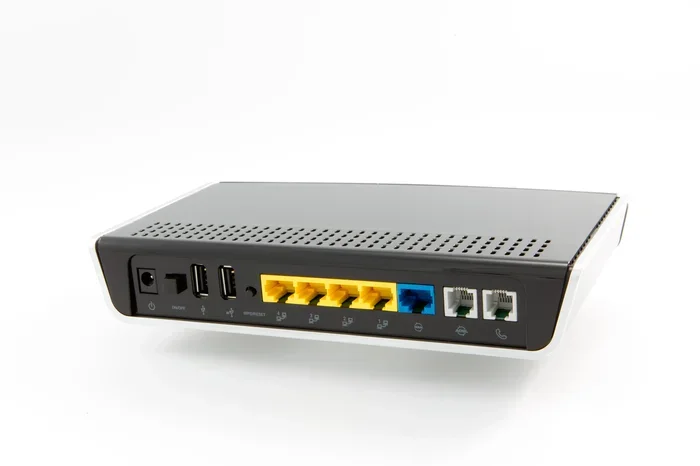
Finding the WPS button on the Netgear AC1900 is straightforward. The button is located on the back panel of the router, near the Ethernet ports. It is usually clearly labeled with the letters “WPS” and has a distinct color, often blue or yellow, to make it easy to identify. The WPS indicator light is right next to the button, and it gives you visual feedback about the connection status.
Here is how to read the WPS light on your Netgear AC1900:
- Solid green: A device is successfully connected via WPS.
- Blinking green: The router is waiting for a device to connect. This is the active pairing mode.
- Solid amber: WPS has failed or the connection timed out. You may need to try again.
- Off: WPS is disabled or not in use.
If you cannot find the button, check the bottom or side of the router for a small, recessed button. Some models place it next to the reset button, so be careful not to press the wrong one. The reset button is usually smaller and requires a pin or paperclip to press, while the WPS button is larger and easier to access.
How to Use the WPS Button on the Netgear AC1900
Using the WPS button on your Netgear AC1900 is quick and simple. Follow these steps to connect a new device to your wireless network.
Method 1: Push Button Configuration
This is the most common and secure way to connect a device using WPS. Here is how to do it:
- Make sure your Netgear AC1900 is powered on and connected to your modem.
- Locate the WPS button on the back of the router.
- Press the WPS button once. The WPS light will start blinking green.
- On your device, go to the Wi-Fi settings and select the WPS or push-to-connect option.
- Wait for the device to connect. The WPS light will turn solid green when the connection is successful.
The entire process usually takes less than two minutes. Once connected, your device will have full access to the internet without needing to enter a password. This method works with most smartphones, tablets, laptops, and smart home devices that support WPS pairing.
Method 2: PIN Method
If your device does not have a physical WPS button, you can use the PIN method instead:
- Log in to your Netgear router admin panel by typing the router IP address into your browser.
- Navigate to the WPS settings section.
- Select the PIN method and note the eight-digit PIN displayed on the screen.
- On your device, choose the WPS PIN option and enter the PIN when prompted.
- The router will authenticate the PIN and establish the connection.
The PIN method is useful for devices like printers or smart TVs that do not have a physical WPS button. However, as mentioned earlier, this method is less secure than the push button method. Use it only when necessary and make sure your network security settings are otherwise strong.
Common WPS Issues and How to Fix Them
While WPS is designed to be simple, it does not always work perfectly. Here are some common problems you might encounter with the Netgear AC1900 and how to resolve them.
WPS Button Does Not Respond
If pressing the WPS button does nothing, try these steps:
- Make sure the router is fully powered on and all lights are normal.
- Check that WPS is enabled in the router admin settings.
- Wait at least two minutes after pressing the button before trying to connect your device.
- Restart the router by unplugging it, waiting 30 seconds, and plugging it back in.
Sometimes the WPS function can become temporarily unresponsive, especially after a firmware update or a power outage. A simple restart usually fixes the issue.
WPS Connection Times Out
WPS connections have a limited time window, usually about two minutes. If your device does not connect within that window, the process will fail. To fix this:
- Press the WPS button on the router first, then quickly go to your device.
- Make sure you are within range of the router’s wireless signal.
- Reduce interference by moving closer to the router.
- If you live in a densely populated area, Wi-Fi signal interference from neighboring networks can cause timeouts. Consider changing your Wi-Fi channel in the router settings.
WPS Keeps Failing Repeatedly
If the WPS connection fails multiple times, there may be a deeper issue. Try the following:
- Update your Netgear router firmware to the latest version.
- Disable WPS temporarily, wait a few minutes, and then re-enable it.
- Check if your device supports WPS. Some older devices may not be compatible.
- Reset the router to factory settings and set up WPS from scratch.
In some cases, the WPS light may stay amber, indicating a persistent error. This could be a sign of a hardware issue or a firmware bug. Contacting Netgear support can help you diagnose the problem further.
Should You Keep WPS Enabled on Your Netgear AC1900?
This is a question many users ask, and the answer depends on your security needs. WPS is incredibly convenient for everyday use, especially when you have guests or need to connect multiple devices quickly. However, it does introduce a potential security risk, particularly through the PIN method.
Here is a quick comparison of the two WPS methods in terms of security and convenience:
- Push Button Method: Highly convenient and relatively secure. The connection is established locally and cannot be intercepted remotely.
- PIN Method: Very convenient for devices without a physical button, but vulnerable to brute-force attacks. A determined attacker could potentially guess the eight-digit PIN and gain access to your network.
For most home users, keeping WPS enabled with the push button method is perfectly fine. If you are concerned about security, you can disable the PIN method in your router settings while keeping the push button function active. You can also completely disable WPS if you prefer to enter your Wi-Fi password manually for every device.
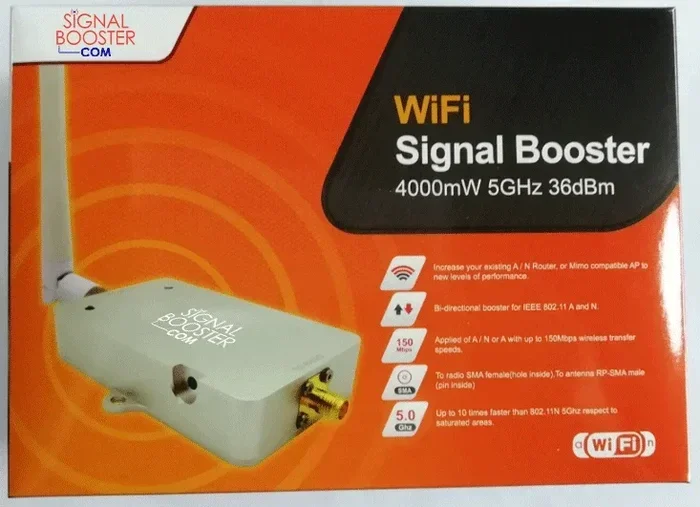
It is also worth noting that if you are experiencing Wi-Fi signal problems, WPS is not the solution. Issues like slow speeds, dropped connections, or dead zones are better addressed by repositioning your router, updating firmware, or adding a Wi-Fi extender to boost coverage throughout your home.
Tips for Getting the Most Out of Your Netgear AC1900
The Netgear AC1900 is a capable router, but like any piece of networking equipment, it works best when set up correctly. Here are some tips to help you get the most out of your router:
- Place your router in a central location in your home for the best wireless coverage.
- Keep the firmware updated to ensure you have the latest security patches and performance improvements.
- Use the 5 GHz band for devices that need high speeds, such as streaming boxes and gaming consoles.
- Use the 2.4 GHz band for devices that are farther away from the router, as this band has better range.
- Change the default admin password to protect your router settings from unauthorized access.
- Consider a mesh Wi-Fi system if your home is large and a single router cannot cover all areas effectively.
Taking a few extra minutes to optimize your router settings can make a huge difference in your daily internet experience. A well-configured Netgear AC1900 can deliver reliable, fast wireless speeds for years to come.
Final Thoughts
The Netgear AC1900 is a solid wireless router that comes with a WPS button for easy device pairing. Whether you use the push button method or the PIN method, WPS makes connecting to your network faster and more convenient. Just remember to use it wisely, keep your network secure, and disable WPS when you do not need it.
If you run into any issues with your Netgear router, the troubleshooting tips in this guide should help you get things back on track. And if you are looking to improve your overall wireless setup, consider exploring options like a Wi-Fi booster or Wi-Fi extender to expand your coverage. With the right setup, your Netgear AC1900 can deliver a strong, reliable internet connection for your entire household.
For more tips on managing your home network and getting the most from your equipment, check out our guides on getting a Wi-Fi extension for your network, choosing the right Wi-Fi booster, and how humidity affects your Wi-Fi signal for maintaining optimal performance.
Frequently Asked Questions
Does the Netgear AC1900 have a physical WPS button?
Yes, the Netgear AC1900 has a physical WPS button located on the back panel of the router, near the Ethernet ports. It is labeled “WPS” and has a corresponding indicator light that shows the connection status.
Can I use WPS to connect a smart TV to the Netgear AC1900?
Yes, most smart TVs support WPS. Simply press the WPS button on the router and then select the WPS option on your TV’s network settings. The connection should establish within a minute or two.
Is WPS secure on the Netgear AC1900?
The push button method is generally secure for home use. However, the PIN method has known vulnerabilities. For the best security, use the push button method and consider disabling WPS entirely when you are not actively connecting new devices.
What should I do if the WPS light on my Netgear AC1900 stays amber?
A solid amber WPS light usually means the connection has failed or timed out. Try restarting the router, ensuring your device is within range, and pressing the WPS button again. If the issue persists, check your router firmware for updates.
Can I disable WPS on the Netgear AC1900?
Yes, you can disable WPS by logging into your router’s admin panel, navigating to the wireless settings, and turning off the WPS feature. This is recommended if you want to use only manual password-based connections for added security.
How many devices can I connect using WPS on the Netgear AC1900?
The Netgear AC1900 supports multiple WPS connections, but the exact number depends on your router’s settings and the number of devices already connected to your network. Most routers allow up to 10 WPS-paired devices at a time.
=== CONCLUSION ===
The Netgear AC1900 wireless router includes a WPS button that makes connecting devices quick and easy. Whether you prefer the push button method or the PIN method, Wi-Fi Protected Setup saves you from typing long passwords every time you add a new device to your network. Just remember to use WPS responsibly, keep your router firmware updated, and disable it when it is not needed for the best balance of convenience and security.