How Do I Change My Comcast Wi Fi Password Step By Step
Changing your Comcast Wi Fi Password is simple and essential for keeping your home network safe. This guide walks you through every step, from logging into your router to setting a strong new password. You will also learn tips for maintaining network security and avoiding common mistakes.
Your Comcast Wi Fi Password is the key to your home internet. It keeps strangers out and your data safe. Over time, you might need to change it. Maybe you forgot it. Maybe you shared it with too many people. Or maybe you just want to boost your network security. Whatever the reason, this guide shows you exactly how to do it.
Changing a Comcast wifi password is not hard. You do not need to be a tech expert. With a few simple steps, you can update your wireless network password in minutes. This article covers everything from finding your router login details to reconnecting all your devices. We also share tips for creating a strong password and fixing common problems.
Let us walk through the process together. By the end, you will feel confident and ready to secure your home network. No guesswork. No confusion. Just clear, practical steps that work every time.
Key Takeaways
- Easy Access: You can change your Comcast Wi Fi Password through the router admin panel or the Xfinity app.
- Step by Step: The process takes just a few minutes and requires your router login details.
- Strong Passwords Matter: A strong password protects your network from unauthorized access.
- Update All Devices: After changing the password, reconnect all your devices to avoid service interruptions.
- Troubleshooting Helps: Knowing common fixes saves time when things go wrong after a password change.
📑 Table of Contents
- Understanding Your Comcast Router and Network Settings
- How to Find Your Comcast Router Login Details
- Step By Step Guide to Changing Your Comcast Wi Fi Password
- Tips for Creating a Strong New Password
- What to Do After You Change Your Password
- Common Mistakes to Avoid When Changing Your Password
- Troubleshooting Common Issues After a Password Change
- Expert Insights on Home Network Security
- Comparison: Router Admin Panel vs Xfinity App
- Frequently Asked Questions
- Conclusion
Understanding Your Comcast Router and Network Settings
Before you change anything, it helps to understand how your Comcast router works. Your router is the brain of your home network. It connects all your devices to the internet. It also manages your wireless network password and network name.
Comcast gateways often come preconfigured. They have a default username and password printed on a sticker. This sticker is usually on the back or bottom of the device. You will need this information to log in. If you have changed these details before and forgot them, you can reset the router to factory settings.
What Is a Gateway Device?
A gateway device is Comcast term for your combo modem and router. It handles both your internet connection and your wireless signal. Understanding this helps because you are not dealing with two separate devices. Everything lives in one box. This also means that changing your Comcast wifi password affects all devices connected to that single gateway.
Why Your Network Name Matters
Your network name, also called the SSID, is what you see when you search for wifi. You can change the SSID on your router if you want to. Some people like to personalize it. Others prefer to keep the default name. Either way, the SSID and your password work together to protect your connection.
How to Find Your Comcast Router Login Details
The first real step is finding your login information. Without this, you cannot access the settings panel. Here is where to look.
- Check the Sticker: Look at the back or bottom of your Comcast gateway. You will see a default username and password there.
- Check the Manual: If you still have the original box or guide, it lists the login details.
- Use the Xfinity App: The Xfinity xFi app lets you view and manage your network settings from your phone.
- Call Comcast Support: If nothing works, Comcast customer service can help you retrieve your login info.
Once you have your username and password, you are ready to move to the next step. Keep this information handy. You will need it again if you ever want to make more changes to your wireless network settings.
Step By Step Guide to Changing Your Comcast Wi Fi Password
This is the core section. Follow these steps carefully, and you will have a new password in no time.
Step 1: Connect to Your Network
First, make sure your computer or phone is connected to the Comcast network. You can use wifi or an ethernet cable for a more stable connection. An ethernet cable is best because it keeps you connected even if you change the wifi password during the process.
Step 2: Open Your Browser
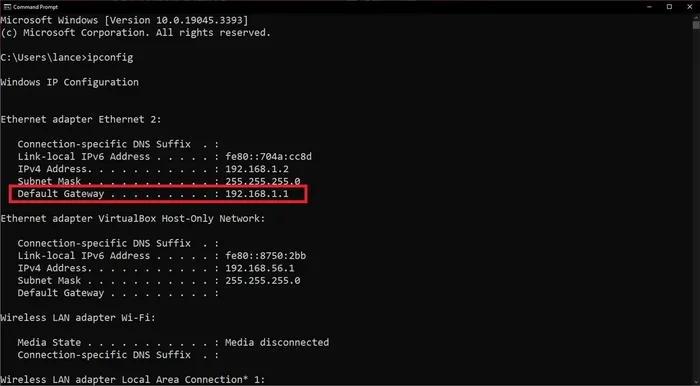
Open any web browser on your device. Chrome, Firefox, Safari, or Edge all work fine. In the address bar, type in your router IP address. For most Comcast gateways, this is 10.0.0.1 or 192.168.1.1. Press Enter.
Step 3: Log In to the Admin Panel
You will see a login page. Enter the username and password you found earlier. If you never changed them, use the default credentials from the sticker. Once logged in, you are inside the router admin panel.
Step 4: Navigate to Wireless Settings
Look for a section called “Wireless,” “Wifi Settings,” or “Network Settings.” The exact name varies by model. Click on it. You should see options for your network name and password.
Step 5: Enter Your New Password
Find the field labeled “Password,” “Passphrase,” or “Security Key.” Delete the old one and type in your new password. Make sure it is strong. We will cover this in detail shortly.
Step 6: Save Your Changes
Click “Save” or “Apply.” Your router will take a moment to update. Do not turn anything off during this time. Once it is done, your new Comcast wifi password is active.
Tips for Creating a Strong New Password
A weak password defeats the whole purpose. You want something that keeps hackers out but is still easy enough for you to remember. Here are some tips.
- Use at least 12 characters: Longer passwords are harder to crack.
- Mix it up: Combine uppercase letters, lowercase letters, numbers, and symbols.
- Avoid common words: Do not use “password123” or your street name.
- Use a passphrase: A short sentence like “BlueSky$Coffee2024!” is both strong and memorable.
- Do not reuse passwords: Use a unique password for your home network.
Your network security key is only as strong as the password you choose. Take a few extra minutes to make it count. A little effort now saves a lot of headaches later.
Quick Tips for Password Strength
Here are a few quick habits that make a big difference:
- Change your password every 6 to 12 months.
- Never share your password on social media.
- Use a password manager to store it safely.
- Turn on WPA2 or WPA3 encryption in your router settings.
- Disable WPS if you do not use it.
These small actions add up. They keep your home network safe and your data private.
What to Do After You Change Your Password
Changing the password is only half the job. You need to reconnect all your devices. Here is what to do next.
Reconnect Your Devices
Go to each device and forget the old network. Then search for your network name and enter the new password. This includes your phone, laptop, tablet, smart TV, and any smart home devices.
If you use an android phone, you can check your saved wifi passwords in your settings. If you use an iPhone, you can view saved wifi passwords through your Apple ID settings. This helps you verify which devices need to be reconnected.
Update Your Network Name If Needed
While you are in the settings, you might want to update your network name too. A custom name makes it easier to identify your network among others in your area. Just keep in mind that changing the SSID means you will need to reconnect all devices again. If you want more details on this, you can learn how to change the SSID on your router for additional guidance.
Check Your Signal Strength
After reconnecting, walk around your home. Check the wifi signal in different rooms. If the signal is weak in some areas, you might want to look into ways to boost it. Sometimes a simple repositioning of the router helps a lot.
If you find that your wifi does not reach certain parts of your home, you may want to explore options for extending your coverage. You can learn more about getting an extension on your wifi to improve signal reach throughout your space.
Common Mistakes to Avoid When Changing Your Password
Even simple tasks can go wrong. Here are the most common mistakes people make when changing their Comcast wifi password.
- Forgetting the new password: Write it down in a safe place or use a password manager.
- Using a weak password: Simple passwords are easy targets for hackers.
- Not saving changes: Always click Save or Apply after editing settings.
- Disconnecting during the process: This can reset your settings and cause frustration.
- Ignoring encryption settings: Make sure WPA2 or WPA3 is turned on for the best security.
- Not updating all devices: One missed device can cause connectivity issues and confusion.
Avoiding these mistakes keeps the process smooth and your network secure. A little attention to detail goes a long way.
Troubleshooting Common Issues After a Password Change
Sometimes things do not go perfectly. Here are a few common issues and how to fix them.
Devices Will Not Connect
If a device refuses to connect, double check the password. Even one wrong character causes a failure. Also make sure you are selecting the correct network name. Sometimes devices save old network info and need to be told to forget it first.
Internet Is Slow After the Change
A password change should not affect speed. If your connection feels slow, try restarting your gateway. Unplug it for 30 seconds, then plug it back in. This refreshes your internet connection and often fixes temporary slowdowns.
You Cannot Log Into the Admin Panel
If the router login page will not load, check your connection. Make sure you are on the Comcast network. Try a different browser. You can also try resetting the router to factory settings as a last resort. Just know this erases all custom settings.
Forgot the New Password
If you forgot the new password, you have two options. You can reset the router to factory defaults, which restores the original password. Or you can check saved passwords on a device that is still connected. On most phones and computers, you can view saved wifi passwords in your network settings.
Expert Insights on Home Network Security
Changing your password regularly is one of the best habits you can build. Cybersecurity experts recommend treating your home network like you would your front door. You would not leave it unlocked, right? The same logic applies here.
Network security goes beyond just the password. Keep your router firmware updated. Disable remote management unless you need it. Use a guest network for visitors. These extra steps create layers of protection that keep your data and devices safe.
Also, consider the devices connected to your network. Smart cameras, baby monitors, and smart speakers all access your wifi. Each one is a potential entry point. The stronger your wireless network password, the safer everything is.
Comparison: Router Admin Panel vs Xfinity App
You can change your Comcast wifi password in two main ways. Here is a quick comparison to help you choose.
| Method | Pros | Cons |
|---|---|---|
| Router Admin Panel | Full control over all settings, works with any device | Requires IP address and login details, slightly more technical |
| Xfinity App | User friendly, no login details needed, mobile access | Limited settings, requires Xfinity account |
Both methods get the job done. The admin panel gives you more options. The Xfinity app is faster and easier for most people. Choose the one that fits your comfort level.
After changing your password, you may want to check if your wifi signal is strong enough throughout your home. If not, you can explore ways to boost your connection and keep every room connected.
Frequently Asked Questions
How do I find my current Comcast Wi Fi password?
You can find your current password on the sticker on your Comcast gateway. It is often labeled “Password” or “Key.” You can also check saved passwords on any device already connected to the network. On an Android phone, go to Settings, then Wifi, and look for your saved network details.
Can I change my Comcast Wi Fi password without logging into the router?
Yes, you can use the Xfinity xFi app to change your password without accessing the router admin panel. The app provides a simple interface that walks you through the process. You just need to sign in with your Xfinity account and follow the on screen steps.
What should I do if I forget my new Comcast Wi Fi password?
If you forget your new password, you can reset your Comcast gateway to factory settings. This restores the default password found on the sticker. Alternatively, check your saved passwords on a device that is still connected to the network. Writing your new password down in a safe place helps prevent this issue.
How often should I change my Comcast Wi Fi password?
Experts recommend changing your password every 6 to 12 months. You should also change it if you suspect someone unauthorized is using your network. Regular updates keep your network security strong and reduce the risk of unauthorized access.
Will changing my Wi Fi password disconnect all my devices?
Yes, changing the password will disconnect all devices. You will need to reconnect each one using the new password. This includes phones, laptops, smart TVs, and any other wifi enabled device in your home.
Can I see the Wi Fi password on my phone after I change it?
Yes, you can view the saved wifi password on your phone after you change it. On most Android phones, go to Settings, then Wifi, and tap on your saved network to view the password. On iPhone, you can view saved wifi passwords through your iCloud Keychain or Settings if your device is running a newer version of iOS.
Conclusion
Changing your Comcast Wi Fi Password is a simple but powerful way to protect your home network. You now know how to find your login details, navigate the admin panel, and set a strong new password. You also know how to reconnect your devices and fix common issues.
Take a few minutes today to update your password. It is one of the easiest things you can do for your network security. And once you do it, you will feel more confident knowing your internet is safe and secure.
Share this guide with family and friends who might need help too. A little knowledge goes a long way. Stay safe, stay connected, and enjoy your refreshed Comcast wifi password with peace of mind.