How Can I Tell If My Xfinity Router Is Bad For Sure
A failing Xfinity router shows obvious warning signs like blinking lights, slow speeds, and constant disconnections. Knowing these symptoms early can save you from frustrating internet downtime and unnecessary replacement costs. This guide walks you through every way to diagnose whether your Xfinity router is truly bad or just needs a simple fix.
Your Xfinity router is the gateway to everything you do online. When it starts acting up, your whole household feels the impact. Slow streaming, dropped video calls, and pages that never load can all point back to one device sitting quietly in the corner of your room.
But here is the tricky part. Not every problem means your router is bad. Sometimes a simple restart fixes everything. Other times, the hardware is genuinely failing and needs replacement. This guide will help you figure out exactly what is going on with your Xfinity router so you do not waste money replacing something that just needs a tweak.
We will cover every sign of a bad router, from warning lights to connectivity issues. You will learn how to run diagnostics, when to reset, and how to tell if the problem is your Xfinity modem or the router itself. By the end, you will know for sure whether your router needs repair or replacement.
Key Takeaways
- Check the router lights: Unusual blinking patterns or solid red lights often signal a failing Xfinity router.
- Run speed tests: If your internet speed drops significantly below your plan, the router may be the culprit.
- Look for overheating: A hot router that shuts down randomly is a clear sign of hardware failure.
- Try a factory reset: Before replacing your router, a reset can often resolve software glitches and restore normal function.
- Check Xfinity service status: Sometimes the problem is not your router but a network outage in your area.
- Age matters: Routers older than 4-5 years may need replacement even if they still work.
- Contact Xfinity support: When in doubt, Xfinity customer service can run remote diagnostics to confirm router health.
📑 Table of Contents
Common Signs Your Xfinity Router Is Going Bad
Your router gives you clues before it completely dies. The key is knowing what those clues mean. Most people ignore the early warning signs and then wonder why their internet stops working entirely.
Frequent Disconnections
If your Wi-Fi signal drops multiple times a day, that is not normal. A healthy Xfinity router maintains a steady connection. When you find yourself reconnecting your phone, laptop, or smart TV several times a day, the router is struggling. This is one of the most common signs of a failing unit.
Pay attention to when the disconnections happen. Do they happen at the same time every day? Do they happen when multiple devices are connected? Pattern recognition helps you narrow down the cause.
Slow Internet Speeds
A slow internet connection does not always mean your router is bad. But if you are paying for gigabit speeds and getting dial-up performance, something is wrong. Run a speed test on Xfinity speed test tools or use a third-party site like Speedtest.net.
Compare the results to your plan. If your speeds are consistently 50% or more below what you pay for, the router could be the bottleneck. This is especially true if you have tried connecting directly via ethernet connection and still see slow speeds.
Unusual Router Lights
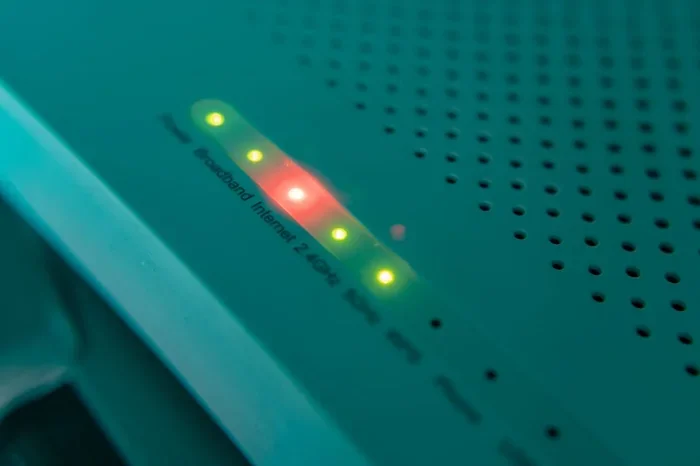
The lights on your Xfinity xFi gateway tell a story. A solid white or green light means everything is working. A blinking blue light means it is trying to connect. But certain light patterns are red flags.
- Solid red light: This usually means a serious hardware failure.
- Blinking orange light: Often indicates a firmware issue or connectivity problem.
- No lights at all: The router may be completely dead or not receiving power.
- Blinking white light that never stops: The router is stuck in a boot loop.
If your lights look anything other than steady white or green, take note. These router lights are your first line of defense in diagnosing problems.
Overheating
Routers generate heat. That is normal. But if your Xfinity router is too hot to touch, or if it shuts down unexpectedly and feels burning hot, that is a problem. Overheating can cause long-term damage to the internal components.
Check the vents on your router. Are they blocked by furniture or papers? Is the router sitting in a closed cabinet? Poor ventilation accelerates overheating and shortens the lifespan of your device.
Random Reboots
A router that reboots on its own is not normal. Occasional reboots after a firmware update are fine. But if your router restarts several times a day without any reason, the hardware is likely failing. Random reboots are a classic sign of a dying power supply or motherboard.
How to Diagnose Your Xfinity Router Step by Step
Do not jump to conclusions. Before you decide your router is bad, go through these diagnostic steps carefully. Many people skip straight to buying a new router when a simple fix would have worked.
Step 1: Check for Xfinity Network Outages
Before you blame your router, check if there is a network outage in your area. Xfinity sometimes has service disruptions that affect thousands of customers at once. Visit the Xfinity service status page or use the Xfinity xFi app to check for reported outages.
If there is an outage, your router is fine. You just need to wait for Xfinity to restore service. This happens more often than people think, and it saves a lot of unnecessary troubleshooting.
Step 2: Restart Your Router
This sounds basic, but it works. Unplug your Xfinity router from the power outlet. Wait 30 seconds. Plug it back in. Wait for all the lights to stabilize. This clears the router’s temporary memory and often fixes minor software glitches.
If a simple restart fixes your problem, your router is probably not bad. It just needed a fresh start. If the problem comes back within hours or days, you have a bigger issue.
Step 3: Check All Cables
Loose cables cause more router problems than people realize. Check the coaxial cable, the ethernet cable, and the power adapter. Make sure each connection is snug and secure. A cable that is barely making contact can cause intermittent connectivity issues that look like a bad router.
Try swapping the ethernet cable if you have a spare. Sometimes the cable itself is the problem, not the router.
Step 4: Run a Factory Reset
If restarting does not help, try a factory reset. This restores your router to its original settings. You will need to set up your Wi-Fi password and network name again, so make sure you know those details before you proceed.
To factory reset, press and hold the reset button on the back of your router for about 10 seconds. Wait for the lights to flash. The process takes a few minutes. After the reset, check if your internet connection improves.
Warning: A factory reset does not fix hardware problems. If your router is physically damaged, a reset will not help. But it can resolve many software-related issues that mimic a bad router.
Step 5: Test with Another Device
Sometimes the problem is not the router but a specific device. Try connecting a different phone, laptop, or tablet to your Xfinity Wi-Fi. If multiple devices all have the same problem, the router is likely the issue. If only one device has trouble, the problem is with that device.
Step 6: Check the Xfinity xFi App
The Xfinity xFi app gives you detailed information about your network. It shows connected devices, signal strength, and potential issues. Use the app to run a network diagnostic. The app can often identify whether the problem is with your router, modem, or the broader Xfinity network.
When to Replace Your Xfinity Router
Sometimes the router is genuinely bad and cannot be fixed. Knowing when to replace it saves you time and frustration. Here are the clear indicators that replacement is the right move.
The Router Is Over 4 Years Old
Technology moves fast. Routers that are 4 to 5 years old are significantly slower than modern standards. If your Xfinity router is older than that, it may not support newer Wi-Fi standards or handle the number of devices in your home.
Even if it still works, an outdated router limits your internet speed and Wi-Fi signal range. Upgrading to a newer model can dramatically improve your home network experience.
Physical Damage Is Visible
Check your router for any visible damage. Cracked casing, bent ports, or burn marks are all signs of physical damage. If your router has been dropped, exposed to water, or hit by a surge, internal components may be compromised.
Do not use a router with visible physical damage. It is a fire hazard and a safety risk. Replace it immediately.
Constant Problems After Troubleshooting
If you have tried restarting, resetting, checking cables, and testing multiple devices, and nothing works, the router is likely bad. Persistent problems after thorough troubleshooting point to a hardware failure that no software fix can address.
Xfinity Recommends Replacement
If you contact Xfinity support and they confirm your router is faulty, take their advice. Xfinity technicians can run remote diagnostics that go beyond what you can do on your own. If they say the router needs replacement, it probably does.
Also, check if your router is still under warranty. Many Xfinity xFi gateways come with a one-year warranty. If your router is within that period, Xfinity will replace it for free.
Xfinity Router vs. Third-Party Routers
Some Xfinity customers wonder if switching to a third-party router would solve their problems. This is a valid consideration, especially if you have been dealing with a bad Xfinity router for a while.
Third-party routers from brands like Netgear, ASUS, and TP-Link often offer better range, faster speeds, and more features. However, you need to make sure the third-party router is compatible with Xfinity’s network. You may need to put your Xfinity modem into bridge mode to use a separate router.
Before making the switch, consider the cost. Xfinity charges a monthly rental fee for their equipment. Over a few years, a third-party router can pay for itself. But if you are still under warranty, replacing the Xfinity unit first is the smarter move.
If you are dealing with connectivity issues at home, you might also check whether you can get Wi-Fi without a router using alternative setups. Understanding your options helps you make the best decision for your home network.
How to Prevent Future Router Problems
Once you have your router working properly again, take steps to keep it healthy. Prevention is always easier than troubleshooting.
- Keep it in a ventilated space: Do not bury your router in a closet or behind furniture. Airflow keeps it cool and prevents overheating.
- Update the firmware regularly: Xfinity pushes firmware updates automatically. Make sure your router is running the latest version for the best performance and security.
- Restart your router monthly: A monthly restart clears temporary data and keeps things running smoothly.
- Use a surge protector: Power surges can fry your router. Plugging it into a surge protector adds a layer of protection.
- Monitor connected devices: Too many devices on one router can slow it down. Use the Xfinity xFi app to see what is connected and remove unknown devices.
- Check for network outages regularly: Stay informed about Xfinity service issues in your area so you can respond quickly.
If you ever need to check your connectivity while traveling, you can learn how to connect to Xfinity Wi-Fi away from home to stay online outside your house.
When to Call Xfinity Support
Some problems are beyond DIY fixes. If you have tried everything in this guide and your Xfinity router still shows signs of failure, it is time to call Xfinity customer service. Do not wait until the router completely stops working.
Have your account information ready. Note down the specific problems you have been experiencing, including when they happen and how often. The more details you provide, the faster the support team can diagnose the issue.
Xfinity support can run remote diagnostics, check your modem and router status from their end, and arrange a replacement if needed. They can also check if there are any known internet outages or maintenance activities affecting your area.
If your router is confirmed as defective and you are outside the warranty period, Xfinity can offer you a replacement unit, often for a monthly fee. Compare this cost against buying your own compatible router to find the best option for your budget.
For broader networking questions, you might also explore whether a network switch can go bad, since similar symptoms can affect multiple pieces of networking equipment.
Key Takeaways
- Watch the lights: Unusual router lights like solid red or constant blinking orange are clear warning signs.
- Run speed tests: Slow speeds well below your plan may mean your Xfinity router is failing.
- Check for overheating: A router that shuts down due to heat has a serious hardware problem.
- Try restarting and resetting first: Many issues are software-related and easily fixed without replacement.
- Rule out outages: Always check for Xfinity network outages before assuming your router is bad.
- Replace when needed: Routers older than 4-5 years or with visible damage should be replaced.
- Contact Xfinity support: Professional diagnostics can confirm whether your router truly needs replacement.
Frequently Asked Questions
How do I know if my Xfinity router is bad or if it is just a service outage?
Check the Xfinity service status page or the Xfinity xFi app for reported outages in your area. If there is no outage and multiple devices are still showing connectivity issues, the router is likely the problem. A simple restart can also help you rule out temporary glitches.
Can a bad Xfinity router damage other equipment?
Generally, a bad router will not damage other equipment. However, if the router is overheating or has a power surge issue, it could potentially affect connected devices. Always unplug a router that is hot to the touch or emitting a burning smell immediately.
How often should I replace my Xfinity router?
Most experts recommend replacing your Xfinity router every 4 to 5 years. Technology evolves quickly, and older routers struggle to keep up with modern internet speed demands and newer Wi-Fi standards. If you are experiencing frequent problems, it may be time for an upgrade even if the router is not yet 4 years old.
Is it cheaper to buy my own router instead of renting from Xfinity?
Yes, over time it is usually cheaper. Xfinity charges a monthly rental fee of around $14 to $15 for their equipment. A good third-party router costs $100 to $200 upfront, which pays for itself within 7 to 14 months. Just make sure the router is compatible with Xfinity’s network before purchasing.
What is the difference between my Xfinity modem and my Xfinity router?
The modem connects to Xfinity’s network and brings the internet into your home. The router takes that internet connection and distributes it to your devices via Wi-Fi or ethernet. Some Xfinity gateways combine both functions into one device. If you are having Wi-Fi signal problems, the router part is usually the source of the issue.
Will a factory reset fix a bad Xfinity router?
A factory reset can fix software-related issues like incorrect settings, firmware glitches, or configuration problems. However, it cannot fix physical hardware damage. If your router has a failing power supply, damaged ports, or a burned-out motherboard, a reset will not help and replacement is the only solution.
=== CONCLUSION ===
Figuring out if your Xfinity router is bad does not have to be complicated. Start with the simple stuff. Check the lights. Run a speed test. Restart the router. Rule out network outages. Most problems have straightforward solutions that do not require buying a new device.
But if you have gone through all the troubleshooting steps and your Xfinity router still shows warning signs, trust your instincts. A router that overheats, reboots randomly, or causes constant connectivity issues is telling you something. Replace it before it stops working entirely and leaves you without internet.
Take care of your router, keep it ventilated, and update its firmware regularly. These small habits go a long way in extending the life of your equipment. And when the time does come to replace your router, you will be prepared with the knowledge to make the right choice for your home and your budget.