Can You Use A Vga To Hdmi Cable For Your Setup Today
Yes, you can use a VGA to HDMI cable, but you need the right adapter or converter to make it work. VGA carries an older analog signal, while HDMI transmits digital audio and video through a single cable. This guide walks you through everything you need to know about making these two different connection types work together smoothly.
Let us be straight with you. If you have an older device with a VGA port and a newer monitor or TV with only HDMI inputs, you are not out of luck. You can absolutely use a VGA to HDMI cable or adapter to bridge the gap. But there are some important things you need to know before you buy anything. The process is not as simple as plugging one end into each device and calling it a day. There are signal differences, compatibility issues, and quality considerations that can make or break your setup.
This guide breaks down everything you need to know about using a VGA to HDMI connection in today’s world. We will cover how the signal conversion works, which adapters actually do the job, and what common mistakes to avoid. Whether you are setting up a projector for a presentation, connecting a legacy laptop to a modern TV, or building a retro gaming station, you will find the answers right here.
Key Takeaways
- You need an active adapter: A simple cable won’t convert analog VGA signals to digital HDMI signals on its own.
- Audio is not included: VGA carries no audio, so you will need a separate audio solution when using HDMI.
- Resolution may be limited: VGA maxes out at lower resolutions compared to modern HDMI standards.
- Active vs passive matters: Active adapters have built-in chips to handle the signal conversion, while passive ones do not.
- Check your OS compatibility: Different operating systems handle VGA to HDMI adapters differently, so always verify support.
- Signal quality can degrade: Longer cables or poor adapters can result in a blurry or flickering display.
📑 Table of Contents
- What Is a VGA to HDMI Cable and How Does It Work
- When You Need a VGA to HDMI Adapter
- Types of VGA to HDMI Adapters and Converters
- Step-by-Step Guide to Setting Up Your VGA to HDMI Connection
- Common Problems and How to Fix Them
- Quick Tips for the Best VGA to HDMI Experience
- Expert Insights on VGA to HDMI Compatibility
- Final Thoughts
What Is a VGA to HDMI Cable and How Does It Work
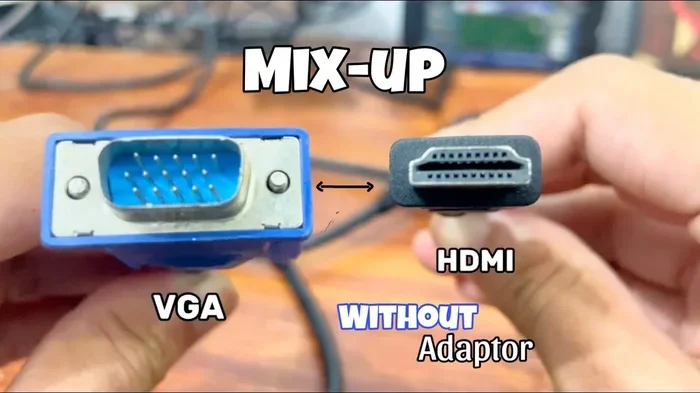
Before you rush out to buy anything, let us understand what we are actually dealing with. A VGA to HDMI adapter is not just a cable. It is a bridge between two completely different technologies. VGA stands for Video Graphics Array, and it has been around since the late 1980s. It sends an analog signal that carries only video, no audio at all.
HDMI stands for High-Definition Multimedia Interface. It came along in the early 2000s and changed the game. HDMI sends both high-definition video and audio through a single digital cable. So when you try to connect a VGA output to an HDMI input, you are asking two very different systems to talk to each other.
The Signal Conversion Process
Here is where things get interesting. A VGA port outputs an analog signal. That means the image is sent as continuous electrical waves. An HDMI port expects a digital signal, which is a series of ones and zeros. You cannot just connect them directly. You need a device that converts the analog waves into digital data.
That is exactly what a VGA to HDMI converter does. It takes the analog video signal from your VGA port, converts it into a digital format, and then sends it out through the HDMI cable to your display. Some converters also include a 3.5mm audio input so you can route sound through the HDMI connection too. Without this audio input, you will get video only, and that is a big deal if you are watching movies or giving a presentation with narration.
Why a Simple Cable Will Not Work
You might find products online that look like a simple cable with a VGA plug on one end and an HDMI plug on the other. These are almost always passive adapters, and they do not actually convert the signal. They just re-route the pins. In most cases, these will not work with modern displays. If you want a reliable setup, you need an active VGA to HDMI adapter with a built-in conversion chip.
Proprietary operating systems sometimes handle these adapters differently, so always check your system’s compatibility before purchasing. For business environments where display reliability matters, understanding how your electronic commerce communication infrastructure handles legacy connections can save you from unexpected downtime during critical presentations.
When You Need a VGA to HDMI Adapter
There are many real-world situations where you might need to connect a VGA device to an HDMI display. Let us walk through the most common scenarios so you can see if this applies to you.
Connecting an Older Laptop to a Modern TV
Do you have an old laptop that only has a VGA output? Maybe it is a workhorse from college or a hand-me-down from a family member. You want to stream movies or show slides on your big flat-screen TV, but your TV only has HDMI inputs. A VGA to HDMI adapter solves this problem. You plug the VGA end into your laptop, the HDMI end into your TV, and you are good to go.
Office Presentations and Conference Rooms
Many conference rooms still have projectors or displays with VGA inputs. But newer laptops, especially ultrabooks and tablets, have dropped the VGA port entirely. In these cases, employees or presenters need a VGA to HDMI converter to connect their modern devices to the legacy display equipment. This is especially common in corporate settings where display infrastructure was not recently upgraded.
For organizations that rely on consistent digital communication across distributed teams, having reliable legacy-to-modern adapters on hand ensures smooth operations. Having the right value-added network setup in your office can complement your physical connection solutions, ensuring that both your digital and display infrastructure work seamlessly together.
Retro Gaming Setups
Retro gaming enthusiasts love old consoles and computers that output VGA. Think about classic arcade machines, older PCs, or retro gaming rigs. These devices often only have VGA outputs. But modern TVs with HDMI inputs give you a much better picture and sound experience than old CRT monitors. A quality VGA to HDMI adapter lets you enjoy your favorite classic games on a big screen with digital clarity.
Types of VGA to HDMI Adapters and Converters
Not all adapters are created equal. There are different types, and knowing the difference can save you from buying the wrong product.
Active VGA to HDMI Converters
These are the ones you want. An active converter has a built-in chip that actually converts the analog VGA signal to a digital HDMI signal. Most active converters also have a USB power port because the conversion process requires extra energy. You plug the converter into a USB port or a power adapter, connect the VGA cable to your source device, and then run an HDMI cable from the converter to your display.
Active converters typically support resolutions up to 1080p or even 4K on some models. They also often include a 3.5mm audio jack so you can carry sound through the HDMI connection. These are the best choice for most users who want a reliable, high-quality setup.
Passive VGA to HDMI Adapters
A passive adapter is basically just a shape-shifter. It changes the physical connector shape but does not convert the signal. These are cheap, usually under fifteen dollars, but they rarely work with modern HDMI displays. They might work with some older TVs or monitors that still have analog inputs, but for most setups today, a passive adapter will not give you a picture.
VGA to HDMI Cables with Built-in Conversion
You will also find all-in-one cables that have conversion built right in. These look like a regular cable but contain the active conversion electronics inside the cable housing. They are convenient because there are no extra boxes or power adapters. However, they can be bulkier and sometimes the conversion quality is not as good as a dedicated standalone converter box.
| Type | Signal Conversion | Powers Itself? | Audio Support? | Price Range |
|---|---|---|---|---|
| Active Converter | Yes, analog to digital | USB or external power | Yes (3.5mm input) | $20 – $60 |
| Passive Adapter | No | No | No | $5 – $15 |
| All-in-One Cable | Yes, analog to digital | USB powered | Sometimes | $15 – $40 |
Step-by-Step Guide to Setting Up Your VGA to HDMI Connection
Setting up a VGA to HDMI connection is straightforward once you know the steps. Here is exactly what to do.
- Check your source device. Identify the VGA output on your laptop, PC, or other device. Make sure the port is clean and free of dust.
- Choose the right adapter. Pick an active VGA to HDMI converter with audio support if you need sound. Make sure it supports your desired resolution.
- Connect the VGA cable. Plug one end of your VGA cable into your source device and the other end into the VGA input on the converter.
- Connect the HDMI cable. Run an HDMI cable from the converter to your TV, monitor, or projector.
- Add audio if needed. If your converter has a 3.5mm audio input, plug in a short audio cable from your source device’s headphone jack to the converter.
- Power the converter. Plug the USB cable into a power source or a USB port on your source device.
- Switch your display input. On your TV or monitor, select the correct HDMI input channel.
- Adjust the resolution. Go into your display settings and set the output resolution to match your display’s native resolution for the best picture quality.
Common Problems and How to Fix Them
Even with the right gear, you might run into issues. Here are the most common problems and their solutions.
No Picture on the Display
This is the number one issue people run into. First, check that all cables are firmly connected. Next, make sure you have selected the correct HDMI input on your display. If you are using an active converter, verify that it is powered on. Try a different HDMI cable or a different HDMI port on your TV or monitor.
Flickering or Distorted Image
A flickering picture usually means a signal quality problem. Try shortening your VGA cable. Long VGA cables are notorious for signal degradation. Also, make sure your adapter is active and not passive. If the image still flickers, your converter might be faulty or incompatible with your source device.
No Sound Through HDMI
Remember, VGA carries no audio. If you are not getting sound, you need to connect an audio cable from your source device to the converter’s 3.5mm audio input. Then go into your display’s audio settings and make sure HDMI audio output is selected. Some systems default to VGA audio or no audio at all, so you may need to manually change the output device in your sound settings.
Low Resolution or Blurry Image
VGA was never designed for high-definition displays. If your image looks blurry, go into your display settings and lower the output resolution. A native 1080p display will look its best at 1920×1080. Forcing it higher than what your VGA source can handle will result in a soft or pixelated image.
Quick Tips for the Best VGA to HDMI Experience
- Buy an active converter. Do not waste money on passive adapters. They do not convert the signal and will not work with most modern displays.
- Keep VGA cables short. Under six feet is ideal. Longer cables lose signal quality and can cause flickering or a weak image.
- Use high-quality HDMI cables. A good HDMI cable ensures you get the best digital signal from the converter to your display.
- Check your operating system support. Some systems handle VGA-to-HDMI adapters better than others. Make sure your OS supports the adapter you are buying.
- Update your display drivers. Outdated graphics drivers can cause compatibility issues with any adapter or converter. Keep them up to date.
- Test before your big presentation. Always test your full setup well before the day you need it. Do not wait until the last minute to discover a problem.
Expert Insights on VGA to HDMI Compatibility
Technology experts agree that VGA to HDMI adapters are a practical solution for bridging old and new hardware. The key is understanding that VGA is an analog technology and HDMI is digital. The conversion process always involves some compromise. You will not get the same pristine quality as a native digital connection, but for most everyday uses, the difference is barely noticeable.
If you are using a proprietary operating system, double-check that your system recognizes the adapter as an external display output. Some specialized or older operating systems may need manual driver installation to support VGA-to-HDMI conversion properly. For enterprise environments managing multiple display setups, understanding how your electronic commerce communication infrastructure handles legacy inputs ensures that your presentation and digital signage systems remain reliable and professional.
One thing to keep in mind is that VGA technology is being phased out. Newer devices are dropping the VGA port in favor of DisplayPort, USB-C, or Thunderbolt connections. If you are buying a new device, try to go with a digital output option whenever possible. But if you have existing VGA equipment, adapters and converters remain a reliable and affordable way to keep those devices useful in a modern setup.
Final Thoughts
So, can you use a VGA to HDMI cable for your setup today? Absolutely yes. But you need the right gear. A simple cable will not cut it. You need an active converter or an all-in-one cable with built-in conversion capabilities. Once you have the right adapter, the setup process is simple and straightforward.
Remember to account for audio separately, keep your cables short for the best signal quality, and always test your setup before you need it in a real situation. Whether you are connecting an old laptop to a modern TV, setting up a conference room, or building a retro gaming station, a VGA to HDMI adapter opens up a world of possibilities.
The beauty of these adapters is their simplicity and affordability. You do not need to be a tech expert to make them work. With the right adapter and a few minutes of setup time, you can connect almost any VGA device to any HDMI display. So go ahead, give your older devices new life, and enjoy the big-screen experience without spending a fortune on new hardware.
Frequently Asked Questions
Can I plug a VGA cable directly into an HDMI port?
No, you cannot plug a VGA cable directly into an HDMI port. The connectors are physically different, and more importantly, VGA sends an analog signal while HDMI expects a digital signal. You need an active VGA to HDMI converter to bridge this gap and make the connection work properly.
Does a VGA to HDMI adapter carry audio?
A standard VGA to HDMI adapter does not carry audio through the VGA connection because VGA only supports video. However, many active converters include a 3.5mm audio input that lets you route sound from your source device through the HDMI output. Always check the product specs to confirm audio support.
What resolution can I expect from a VGA to HDMI connection?
Most active VGA to HDMI converters support up to 1080p resolution. Some higher-end models can handle 4K output, but the VGA source itself may limit the quality. VGA was designed for lower resolutions, so you may notice a softer image compared to a native digital connection.
Do I need to install drivers for a VGA to HDMI adapter?
Most VGA to HDMI adapters work plug-and-play and do not require driver installation. However, if you are using a proprietary operating system or an older system, you may need to install specific drivers. Always check the manufacturer’s website for the latest driver support.
Can I use a VGA to HDMI adapter for gaming?
Yes, you can use a VGA to HDMI adapter for gaming, but there are trade-offs. The analog-to-digital conversion can introduce slight latency or image quality loss. For casual gaming, this is usually not noticeable. For competitive or fast-paced gaming, a native digital connection will always perform better.
How much does a good VGA to HDMI adapter cost?
A quality active VGA to HDMI converter typically costs between $20 and $60. Passive adapters are cheaper at $5 to $15, but they rarely work with modern displays. Spending a bit more on an active converter ensures reliable signal conversion and better results.